Note
Access to this page requires authorization. You can try signing in or changing directories.
Access to this page requires authorization. You can try changing directories.
When a user shares a file or folder in Microsoft 365, they create a shareable link with permissions to the item. There are three primary link types:
- "Anyone" links
- "People in your organization" links
- "Specific people" links
It's important for everyone to understand how sharing links work and which ones to use to maintain data security. This article describes different types of sharing links and includes links to more resources.
"Anyone" links
Anyone links give access to the item to anyone who has the link. People using an Anyone link don't have to authenticate, and their access can't be audited.
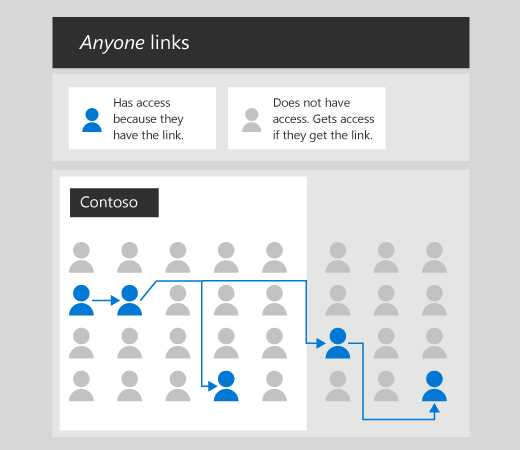
An Anyone link is a transferable, revocable secret key.
- It's transferable because it can be forwarded to others.
- It's revocable because you can revoke access for everyone who used the link by deleting it.
- It's secret because it can't be guessed or derived.
The only way to get access is to get the link, and the only way to get the link is for somebody to give it to you. Anyone links can't be used with files in a Microsoft Teams shared channel site.
Creating an Anyone link doesn't make the associated content appear in search results or make it accessible through Copilot. It also doesn't immediately grant access to the content to everyone. An Anyone link must be activated by clicking the link (redemption) before the shared content becomes searchable by the person who has the link.
"People in your organization" links
People in your organization links work for only people inside your Microsoft 365 organization. (They don't work for guests in the directory, only members).
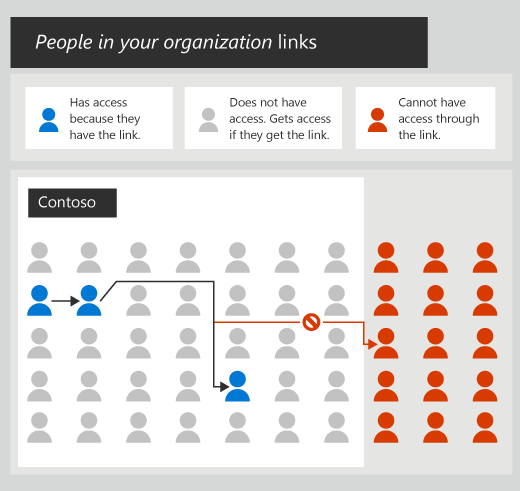
Like an anyone link, a People in my organization link is a transferable, revocable secret key. These links only work for people who are inside your Microsoft 365 organization. When somebody opens a People in my organization link, they need to be authenticated as a member in your directory. If they're not currently signed in, they're prompted to sign in.
Creating a People in your organization link doesn't make the associated file or folder appear in search results or make it accessible through Copilot. It also doesn't grant access to everyone within the organization. Creating this link doesn't provide organizational-wide access to the content. For individuals to access the file or folder, they must possess the link, and it needs to be activated through redemption (clicking it). A user redeems the link by selecting it.
If the link is sent from the SharePoint or OneDrive Web UI, or by using email in Outlook or a chat message in Microsoft Teams, it's automatically redeemed for individual recipients, up to a limit of 100. This feature isn't supported for group recipients, or for messages posted in Microsoft Teams channels. The link doesn't work for guests or other people outside your organization.
"Specific people" links
Specific people links only work for the people that users specify when they share the item.
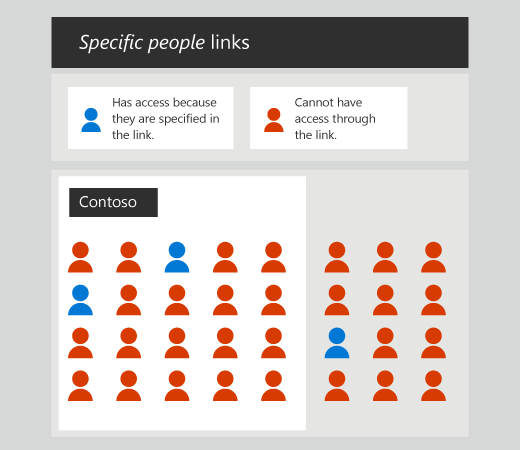
A Specific people link is a nontransferable, revocable secret key. Specific people links don't work if they're opened by anybody other than the persons who are specified by the sender. Moreover, Specific people links make the associated file or folder appear in search results and make it accessible through Copilot for all user and security group members who are added to the sharing link.
Specific people links can be used to share with users in the organization and people outside the organization. In both cases, the recipient needs to authenticate as the user specified in the link. For files in a Microsoft Teams shared channel site, Specific people links can only be sent to others in the channel.
Next steps
To manage or change sharing options, see the following articles:
- Manage sharing settings for SharePoint and OneDrive in Microsoft 365
- Change the default sharing link type for a site
To help end users understand sharing options, send these articles to them:
Make sure to include information about your organization's policies for sharing information.