Nota:
El acceso a esta página requiere autorización. Puede intentar iniciar sesión o cambiar directorios.
El acceso a esta página requiere autorización. Puede intentar cambiar los directorios.
Sending messages is a core part of an agent's functionality. With all activity handlers, a send method is provided which allows your handlers to send a message back to the user to the relevant conversation.
Note
SDK 2.1. In SDK 2.1, the per-turn context.Send, context.Reply, and context.Quote helpers work the same way. The main difference is streaming — see the tabbed examples below.
app.OnMessage(async (context, cancellationToken) =>
{
    await context.Send($"you said: {context.Activity.Text}", cancellationToken);
});
teams.OnMessage(async (context, cancellationToken) =>
{
    await context.SendAsync($"you said: {context.Activity.Text}", cancellationToken);
});
@app.on_message
async def handle_message(ctx: ActivityContext[MessageActivity]):
    await ctx.send(f"You said '{ctx.activity.text}'")
app.on('message', async ({ activity, send }) => {
  await send(`You said: ${activity.text}`);
});
In the above example, the handler gets a message activity, and uses the send method to send a reply to the user.
app.OnVerifyState(async (context, cancellationToken) =>
{
    await context.Send("You have successfully signed in!", cancellationToken);
});
You are not restricted to only replying to message activities. In the above example, the handler is listening to OnVerifyState events, which are sent when a user successfully signs in.
var flow = teams.GetOAuthFlow("graph");
flow.OnSignInComplete(async (context, tokenResponse, cancellationToken) =>
{
    await context.SendAsync("You have successfully signed in!", cancellationToken);
});
You are not restricted to only replying to message activities. In the above example, the handler is listening to OnSignInComplete events, which are sent when a user successfully signs in.
@app.event("sign_in")
async def handle_sign_in(event: SignInEvent):
    """Handle sign-in events."""
    await event.activity_ctx.send("You are now signed in!")
You are not restricted to only replying to message activities. In the above example, the handler is listening to sign_in events, which are sent when a user successfully signs in.
app.on('signin.verify-state', async ({ send }) => {
  await send('You have successfully signed in!');
});
You are not restricted to only replying to message activities. In the above example, the handler is listening to signin.verify-state events, which are sent when a user successfully signs in.
Tip
This shows an example of sending a text message. Additionally, you are able to send back things like adaptive cards by using the same send method. Look at the adaptive card section for more details.
Streaming
You may also stream messages to the user which can be useful for long messages, or AI generated messages. The SDK makes this simple for you by providing a stream function which you can use to send messages in chunks.
Streaming changes how the response arrives, not how fast your agent produces it. Text appears incrementally as it is generated, so the user sees progress rather than a blank screen, and you can show a thinking or status indicator before any real output exists. A streamed response is also stoppable: when the user stops it, the SDK surfaces the cancellation to your handler so you can abandon the remaining work. The gain is in perceived time to first output, which is why streaming suits long or model generated replies and adds little to a short one you could simply send.
app.OnMessage(async (context, cancellationToken) =>
{
    context.Stream.Emit("hello");
    context.Stream.Emit(", ");
    context.Stream.Emit("world!");
    // result message: "hello, world!"
    return Task.CompletedTask;
});
The 2.1 streams through a TeamsStreamingWriter. Create one from the turn context, push informative updates and response chunks, then finalize:
teams.OnMessage(async (context, cancellationToken) =>
{
    TeamsStreamingWriter writer = TeamsStreamingWriter.CreateFromContext(context);

    await writer.SendInformativeUpdateAsync("Thinking…", cancellationToken);

    await writer.AppendResponseAsync("hello", cancellationToken);
    await writer.AppendResponseAsync(", ", cancellationToken);
    await writer.AppendResponseAsync("world!", cancellationToken);

    // flush the accumulated text as the final message: "hello, world!"
    await writer.FinalizeResponseAsync(cancellationToken: cancellationToken);
});
@app.on_message
async def handle_message(ctx: ActivityContext[MessageActivity]):
    ctx.stream.update("Stream starting...")
    await asyncio.sleep(1)

    # Stream messages with delays using ctx.stream.emit
    for message in STREAM_MESSAGES:
        # Add some randomness to timing
        await asyncio.sleep(random())

        ctx.stream.emit(message)
app.on('message', async ({ activity, stream }) => {
  stream.emit('hello');
  stream.emit(', ');
  stream.emit('world!');

  // result message: "hello, world!"
});
Note
Streaming is currently only supported in 1:1 conversations, not group chats or channels. Teams also supports only one concurrent streaming response per chat at a time.
Every inbound activity gets its own stream, and the SDK closes that stream at the end of the turn. It does not serialize turns, though, and handlers can run concurrently, so a second activity can arrive while the first is still streaming. Streaming therefore brings message handling concurrency concerns that do not exist when you just send a reply, and resolving them may be implemented in your custom code by serializing turns per conversation or by finalizing the in-flight stream before starting the next one.
Chunk pacing and retries
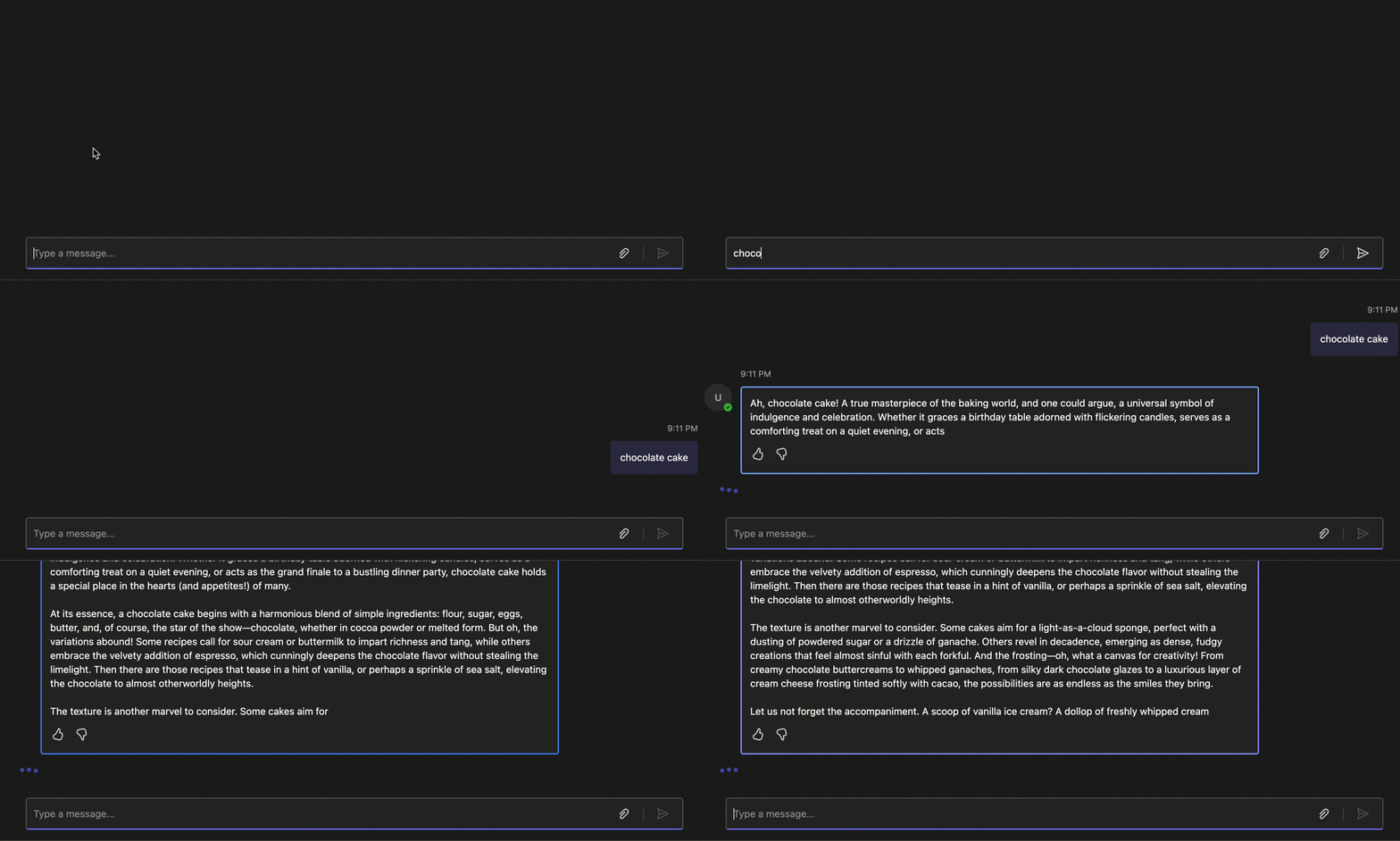
You do not need to throttle your own chunks. Rapid writer.AppendResponseAsync() calls are coalesced and spaced roughly 500 milliseconds apart, so a token-by-token loop becomes a couple of network calls per second rather than one call per token. Every streamed chunk carries the full text accumulated so far rather than just the newest delta, so collapsing several chunks into one send never loses content. Wrapping your own throttle or sleep around each chunk mostly slows the response down, since it would be pacing a path that is already paced.
You do not need to throttle your own chunks. Rapid ctx.stream.emit() calls are coalesced and spaced roughly 500 milliseconds apart, so a token-by-token loop becomes a couple of network calls per second rather than one call per token. Every streamed chunk carries the full text accumulated so far rather than just the newest delta, so collapsing several chunks into one send never loses content. Wrapping your own throttle or sleep around each chunk mostly slows the response down, since it would be pacing a path that is already paced.
You do not need to throttle your own chunks. Rapid stream.emit() calls are coalesced and spaced roughly 500 milliseconds apart, so a token-by-token loop becomes a couple of network calls per second rather than one call per token. Every streamed chunk carries the full text accumulated so far rather than just the newest delta, so collapsing several chunks into one send never loses content. Wrapping your own throttle or sleep around each chunk mostly slows the response down, since it would be pacing a path that is already paced.
This describes the SDK 2.1 TeamsStreamingWriter.
writer.AppendResponseAsync() sends inline rather than queueing: it is awaited, and it makes the HTTP call itself. Every call appends your chunk to the accumulated buffer, but if less than 500ms has passed since the last chunk went out it returns without sending, and that gate is what keeps a fast loop from flooding the streaming API.
Because the gate has no trailing timer, a burst that ends inside that 500ms window leaves its final delta buffered but not yet on screen. It goes out with the next AppendResponseAsync() that clears the gate, or with FinalizeResponseAsync(), so no text is lost, though the tail of a short response can appear only once the stream finalizes.
TeamsStreamingWriter does not retry. Each chunk is a single attempt, so a transient failure is not retried for you. A timed out or cancelled stream is handled internally, and any other streaming error is thrown to your handler.
ctx.stream.emit() is fire and forget. It appends to a queue and returns immediately instead of awaiting the network, and a flush then drains the whole queue into one accumulated buffer and sends it as a single typing activity. When further chunks arrive while a send is already in flight, the next flush is scheduled 0.5s later, which is what collapses a fast loop into roughly two sends per second. Chunks that arrive slower than a round trip are sent as they come, so the SDK never adds latency to a slow producer.
Failed sends of streamed chunks are retried for you with exponential backoff: up to 8 attempts, waiting 0.5s, 1s, 2s, and then 4s for each remaining attempt. The final send from ctx.stream.close() uses the library defaults instead, up to 5 attempts with full jitter, so each of those waits is a random value up to the same doubling 0.5s, 1s, 2s, 4s bounds rather than the bound itself. Both are blind retries on transient failures rather than rate limit aware backoff, since the SDK does not read Retry-After or treat 429 specially. Terminal 403s are deliberately excluded, so a stream that has already timed out or been cancelled is never retried back to life.
stream.emit() is fire and forget. It appends to a queue and returns immediately instead of awaiting the network, and a flush then drains the whole queue into one accumulated buffer and sends it as a single typing activity. When further chunks arrive while a send is already in flight, the next flush is scheduled 500ms later, which is what collapses a fast loop into roughly two sends per second. Chunks that arrive slower than a round trip are sent as they come, so the SDK never adds latency to a slow producer.
Failed sends are retried for you with exponential backoff: up to 5 attempts, waiting 500ms, 1s, 2s, and 4s between them. This is a blind retry on transient failures rather than rate limit aware backoff, since the SDK does not read Retry-After or treat 429 specially. Terminal 403s are deliberately excluded, so a stream that has already timed out or been cancelled is never retried back to life.
None of this extends the two minute window, which runs on wall clock from the first chunk. Pacing keeps a stream under the streaming API's rate limit, but does not buy more time. It also applies only to the streaming path: the plain activity updates go out exactly when they are sent, so that cadence stays yours to manage.
The two minute streaming limit
Teams keeps a message stream open for two minutes, measured from its first chunk. After that the service rejects further chunks for that message with a 403 and the error code ContentStreamNotAllowed (Content stream finished due to exceeded streaming time.).
However, hitting the limit does not mean the response is lost. The SDK marks the stream as timed out and stops pushing chunks, but it keeps buffering everything your agent produces, and writer.FinalizeResponseAsync() finalizes by updating the original message in place with the full buffered text.
However, hitting the limit does not mean the response is lost. The SDK marks the stream as timed out and stops pushing chunks, but it keeps buffering everything your agent produces, and ctx.stream.close() finalizes by updating the original message in place with the full buffered text.
However, hitting the limit does not mean the response is lost. The SDK marks the stream as timed out and stops pushing chunks, but it keeps buffering everything your agent produces, and stream.close() finalizes by updating the original message in place with the full buffered text.
Warning
The two minute clock starts on the first streamed chunk, and an informative update (writer.SendInformativeUpdateAsync()) is a chunk. An agent that posts a status update immediately and then thinks for three minutes has spent its entire window before emitting a single token. When the slow work happens before you have any output, do that work first and open the stream once real content starts.
Warning
The two minute clock starts on the first streamed chunk, and an informative update (ctx.stream.update()) is a chunk. An agent that posts a status update immediately and then thinks for three minutes has spent its entire window before emitting a single token. When the slow work happens before you have any output, do that work first and open the stream once real content starts.
Warning
The two minute clock starts on the first streamed chunk, and an informative update (stream.update()) is a chunk. An agent that posts a status update immediately and then thinks for three minutes has spent its entire window before emitting a single token. When the slow work happens before you have any output, do that work first and open the stream once real content starts.
Running longer than two minutes
To outlast the window, hand off before it closes: stream normally, then finalize the stream and continue the response growing with plain activity updates. No streaming window applies to plain updates, so the answer can keep arriving for as long as your agent runs.
This pattern uses the SDK 2.1 TeamsStreamingWriter. There is no SDK 2.0 (Legacy) variant on this page.
FinalizeResponseAsync does not return the finalized message, so the id of the streamed message is not available to the caller. The continuation is therefore sent as one follow-up message, which is then edited in place for the rest of the run. That follow-up carries only the text produced after the handoff, because the streamed message already published everything before it, so the two messages read in sequence.
teams.OnMessage(async (context, cancellationToken) =>
{
    TeamsStreamingWriter writer = TeamsStreamingWriter.CreateFromContext(context);
    string conversationId = context.Activity.Conversation.Id;

    StringBuilder continuation = new();
    DateTimeOffset? opened = null;
    bool handedOff = false;
    string? messageId = null;
    DateTimeOffset lastEdit = DateTimeOffset.MinValue;

    await foreach (string chunk in RunAgentAsync(context.Activity.Text, cancellationToken))
    {
        // Phase 1: real streaming. The window opens on the first streamed chunk,
        // not when the handler starts, so the clock starts here.
        if (!handedOff && (opened is null || DateTimeOffset.UtcNow - opened < TimeSpan.FromSeconds(110)))
        {
            opened ??= DateTimeOffset.UtcNow;
            await writer.AppendResponseAsync(chunk, cancellationToken);
            continue;
        }

        // This chunk was never streamed, so it belongs to the continuation.
        continuation.Append(chunk);

        // Hand off once: finalize the streamed message, then open the follow-up that carries the rest.
        if (!handedOff)
        {
            await writer.FinalizeResponseAsync(cancellationToken: cancellationToken);
            handedOff = true;

            SendActivityResponse? sent = await context.SendAsync(
                new MessageActivityInput().WithText(continuation.ToString()), cancellationToken);

            messageId = sent?.Id;
            lastEdit = DateTimeOffset.UtcNow;
            continue;
        }

        // Phase 2: plain edits on the follow-up. No two minute ceiling.
        if (messageId is not null && DateTimeOffset.UtcNow - lastEdit > TimeSpan.FromSeconds(3))
        {
            await context.Api.Conversations.UpdateActivityAsync(
                conversationId,
                messageId,
                new MessageActivityInput().WithText(continuation.ToString()),
                cancellationToken: cancellationToken);

            lastEdit = DateTimeOffset.UtcNow;
        }
    }

    if (!handedOff)
    {
        await writer.FinalizeResponseAsync(cancellationToken: cancellationToken);
    }
    else if (messageId is not null)
    {
        await context.Api.Conversations.UpdateActivityAsync(
            conversationId,
            messageId,
            new MessageActivityInput().WithText(continuation.ToString()),
            cancellationToken: cancellationToken);
    }
});
handedOff decides whether the stream still needs finalizing, which is why it is tracked separately from messageId. The follow-up is sent exactly once, in the same iteration that sets handedOff, so a missing id cannot cause a second send. It does mean the continuation stops updating at that point: SendAsync returns SendActivityResponse? with a nullable Id, and if no id comes back there is no way to edit that message, nor does the SDK expose the finalized streamed message's id as a fallback.
context.SendAsync always creates a new activity, even when the activity carries an id, so plain edits go through context.Api.Conversations.UpdateActivityAsync. Use writer.TimedOut to check whether the stream tripped the limit before you handed off.
import time

from microsoft_teams.api import MessageActivity, MessageActivityInput
from microsoft_teams.apps import ActivityContext

@app.on_message
async def handle_message(ctx: ActivityContext[MessageActivity]):
    opened: float | None = None
    text = ""
    editing = False
    message_id: str | None = None
    last_edit = 0.0

    async for chunk in run_agent(ctx.activity.text):
        text += chunk

        # Phase 1: real streaming. The window opens on the first streamed chunk,
        # not when the handler starts, so the clock starts here.
        if not editing and (opened is None or time.monotonic() - opened < 110):
            if opened is None:
                opened = time.monotonic()
            ctx.stream.emit(chunk)
            continue

        # Hand off once, keeping the finalized message's id.
        if not editing:
            sent = await ctx.stream.close()
            message_id = sent.id if sent else None
            editing = True

        # Phase 2: plain edits on the same message. No two minute ceiling.
        if message_id and time.monotonic() - last_edit > 3:
            await ctx.send(MessageActivityInput(text=text).with_id(message_id))
            last_edit = time.monotonic()

    if not editing:
        await ctx.stream.close()
    elif message_id:
        await ctx.send(MessageActivityInput(text=text).with_id(message_id))
    else:
        # close() published nothing, so send the buffered text rather than drop it.
        await ctx.send(MessageActivityInput(text=text))
Setting an id on an outgoing activity routes the send through the update path, so each edit replaces the finalized message instead of posting a new one.
import { MessageActivityInput } from '@microsoft/teams.api';

app.on('message', async ({ activity, send, stream }) => {
  let opened: number | undefined;
  let text = '';
  let editing = false;
  let messageId: string | undefined;
  let lastEdit = 0;

  for await (const chunk of runAgent(activity.text)) {
    text += chunk;

    // Phase 1: real streaming. The window opens on the first streamed chunk,
    // not when the handler starts, so the clock starts here.
    if (!editing && (opened === undefined || Date.now() - opened < 110_000)) {
      opened ??= Date.now();
      stream.emit(chunk);
      continue;
    }

    // Hand off once, keeping the finalized message's id.
    if (!editing) {
      messageId = (await stream.close())?.id;
      editing = true;
    }

    // Phase 2: plain edits on the same message. No two minute ceiling.
    if (messageId && Date.now() - lastEdit > 3_000) {
      await send(new MessageActivityInput(text).withId(messageId));
      lastEdit = Date.now();
    }
  }

  if (!editing) {
    await stream.close();
  } else if (messageId) {
    await send(new MessageActivityInput(text).withId(messageId));
  } else {
    // close() published nothing, so send the buffered text rather than drop it.
    await send(new MessageActivityInput(text));
  }
});
Setting an id on an outgoing activity routes the send through the update path, so each edit replaces the finalized message instead of posting a new one.
Plain updates are subject to ordinary activity throttling rather than the streaming path's allowance, so pace them at a cadence measured in seconds rather than sending one per token.
Starting another streamed message
Calling writer.AppendResponseAsync() again after the stream has been closed posts a second, separate message in the conversation by reusing the SDK object in your custom handler; it clears its buffered state and starts the new message. The second message gets its own stream id, so it also gets its own fresh two minute window. The message already finalized stays finalized and is not reopened or extended. Use this when your agent has a genuinely separate second answer to stream, not as a way to give one response more time.
Calling ctx.stream.emit() again after the stream has been closed posts a second, separate message in the conversation by reusing the SDK object in your custom handler; it clears its buffered state and starts the new message. The second message gets its own stream id, so it also gets its own fresh two minute window. The message already finalized stays finalized and is not reopened or extended. Use this when your agent has a genuinely separate second answer to stream, not as a way to give one response more time.
Calling stream.emit() again after the stream has been closed posts a second, separate message in the conversation by reusing the SDK object in your custom handler; it clears its buffered state and starts the new message. The second message gets its own stream id, so it also gets its own fresh two minute window. The message already finalized stays finalized and is not reopened or extended. Use this when your agent has a genuinely separate second answer to stream, not as a way to give one response more time.
@Mention
Sending a message at @mentions a user is as simple including the details of the user using the AddMention method
Sending a message at @mentions a user is as simple including the details of the user using the add_mention method
Sending a message at @mentions a user is as simple including the details of the user using the addMention method
app.OnMessage(async (context, cancellationToken) =>
{
    await context.Send(new MessageActivity("hi!").AddMention(context.Activity.From), cancellationToken);
});
teams.OnMessage(async (context, cancellationToken) =>
{
    await context.SendAsync(
        new MessageActivityInput()
            .WithText("hi!")
            .AddMention(context.Activity.From),
        cancellationToken);
});
@app.on_message
async def handle_message(ctx: ActivityContext[MessageActivity]):
  await ctx.send(MessageActivityInput(text='hi!').add_mention(account=ctx.activity.from_))
import { MessageActivityInput } from '@microsoft/teams.api';

app.on('message', async ({ send, activity }) => {
  await send(new MessageActivityInput('hi!').addMention(activity.from));
});
Targeted Messages
Targeted messages, also known as ephemeral messages, are delivered to a specific user in a shared conversation. From a single user's perspective, they appear as regular inline messages in a conversation. Other participants won't see these messages, making them useful for authentication flows, help or error responses, personal reminders, or sharing contextual information without cluttering the group conversation.
To send a targeted message when responding to an incoming activity, use the WithRecipient method with the recipient account and set the targeting flag to true.
To send a targeted message when responding to an incoming activity, use the with_recipient method with the recipient account and set the targeting flag to true.
To send a targeted message when responding to an incoming activity, use the withRecipient method with the recipient account and set the targeting flag to true.
app.OnMessage(async (context, cancellationToken) =>
{
    // Using WithRecipient with isTargeted=true explicitly targets the specified recipient
    await context.Send(
        new MessageActivity("This message is only visible to you!")
            .WithRecipient(context.Activity.From, isTargeted: true),
        cancellationToken
    );
});
teams.OnMessage(async (context, cancellationToken) =>
{
    // Using WithRecipient with isTargeted=true explicitly targets the specified recipient
    await context.SendAsync(
        new MessageActivityInput()
            .WithText("This message is only visible to you!")
            .WithRecipient(context.Activity.From, isTargeted: true),
        cancellationToken
    );
});
from microsoft_teams.api import MessageActivity, MessageActivityInput
from microsoft_teams.apps import ActivityContext

@app.on_message
async def handle_message(ctx: ActivityContext[MessageActivity]):
    # Using with_recipient with is_targeted=True explicitly targets the specified recipient
    await ctx.send(
        MessageActivityInput(text="This message is only visible to you!")
            .with_recipient(ctx.activity.from_, is_targeted=True)
    )
import { MessageActivityInput } from '@microsoft/teams.api';

app.on('message', async ({ send, activity }) => {
  // Using withRecipient with isTargeted=true explicitly targets the specified recipient
  await send(
    new MessageActivityInput('This message is only visible to you!')
      .withRecipient(activity.from, true)
  );
});
Prompt Preview
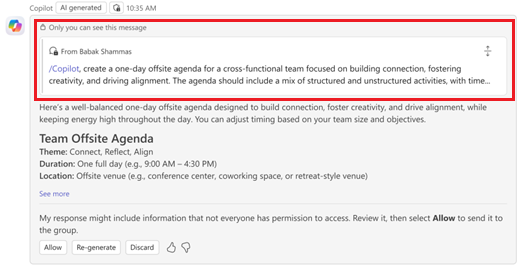
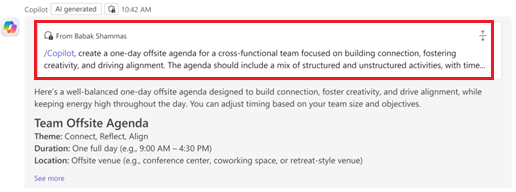
Prompt Preview shows a compact, collapsible preview of the targeted message your agent is replying to, helping carry context from a private user-to-agent message into the reply.
Prompt Preview in targeted reply
In a targeted (private) reply, both the prompt preview and the bot response are visible only to the targeted user.
Prompt Preview in public reply
In a public reply, the same prompt preview appears above the bot response and is visible to everyone in the conversation.
In reactive scenarios, when replying to an inbound targeted activity through Send() or Reply(), the SDK automatically includes targeted message info.
In reactive scenarios, when replying to an inbound targeted activity through send() or reply(), the SDK automatically includes targeted message info.
For proactive scenarios (using app.SendAsync()), attach targeted message info using the targeted message ID you are replying to.
For proactive scenarios (using app.send()), attach targeted message info using the targeted message ID you are replying to.
var targetedMessageId = "1772050244572";
var conversationId = "19:groupchat-id@thread.v2";
var userAccount = new Account
{
    Id = "29:1AbCDef...",
    Name = "Adele Vance"
};

var targetedMessage = new MessageActivityInput()
    .WithText("Here is the result!")
    .AddTargetedMessageInfo(targetedMessageId)
    .WithRecipient(userAccount, isTargeted: true);

// Targeted reply (only the user sees it)
await app.Send(conversationId, targetedMessage);

// OR public reply (everyone sees it)
var publicMessage = new MessageActivityInput()
    .WithText("Here is the result!")
    .AddTargetedMessageInfo(targetedMessageId);
await app.Send(conversationId, publicMessage);
var targetedMessageId = "1772050244572";
var conversationId = "19:groupchat-id@thread.v2";
var userAccount = new Account
{
    Id = "29:1AbCDef...",
    Name = "Adele Vance"
};

var targetedMessage = new MessageActivity("Here is the result!")
    .AddTargetedMessageInfo(targetedMessageId)
    .WithRecipient(userAccount, isTargeted: true);

// Targeted reply (only the user sees it)
await app.Send(conversationId, targetedMessage);

// OR public reply (everyone sees it)
var publicMessage = new MessageActivity("Here is the result!")
    .AddTargetedMessageInfo(targetedMessageId);
await app.Send(conversationId, publicMessage);
from microsoft_teams.api import Account, MessageActivityInput

targeted_message_id = "1772050244572"
conversation_id = "19:groupchat-id@thread.v2"
user_account = Account(id="29:1AbCDef...", name="Adele Vance")

targeted_message = MessageActivityInput(text="Here is the result!")
targeted_message.add_targeted_message_info(targeted_message_id)
targeted_message.with_recipient(user_account, is_targeted=True)

# Targeted reply (only the user sees it)
await app.send(conversation_id, targeted_message)

# OR public reply (everyone sees it)
public_message = MessageActivityInput(text="Here is the result!")
public_message.add_targeted_message_info(targeted_message_id)
await app.send(conversation_id, public_message)
import { Account, MessageActivityInput } from '@microsoft/teams.api';

const targetedMessageId = '1772050244572';
const conversationId = '19:groupchat-id@thread.v2';
const userAccount: Account = {
  id: '29:1AbCDef...',
  name: 'Adele Vance',
};

const targetedMessage = new MessageActivityInput('Here is the result!')
  .addTargetedMessageInfo(targetedMessageId)
  .withRecipient(userAccount, true);

// Targeted reply (only the user sees it)
await app.send(conversationId, targetedMessage);

// OR public reply (everyone sees it)
const publicMessage = new MessageActivityInput('Here is the result!')
  .addTargetedMessageInfo(targetedMessageId);
await app.send(conversationId, publicMessage);
Reactions
Reactions allow your agent to add or remove emoji reactions on messages in a conversation, and to receive reactions added by users. See the Message Reactions guide for full coverage.
Threading
In Teams channels, messages can be organized into threads. The SDK provides helpers to simplify working with threads.
Reactive Threading (Within a Handler)
When your agent receives a message in a thread, the conversation context already carries the thread ID. Use Send() to send a message in the same thread without quoting, or Reply() to send with a visual quote of the inbound message.
When your agent receives a message in a thread, the conversation context already carries the thread ID. Use send() to send a message in the same thread without quoting, or reply() to send with a visual quote of the inbound message.
app.OnMessage(async (context, cancellationToken) =>
{
    // Send in the same thread, no quote
    await context.Send("Acknowledged", cancellationToken);

    // Send in the same thread with a visual quote of the inbound message
    await context.Reply("Got it!", cancellationToken);
});
teams.OnMessage(async (context, cancellationToken) =>
{
    // Send in the same thread, no quote
    await context.SendAsync("Acknowledged", cancellationToken);

    // Send in the same thread with a visual quote of the inbound message
    await context.Reply("Got it!", cancellationToken);
});
@app.on_message
async def handle_message(ctx: ActivityContext[MessageActivity]):
    # Send in the same thread, no quote
    await ctx.send("Acknowledged")

    # Send in the same thread with a visual quote of the inbound message
    await ctx.reply("Got it!")
app.on('message', async ({ send, reply }) => {
  // Send in the same thread, no quote
  await send('Acknowledged');

  // Send in the same thread with a visual quote of the inbound message
  await reply('Got it!');
});
For proactive threading (sending to a thread outside of a handler), see Proactive Messaging.
Quoted Replies
Quoted replies let your agent reference a previous message in the conversation. When a user sends a message that quotes another message, your agent receives structured metadata about the quoted content. Your agent can also send messages that quote previous messages.
Receiving Quoted Replies
When a user quotes a message and sends it to your agent, the quoted reply metadata is available on the inbound activity. Use the GetQuotedMessages() method to access all quoted reply entities.
When a user quotes a message and sends it to your agent, the quoted reply metadata is available on the inbound activity. Use the get_quoted_messages() method to access all quoted reply entities.
When a user quotes a message and sends it to your agent, the quoted reply metadata is available on the inbound activity. Use the getQuotedMessages() method to access all quoted reply entities.
app.OnMessage(async context =>
{
    var quotes = context.Activity.GetQuotedMessages();

    if (quotes.Count > 0)
    {
        var quote = quotes[0].QuotedReply;
        await context.Reply(
            $"You quoted message {quote.MessageId} from {quote.SenderName}: \"{quote.Preview}\"");
    }
});
teams.OnMessage(async (context, cancellationToken) =>
{
    var quotes = context.Activity.GetQuotedMessages();

    if (quotes.Count > 0)
    {
        var quote = quotes[0].QuotedReply;
        await context.Reply(
            $"You quoted message {quote.MessageId} from {quote.SenderName}: \"{quote.Preview}\"",
            cancellationToken);
    }
});
@app.on_message
async def handle_message(ctx: ActivityContext[MessageActivity]):
    quotes = ctx.activity.get_quoted_messages()

    if quotes:
        quote = quotes[0].quoted_reply
        await ctx.reply(
            f"You quoted message {quote.message_id} from {quote.sender_name}: \"{quote.preview}\""
        )
app.on('message', async ({ activity, reply }) => {
  const quotes = activity.getQuotedMessages();

  if (quotes.length > 0) {
    const quote = quotes[0].quotedReply;
    await reply(
      `You quoted message ${quote.messageId} from ${quote.senderName}: "${quote.preview}"`
    );
  }
});
Each quoted reply entity contains the quoted message's ID, sender information, a preview of the quoted text, and whether the quoted message has been deleted.
Sending a Quoted Reply
When your agent calls Reply(), the SDK automatically stamps a quoted reply entity referencing the inbound message. The reply will appear as a quoted reply in Teams.
When your agent calls reply(), the SDK automatically stamps a quoted reply entity referencing the inbound message. The reply will appear as a quoted reply in Teams.
app.OnMessage(async context =>
{
    // Reply() automatically quotes the inbound message
    await context.Reply("Got it!");
});
teams.OnMessage(async (context, cancellationToken) =>
{
    // Reply() automatically quotes the inbound message
    await context.Reply("Got it!", cancellationToken);
});
@app.on_message
async def handle_message(ctx: ActivityContext[MessageActivity]):
    # reply() automatically quotes the inbound message
    await ctx.reply("Got it!")
app.on('message', async ({ reply }) => {
  // reply() automatically quotes the inbound message
  await reply('Got it!');
});
To quote a different message in the same conversation (not the inbound message), use the Quote() method with the message ID you want to quote.
To quote a different message in the same conversation (not the inbound message), use the quote() method with the message ID you want to quote.
app.OnMessage(async context =>
{
    // Quote a specific message by its ID
    var parentMessageId = "1772050244572";
    await context.Quote(parentMessageId, "Referencing an earlier message");
});
teams.OnMessage(async (context, cancellationToken) =>
{
    // Quote a specific message by its ID
    var parentMessageId = "1772050244572";
    await context.Quote(parentMessageId, "Referencing an earlier message", cancellationToken);
});
@app.on_message
async def handle_message(ctx: ActivityContext[MessageActivity]):
    # Quote a specific message by its ID
    parent_message_id = "1772050244572"
    await ctx.quote(parent_message_id, "Referencing an earlier message")
app.on('message', async ({ quote }) => {
  // Quote a specific message by its ID
  const parentMessageId = '1772050244572';
  await quote(parentMessageId, 'Referencing an earlier message');
});
Building Quoted Replies for Proactive Send
For proactive scenarios (using app.Send()) or when quoting multiple messages, use the AddQuote() method on a message activity. Pass the message ID and an optional response text.
For proactive scenarios (using app.send()) or when quoting multiple messages, use the add_quote() method on a message activity. Pass the message ID and an optional response text.
For proactive scenarios (using app.send()) or when quoting multiple messages, use the addQuote() method on a message activity. Pass the message ID and an optional response text.
var parentMessageId = "1772050244572";
var firstMessageId = "1772050244573";
var secondMessageId = "1772050244574";

// Single quote with response below it
var msg = new MessageActivityInput()
    .AddQuote(parentMessageId, "Here is my response");
await app.Send(conversationId, msg);

// Multiple quotes with interleaved responses
msg = new MessageActivityInput()
    .AddQuote(firstMessageId, "response to first")
    .AddQuote(secondMessageId, "response to second");
await app.Send(conversationId, msg);

// Grouped quotes — omit response to group quotes together
msg = new MessageActivityInput()
    .WithText("see below for previous messages")
    .AddQuote(firstMessageId)
    .AddQuote(secondMessageId, "response to both");
await app.Send(conversationId, msg);
var parentMessageId = "1772050244572";
var firstMessageId = "1772050244573";
var secondMessageId = "1772050244574";

// Single quote with response below it
var msg = new MessageActivity()
    .AddQuote(parentMessageId, "Here is my response");
await app.Send(conversationId, msg);

// Multiple quotes with interleaved responses
msg = new MessageActivity()
    .AddQuote(firstMessageId, "response to first")
    .AddQuote(secondMessageId, "response to second");
await app.Send(conversationId, msg);

// Grouped quotes — omit response to group quotes together
msg = new MessageActivity("see below for previous messages")
    .AddQuote(firstMessageId)
    .AddQuote(secondMessageId, "response to both");
await app.Send(conversationId, msg);
from microsoft_teams.api.activities.message import MessageActivityInput

parent_message_id = "1772050244572"
first_message_id = "1772050244573"
second_message_id = "1772050244574"

# Single quote with response below it
msg = (MessageActivityInput()
    .add_quote(parent_message_id, "Here is my response"))
await app.send(conversation_id, msg)

# Multiple quotes with interleaved responses
msg = (MessageActivityInput()
    .add_quote(first_message_id, "response to first")
    .add_quote(second_message_id, "response to second"))
await app.send(conversation_id, msg)

# Grouped quotes — omit response to group quotes together
msg = (MessageActivityInput(text="see below for previous messages")
    .add_quote(first_message_id)
    .add_quote(second_message_id, "response to both"))
await app.send(conversation_id, msg)
import { MessageActivityInput } from '@microsoft/teams.api';

const parentMessageId = '1772050244572';
const firstMessageId = '1772050244573';
const secondMessageId = '1772050244574';

// Single quote with response below it
let msg = new MessageActivityInput()
  .addQuote(parentMessageId, 'Here is my response');
await app.send(conversationId, msg);

// Multiple quotes with interleaved responses
msg = new MessageActivityInput()
  .addQuote(firstMessageId, 'response to first')
  .addQuote(secondMessageId, 'response to second');
await app.send(conversationId, msg);

// Grouped quotes — omit response to group quotes together
msg = new MessageActivityInput('see below for previous messages')
  .addQuote(firstMessageId)
  .addQuote(secondMessageId, 'response to both');
await app.send(conversationId, msg);