Nota
O acesso a esta página requer autorização. Pode tentar iniciar sessão ou alterar os diretórios.
O acesso a esta página requer autorização. Pode tentar alterar os diretórios.
Baseie as respostas do seu agente Foundry no seu conteúdo proprietário, ligando-o a um índice do Pesquisa de IA do Azure. A ferramenta Pesquisa de IA do Azure recupera documentos indexados para que o modelo Foundry que alimenta o agente possa gerar respostas com citações em linha, permitindo respostas precisas e respaldadas por fontes.
Se quiser usar uma rede virtual privada com a ferramenta Pesquisa de IA do Azure, certifique-se de usar a identidade gerida por projeto Microsoft Entra para autenticar na sua ligação Pesquisa de IA do Azure. A autenticação baseada em chaves não é suportada em redes virtuais privadas.
Para uma experiência de base de conhecimento gerida, veja Foundry IQ.
Para otimização de ferramentas, consulte as melhores práticas.
Dica
Considera adicionar esta ferramenta usando uma caixa de ferramentas. Ao utilizar uma caixa de ferramentas, pode reutilizar a ferramenta entre agentes e runtimes, bem como centralizar a gestão de credenciais, versionamento e aplicação de políticas através de um endpoint MCP gerido. Veja o guia de início rápido da caixa de ferramentas.
Se usar um agente de programação como o GitHub Copilot, o Microsoft Foundry Skill pode ajudar a ligar o Pesquisa de IA do Azure, rever as opções de autenticação e adaptar a configuração ao seu agente.
Suporte de utilização
A tabela seguinte mostra o suporte para SDK e configuração.
| Suporte ao Microsoft Foundry | Python SDK | C# SDK | SDK de JavaScript | SDK de Java | API REST | Configuração básica do agente | Configuração padrão do agente |
|---|---|---|---|---|---|---|---|
| ✔️ | ✔️ | ✔️ | ✔️ | ✔️ | ✔️ | ✔️ | ✔️ |
Pré-requisitos
Tempo estimado de configuração: 15-30 minutos se já tiver um índice de pesquisa
- Um ambiente básico ou padrão de agente.
- Instala o pacote SDK para a tua linguagem preferida. Consulte o quickstart para mais detalhes.
-
Python:
pip install "azure-ai-projects>=2.0.0" -
C#: Instale o pacote NuGet
Azure.AI.Projects -
JavaScript/TypeScript:
npm install @azure/ai-projects -
Java: Adicionar a dependência mais recente
com.azure:azure-ai-agentsao seupom.xml
-
Python:
- Uma subscrição do Azure e um projeto Microsoft Foundry com:
- Ponto final do Project
- Nome da implementação do modelo
- Autenticação configurada (por exemplo,
DefaultAzureCredential)
- Um índice Pesquisa de IA do Azure configurado para pesquisa vetorial com:
- Um ou mais
Edm.Stringcampos que são pesquisáveis e recuperáveis - Um ou mais
Collection(Edm.Single)campos vetoriais que são pesquisáveis - Pelo menos um campo de texto recuperável que contenha o conteúdo que pretende que o agente cite
- Um campo recuperável que contém uma URL de origem (e, opcionalmente, um título) para que as citações possam incluir um link
- Um ou mais
- Uma ligação entre o seu projeto Foundry e o seu serviço de Pesquisa de IA do Azure (veja Setup).
- Para autenticação sem chave, utilize a identidade gerida atribuída pelo sistema da conta Foundry que contém o seu projeto. Atribua estas funções do controlo de acesso baseado em funções (RBAC) do Azure a essa identidade no serviço de pesquisa:
- Contribuidor de Dados do Índice de Pesquisa
- Contribuidor do Serviço de Pesquisa
Configurar parâmetros da ferramenta
| Parâmetro da ferramenta Pesquisa de IA do Azure | Obrigatório | Notas |
|---|---|---|
project_connection_id |
Sim | O identificador do recurso da ligação do projeto ao Pesquisa de IA do Azure. |
index_name |
Sim | O nome do índice no seu recurso Pesquisa de IA do Azure. |
top_k |
Não | O valor por defeito é 5. |
query_type |
Não | O valor padrão é vector_semantic_hybrid. Valores suportados: simple, vector, semantic, vector_simple_hybrid, vector_semantic_hybrid. |
filter |
Não | Aplica-se a todas as consultas que o agente faz ao índice. |
Adicionar o Pesquisa de IA do Azure a uma caixa de ferramentas
Nota
- Precisas do pacote SDK mais recente. Para mais informações, consulte o quickstart.
- Se estiveres a usar a amostra REST, o ID de ligação está no formato
/subscriptions/{{subscriptionId}}/resourceGroups/{{resourceGroupName}}/providers/Microsoft.CognitiveServices/accounts/{{foundryAccountName}}/projects/{{foundryProjectName}}/connections/{{connectionName}}. - Se estiveres a usar o exemplo de Python, C# ou TypeScript, podes fornecer o nome da ligação e recuperar o ID da ligação com o SDK.
Selecione Prompt Agents para usar o SDK Azure AI Projects para criar um agente de prompt do lado do servidor, ou Hosted Agents para usar o Agent Framework FoundryChatClient para construir um agente efémero em processo.
from azure.identity import DefaultAzureCredential
from azure.ai.projects import AIProjectClient
from azure.ai.projects.models import (
    AzureAISearchTool,
    PromptAgentDefinition,
    AzureAISearchToolResource,
    AISearchIndexResource,
    AzureAISearchQueryType,
)

# Format: "https://resource_name.ai.azure.com/api/projects/project_name"
PROJECT_ENDPOINT = "your_project_endpoint"
AGENT_NAME = "MyAgent"
SEARCH_CONNECTION_NAME = "my-search-connection"
SEARCH_INDEX_NAME = "my-search-index"

# Create a client to call Foundry API
with AIProjectClient(
    endpoint=PROJECT_ENDPOINT,
    credential=DefaultAzureCredential(),
) as project:
    # Resolve the connection ID from the connection name
    azs_connection = project.connections.get(SEARCH_CONNECTION_NAME)
    connection_id = azs_connection.id

    # Create an agent with the Azure AI Search tool
    agent = project.agents.create_version(
        agent_name=AGENT_NAME,
        definition=PromptAgentDefinition(
            model="gpt-4.1-mini",
            instructions="""You are a helpful assistant. You must always provide citations for
            answers using the tool and render them as: `[message_idx:search_idx†source]`.""",
            tools=[
                AzureAISearchTool(
                    azure_ai_search=AzureAISearchToolResource(
                        indexes=[
                            AISearchIndexResource(
                                project_connection_id=connection_id,
                                index_name=SEARCH_INDEX_NAME,
                                query_type=AzureAISearchQueryType.SIMPLE,
                            ),
                        ]
                    )
                )
            ],
        ),
        description="You are a helpful agent.",
    )
    print(f"Agent created (id: {agent.id}, name: {agent.name}, version: {agent.version})")

    with project.get_openai_client(agent_name=agent.name) as openai:
        # Prompt user for a question to send to the agent
        user_input = input(
            """Enter your question for the AI Search agent available in the index
            (e.g., 'Tell me about the mental health services available from Premera'): \n"""
        )

        # Stream the response from the agent
        stream_response = openai.responses.create(
            stream=True,
            tool_choice="required",
            input=user_input,
        )

        # Process the streaming response and print citations
        for event in stream_response:
            if event.type == "response.output_text.delta":
                print(event.delta, end="")
            elif event.type == "response.output_item.done":
                if event.item.type == "message":
                    item = event.item
                    if item.content[-1].type == "output_text":
                        text_content = item.content[-1]
                        for annotation in text_content.annotations:
                            if annotation.type == "url_citation":
                                print(
                                    f"URL Citation: {annotation.url}, "
                                    f"Start index: {annotation.start_index}, "
                                    f"End index: {annotation.end_index}"
                                )
            elif event.type == "response.completed":
                print(f"\nFull response: {event.response.output_text}")

    # Clean up resources
    project.agents.delete_version(agent_name=agent.name, agent_version=agent.version)
    print("Agent deleted")
Desfecho esperado
O agente consulta o índice de pesquisa e retorna uma resposta com citações em linha. A saída da consola mostra o ID do agente, atualizações incrementais em tempo real à medida que a resposta é gerada, URLs com índices de início e fim, e o texto completo da resposta final. O agente é então eliminado com sucesso.
Amostra completa
O código de exemplo seguinte mostra exemplos síncronos de como usar a ferramenta Pesquisa de IA do Azure em Azure. IA. Extensions.OpenAI para consultar um índice. Para exemplos assíncronos de C#, veja o repositório GitHub.
Este exemplo mostra como usar a ferramenta Pesquisa de IA do Azure com agentes para consultar um índice. Selecione Prompt Agents para usar o SDK Azure AI Projects para criar um agente de prompt do lado do servidor, ou Hosted Agents para usar o Microsoft Agent Framework para construir um agente efémero em processo.
using System;
using Azure.AI.Projects;
using Azure.AI.Extensions.OpenAI;
using Azure.Identity;

// Format: "https://resource_name.ai.azure.com/api/projects/project_name"
var projectEndpoint = "your_project_endpoint";
var searchConnectionName = "my-search-connection";
var searchIndexName = "my-search-index";

// Create project client to call Foundry API
AIProjectClient projectClient = new(
    endpoint: new Uri(projectEndpoint),
    tokenProvider: new DefaultAzureCredential());

// Resolve the project connection ID from the connection name.
AIProjectConnection aiSearchConnection = projectClient.Connections.GetConnection(connectionName: searchConnectionName);

// Create an AzureAISearchToolIndex object that defines the index and the search parameters.
AzureAISearchToolIndex index = new()
{
    ProjectConnectionId = aiSearchConnection.Id,
    IndexName = searchIndexName,
    TopK = 5,
    Filter = "category eq 'sleeping bag'",
    QueryType = AzureAISearchQueryType.Simple
};

// Create the agent definition with the Azure AI Search tool.
DeclarativeAgentDefinition agentDefinition = new(model: "gpt-4.1-mini")
{
    Instructions = "You are a helpful assistant. You must always provide citations for answers using the tool and render them as: `【message_idx:search_idx†source】`.",
    Tools = { new AzureAISearchTool(new AzureAISearchToolOptions(indexes: [index])) }
};

// Create the agent version with the agent definition.
AgentVersion agentVersion = projectClient.AgentAdministrationClient.CreateAgentVersion(
    agentName: "myAgent",
    options: new(agentDefinition));

// Create an OpenAIResponse object with the ProjectResponsesClient object.
ProjectResponsesClient responseClient = projectClient.ProjectOpenAIClient.GetProjectResponsesClientForAgent(agentVersion.Name);
ResponseResult response = responseClient.CreateResponse("What is the temperature rating of the cozynights sleeping bag?");

// In the search, an index containing "embedding", "token", "category", "title", and "url" fields is used.
// The last two fields are needed to get citation title and URL, which the agent retrieves.
// To get the reference, you need to parse the output items.
string result = "";
foreach (ResponseItem item in response.OutputItems)
{
    if (item is MessageResponseItem messageItem)
    {
        foreach (ResponseContentPart content in messageItem.Content)
        {
            foreach (ResponseMessageAnnotation annotation in content.OutputTextAnnotations)
            {
                if (annotation is UriCitationMessageAnnotation uriAnnotation)
                {
                    result = $" [{uriAnnotation.Title}]({uriAnnotation.Uri})";
                }
            }
        }
    }
}

if (response.Status != ResponseStatus.Completed)
{
  throw new InvalidOperationException($"Response failed with status {response.Status}.");
}
Console.WriteLine($"{response.GetOutputText()}{result}");

// Finally, delete all the resources you created in this sample.
projectClient.AgentAdministrationClient.DeleteAgentVersion(agentName: agentVersion.Name, agentVersion: agentVersion.Version);
Desfecho esperado
O agente consulta o índice especificado para obter informações sobre o saco-cama. A resposta inclui a classificação de temperatura e uma citação formatada com o título e URL do documento. O estado da resposta é Completed, e a versão do agente foi eliminada com sucesso.
Use agentes com a ferramenta Pesquisa de IA do Azure para streaming de cenários
Este exemplo mostra como adicionar a ferramenta Pesquisa de IA do Azure a uma caixa de ferramentas, anexá-la como uma ferramenta MCP e consultar um índice num cenário de streaming.
using System;
using Azure.AI.Projects;
using Azure.AI.Extensions.OpenAI;
using Azure.Identity;

// Format: "https://resource_name.ai.azure.com/api/projects/project_name"
var projectEndpoint = "your_project_endpoint";
var searchConnectionName = "my-search-connection";
var searchIndexName = "my-search-index";

// Create project client to call Foundry API
AIProjectClient projectClient = new(
    endpoint: new Uri(projectEndpoint),
    tokenProvider: new DefaultAzureCredential());

// Resolve the project connection ID from the connection name.
AIProjectConnection aiSearchConnection = projectClient.Connections.GetConnection(connectionName: searchConnectionName);

// Create an AzureAISearchToolIndex object that defines the index and the search parameters.
AzureAISearchToolIndex index = new()
{
    ProjectConnectionId = aiSearchConnection.Id,
    IndexName = searchIndexName,
    TopK = 5,
    Filter = "category eq 'sleeping bag'",
    QueryType = AzureAISearchQueryType.Simple
};

// 1. Add the Azure AI Search tool to a toolbox. Using a toolbox is the recommended
//    way to give agents tools. See /azure/foundry/agents/concepts/toolbox-overview
AgentToolboxes toolboxClient = projectClient.AgentAdministrationClient.GetAgentToolboxes();

ProjectsAgentTool aiSearchTool = new AzureAISearchTool(
    new AzureAISearchToolOptions(indexes: [index]));

ToolboxVersion toolboxVersion = projectClient.AgentAdministrationClient
    .GetAgentToolboxes().CreateToolboxVersion(
        toolboxName: "ai-search-toolbox",
        tools: [aiSearchTool],
        description: "Toolbox with the Azure AI Search tool");

// 2. The toolbox exposes an MCP-compatible endpoint.
var toolboxMcpUrl = new Uri(
    $"{projectEndpoint}/toolboxes/{toolboxVersion.Name}" +
    $"/versions/{toolboxVersion.Version}/mcp?api-version=v1");

// 3. Create a remote-tool project connection that points at the toolbox endpoint.
//    Use a user Entra token so the caller's identity is passed through
//    (audience https://ai.azure.com). Create the connection once, for example
//    with the Azure Developer CLI:
//
//    azd ai connection create ai-search-toolbox-conn \
//      --kind remote-tool \
//      --target "<toolboxMcpUrl>" \
//      --auth-type user-entra-token \
//      --audience https://ai.azure.com
var toolboxConnectionName = "ai-search-toolbox-conn";

// 4. Attach the toolbox to a prompt agent as an MCP tool.
McpTool toolboxTool = ResponseTool.CreateMcpTool(
    serverLabel: "toolbox",
    serverUri: toolboxMcpUrl,
    toolCallApprovalPolicy: new McpToolCallApprovalPolicy(
        GlobalMcpToolCallApprovalPolicy.NeverRequireApproval));
toolboxTool.ProjectConnectionId = toolboxConnectionName;

// Create the agent definition with the toolbox MCP tool.
DeclarativeAgentDefinition agentDefinition = new(model: "gpt-4.1-mini")
{
    Instructions = "You are a helpful assistant. You must always provide citations for answers using the tool and render them as: `\u3010message_idx:search_idx\u2020source\u3011`.",
    Tools = { toolboxTool }
};

// Create the agent version with the agent definition.
AgentVersion agentVersion = projectClient.AgentAdministrationClient.CreateAgentVersion(
    agentName: "myAgent",
    options: new(agentDefinition));

// Create an OpenAIResponse object with the ProjectResponsesClient object.
ProjectResponsesClient responseClient = projectClient.ProjectOpenAIClient.GetProjectResponsesClientForAgent(agentVersion.Name);

string annotation = "";
string text = "";

// Stream the response from the agent and parse the output items for citations.
foreach (StreamingResponseUpdate streamResponse in responseClient.CreateResponseStreaming("What is the temperature rating of the cozynights sleeping bag?"))
{
    if (streamResponse is StreamingResponseCreatedUpdate createUpdate)
    {
        Console.WriteLine($"Stream response created with ID: {createUpdate.Response.Id}");
    }
    else if (streamResponse is StreamingResponseOutputTextDeltaUpdate textDelta)
    {
        Console.WriteLine($"Delta: {textDelta.Delta}");
    }
    else if (streamResponse is StreamingResponseOutputTextDoneUpdate textDoneUpdate)
    {
        text = textDoneUpdate.Text;
    }
    else if (streamResponse is StreamingResponseOutputItemDoneUpdate itemDoneUpdate)
    {
        if (annotation.Length == 0)
        {
            if (itemDoneUpdate.Item is MessageResponseItem messageItem)
            {
                // Use an index containing "embedding", "token", "category", "title", and "url" fields.
                // The last two fields are needed to get citation title and URL, retrieved by the agent.
                foreach (ResponseContentPart content in messageItem.Content)
                {
                    foreach (ResponseMessageAnnotation messageAnnotation in content.OutputTextAnnotations)
                    {
                        if (messageAnnotation is UriCitationMessageAnnotation uriAnnotation)
                        {
                            annotation = $" [{uriAnnotation.Title}]({uriAnnotation.Uri})";
                        }
                    }
                }
            }
        }
    }
    else if (streamResponse is StreamingResponseErrorUpdate errorUpdate)
    {
        throw new InvalidOperationException($"The stream has failed: {errorUpdate.Message}");
    }
}
Console.WriteLine($"{text}{annotation}");

// Finally, delete all the resources that were created in this sample.
projectClient.AgentAdministrationClient.DeleteAgentVersion(agentName: agentVersion.Name, agentVersion: agentVersion.Version);
Desfecho esperado
A resposta em streaming mostra a geração da resposta do agente, os deltas de texto enquanto são transmitidos em tempo real e uma citação formatada ao ser concluída. O resultado final inclui a classificação de temperatura do saco-cama com referência do documento. A versão do agente é eliminada após a conclusão da consulta.
Use agentes com a ferramenta Pesquisa de IA do Azure
O exemplo seguinte mostra como usar a ferramenta Pesquisa de IA do Azure com a API REST para consultar um índice. O exemplo usa cURL, mas podes usar qualquer cliente HTTP.
Antes de executar esta amostra, obtenha um token portador para autenticação. Use a CLI do Azure para obter um token:
export AGENT_TOKEN=$(az account get-access-token --scope "https://ai.azure.com/.default" --query accessToken -o tsv)
A forma recomendada de adicionar o Pesquisa de IA do Azure é através de uma caixa de ferramentas e depois anexar a caixa de ferramentas ao seu agente como uma ferramenta MCP. Veja O que é uma caixa de ferramentas?
- Crie uma caixa de ferramentas que contenha a ferramenta Pesquisa de IA do Azure:
curl --request POST \
  --url "$FOUNDRY_PROJECT_ENDPOINT/toolboxes/ai-search-toolbox/versions?api-version=v1" \
  -H "Authorization: Bearer $AGENT_TOKEN" \
  -H "Content-Type: application/json" \
  --data '{
    "description": "Toolbox with the Azure AI Search tool",
    "tools": [
      {
        "type": "azure_ai_search",
        "azure_ai_search": {
          "indexes": [
            {
              "project_connection_id": "'$AZURE_AI_SEARCH_CONNECTION_ID'",
              "index_name": "'$AI_SEARCH_INDEX_NAME'",
              "query_type": "semantic",
              "top_k": 5
            }
          ]
        }
      }
    ]
  }'
A caixa de ferramentas expõe um endpoint compatível com MCP em $FOUNDRY_PROJECT_ENDPOINT/toolboxes/ai-search-toolbox/versions/<version>/mcp?api-version=v1, onde <version> é a versão devolvida pela chamada anterior.
- Crie uma ligação de projeto da ferramenta remota que aponte para o ponto final da caixa de ferramentas, utilizando um token Entra de utilizador para que a identidade do autor da chamada seja transmitida (destinatário
https://ai.azure.com).
azd ai connection create ai-search-toolbox-conn \
  --kind remote-tool \
  --target "$FOUNDRY_PROJECT_ENDPOINT/toolboxes/ai-search-toolbox/versions/<version>/mcp?api-version=v1" \
  --auth-type user-entra-token \
  --audience https://ai.azure.com
- Cria uma resposta que use a caixa de ferramentas anexando-a como uma ferramenta MCP.
curl --request POST \
  --url "$FOUNDRY_PROJECT_ENDPOINT/openai/v1/responses" \
  -H "Authorization: Bearer $AGENT_TOKEN" \
  -H "Content-Type: application/json" \
  --data '{
    "model": "'$FOUNDRY_MODEL_DEPLOYMENT_NAME'",
    "input": "Tell me about the mental health services available from Premera.",
    "tool_choice": "required",
    "tools": [
      {
        "type": "mcp",
        "server_label": "toolbox",
        "server_url": "'$FOUNDRY_PROJECT_ENDPOINT'/toolboxes/ai-search-toolbox/versions/<version>/mcp?api-version=v1",
        "require_approval": "never",
        "project_connection_id": "ai-search-toolbox-conn"
      }
    ]
  }'
Desfecho esperado
A API devolve uma resposta JSON contendo a resposta do agente sobre serviços de saúde mental do índice Premera. A resposta inclui citações e referências aos documentos indexados que geraram a resposta.
Este exemplo demonstra como criar um agente de IA com capacidades do Pesquisa de IA do Azure, adicionando a ferramenta de pesquisa a uma caixa de ferramentas e anexando-a como uma ferramenta MCP. O agente pode pesquisar conteúdos indexados e fornecer respostas com citações dos resultados de pesquisa.
import { DefaultAzureCredential } from "@azure/identity";
import { AIProjectClient } from "@azure/ai-projects";
import * as readline from "readline";

// Format: "https://resource_name.ai.azure.com/api/projects/project_name"
const PROJECT_ENDPOINT = "your_project_endpoint";
const SEARCH_CONNECTION_NAME = "my-search-connection";
const SEARCH_INDEX_NAME = "my-search-index";

export async function main(): Promise<void> {
  // Create clients to call Foundry API
  const project = new AIProjectClient(PROJECT_ENDPOINT, new DefaultAzureCredential());
  const openai = project.getOpenAIClient();

  // Get connection ID from connection name
  const aiSearchConnection = await project.connections.get(SEARCH_CONNECTION_NAME);

  console.log("Creating a toolbox with the Azure AI Search tool...");

  // 1. Add the Azure AI Search tool to a toolbox. Using a toolbox is the recommended
  //    way to give agents tools. See /azure/foundry/agents/concepts/toolbox-overview
  const toolbox = await project.toolboxes.createVersion(
    "ai-search-toolbox",
    [
      {
        type: "azure_ai_search",
        azure_ai_search: {
          indexes: [
            {
              project_connection_id: aiSearchConnection.id,
              index_name: SEARCH_INDEX_NAME,
              query_type: "simple",
            },
          ],
        },
      },
    ],
    { description: "Toolbox with the Azure AI Search tool" },
  );

  // 2. The toolbox exposes an MCP-compatible endpoint.
  const toolboxMcpUrl =
    `${PROJECT_ENDPOINT}/toolboxes/${toolbox.name}` +
    `/versions/${toolbox.version}/mcp?api-version=v1`;

  // 3. Create a remote-tool project connection that points at the toolbox endpoint.
  //    Use a user Entra token so the caller's identity is passed through
  //    (audience https://ai.azure.com). Create the connection once, for example
  //    with the Azure Developer CLI:
  //
  //    azd ai connection create ai-search-toolbox-conn \
  //      --kind remote-tool \
  //      --target "<toolboxMcpUrl>" \
  //      --auth-type user-entra-token \
  //      --audience https://ai.azure.com
  const toolboxConnectionName = "ai-search-toolbox-conn";

  // 4. Attach the toolbox to a prompt agent as an MCP tool.
  const agent = await project.agents.createVersion("MyAISearchAgent", {
    kind: "prompt",
    model: "gpt-4.1-mini",
    instructions:
      "You are a helpful assistant. You must always provide citations for answers using the tool and render them as: `[message_idx:search_idx†source]`.",
    tools: [
      {
        type: "mcp",
        server_label: "toolbox",
        server_url: toolboxMcpUrl,
        require_approval: "never",
        project_connection_id: toolboxConnectionName,
      },
    ],
  });
  console.log(`Agent created (id: ${agent.id}, name: ${agent.name}, version: ${agent.version})`);

  // Prompt user for input
  const rl = readline.createInterface({
    input: process.stdin,
    output: process.stdout,
  });

  const userInput = await new Promise<string>((resolve) => {
    rl.question(
      "Enter your question for the AI Search agent available in the index (e.g., 'Tell me about the mental health services available from Premera'): \n",
      (answer) => {
        rl.close();
        resolve(answer);
      },
    );
  });

  // Stream the response from the agent
  const streamResponse = await openai.responses.create(
    {
      input: userInput,
      stream: true,
    },
    {
      body: {
        agent_reference: { name: agent.name, type: "agent_reference" },
        tool_choice: "required",
      },
    },
  );

  // Process the streaming response and print citations
  for await (const event of streamResponse) {
    if (event.type === "response.output_text.delta") {
      process.stdout.write(event.delta);
    } else if (event.type === "response.output_item.done") {
      if (event.item.type === "message") {
        const item = event.item;
        if (item.content && item.content.length > 0) {
          const lastContent = item.content[item.content.length - 1];
          if (lastContent.type === "output_text" && lastContent.annotations) {
            for (const annotation of lastContent.annotations) {
              if (annotation.type === "url_citation") {
                console.log(
                  `URL Citation: ${annotation.url}, Start index: ${annotation.start_index}, End index: ${annotation.end_index}`,
                );
              }
            }
          }
        }
      }
    } else if (event.type === "response.completed") {
      console.log("\nResponse completed.");
    }
  }

  // Clean up resources
  await project.agents.deleteVersion(agent.name, agent.version);
  console.log("Agent deleted");
}

main().catch((err) => {
  console.error("The sample encountered an error:", err);
});
Desfecho esperado
A aplicação cria um agente com capacidades do Pesquisa de IA do Azure, solicita a entrada do utilizador, consulta o índice de pesquisa e transmite a resposta com atualizações delta em tempo real. A saída da consola inclui o ID do agente, deltas de texto em streaming, citações de URL com índices e confirmação da eliminação bem-sucedida do agente. O agente fornece respostas fundamentadas no conteúdo indexado com citações adequadas.
Use o Pesquisa de IA do Azure num agente Java
Adicione a dependência ao seu pom.xml:
<dependency>
    <groupId>com.azure</groupId>
    <artifactId>azure-ai-agents</artifactId>
    <version>2.4.0</version>
</dependency>
Crie um agente com o Pesquisa de IA do Azure
Dica
Recomendado: Para a maioria dos agentes, adiciona a ferramenta Pesquisa de IA do Azure através de uma toolbox e liga a toolbox ao teu agente como uma ferramenta MCP. O SDK Java ainda não expõe uma API de criação de toolbox, por isso cria a toolbox usando o exemplo de Python, REST, C# ou TypeScript, ou o portal Foundry, e depois faz referência ao endpoint MCP do teu agente Java como um McpTool.
Limitações
Tenha estas restrições em mente ao usar a ferramenta Pesquisa de IA do Azure:
- Um recurso Foundry com implementações básicas de agentes não suporta recursos privados do Pesquisa de IA do Azure, nem o Pesquisa de IA do Azure com acesso à rede pública desativado e endpoint privado. Para usar uma ferramenta privada de Pesquisa de IA do Azure com seus agentes, implante o agente padrão com injeção de rede virtual.
- Se o seu agente Foundry correr sem injeção de rede virtual, a ferramenta Pesquisa de IA do Azure pode falhar em ligar-se a um serviço de pesquisa com um endpoint privado. Ativar o acesso público à rede no serviço de pesquisa não garante conectividade nesta configuração.
- Acesso a rede virtual privada: Se usar uma rede virtual privada com a ferramenta Pesquisa de IA do Azure, deve usar Microsoft Entra identidade gerida por projeto (autenticação sem chave) na sua ligação Pesquisa de IA do Azure. A autenticação baseada em chaves não é suportada em redes virtuais privadas. Se desativaste o acesso à rede pública no teu recurso Pesquisa de IA do Azure, configura a ligação para usar identidade gerida em vez de uma chave API.
- A ferramenta Pesquisa de IA do Azure só pode direcionar um index.
- O seu recurso Pesquisa de IA do Azure e o seu Microsoft Foundry Agent devem estar no mesmo tenant.
Verificar resultados
Depois de executar um exemplo, valide se o agente baseia as respostas no seu índice.
- Faça uma pergunta que saiba que está respondida num documento indexado específico.
- Confirme que a resposta inclui citações formatadas como
[message_idx:search_idx†source]. - Se estiveres a fazer streaming, confirma que vês
url_citationanotações na resposta com URLs válidos. - Verifique se o conteúdo citado corresponde aos seus documentos de origem no índice de pesquisa.
Se as citações estiverem em falta ou incorretas, consulte a secção de Resolução de Problemas .
Configuração
Nesta secção, cria uma ligação entre o projeto Microsoft Foundry que contém o seu agente e o serviço Pesquisa de IA do Azure que contém o seu índice.
Se já ligou o seu projeto ao serviço de pesquisa, salte esta secção.
Dica
A forma mais rápida de criar uma ligação é através do portal da Foundry. Para todos os métodos de ligação e tipos de ligação suportados, veja Adicionar uma nova ligação ao seu projeto.
Para criar a ligação, precisas do endpoint do serviço de pesquisa e do método de autenticação. Os passos seguintes guiam-no na recolha destes detalhes.
Recolha informações sobre a ligação
Antes de criar uma ligação a um projeto, reúna o endpoint do serviço Pesquisa de IA do Azure e credenciais de autenticação.
A conexão ao projeto requer o endpoint do seu serviço de pesquisa e autenticação baseada em chave ou autenticação sem chave com Microsoft Entra ID.
Para autenticação sem chave, deve ativar o controlo de acesso baseado em funções (RBAC) e atribuir funções à identidade gerida do seu projeto. Embora este método envolva passos adicionais, reforça a segurança ao eliminar a necessidade de chaves API codificadas fixamente.
Selecione o separador para o método de autenticação desejado.
Inicie sessão no portal Azure e selecione o seu serviço de pesquisa.
Para obter o ponto final:
No painel esquerdo, selecione Visão Geral.
Anote a URL, que deve ser como
https://my-service.search.windows.net.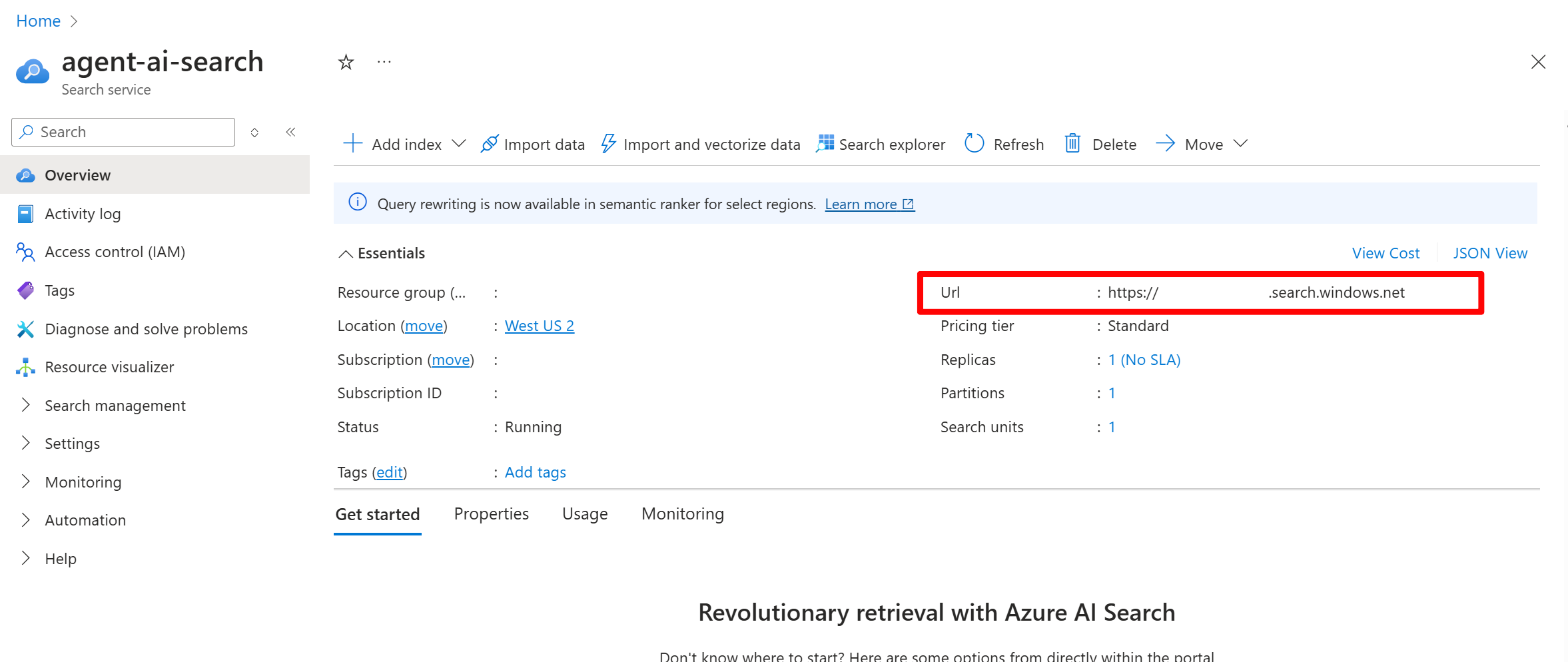
Para obter a chave API:
- No painel esquerdo, selecione Definições>Teclas.
- Selecione Ambos para ativar tanto a autenticação baseada em chaves como a sem chave, o que é recomendado na maioria dos cenários.
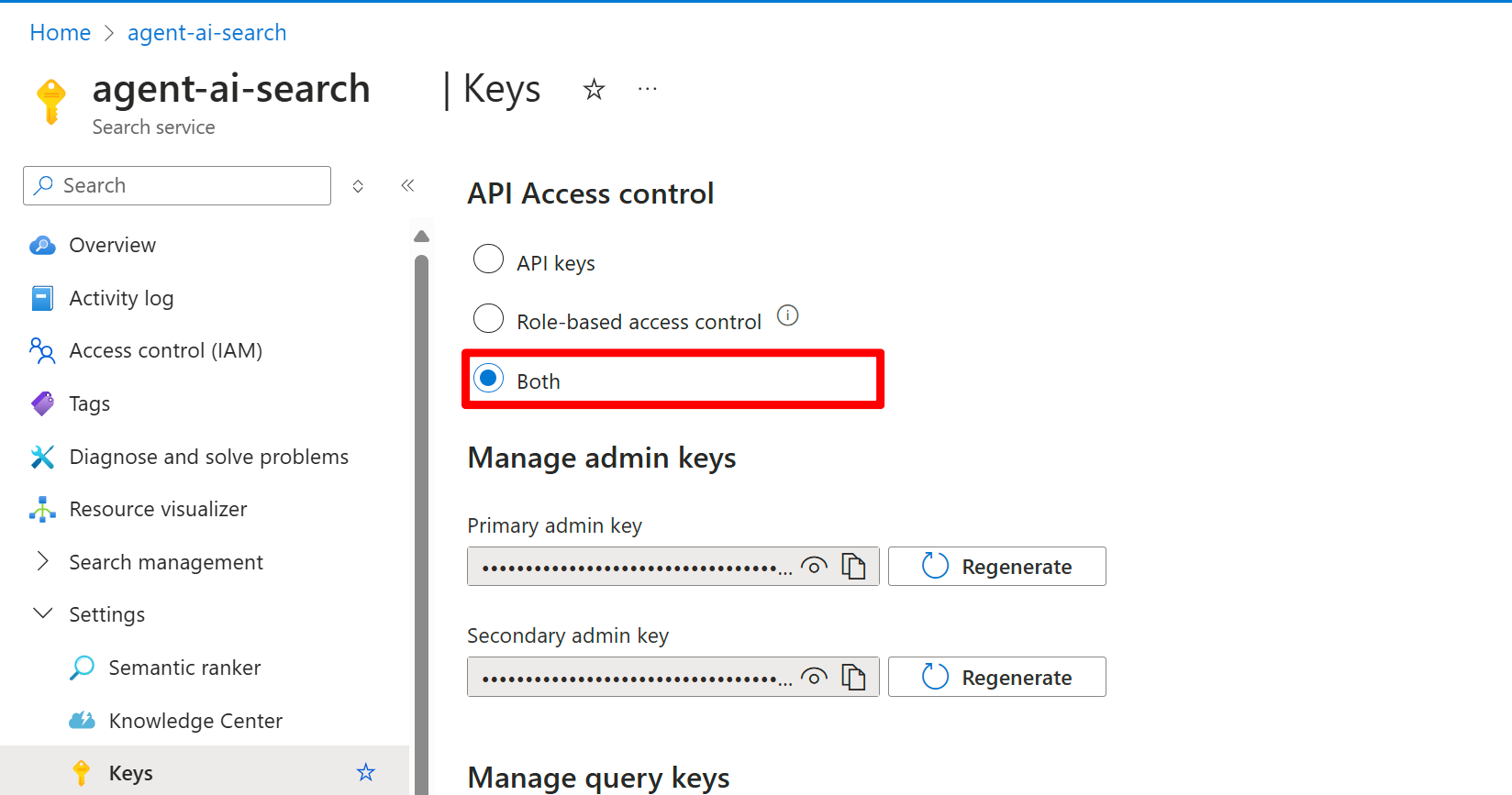
- Anota uma das chaves em Gerir chaves de administração.
Criar uma ligação ao projeto
Crie a ligação ao projeto usando os dados do serviço de pesquisa que recolheu.
Use uma das seguintes opções.
- Portal da plataforma Foundry
- CLI para Desenvolvedores do Azure
- CLI do Azure
- Python SDK
- API REST
- Bicep
- Vai para o Foundry Portal.
- Abra o seu project e depois selecione Gerenciar>detalhes do Project.
- Selecione o separador Recursos Conectados .
- Selecionar Adicionar ligação.
- Selecione Pesquisa de IA do Azure da lista de serviços disponíveis.
- Procure e selecione o seu serviço Pesquisa de IA do Azure, e depois selecione o tipo de Autenticação a utilizar.
- Selecionar Adicionar ligação.
Para passos mais detalhados, consulte Adicionar uma nova ligação ao seu projeto.
Confirme o ID da ligação
Se usares a amostra REST, precisas do ID de ligação do projeto. Os SDKs de Python, C# e TypeScript podem resolver o ID para si a partir do nome da ligação.
Python
from azure.identity import DefaultAzureCredential
from azure.ai.projects import AIProjectClient

# Format: "https://resource_name.ai.azure.com/api/projects/project_name"
PROJECT_ENDPOINT = "your_project_endpoint"
SEARCH_CONNECTION_NAME = "my-search-connection"

project = AIProjectClient(
    endpoint=PROJECT_ENDPOINT,
    credential=DefaultAzureCredential(),
)

connection = project.connections.get(SEARCH_CONNECTION_NAME)
print(connection.id)
C#
// Format: "https://resource_name.ai.azure.com/api/projects/project_name"
var projectEndpoint = "your_project_endpoint";
var searchConnectionName = "my-search-connection";

AIProjectClient projectClient = new(endpoint: new Uri(projectEndpoint), tokenProvider: new DefaultAzureCredential());
AIProjectConnection connection = projectClient.Connections.GetConnection(connectionName: searchConnectionName);
Console.WriteLine(connection.Id);
TypeScript
import { DefaultAzureCredential } from "@azure/identity";
import { AIProjectClient } from "@azure/ai-projects";

// Format: "https://resource_name.ai.azure.com/api/projects/project_name"
const PROJECT_ENDPOINT = "your_project_endpoint";
const SEARCH_CONNECTION_NAME = "my-search-connection";

const project = new AIProjectClient(PROJECT_ENDPOINT, new DefaultAzureCredential());

const connection = await project.connections.get(SEARCH_CONNECTION_NAME);
console.log(connection.id);
Resolução de problemas
| Problema | Causa | Resolução |
|---|---|---|
| "Espaço de trabalho não encontrado" ao criar uma ligação | O CLI az ml e o SDK azure-ai-ml Python usam o fornecedor de recursos Microsoft.MachineLearningServices, que não suporta novos projetos Foundry (Microsoft.CognitiveServices) |
Usa az cognitiveservices account project connection create ou o SDK azure-mgmt-cognitiveservices Python em vez disso. Veja Criar uma ligação a um projeto. |
| A resposta não tem citações | Instruções para o agente: não solicitar citações | Atualize as instruções do seu agente para solicitar explicitamente citações nas respostas. |
| Resposta sem citações (streaming) | Anotações não capturadas | Confirma que recebes url_citation anotações ao fazer streaming. Verifica a lógica de processamento da tua transmissão. |
| A ferramenta não consegue aceder ao índice (401/403) | Papéis RBAC em falta (autenticação sem chave) | Atribuir os papéis de Contribuidor de Dados do Índice de Pesquisa e Contribuidor do Serviço de Pesquisa à identidade gerida do projeto Foundry. Ver Azure RBAC na Foundry. |
| A ferramenta não consegue aceder ao índice (401/403) | Chave API inválida ou desativada | Confirme que a chave API está correta e ativada no recurso Pesquisa de IA do Azure. |
| A ferramenta devolve "índice não encontrado" | Incompatibilidade de nomes de índice | Confirme se o nome do índice corresponde exatamente ao nome do índice no seu recurso do Pesquisa de IA do Azure (sensível a maiúsculas e minúsculas). |
| A ferramenta devolve "índice não encontrado" | Ponto final de ligação errado | Confirme que a ligação ao projeto aponta para o recurso Pesquisa de IA do Azure que contém o índice. |
| A pesquisa não retorna resultados | A consulta não corresponde ao conteúdo indexado | Verifique se o índice contém os dados esperados. Use a funcionalidade de consulta de teste do Pesquisa de IA do Azure para validar. |
| Desempenho lento na pesquisa | Índice não otimizado | Revise a configuração do índice, considere adicionar uma classificação semântica ou otimize o esquema do índice. |
| "Não é possível ligar-se ao Pesquisa de IA do Azure Resource. Por favor, certifique-se de que a Pesquisa de IA do Azure Connection tem o endpoint correto e que o recurso de pesquisa tem as definições de rede adequadas para a configuração do agente. Não é possível ligar-se ao anfitrião ... [Servidor DNS devolveu resposta sem dados]" | A ligação Pesquisa de IA do Azure utiliza autenticação baseada em chaves com uma rede virtual privada | Mude a ligação Pesquisa de IA do Azure para usar a identidade gerida por projeto Microsoft Entra (autenticação sem chave). A autenticação baseada em chaves não é suportada em redes virtuais privadas. Consulte a secção de Limitações . |