Белешка
Приступ овој страници захтева ауторизацију. Можете покушати да се пријавите или промените директоријуме.
Приступ овој страници захтева ауторизацију. Можете покушати да промените директоријуме.
Windows has a complete set of free, AI-ready tools that take you from idea to published app. Whether you prefer the command line and VS Code or a full IDE like Visual Studio, AI agents can do the heavy lifting. This section covers both paths, and will help you no matter if you're building a new app from scratch or modernizing one you've already written.
Tip
New to Windows development? Start with the Quickstart: Build and publish a Windows app with AI — you can have a working app in under 30 minutes using only free tools.
What path are you on?
I'm starting fresh
Use the winui-dev agent and dotnet new templates to scaffold, build, run, and publish a new Windows app — no Windows experience required.
I have an existing app
AI tools can help you migrate WPF or UWP apps to modern WinUI 3, or add Windows capabilities to apps built with Electron, Flutter, Tauri, or Rust.
→ Migrate from WPF → Migrate from UWP → Cross-framework apps
Tools in this section
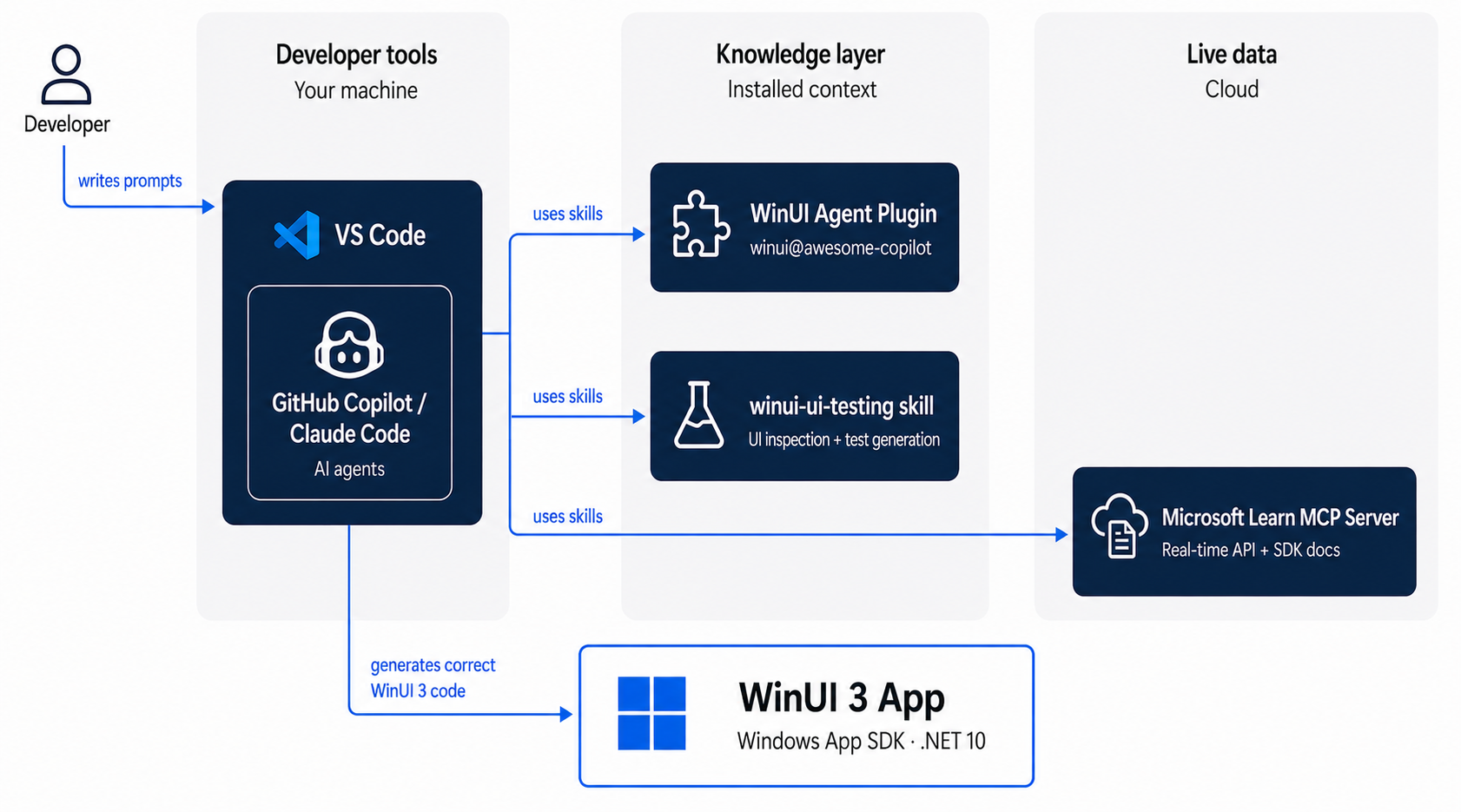
Many developers will use all three: the winapp CLI to scaffold and publish, the WinUI agent plugin to keep Copilot accurate, and the Microsoft Learn MCP Server for live doc access.
| Tool | What it does |
|---|---|
| WinUI agent plugin | 8 skills for end-to-end WinUI development in GitHub Copilot or Claude Code |
| VS Code tools | WinApp extension + Microsoft Learn MCP Server for VS Code and Claude Code |
| AI-assisted testing | Generate and run UI tests using Windows UI Automation |
| Publish to the Store | Submit to the Microsoft Store from the command line using winapp store |
Frequently asked questions
Can I build a WinUI 3 app without Visual Studio?
Yes. Three commands are all you need:
dotnet new winui-navview -n MyApp
cd MyApp
dotnet run
Build, debug, package, and publish from VS Code or the terminal. Visual Studio is still best for complex XAML debugging, but it's no longer required. See the Quickstart.
Are these tools free?
Yes — the WinApp CLI, VS Code extension, and dotnet new templates are free and open source. GitHub Copilot requires a subscription (free tier available). The Microsoft Learn MCP Server is free with no sign-in required.
Will Copilot give me outdated UWP code instead of WinUI 3?
By default, yes — AI models have more UWP training data than WinUI 3. See Why do I need this plugin? for a full explanation and the before/after API table. The short answer: install the WinUI agent plugin and the problem largely goes away.
Does this work with Claude Code as well as GitHub Copilot?
Yes. The winui@awesome-copilot plugin and the Microsoft Learn MCP Server both work with any MCP-compatible agent.
How long does it take to go from idea to published app?
Under 30 minutes to a running app (see the Quickstart). Store submission requires a Partner Center account and certification, which typically takes 1–3 business days.
Starter prompts
AI models have years of UWP and WPF training data, so these prompts override that and anchor responses to current WinUI 3 patterns.
Tip
To avoid adding these WinUI 3 constraints to every prompt, install the WinUI agent plugin. It injects them automatically as system-level instructions, so you can write simple requests like "Build me a WinUI 3 app that shows files in a folder" without spelling out the API rules each time.
New app
Create a new WinUI 3 Windows app using `dotnet new winui-navview` (from the
Microsoft.WindowsAppSDK.WinUI.CSharp.Templates package). Build and run with the
winapp CLI — not Visual Studio.

Use Microsoft.UI.Xaml for all controls — never Windows.UI.Xaml.
Use DispatcherQueue, not CoreDispatcher.
Use AppWindow + OverlappedPresenter, not ApplicationView.
Use ContentDialog, not MessageDialog.
Migrate from UWP or WPF
I'm migrating a [UWP / WPF] app to WinUI 3 using the Windows App SDK.

Apply these substitutions:
- Windows.UI.Xaml.* → Microsoft.UI.Xaml.*
- CoreDispatcher / Dispatcher.RunAsync → DispatcherQueue.TryEnqueue
- ApplicationView → AppWindow + OverlappedPresenter
- MessageDialog → ContentDialog
- Windows.UI.Notifications → Microsoft.Windows.AppNotifications
- Frame.Navigate with UWP page types → WinUI 3 Frame + Page

Do not introduce any Windows.UI.* APIs. Flag anything without a direct WinUI 3 equivalent.
Add a feature to an existing WinUI 3 app
This is a WinUI 3 app using the Windows App SDK.
- Use Microsoft.UI.Xaml.* namespaces only
- Use DispatcherQueue for thread marshalling
- Use CommunityToolkit.Mvvm for MVVM patterns
- Use winapp run to test — do not open Visual Studio
Related content
Сарађујте са нама на GitHub-у
Извор овог садржаја можете пронаћи на платформи GitHub, где можете и да креирате и прегледате проблеме и захтеве за повлачењем. Више информација потражите у нашем водичу за сараднике.
