หมายเหตุ
การเข้าถึงหน้านี้ต้องได้รับการอนุญาต คุณสามารถลอง ลงชื่อเข้าใช้หรือเปลี่ยนไดเรกทอรีได้
การเข้าถึงหน้านี้ต้องได้รับการอนุญาต คุณสามารถลองเปลี่ยนไดเรกทอรีได้
บทความนี้อธิบายวิธีการรับเหตุการณ์จากแหล่งข้อมูลตัวอย่างลงในฮับแบบเรียลไทม์
Prerequisites
- เข้าถึงพื้นที่ทํางานในโหมดสิทธิ์การใช้งาน Fabric capacity (หรือ) โหมดสิทธิ์การใช้งานรุ่นทดลองใช้ที่มีสิทธิ์ผู้สนับสนุนหรือสูงกว่า
หน้าแหล่งข้อมูล
Sign in to Microsoft Fabric.
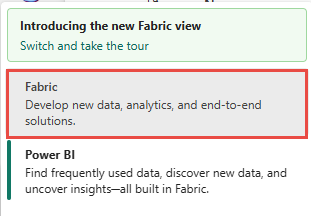
If you see Power BI at the bottom-left of the page, switch to the Fabric workload by selecting Power BI and then by selecting Fabric.
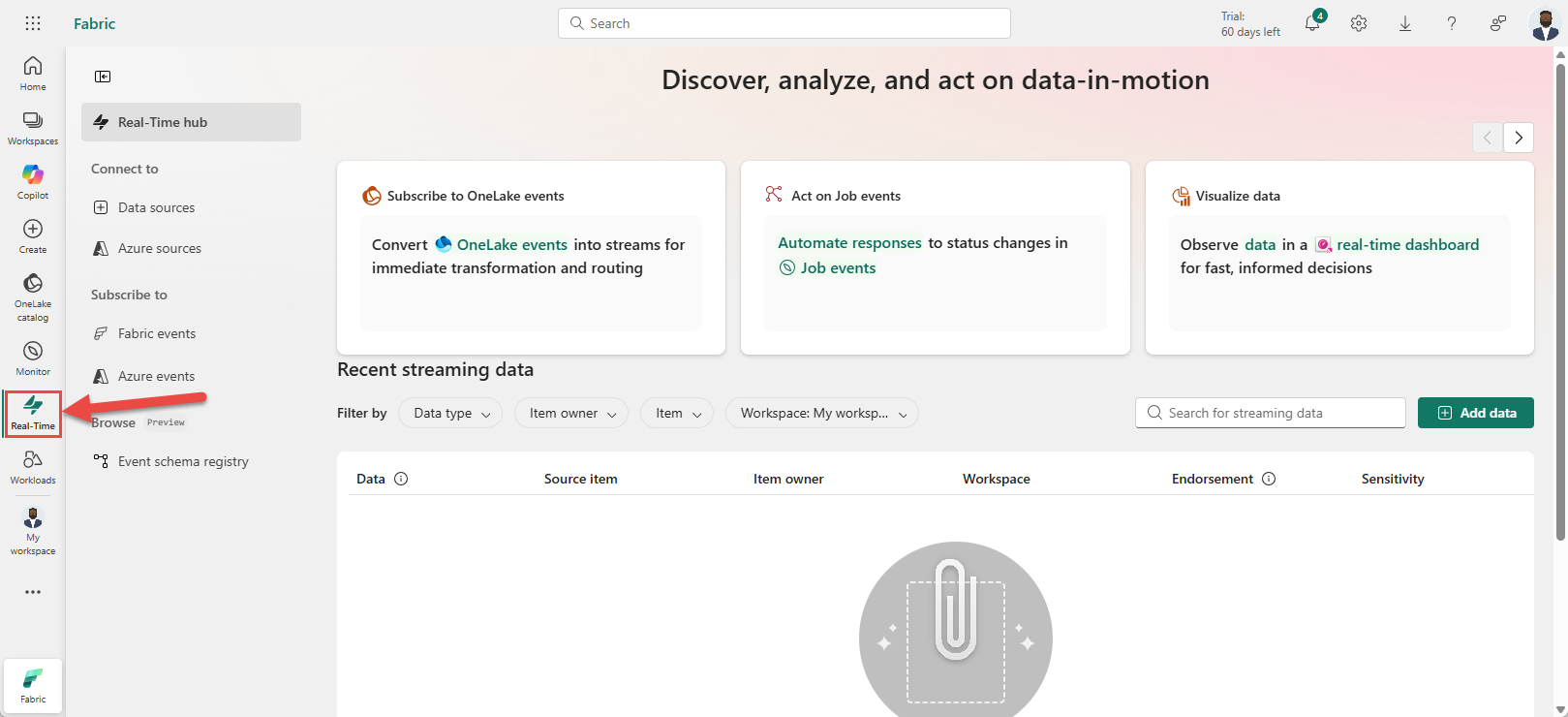
Select Real-Time on the left navigation bar.
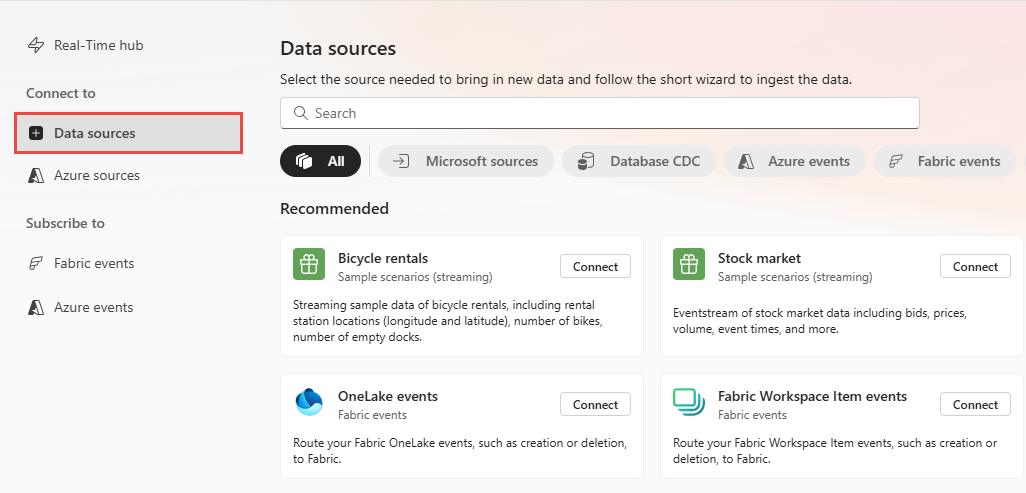
On the Real-Time hub page, select + Data sources under Connect to on the left navigation menu.
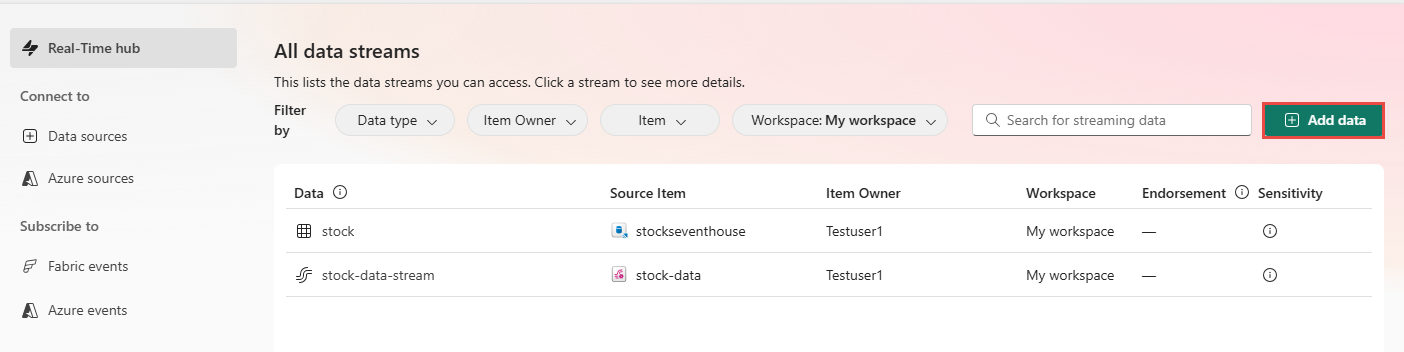
You can also get to the Data sources page from the Real-Time hub page by selecting the + Add data button in the top-right corner.
เพิ่มข้อมูลตัวอย่างเป็นแหล่งข้อมูล
On the Data sources page, select Sample scenarios from categories at the top.
Select Connect on a sample scenario tile (for example, Bicycle rentals) on the page.

On the Connect page, for Source name, enter a name for the source.
In the Stream details section of the right pane, do these steps:
Select the workspace where you want to save the connection.
ใส่ ชื่อสําหรับเหตุการณ์กระแสข้อมูล ที่จะสร้างให้คุณ
Name of the stream for Real-Time hub is automatically generated for you.

Select Next.
บนหน้า ตรวจสอบ + เชื่อมต่อ ให้ตรวจสอบสรุป จากนั้นเลือก สร้างแหล่งข้อมูล


ดูรายละเอียดสตรีมข้อมูล
บนหน้า ตรวจสอบ + เชื่อมต่อ ถ้าคุณเลือก เปิดเหตุการณ์สตรีม ตัวช่วยสร้างจะเปิดเหตุการณ์ที่สร้างขึ้นให้คุณด้วยแหล่งข้อมูลตัวอย่างที่เลือก To close the wizard, select Finish at the bottom of the page.

ยืนยันว่าคุณเห็นสตรีมข้อมูลที่สร้างขึ้นใหม่บนหน้า สตรีม ข้อมูลของฉัน

Related content
หากต้องการเรียนรู้เกี่ยวกับการใช้สตรีมข้อมูล โปรดดูบทความต่อไปนี้: