结构映射由 公共定义 (map.json 文件)定义,描述了底图、数据源、层源和层渲染设置。 自动创建地图的最可靠方法是使用 公共定义内联创建地图,以便地图准备好在创建后立即呈现层。 Map 定义结构记录在 Map 项定义 一文中。
在本教程中,你将从头开始构建一个 Python 应用,该应用:
- 使用 Lakehouse REST API 在 Fabric 工作区中创建 Lakehouse (支持 LRO)。
- 通过 OneLake DFS API(GUID 寻址)将 GeoJSON 文件上传到 Lakehouse 文件/区域。
- 将 自定义 SVG 标记 上传到相同的 Lakehouse,然后从地图定义(iconSources)中引用它。
- 使用创建地图 API(支持使用公共定义创建并支持 LRO),创建一个带有 map.json 内联定义的 Map。
- 使用 Fabric REST API 创建 Lakehouse
- 将 GeoJSON 文件上传到 OneLake
- 将自定义 SVG 标记图标上传到 OneLake
- 生成引用 Lakehouse 数据的 map.json 定义
- 使用提供的行内定义创建Fabric Map
先决条件
- Python 3.9 或更高版本
- Azure cli
- Fabric 工作区 ID
- Microsoft Entra 访问令牌,其中包含:
Item.ReadWrite.All
Authentication
本教程使用 DefaultAzureCredential,可以使用多个本地/开发凭据源进行身份验证。 对于首次读取者,最简单的方法是 Azure CLI 登录。
在本地进行身份验证(建议首次运行)
- 打开终端。
- Run:
az login
DefaultAzureCredential 可以使用登录标识获取以下项的访问令牌:
- 面料REST API(资源:
https://api.fabric.microsoft.com/.default) - OneLake 通过与 ADLS 兼容的终结点进行访问(OneLake 支持现有的 ADLS/Blob 工具和 SDK)。 OneLake 支持使用 ADLS Gen2 API 和 SDK 浏览和读取/写入数据,包括工作区和项的基于 GUID 的寻址。
小窍门
关于 https://api.fabric.microsoft.com/.default 此值是 令牌请求范围,而不是一个可以直接调用的 URL。 它告诉Microsoft Entra,应为 Microsoft Fabric REST API 颁发访问令牌,并应包括 已授予身份验证标识的所有 Fabric 权限 (如 Item.ReadWrite.All 或 Workspace.ReadWrite.All)。
范围 .default 仅在令牌获取期间使用,永远不会发送到 Fabric REST API 终结点。
有关 .default 作用域在微软身份平台中的工作原理的详细信息,请参阅 微软身份平台中的作用域和权限。
登录到 Microsoft Fabric (建议)
在运行本教程之前,建议至少登录到 Microsoft Fabric 一次:
https://app.fabric.microsoft.com
登录可确保在以编程方式获取 Microsoft Entra 访问令牌之前完全预配 Fabric 标识、工作区角色成员身份和容量分配。
如果执行以下步骤,则此步骤特别有用:
- 您是 Microsoft Fabric 的新用户
- 最近创建了工作区
- 您的角色分配最近已添加
注释
本教程通过 DefaultAzureCredential 使用 Microsoft Entra ID 进行身份验证。 Fabric REST API 不需要浏览器会话,但登录到 Fabric Web 体验可以防止因角色预配延迟而导致的首次运行授权问题。
创建 GeoJSON 文件
GeoJSON 文件用于创建地图项数据层。 创建文件后,更新 local_geojson_path 变量以反映正确的路径。
复制以下 GeoJSON 并将其粘贴到空白文本文件中,并将其另存为 starbucks-seattle.geojson:
{
  "type": "FeatureCollection",
  "features": [
    {
      "type": "Feature",
      "properties": { "name": "Starbucks - 999 3rd Ave" },
      "geometry": { "type": "Point", "coordinates": [-122.334389, 47.605278] }
    },
    {
      "type": "Feature",
      "properties": { "name": "Starbucks - 1201 3rd Ave" },
      "geometry": { "type": "Point", "coordinates": [-122.335167, 47.608040] }
    },
    {
      "type": "Feature",
      "properties": { "name": "Starbucks - 221 Pike St" },
      "geometry": { "type": "Point", "coordinates": [-122.340057, 47.609450] }
    },
    {
      "type": "Feature",
      "properties": { "name": "Starbucks - 800 5th Ave" },
      "geometry": { "type": "Point", "coordinates": [-122.330048, 47.604550] }
    },
    {
      "type": "Feature",
      "properties": { "name": "Starbucks - 1420 5th Ave" },
      "geometry": { "type": "Point", "coordinates": [-122.334091, 47.610041] }
    },
    {
      "type": "Feature",
      "properties": { "name": "Starbucks - 1524 7th Ave" },
      "geometry": { "type": "Point", "coordinates": [-122.334915, 47.614498] }
    },
    {
      "type": "Feature",
      "properties": { "name": "Starbucks - 2011 7th Ave" },
      "geometry": { "type": "Point", "coordinates": [-122.338165, 47.616341] }
    },
    {
      "type": "Feature",
      "properties": { "name": "Starbucks - 2001 8th Ave" },
      "geometry": { "type": "Point", "coordinates": [-122.338806, 47.616848] }
    },
    {
      "type": "Feature",
      "properties": { "name": "Starbucks - 4147 University Way NE" },
      "geometry": { "type": "Point", "coordinates": [-122.313873, 47.658298] }
    },
    {
      "type": "Feature",
      "properties": { "name": "Starbucks - 2200 NW Market St" },
      "geometry": { "type": "Point", "coordinates": [-122.384056, 47.668581] }
    },
    {
      "type": "Feature",
      "properties": { "name": "Starbucks - 101 Broadway E" },
      "geometry": { "type": "Point", "coordinates": [-122.320457, 47.620480] }
    },
    {
      "type": "Feature",
      "properties": { "name": "Starbucks - 824 E Pike St" },
      "geometry": { "type": "Point", "coordinates": [-122.320282, 47.614212] }
    },
    {
      "type": "Feature",
      "properties": { "name": "Starbucks - 6501 California Ave SW" },
      "geometry": { "type": "Point", "coordinates": [-122.387016, 47.545376] }
    },
    {
      "type": "Feature",
      "properties": { "name": "Starbucks - 1501 4th Ave" },
      "geometry": { "type": "Point", "coordinates": [-122.336212, 47.610325] }
    },
    {
      "type": "Feature",
      "properties": { "name": "Starbucks - 701 5th Ave" },
      "geometry": { "type": "Point", "coordinates": [-122.330704, 47.604298] }
    },
    {
      "type": "Feature",
      "properties": { "name": "Starbucks - 2344 Eastlake Ave E" },
      "geometry": { "type": "Point", "coordinates": [-122.325874, 47.640884] }
    },
    {
      "type": "Feature",
      "properties": { "name": "Starbucks - 5221 15th Ave NW" },
      "geometry": { "type": "Point", "coordinates": [-122.376595, 47.668210] }
    },
    {
      "type": "Feature",
      "properties": { "name": "Starbucks - 4408 Fauntleroy Way SW" },
      "geometry": { "type": "Point", "coordinates": [-122.377693, 47.564991] }
    },
    {
      "type": "Feature",
      "properties": { "name": "Starbucks - 7303 35th Ave NE" },
      "geometry": { "type": "Point", "coordinates": [-122.290611, 47.682518] }
    },
    {
      "type": "Feature",
      "properties": { "name": "Starbucks - 2742 Alki Ave SW" },
      "geometry": { "type": "Point", "coordinates": [-122.408028, 47.579311] }
    }
  ]
}
步骤 1 - 创建新的 Python 项目文件
在此步骤中,您将创建一个空白的 Python 文件,并逐步对其进行构建。
创建名为: 的新文件:
create_map_from_geojson.py
在编辑器中打开该文件。
步骤 2 - 安装所需的库并添加所需的导入语句
在此步骤中,安装依赖项并添加脚本使用的导入。
安装所需的库
Run:
pip install httpx azure-identity azure-storage-file-datalake
每个库的用途
- httpx:向构造 REST API 发出 HTTP 请求。
- azure-identity:为 Microsoft Entra 身份验证提供 DefaultAzureCredential。
- azure-storage-file-datalake:使用 ADLS Gen2 兼容 API 将文件上传到 OneLake(OneLake 支持这些 API)。
将 import 语句添加到.py文件
在 create_map_from_geojson.py顶部,添加:
import base64
import json
import time
import uuid
from pathlib import Path

import httpx
from azure.identity import DefaultAzureCredential
from azure.storage.filedatalake import DataLakeServiceClient
步骤 3 - 添加配置部分
在此步骤中,定义应用程序使用的变量,包括工作区 ID、文件路径和功能切换。
在导入语句下方添加以下内容:
# ---------------------------------------------------------
# Configuration
# ---------------------------------------------------------

# Your Fabric workspace ID (GUID)
workspace_id = "YOUR-WORKSPACE-ID"

# Local GeoJSON file to upload to OneLake. Update as needed.
local_geojson_path = Path(
    r"C:\starbucks-seattle.geojson"
)

# Where the GeoJSON file will be stored inside the Lakehouse Files area
geojson_relative_path = "Files/vector/starbucks-seattle.geojson"

# Where the custom SVG icon will be stored inside the Lakehouse Files area
svg_relative_path = "Files/icons/starbucks-marker.svg"

# Toggle whether to use a custom SVG marker (recommended) or a built-in icon name (fallback)
USE_CUSTOM_SVG_MARKER = True

# If you disable custom SVG markers, the map will try to use this built-in icon name.
# Built-in icon names are environment/UI dependent, so consider this a fallback only.
BUILTIN_ICON_NAME_FALLBACK = "Coffee"
添加 SVG 标记符号常量
在同一部分中,添加:
# A small SVG marker icon (kept < 1 MB) that can scale cleanly.
STARBUCKS_MARKER_SVG = """\
<svg xmlns="http://www.w3.org/2000/svg" width="64" height="64" viewBox="0 0 64 64">
  <path d="M32 2C20.4 2 11 11.4 11 23c0 15.6 18.7 36.6 19.5 37.5a2 2 0 0 0 3 0C34.3 59.6 53 38.6 53 23 53 11.4 43.6 2 32 2z"
        fill="#006241" stroke="#ffffff" stroke-width="2"/>
  <circle cx="32" cy="23" r="13" fill="#ffffff" opacity="0.95"/>
  <path d="M26 20h12v10c0 3-2.5 5-6 5s-6-2-6-5V20z" fill="#006241"/>
</svg>
"""
小窍门
SVG 通常是标志的一个最佳选择,因为它可以在不同的缩放级别和屏幕 DPI 上清晰地缩放。
步骤 4 - 添加帮助程序函数
此步骤添加可重用的帮助程序函数,使“端到端流”保持可读性:
- 身份验证帮助程序:生成 Fabric REST 调用的标头
- LRO 处理程序:使用 Location 和 Retry-After 轮询 202 接受的操作
- 定义载荷助手:用于内联定义的 base64 编码 map.json
- OneLake 上传帮助程序:通过 OneLake 将 GeoJSON/SVG 上传到 Lakehouse 文件
创建身份验证帮助程序函数
Fabric REST 调用需要承载令牌。 创建地图和 Lakehouse API 需要委托的范围,例如Item.ReadWrite.All、/、Lakehouse.ReadWrite.All(具体取决于 API),并通过 Microsoft Entra 进行身份验证。
在配置部分下方添加此块:
# ---------------------------------------------------------------------------
# Auth helpers
#
# Authentication utilities built on DefaultAzureCredential that acquire and
# construct Authorization headers for calling Fabric REST APIs.
# ---------------------------------------------------------------------------

class TokenProvider:
    """Thin wrapper around DefaultAzureCredential that acquires Entra tokens."""
    def __init__(self):
        self._cred = DefaultAzureCredential()

    def get(self, scope: str) -> str:
        return self._cred.get_token(scope).token


_tokens = TokenProvider()


def _fabric_headers() -> dict[str, str]:
    """Auth headers for Fabric REST API calls."""
    return {
        "Authorization": f"Bearer {_tokens.get('https://api.fabric.microsoft.com/.default')}",
        "Content-Type": "application/json"
    }
创建 LRO 助手函数
Create Lakehouse 和 Create Map 都支持 长时间运行的操作 ,并且可以返回 202 Accepted 和 LocationRetry-After。
添加此块:
# ---------------------------------------------------------
# LRO HANDLER
# ---------------------------------------------------------

def _handle_lro(
    client: httpx.Client,
    initial_response: httpx.Response,
    *,
    list_url: str | None = None,
    match_display_name: str | None = None,
    id_field: str = "id",
) -> str:
    """
    Poll a Fabric long-running operation (LRO) until completion and return the created resource id.

    Why this function exists:
    - Many Fabric create APIs return HTTP 202 + Location header for async creation.
    - Some LRO completion payloads are status-only and do NOT include the created resource id.
      When that happens, we resolve the created resource by listing resources and matching displayName.

    Parameters:
    - list_url: The endpoint to list resources of the same type (e.g. .../maps).
    - match_display_name: The displayName used in the create call; used to locate the created item.

    Returns:
    - The created resource id as a string.
    """
    op_url = initial_response.headers.get("Location")
    if not op_url:
        raise RuntimeError("Missing LRO Location header.")

    retry_after = int(initial_response.headers.get("Retry-After", "5"))

    while True:
        time.sleep(retry_after)
        poll = client.get(op_url)

        # Still running
        if poll.status_code == 202:
            retry_after = int(poll.headers.get("Retry-After", "5"))
            continue

        poll.raise_for_status()
        body = poll.json() if poll.content else {}

        # Case A: Operation returns the created resource id directly.
        if isinstance(body, dict) and id_field in body and body[id_field]:
            return body[id_field]

        # Case B: Status-only completion payload; resolve by listing.
        status = (body.get("status") if isinstance(body, dict) else None)
        if status == "Succeeded" and list_url and match_display_name:
            r = client.get(list_url)
            r.raise_for_status()

            items = r.json().get("value", [])
            match = next((i for i in items if i.get("displayName") == match_display_name), None)
            if match and match.get(id_field):
                return match[id_field]

            raise RuntimeError(
                f"LRO succeeded but could not resolve created resource by name. "
                f"match_display_name={match_display_name!r}"
            )

        # Anything else is unexpected
        raise RuntimeError(f"LRO completed but no resource id was returned. Body: {body}")
定义负载助手
使用 公共定义创建映射时,将 map.json 作为 payloadType 发送: InlineBase64。 创建 Map API 示例展示如何在 definition.parts 中使用 InlineBase64。
添加:
# ---------------------------------------------------------
# DEFINITION PAYLOAD HELPER
# - Create Map can include a public definition inline (map.json as InlineBase64).
# ---------------------------------------------------------

def _json_to_b64(obj: dict) -> str:
    """Encode a JSON object as base64 string (InlineBase64 payload)."""
    return base64.b64encode(json.dumps(obj).encode("utf-8")).decode("utf-8")
OneLake 上传助手
OneLake 支持 ADLS/Blob API,并允许基于 GUID 的工作区和项寻址:
https://onelake.dfs.fabric.microsoft.com/<workspaceGUID>/<itemGUID>/<path>/<fileName>
添加:
# -----------------------------------------------------------------------------------------------
# ONE LAKE UPLOAD HELPERS
# OneLake supports GUID-based addressing:
#   https://onelake.dfs.fabric.microsoft.com/<workspaceGUID>/<itemGUID>/<path>/<fileName>
# We use the ADLS Gen2 SDK (DataLakeServiceClient) to upload files into the Lakehouse Files area.
# -----------------------------------------------------------------------------------------------

def _onelake_client() -> DataLakeServiceClient:
    return DataLakeServiceClient(
        account_url="https://onelake.dfs.fabric.microsoft.com",
        credential=DefaultAzureCredential()
    )


def _upload_with_retry(
    workspace_guid: str,
    item_guid: str,
    dest_relative_path: str,
    content: bytes,
    attempts: int = 6
) -> None:
    """
    Upload bytes into OneLake under the Lakehouse item.
    New Lakehouses can take a short time before the Files folder is ready, so retry.
    """
    service = _onelake_client()
    fs = service.get_file_system_client(file_system=workspace_guid)

    # GUID-based addressing: item GUID is the first path segment
    dest_path = f"{item_guid}/{dest_relative_path}".replace("\\", "/")

    last_exc = None
    for i in range(attempts):
        try:
            fs.get_file_client(dest_path).upload_data(content, overwrite=True)
            return
        except Exception as exc:
            last_exc = exc
            time.sleep(2 + i)

    raise RuntimeError(f"Upload failed after {attempts} attempts: {last_exc}")
创建辅助函数以便创建后立即检索映射 ID
使用 Fabric REST API 创建地图时,请求可以返回“202 已接受”状态的响应。 这表示映射是被异步预配为长时间运行的操作(LRO),而不是立即创建。 在这种情况下,响应不包含映射 ID,LRO 完成终结点可能不会返回可用结果。 此外,即使在操作完成后,由于后端传播而调用列表映射 API 时,新创建的地图可能不会立即显示。
若要可靠地获取地图 ID,必须查询地图列表,然后重试,直到新地图可见。 以下帮助函数实现了这一重试模式,确保您的自动化流程能够应对异步预配延迟,只有在需要映射 ID 时才必需。
接下来添加以下代码:
# ---------------------------------------------------------
# Get Map ID
# ---------------------------------------------------------

def resolve_map_id(client, list_url, headers, map_name, max_attempts=10, delay=5):
    """
    Resolve the ID of a newly created Fabric map.

    Why this function is needed:
    - Creating a map may return HTTP 202 (Accepted), indicating an asynchronous
      long-running operation (LRO) rather than immediate creation.
    - LRO responses for map creation don't always return a resource ID.
    - Even after the operation completes, the new map may not be immediately
      visible in the List Maps API due to backend propagation delays.

    What this function does:
    - Repeatedly calls the List Maps API.
    - Searches for a map matching the provided display name.
    - Retries for a configurable number of attempts with a delay between calls.

    Parameters:
        client        : Authenticated HTTP client
        list_url      : Maps list endpoint
        headers       : Authorization headers for Fabric API
        map_name      : Display name of the map to locate
        max_attempts  : Maximum number of retry attempts
        delay         : Delay (seconds) between retries

    Returns:
        The map ID (string) once the map becomes visible.

    Raises:
        RuntimeError if the map is not found after all retry attempts.
    """

    for attempt in range(max_attempts):
        print(f"Resolving map (attempt {attempt + 1}/{max_attempts})...")

        resp = client.get(list_url, headers=headers)
        resp.raise_for_status()

        items = resp.json().get("value", [])

        match = next(
            (m for m in items if m.get("displayName") == map_name),
            None
        )

        if match:
            print("✅ Map found!")
            return match["id"]

        print("⏳ Map not visible yet. Retrying...")
        time.sleep(delay)

    raise RuntimeError("Map created but still not visible after retries")
创建端到端流
在此步骤中,添加运行工作流端到端的应用程序逻辑。 您可以分步骤地构建它:
- 创建 Lakehouse
- 上传 GeoJSON
- 上传自定义 SVG (可选)
- 生成 map.json
- 使用内联定义来创建地图
在文件底部添加此块:
# ---------------------------------------------------------
# END-TO-END FLOW
# ---------------------------------------------------------
with httpx.Client(timeout=60) as client:
    # Code will be added in the following sections

    pass
在下一部分中,你将替换pass。
创建 Lakehouse
Lakehouse 被用作持久存储层(OneLake 文件)。 Lakehouse 创建 API 支持 LRO 响应。
替换为 pass :
# 1) Create Lakehouse (201 or 202/LRO)
    lakehouse_url = f"https://api.fabric.microsoft.com/v1/workspaces/{workspace_id}/lakehouses"
    lakehouse_payload = {
        "displayName": "lh_starbucks_seattle",
        "description": "Stores Starbucks Seattle GeoJSON + marker icon for a Fabric Maps tutorial"
    }

    lh_resp = client.post(lakehouse_url, headers=_fabric_headers(), json=lakehouse_payload)

    if lh_resp.status_code == 201:
        lakehouse_id = lh_resp.json()["id"]
    elif lh_resp.status_code == 202:
        lakehouse_id = _handle_lro(client, lh_resp)
    else:
        raise RuntimeError(f"Failed to create lakehouse: {lh_resp.status_code} {lh_resp.text}")

    print("Lakehouse created. Lakehouse ID:", lakehouse_id)
将 GeoJSON 上传到 Lakehouse 文件区域 (OneLake)
Fabric Maps 可以通过数据源中的 Lakehouse 数据源和layerSources中的基于文件的层源(例如 geojson)引用存储在 OneLake 中的文件。
在创建 Lakehouse 的模块之后立即添加此代码:
# 2) Upload GeoJSON into the Lakehouse Files area (OneLake)
    _upload_with_retry(
        workspace_guid=workspace_id,
        item_guid=lakehouse_id,
        dest_relative_path=geojson_relative_path,
        content=local_geojson_path.read_bytes()
    )
    print("Uploaded GeoJSON to:", geojson_relative_path)
如果启用,则上传自定义 SVG 标记图标 (OneLake)
标记层可以使用自定义图标。地图定义架构包括指向 IconSource 文件的对象(iconSources)。
添加:
# 3) Upload custom SVG marker icon (OneLake) if enabled
    if USE_CUSTOM_SVG_MARKER:
        _upload_with_retry(
            workspace_guid=workspace_id,
            item_guid=lakehouse_id,
            dest_relative_path=svg_relative_path,
            content=STARBUCKS_MARKER_SVG.encode("utf-8")
        )
        print("Uploaded custom SVG marker to:", svg_relative_path)
生成 map.json
map.json 是 映射公共定义的必需部分。 它包含 dataSources、iconSources、layerSources 和 layerSettings 的数组。
接下来添加以下代码:
# 4) Build map.json with:
    #    - dataSources includes the lakehouse
    #    - iconSources references the SVG (custom marker icon source)
    #    - layerSources references the GeoJSON file in the lakehouse
    #    - layerSettings renders points as markers via pointLayerType + markerOptions
    layer_source_id = str(uuid.uuid4())
    layer_setting_id = str(uuid.uuid4())
    icon_source_id = str(uuid.uuid4())
    custom_svg_marker = f"{layer_setting_id}:{icon_source_id}"
    icon_source_name = "Starbucks Marker"

    map_json = {
        "$schema": "https://developer.microsoft.com/json-schemas/fabric/item/map/definition/2.0.0/schema.json",
        "basemap": {},

        "dataSources": [
            {"itemType": "Lakehouse", "workspaceId": workspace_id, "itemId": lakehouse_id}
        ],

        "iconSources": (
            [
                {
                    "id": icon_source_id,
                    "name": icon_source_name,
                    "type": "svg",
                    "itemId": lakehouse_id,
                    "relativePath": svg_relative_path
                }
            ] if USE_CUSTOM_SVG_MARKER else []
        ),

        "layerSources": [
            {
                "id": layer_source_id,
                "name": "starbucks_seattle_geojson",
                "type": "geojson",
                "itemId": lakehouse_id,
                "relativePath": geojson_relative_path,
                "refreshIntervalMs": 0
            }
        ],

        "layerSettings": [
            {
                "id": layer_setting_id,
                "name": "Starbucks (Seattle)",
                "sourceId": layer_source_id,
                "options": {
                    "type": "vector",
                    "visible": True,
                    "tooltipKeys": ["name"],

                    # Render as marker layer
                    "pointLayerType": "marker",

                    "markerOptions": (
                        # Custom SVG marker path:
                        {
                            "iconOptions": {
                                "image": custom_svg_marker,
                                "anchor": "bottom",
                                "opacity": 1.0,
                                "rotation": 0,
                                "allowOverlap": False,
                                "rotationAlignment": "viewport",
                                "pitchAlignment": "viewport"
                            },
                                "icon": icon_source_id
                        }
                        if USE_CUSTOM_SVG_MARKER
                        # Built-in fallback path:
                        else
                        {
                            "size": 22,
                            "fillColor": "#006241",
                            "strokeColor": "#FFFFFF",
                            "strokeWidth": 2,
                            "icon": BUILTIN_ICON_NAME_FALLBACK,
                            "iconOptions": {
                                "anchor": "bottom",
                                "opacity": 1.0,
                                "rotation": 0,
                                "allowOverlap": False,
                                "rotationAlignment": "viewport",
                                "pitchAlignment": "viewport"
                            }
                        }
                    )
                }
            }
        ]
    }
注释
地图定义模式描述IconSource、LayerSource和LayerSettingOptions(包括标记层设置),作为map.json结构的一部分。
在线创建包含定义的Map
创建地图 API 支持内联发送公共定义(definition.parts),并返回 201 或 202(LRO)。
添加:
    # 5) Create the Map WITH definition inline (so no getDefinition/updateDefinition needed)
    map_name = "My Fabric Map"
    create_map_url = f"https://api.fabric.microsoft.com/v1/workspaces/{workspace_id}/maps"
    create_map_payload = {
        "displayName": map_name,
        "description": "Created using Fabric Maps REST API",
        "definition": {
            "parts": [
                {
                    "path": "map.json",
                    "payload": _json_to_b64(map_json),
                    "payloadType": "InlineBase64"
                }
            ]
        }
    }

    map_resp = client.post(create_map_url, headers=_fabric_headers(), json=create_map_payload)

    if map_resp.status_code == 201:
        map_id = map_resp.json()["id"]
    elif map_resp.status_code == 202:
        print("LRO completed via 202. Resolving map by name...")
        map_id = resolve_map_id(
            client,
            create_map_url,
            _fabric_headers(),
            map_name
        )
    else:
        raise RuntimeError(f"Create map failed: {map_resp.status_code} {map_resp.text}")

    print("Map created successfully. Map ID:", map_id)
    print("GeoJSON layer path:", geojson_relative_path)
    if USE_CUSTOM_SVG_MARKER:
        print("Custom SVG marker path:", svg_relative_path)
运行应用程序
运行脚本:
python create_map_from_geojson.py
如果成功,您会看到输出类似如下:
- Lakehouse 已创建。 Lakehouse ID:
<Lakehouse ID> - 已将 GeoJSON 上传到:Files/vector/starbucks-seattle.geojson
- 已将自定义 SVG 标记上传到:文件/图标/starbucks-marker.svg
- 地图已成功创建。 地图 ID:
<Map ID> - GeoJSON 层路径:文件/矢量/星巴克-西雅图.geojson
- 自定义 SVG 标记路径:文件/图标/starbucks-marker.svg
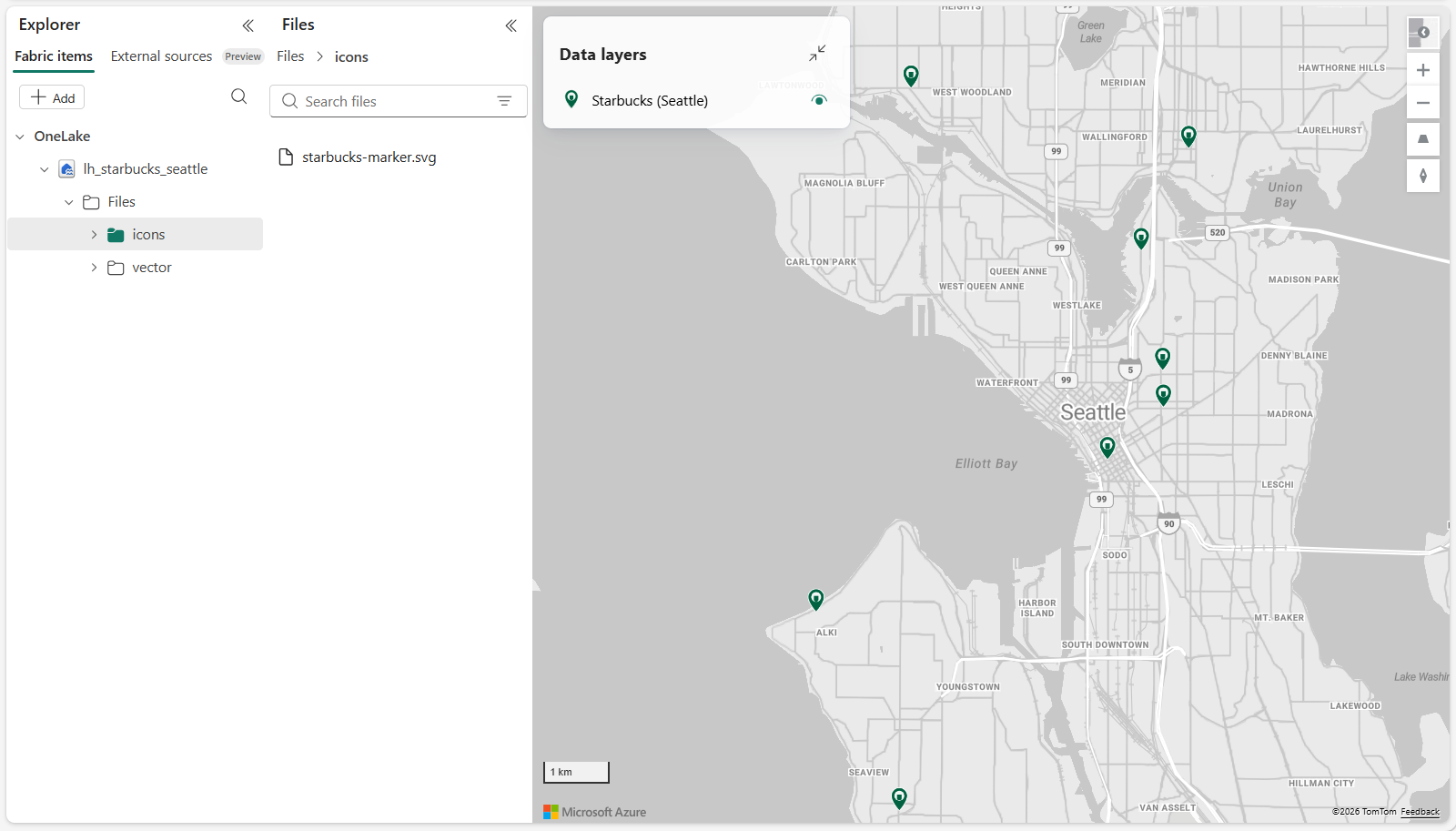
在 Microsoft Fabric 中,地图应如下所示:
后续步骤
了解 Map 公共定义的结构(map.json、可选的 .platform 和可选的查询部分)。