Share via

Xbox game bar gallery not showing captures

rymac100 5 Reputation points
2026-03-30T15:23:54.2333333+00:00

Xbox game bar gallery not showing captures, They save to the capture folder just fine but the capture preview in windows 11 game bar is blank, i followed this guide and it did not work https://www.reddit.com/r/techsupport/comments/1jfwo7p/my_xbox_game_bar_gallery_not_showing_recorded/
the Microsoft link is dead so i cant see the post their referring to
ive also reset the app

Windows for home | Windows 11 | Apps
0 comments No comments

Answer recommended by moderator

rymac100 5 Reputation points
2026-04-01T08:53:08.57+00:00

Found the fix myself, my computer wasnt indexing properly, i had to rebuild my computer index
you do this by doing:

  1. go into control panel
  2. search index
  3. click the option "indexing options"
  4. open the advance panel (will require admin permission)
  5. click rebuild under troubleshoot options
  6. wait

Was this answer helpful?

1 person found this answer helpful.

1 additional answer

Sort by: Most helpful
  1. MUSTAFA SALAH 1,630 Reputation points
    2026-03-31T13:29:06.5966667+00:00

    Hello rymac100,

    Ready for troubleshooting?

    Let's go!

    Force Game Bar to rebuild its capture index

    1. Close Xbox Game Bar completely
    2. Press Win + G --> Settings --> Exit
      Or end it in Task Manager
    3. Go to: C:\Users\YourName\AppData\Local\Packages

    Find: Microsoft.XboxGamingOverlay_8wekyb3d8bbwe
    Go into: LocalState
    Delete
    : (CaptureMetadata / MediaCache / Any .db or cache files / ..).

    1. Restart PC

    Repair + Reset Settings

    • Open Windows Settings -->Apps --> Installed apps

    Find: Xbox Game Bar --> (...) --> Advanced options --> Terminate --> Repair --> Reset


    Reinstall Game Bar cleanly (important if cache reset fails)

    1. Open PowerShell as admin and run:
      get-appxpackage Microsoft.XboxGamingOverlay | remove-appxpackage
    2. Then reinstall from: Microsoft Store
      Search: Xbox Game Bar --> Install

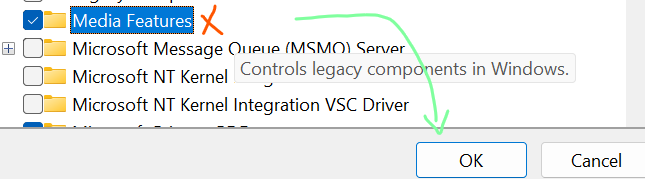
    Reset Media Features

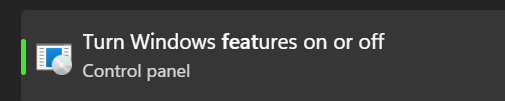
    1. Open Windows Features
    2. Uncheck "Media Features" --> Ok --> Restart
    3. Open Features again and check it to be installed again.
      User's image
      User's image

    *Are your captures HDR / high bitrate? || Any codec packs installed (K-Lite, HEVC Video Extensions, etc.)?

    Additionally: you can use this repair tool from Microsoft: https://support.xbox.com/en-US/help/games-apps/troubleshooting/gaming-services-repair-tool

    *I hope this helps!
    Regards,
    Mustafa

    Was this answer helpful?

    0 comments No comments

Your answer

Answers can be marked as 'Accepted' by the question author and 'Recommended' by moderators, which helps users know the answer solved the author's problem.