How to avoid 'nagging' when copying files

Sebastian42 40 Reputation points
2025-05-27T12:18:44.26+00:00

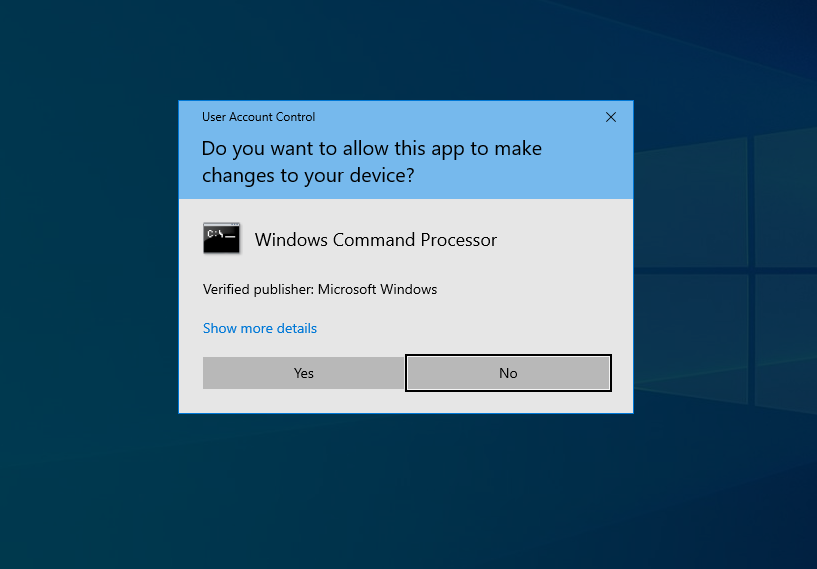
Although I have set User Account Control to minimum in x32Win10ProV22H2, I am still being asked to confirm and give administrative permissions when copying and moving files. Taking ownership of files is a case by case solution. Is there another GLOBAL option to avoid this ?

Windows for business | Windows Client for IT Pros | Devices and deployment | Configure application groups

Answer accepted by question author
Chen Tran 12,950 Reputation points Independent Advisor
2025-05-28T11:29:59.1+00:00

Hello Sebastian,

Thank you for posting question on Microsoft Windows forum!

Based on your query of avoiding to get the prompt for Administrative permission when copying and moving files. You can follow the below steps by granting Full Control option to the user.

  1. Right-click on the folder which contains the files and select Properties.
  2. Go to the Security tab.
  3. Click Edit.
  4. Click Add.
  5. Type your username and click Check Names, then OK. User's image
  6. Select your added user/group, and in the "Permissions" box, check "Full Control" under the "Allow" column. User's image
  7. Click Apply, and then OK

Hope the above steps are helpful!

Was this answer helpful?

1 person found this answer helpful.
0 comments No comments

3 additional answers

Sort by: Most helpful
  1. Sebastian42 40 Reputation points
    2025-06-03T02:59:45.7966667+00:00

    Chen Tran - after my attention was drawn to WHICH transfers 'caused trouble', I isolated one instance of movement between external HDDs (there probably are others), where I applied your method of taking ownership of the drives - and sure enough the nagging became absent. Thank you so much.

    A totally different issue is that when I wanted to report the above by way of reply to the email notifications I had received, I could not access this site - luckily I had documented the URL right at the start so was NOT prevented from contacting you. The URL got converted to

    https://learn.microsoft.com/en-us/answers/a/2056542 which resulted in '404 - Page not found'

    Was this answer helpful?


  2. MotoX80 37,861 Reputation points
    2025-06-02T13:03:07.86+00:00

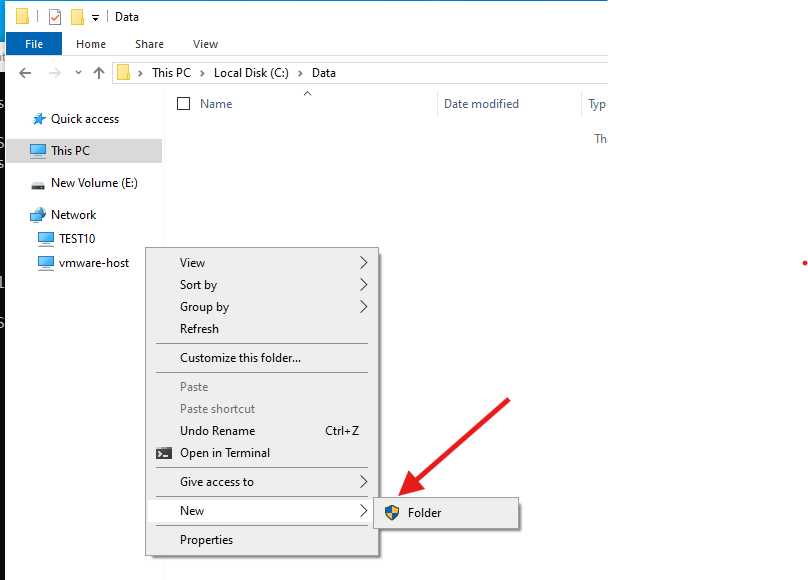
    Whenever you see this icon in explorer, that indicates that UAC will be involved in what you are trying to do.
    User's image

    Here's a good write-up on UAC.

    https://www.digitalcitizen.life/uac-why-you-should-never-turn-it-off/

    If you want to avoid those prompts, then the process that is doing the file copy must be running elevated with "run as administrator". Explorer does not run elevated.

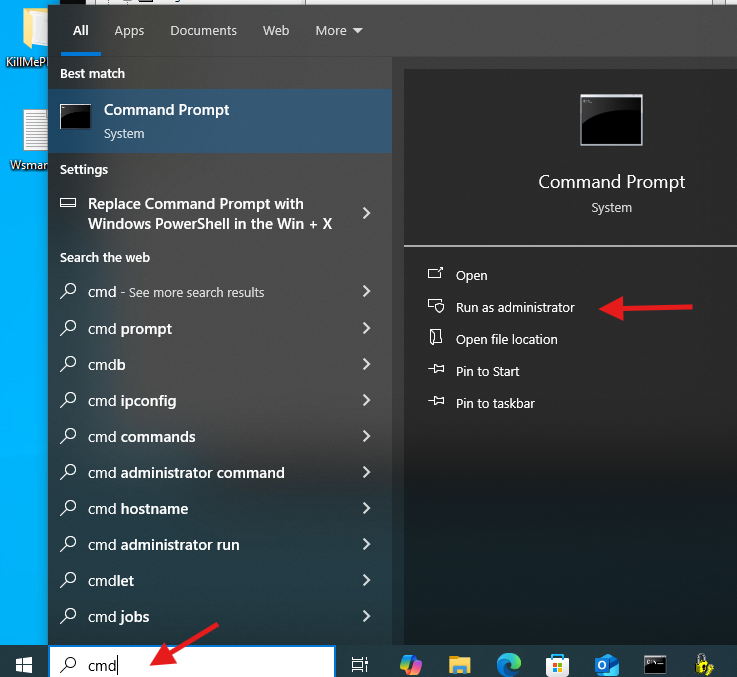
    The easiest way to do that is to launch a command prompt with "run as administrator". Then you can run command line programs to copy the files.
    User's image

    "Run as" UAC prompt.

    User's image

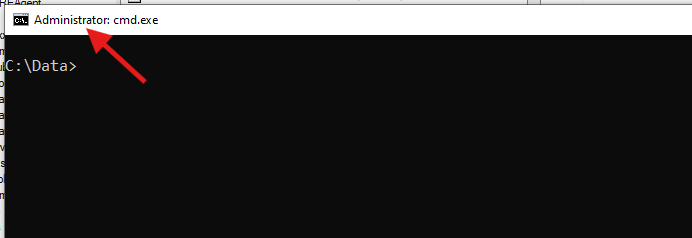
    The windows title will show "Administrator", and any program that you run from this prompt will have admin rights.
    User's image

    Robocopy is a powerful utility for copying files. That would be your best bet.

    https://lazyadmin.nl/it/robocopy-ultimate-guide/

    If you frequently run into this problem, then you have a permissions issue. The question that you would need to ask yourself is: why do I have these folders locked down so that only Administrators have update access?

    If you don't have any major security requirements, then just grant the Users group full control. You can do this on both the source and destination folders. Caveat: you really need to think about which folders you do that to. For example, you would NOT want to modify permissions on the root of the C: drive. Or C:\Windows. You would only want to do that on data folders that you created.
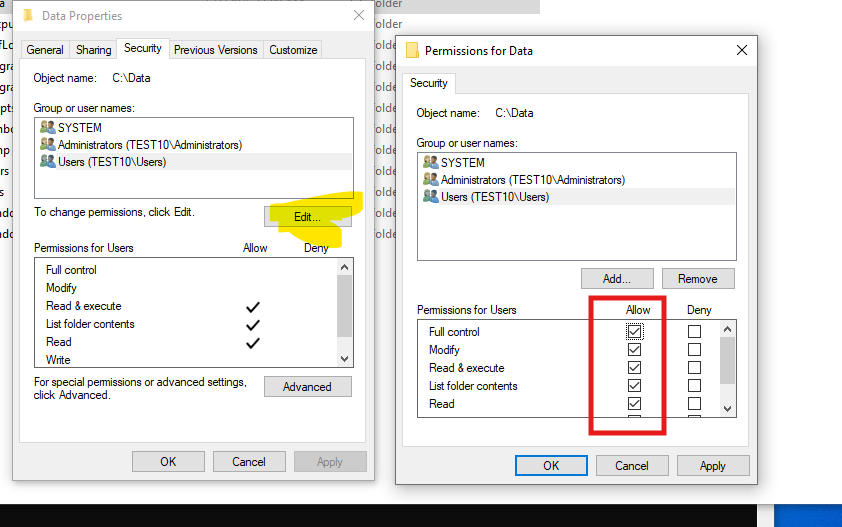
    User's image

    If you are unsure about what permissions are defined on subfolders, you can set the permissions to what you want on a parent folder and then push the permissions to all subfolders and files.
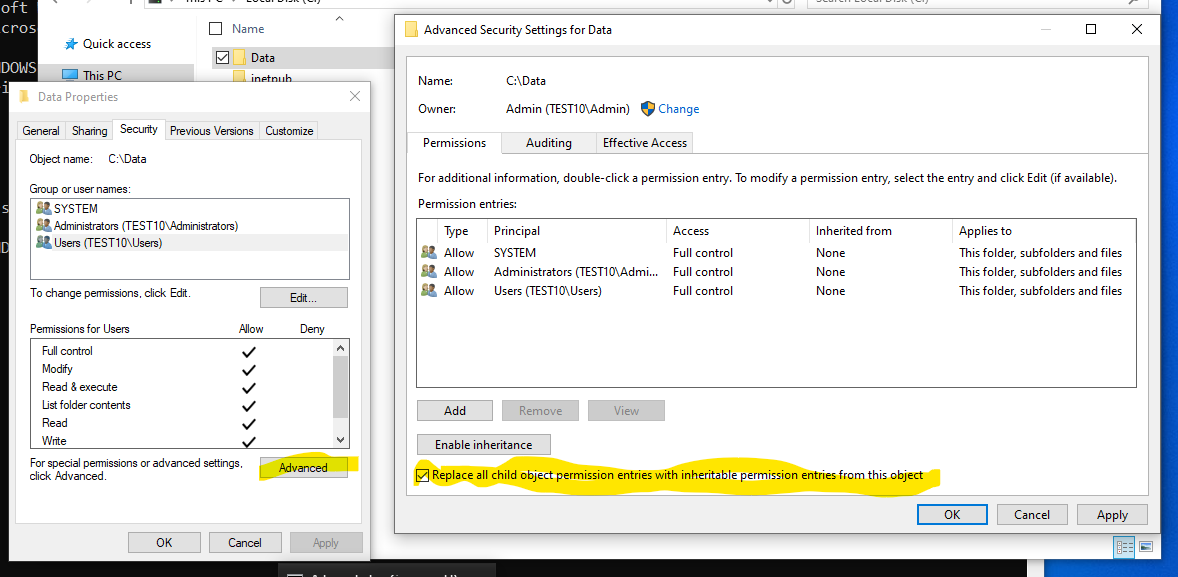
    User's image

    There are plenty of sites on the net that document how to set NTFS permissions. I recommend that you browse a few of them to get better understanding of how to manage permissions. If you then have a specific question or problem, I'll certainly try to answer it for you.

    https://www.bing.com/search?q=windows%20file%20permissions%20tutorial

    Was this answer helpful?

    0 comments No comments

  3. MotoX80 37,861 Reputation points
    2025-05-31T14:04:37.3166667+00:00

    UAC is there for your protection. It is not recommended that it be completely disabled.

    What you are probably running into is a folder structure that has the following permissions.

    Administrators:Full
    Users:Read
    

    The Windows explorer does not run elevated, so even if your account is a member of the Administrators group, you are still considered a "User". You have to go through the UAC prompt to be elevated to "Administrator".

    Under normal usage, this should not be a problem. Folders that you normally use should have "Users" or your account granted full access as Chen Tran showed.

    If you are doing a migration of some kind, then you might find that the source folders do not even grant Administrators access. In that case you would need to take ownership of the files so that you can modify the NTFS permissions and grant yourself access.

    Can you give us an example of what you typically run into? How often do you have this issue? Are you copying/moving from local drives or from removable (USR attached) drives? What are the permissions on the folders that you are trying to copy/move? Is there a reason that your account does not have update permissions on these folders?

    Was this answer helpful?


Your answer

Answers can be marked as 'Accepted' by the question author and 'Recommended' by moderators, which helps users know the answer solved the author's problem.