Share via

Can’t switch my Microsoft account from personal to work details

Abby 35 Reputation points
2025-07-02T21:03:48.3333333+00:00

I’ve recently bought a new laptop as I’ve set up as self-employed, it’s a Dell Inspiron 15. I have a subscription for M365 business all set up under my new work email address. When I went through the initial set up process of the laptop Windows doesn’t allow you to log in with your work email, by default you have to use a personal email address and then once set up, go in and ‘add Microsoft for work or school’. (I discovered this info on another Microsoft thread, seems a common question!) So I can now see that my work Microsoft account has been added and ‘connected’ but it’s not sitting as the primary/default account on my laptop.

When I click the windows icon/grid on the toolbar it shows me signed in to my personal account with my personal email showing. I can sign out of it but it doesn’t give me the option of switching it and signing in to the alternative account. All it does is take me to a locked screen where I input my pin to wake up the screen.

I never get prompted by the laptop to put in a password or my Microsoft details. I’m wondering if I’ve missed a step somewhere or if I’m missing a really obvious way of signing in again with the correct work details. I can access the right M365 account when I log in through the browser and see all my files etc but I need to be able to access onedrive and save from the downloaded apps on the laptop into my work onedrive. Currently the only option I have is saving into my personal onedrive.

Please forgive the epic post ….i have spent almost 2 days trying to sort and I’m at the end of my tether with it taking up so much time. Dell support couldn’t help and the provider of my m365 subscription couldn’t understand the problem!

TIA

Windows for business | Windows 365 Business

Locked Question. You can vote on whether it's helpful, but you can't add comments or replies or follow the question.

0 comments No comments

Answer accepted by question author

  1. BryceSor 5,065 Reputation points Volunteer Moderator
    2025-07-02T23:16:00.5933333+00:00

    Hi

    Go to settings and add workplace account, once that is done reboot and login with your work account.

    You can also add OneDrive account by right clicking OneDrive in the taskbar, settings, account and add account, you will end up with personal and business OneDrives (2) on the taskbar which are different colours, there should also be a link to them in Windows Explorer

    User's image

    Was this answer helpful?

Answer recommended by moderator

  1. BryceSor 5,065 Reputation points Volunteer Moderator
    2025-07-04T00:12:50.4666667+00:00

    If you’re already signed in with a personal account:

    Go to Settings

    Start > Settings > Accounts > Access work or school

    Click “Connect”

    Select “Add a work or school account”

    Enter your work email

    This should be the Microsoft Entra ID (Azure AD) or Microsoft 365 account provided by your organization.

    Don't sign into your work email yet. Instead, click on "Join this device to Microsoft Entra ID". On the next step, you will be prompted to sign in, then you can sign in using the work email. Once done, restart the computer and you can use "switch user" to sign in using the company email.

                          --------------------------------------------------------
    

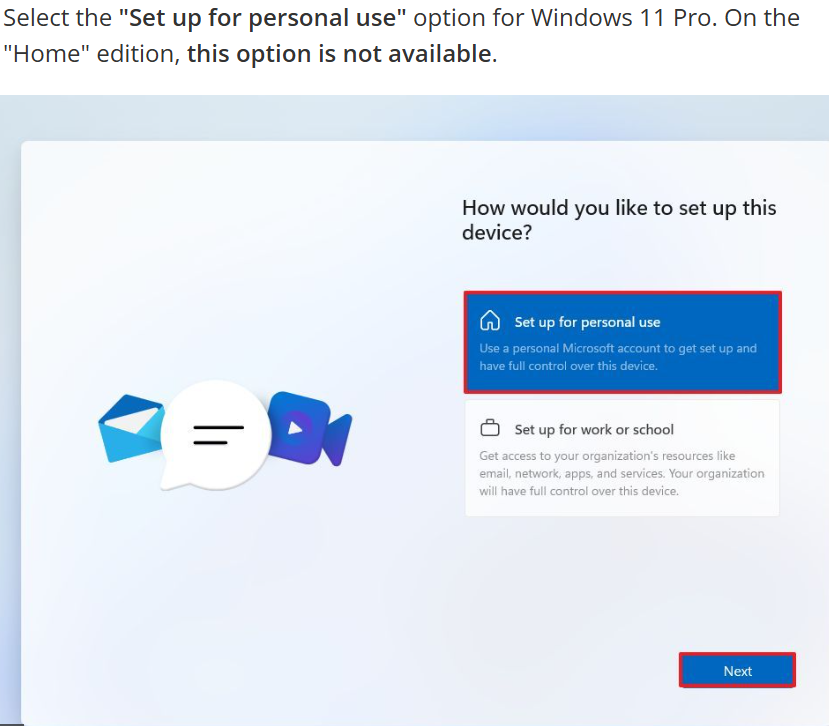
    You can also use clean install and setup work account on Windows setup screen

    Do you want this computer as only work or business? so don't want personal account on it? Have you got Pro or home edition of Windows on the laptop?

    If this was missing you might have home edition, in search type winver and open that app, that will tell you.

    Setup for work or school will be missing on the W11 home edition.
    User's image

    Was this answer helpful?

    2 people found this answer helpful.

7 additional answers

Sort by: Most helpful
  1. Victoria Tilson 10 Reputation points
    2025-11-20T15:58:20.9866667+00:00

    I've had the same problem today. Bought a brand new Dell Inspiron 15 laptop. Couldn't get past the 'other user' login screen using my MS work account. Spent 1.5 hours on WhatsApp messaging Dell (no number to call them on and speak to someone). They eventually said I had to contact our IT provider as it was a domain issue! I think it is completely ridiculous that you have to have an MS account just to open up and get into a brand new laptop, especially when work email account/domains don't seem to work! What a daft idea. I don't know what purpose this serves but I have now returned said laptop and will be buying something else from another manufacturer - not Dell!

    Was this answer helpful?

    3 people found this answer helpful.
    0 comments No comments
  2. EmilyS_726 16,705 Reputation points Volunteer Moderator
    2025-07-04T02:52:13.8766667+00:00

    Abby, the information Bryce provided is the correct way to create a separate Windows user using your business account, however, you will not find that option if you are running Windows Home edition instead of Pro. Only Pro or Enterprise edition will allow yout o see the option Bryce mentioned. So I thought I would add to that.

    I also want to add that, since you are just a sole user, setting up a business account Windows user can be a bit of an overkill. I get that you might want to separate your personal and work, but by adding a work account, it is more of a company common practice, where admin can manage devices via Admin Center, and apply group policy for common business security practice. As a sole user, you might find these more restricted instead, because by default, you would notice you would have to change PIN every how often, and you would have to set up complex pin, etc. I thought I would point that out in case you wouldn't like that.

    Was this answer helpful?

    0 comments No comments
  3. Deleted

    This answer has been deleted due to a violation of our Code of Conduct. The answer was manually reported or identified through automated detection before action was taken. Please refer to our Code of Conduct for more information.


    Comments have been turned off. Learn more

