إشعار
يتطلب الوصول إلى هذه الصفحة تخويلاً. يمكنك محاولة تسجيل الدخول أو تغيير الدلائل.
يتطلب الوصول إلى هذه الصفحة تخويلاً. يمكنك محاولة تغيير الدلائل.
Azure DevOps Services
Important
This capability is in preview. Functionality might change or be discontinued without notice. Preview capabilities have no Service Level Agreement (SLA) and limited support. If this capability isn't yet available in your organization, wait a few days as it rolls out gradually.
Use the Actual Result field in Azure Test Plans to record the execution outcome for each test step during manual test runs in the web runner.
You enable the Actual Result field at the test plan level, and all suites and test cases inherit the setting. This supports different ways of working across teams that share the same organization. Actual Result data is retained as long as test run data, based on your existing retention policies.
Prerequisites
| Category | Requirement |
|---|---|
| Access levels | Basic + Test Plans access level or an equivalent Visual Studio subscription. |
| Permissions | Manage test plans set to Allow for the area path (to configure the Actual Result setting). |
Expected Result, Actual Result, and Comment fields
These three fields are closely related but serve different purposes:
- Expected Result: Defined during test case authoring. Specifies the outcome needed for a test step to pass.
- Actual Result: Recorded during test execution by the tester. Captures the factual outcome and can serve as audit evidence. Azure Test Plans can structure and enforce Actual Result entry for each step.
- Comment: Recorded during test execution by the tester. Comments are informal notes that aren't structured or enforced by Azure Test Plans.
Configure the Actual Result setting
Sign in to your project (
https://dev.azure.com/{yourorganization}/{yourproject}).Select Test Plans, and then select your test plan.
Select More actions for the test plan, and then select
 Test plan settings.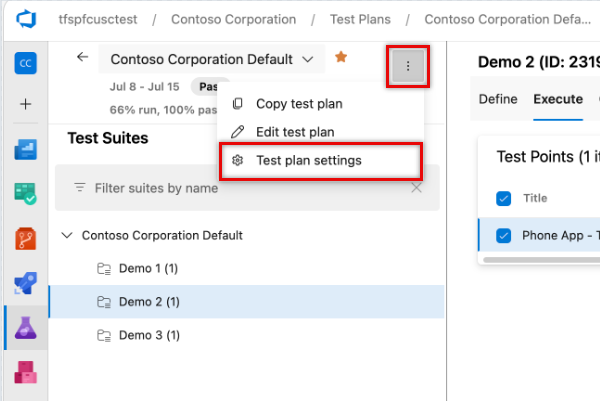
Select the Test result settings tab, select the Use 'Actual Result' field checkbox, and then choose Required or Optional mode.
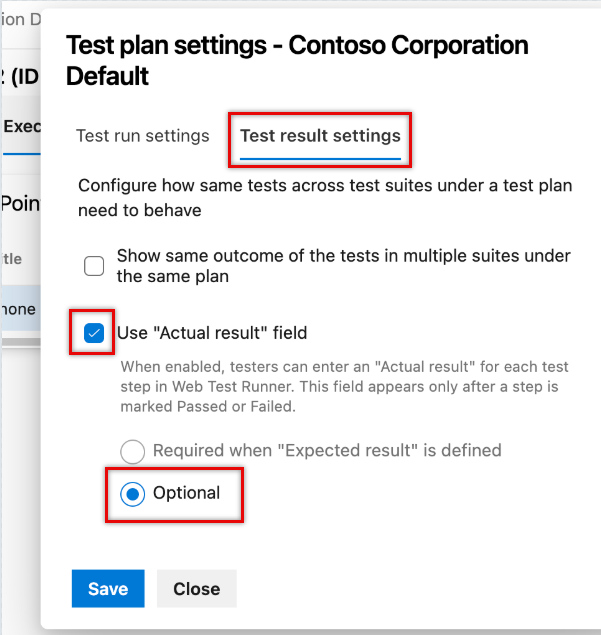
Select Save.
The setting applies to all suites and test cases in the test plan.
Actual Result modes
| Mode | Description |
|---|---|
| Disabled (default) | The Actual Result field isn't present during execution. |
| Enabled - Optional | The field appears in the UI, but you can leave it blank. |
| Enabled - Required | The field appears in the UI and you must fill it in for steps that have a defined expected result. |
Record actual results during execution
When enabled, the Actual Result field appears in each test step after you mark the step as Pass or Fail. You can enter text and add step-level attachments.
In Enabled - Required mode, you must enter an Actual Result before you can proceed, save, or close for any step that has a defined Expected Result. Steps without a defined Expected Result don't require input, even in required mode.
Review actual results
Review completed runs in the Test Run Hub. Actual Results appear next to each step.
The Actual Result field only appears in the Test Run Hub if the test plan's Actual Result setting is enabled. If the setting is disabled, results don't show on the result page, even if they were entered during execution. You can always retrieve Actual Result details for each step by using the REST API.
Change the Actual Result setting
Any user with an Azure Test Plans license can change the Actual Result setting at any time for any test plan they can access.
Note
Verify that there are no in-progress or paused runs under the test plan before you change the Actual Result setting.
If the setting changes while runs are in progress or paused, the logic that applied when the run started (or was last resumed) continues to apply for that run.
Example scenarios
- You start a run with the setting on Enabled - Required. During execution, someone changes the setting to Disabled. The run continues and completes using the Enabled - Required logic.
- You start a run with the setting on Enabled - Required, then pause the run. While paused, someone changes the setting to Disabled. When you resume, the remaining steps run under the Disabled logic.
Programmatic access
You can also get and update Actual Results programmatically by using the Azure DevOps REST API.