إشعار
يتطلب الوصول إلى هذه الصفحة تخويلاً. يمكنك محاولة تسجيل الدخول أو تغيير الدلائل.
يتطلب الوصول إلى هذه الصفحة تخويلاً. يمكنك محاولة تغيير الدلائل.
Overview
Every day, Microsoft processes more than 100 trillion security signals from endpoints, cloud services, identity systems, and more. We use this data shape how we respond to threats and inform how we innovate to help build a safer digital future. Read about the work we're doing in the Microsoft Digital Defense Report.
As part of this work, Microsoft-managed policies are available in Microsoft Entra tenants around the world. These simplified Conditional Access policies require multifactor authentication, which continues to reduce the risk of compromise by more than 99%.
Prerequisites
- Microsoft Entra ID P2 or Microsoft 365 Business Premium licenses is required to use Conditional Access features
- The Conditional Access Administrator role is the least privileged role required to view Conditional Access policies.
- For a full list of roles, see Least privileged roles by task.
How Microsoft-managed policies work
Microsoft-managed policies are preconfigured Conditional Access policies that are created and maintained by Microsoft to help protect you against common identity risks. Microsoft creates and deploys these policies directly to eligible tenants based on licensing and feature eligibility. When a policy is introduced:
- The policy is automatically created in your tenant in a Report-only state.
- The policy includes preconfigured conditions and recommended controls, such as requiring multifactor authentication.
- Administrators don't need to manually create these policies. Microsoft manages the policy template, configuration, and updates to ensure it aligns with current security guidance.
Microsoft enables these policies no less than 45 days after they're introduced in your tenant if they're left in the Report-only state. You can turn on these policies sooner, or opt out by setting the policy state to Off. Customers are notified through emails and Message center posts 28 days before the policies are enabled.
Note
In some cases, policies might be enabled faster than 45 days. If this change applies to your tenant:
- It's mentioned in emails and Microsoft 365 message center posts you receive about Microsoft-managed policies.
- It's mentioned in the policy details in the Microsoft Entra admin center.
As threats evolve, Microsoft might update these policies to use new features, functionality, or improve their effectiveness. Microsoft‑managed Conditional Access policies automatically adapt to changes within a tenant to maintain consistent security posture without requiring administrator action. As Microsoft identifies new users, groups, or workloads that meet the eligibility criteria for an existing MMP policy, they are automatically included in the policy’s scope. These updates do not modify the policy’s settings, conditions, or grant controls, and any admin‑configured exclusions are always preserved to prevent accidental lockouts. This ensures that coverage stays current as the tenant evolves, while maintaining predictable behavior for administrators. Microsoft communicates these updates through standard notification channels to keep tenants informed.
Policies
These Microsoft-managed policies allow administrators to make simple modifications like excluding users or turning them from report-only mode to on or off. Organizations can't rename or delete any Microsoft-managed policies.
- Block all high risk agents from accessing all resources (Preview)
- Block legacy authentication (also a Baseline security mode policy)
- Block device code flow
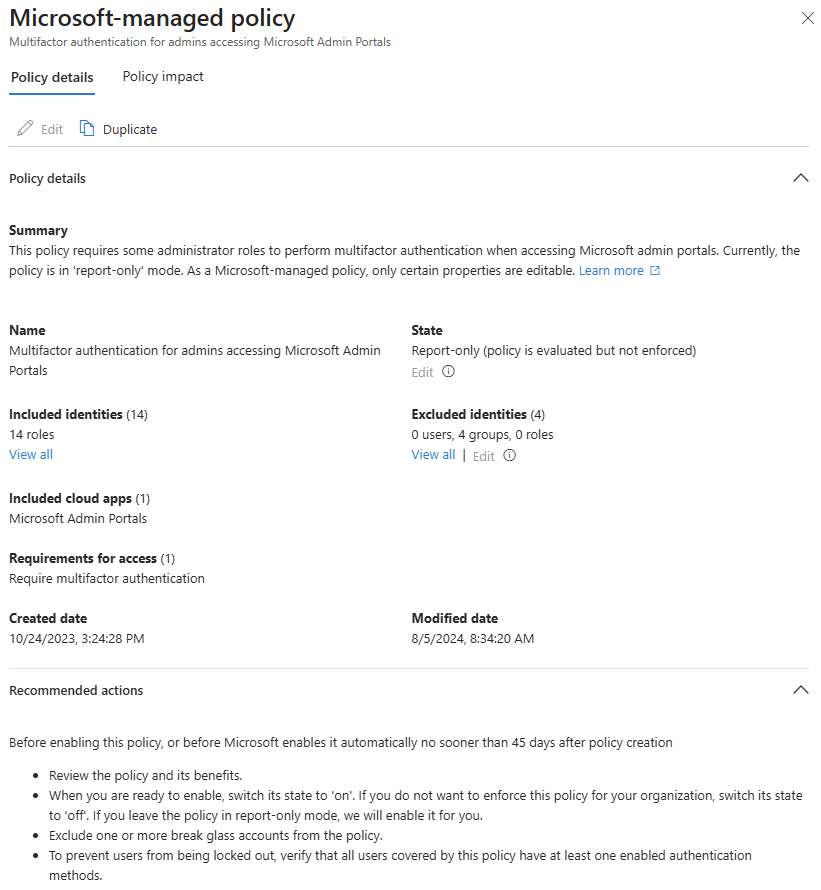
- Multifactor authentication for admins accessing Microsoft Admin portals
- Multifactor authentication for all users
- Multifactor authentication for per-user multifactor authentication users
- Multifactor authentication and reauthentication for risky sign-ins
- Block access for high-risk users
- Require phishing resistant authentication for admins (Baseline security mode policy)
How to access and manage Microsoft-managed policies
Microsoft-managed policies appear in the same list as all of your other Conditional Access policies.
- Sign in to the Microsoft Entra admin center as at least a Conditional Access Administrator.
- Browse to Entra ID > Conditional Access > Policies.
- Select a policy that shows Microsoft in the Created by column.
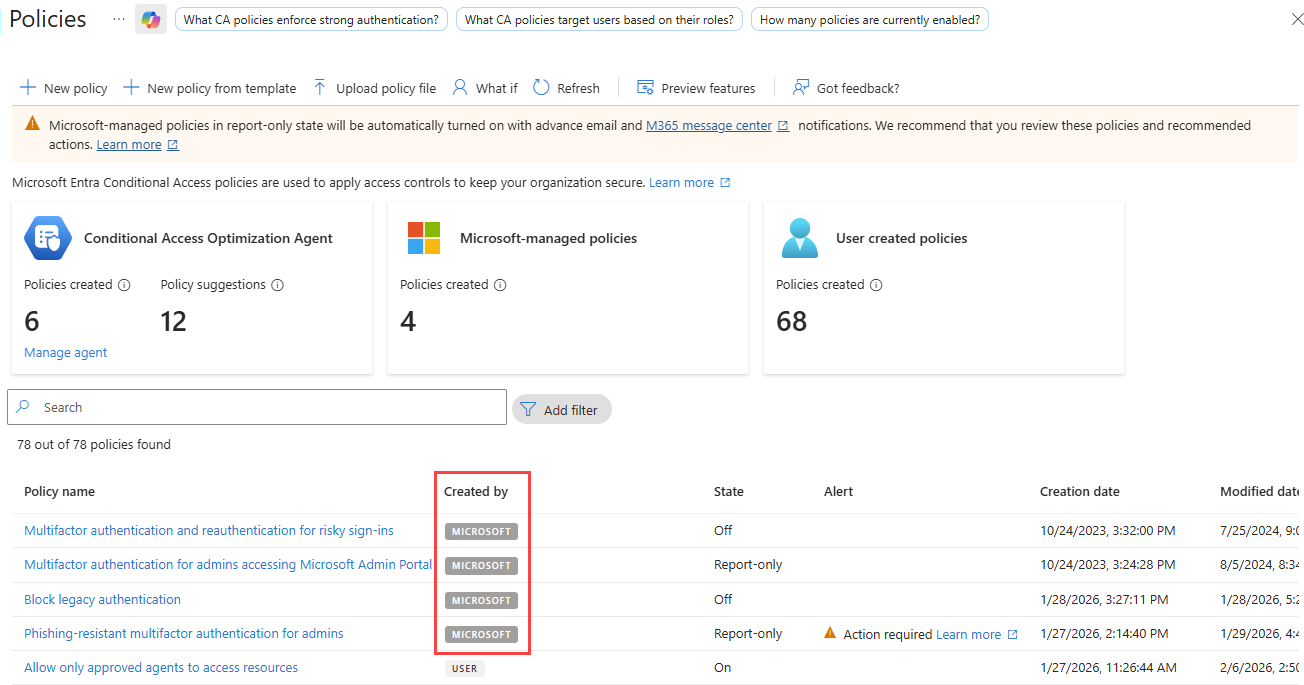
You can edit the state of a policy and what identities the policy should exclude. Exclude your break-glass or emergency access accounts from managed policies just like other Conditional Access policies. Consider duplicating these policies if you need to make more changes than what's allowed in the Microsoft-managed policies.
Baseline security mode policies
Baseline security mode (BSM) in the Microsoft 365 admin center bundles recommended security settings and policies for Microsoft 365 workloads. Two of these settings show up as Conditional Access policies:
- Require phishing resistant authentication for admins
- Block legacy authentication
These policies are based on the Microsoft-managed policy framework, but they show up as Baseline security mode in the Created by column. BSM policies are managed in the Microsoft 365 admin center. For steps on how to manage these policies, see Baseline security mode policies.

One important difference between BSM policies and Microsoft-managed policies is that the BSM policies are created by the administrator, not Microsoft.
Block all high risk agents from accessing all resources (Preview)
This policy blocks agent identities that are determined as 'high risk' from accessing resources in your tenant. The agent risk level is based on detections from Microsoft Entra ID Protection.
Block legacy authentication
This policy blocks sign-in attempts using legacy authentication and legacy authentication protocols. These authentications might come from older clients like Office 2010, or clients that use protocols like IMAP, SMTP, or POP3.
Based on Microsoft's analysis, more than 99 percent of password spray attacks use these legacy authentication protocols. These attacks would stop with basic authentication disabled or blocked.
Block device code flow
This policy blocks device code flow, where a user initiates authentication on one device, completes on another, and their token is sent back to the original device. This type of authentication is common where users can't enter their credentials, like smart TVs, Microsoft Teams Room devices, IoT devices, or printers.
Device code flow is rarely used by customers, but is frequently used by attackers. Enabling this Microsoft-managed policy for your organization helps remove this attack vector.
Multifactor authentication for admins accessing Microsoft Admin portals
This policy covers 14 admin roles that are highly privileged, who access the Microsoft Admin Portals, and requires them to perform multifactor authentication.
This policy applies to Microsoft Entra ID P1 and P2 tenants where security defaults aren't enabled.
Tip
Microsoft-managed policies requiring multifactor authentication differ from the announcement of mandatory multifactor authentication for Azure sign-ins made in 2024, which started gradual rollout in October of 2024. For more information, see Planning for mandatory multifactor authentication for Azure and other admin portals.
Multifactor authentication for all users
This policy covers all users in your organization and requires them to use multifactor authentication whenever they sign in. In most cases, the session persists on the device, and users don't need to complete multifactor authentication when they interact with another application.
Multifactor authentication for per-user multifactor authentication users
This policy covers users per-user MFA, a configuration that Microsoft no longer recommends. Conditional Access offers a better admin experience with many extra features. Consolidating all multifactor authentication policies to Conditional Access can help you be more targeted in requiring multifactor authentication, lowering end user friction while maintaining security posture.
This policy targets:
- Organizations with Microsoft Entra ID P1 and P2 licensed users
- Organizations where security defaults aren't enabled
- Organizations with less than 500 per-user MFA enabled or enforced users
To apply this policy to more users, duplicate it and change the assignments.
Tip
Using the Edit pencil at the top to modify the Microsoft-managed per-user multifactor authentication policy might result in a failed to update error. To work around this issue, select Edit under the Excluded identities section of the policy.
Multifactor authentication and reauthentication for risky sign-ins
This policy covers all users and requires multifactor authentication and reauthentication when high-risk sign-ins are detected. High-risk in this case means something about the way the user signed in is out of the ordinary. These high-risk sign-ins might include travel that is highly abnormal, password spray attacks, or token replay attacks. For more information, see What are risk detections.
This policy targets Microsoft Entra ID P2 tenants where security defaults aren't enabled. The policy covers users in two different ways, depending on if you have more P2 licenses than users or if you have more users than P2 licenses. Guest users aren't included in the policy.
- If all your active users have MFA and your P2 licenses equal or exceed the total active users, the policy covers All Users.
- All Users could include service accounts or break-glass accounts, so you might want to exclude them.
- If some active users don't have MFA, or if there aren't enough P2 licenses to cover all MFA-registered users, we create and assign the policy to a security group called "Conditional Access: Risky sign-in multifactor authentication" that is capped to your available P2 licenses.
- The policy applies only to that security group, so you can scope the policy by modifying the group itself.
- To populate the group, we select users who can satisfy MFA, prioritizing users with a directly assigned P2 license.
- This setup ensures that the policy doesn't block legitimate users and that you’re getting maximum value on your P2 licenses.
To prevent attackers from taking over accounts, Microsoft blocks risky users from registering for multifactor authentication.
Block access for high-risk users
This policy helps protect your organization by restricting access for users identified as high risk by Microsoft Entra ID Protection. User risk represents the likelihood that a user account has been compromised, based on signals such as leaked credentials or other risk detections. When enabled, this policy blocks access for users who meet the configured high user risk level until the risk is remediated. Remediation follows existing Microsoft Entra ID Protection processes and guidance.
This policy targets:
- Organizations with Microsoft Entra ID P2 licenses
- Organizations where security defaults aren't enabled
Administrators can review policy impact in report-only mode, exclude emergency access accounts, and move the policy to On when ready.
Security defaults policies
The following policies are available for when you upgrade from using security defaults.
- Block legacy authentication
- Require multifactor authentication for Azure management
- Require multifactor authentication for admins
- Require multifactor authentication for all users
Block legacy authentication
This policy blocks legacy authentication protocols from accessing applications. Legacy authentication refers to an authentication request made by:
- Clients that don't use modern authentication (for example, an Office 2010 client)
- Any client that uses older mail protocols such as IMAP, SMTP, or POP3
- Any sign-in attempts to use legacy authentication.
Most observed compromising sign-in attempts come from legacy authentication. Because legacy authentication doesn't support multifactor authentication, attackers can bypass multifactor authentication requirements by using older protocols.
Require multifactor authentication for Azure management
This policy covers all users when they're trying to access various Azure services managed through the Windows Azure Service Management API including:
- Azure portal
- Microsoft Entra admin center
- Azure PowerShell
- Azure CLI
Users must complete multifactor authentication to access these resources.
Require multifactor authentication for admins
This policy applies to users with highly privileged admin roles:
- Global Administrator
- Application Administrator
- Authentication Administrator
- Billing Administrator
- Cloud Application Administrator
- Conditional Access Administrator
- Exchange Administrator
- Helpdesk Administrator
- Password Administrator
- Privileged Authentication Administrator
- Privileged Role Administrator
- Security Administrator
- SharePoint Administrator
- User Administrator
These accounts must use multifactor authentication to sign in to any application.
Require multifactor authentication for all users
This policy applies to all users in your organization and requires multifactor authentication for every sign-in. In most cases, sessions persist on devices, so users don't need to complete multifactor authentication when interacting with other applications.
Monitor and review
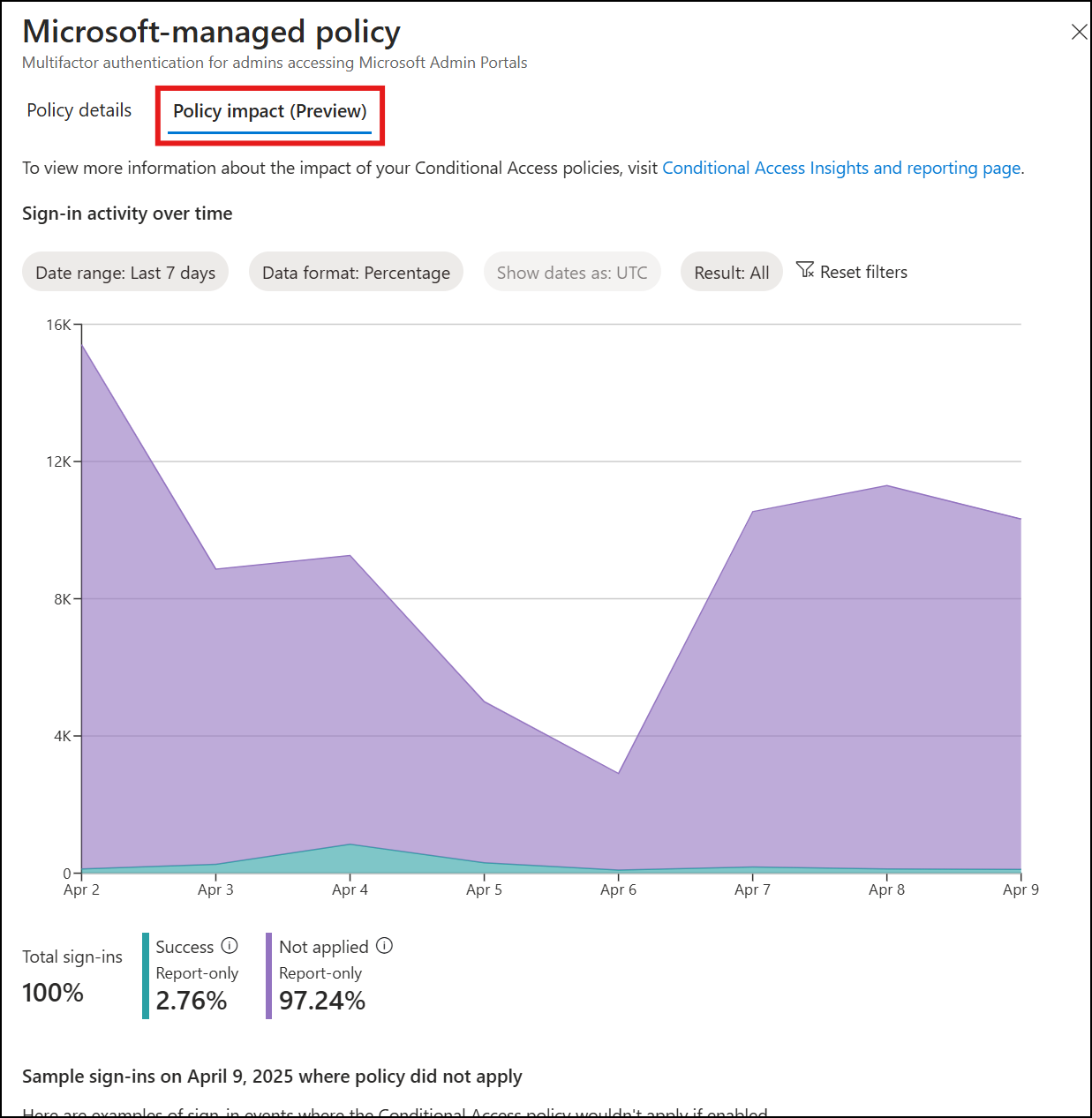
The managed policy and the sign-in logs are the two places where you can see the effect of these policies on your organization.
Review the Policy impact tab of the managed policy to see a summary of how the policy affects your environment.
Analyze the Microsoft Entra sign-in logs to see details about how the policies affect sign-in activity.
- Sign in to the Microsoft Entra admin center as at least a Reports Reader.
- Browse to Entra ID > Monitoring & health > Sign-in logs.
- Use some or all of the following filters:
- Correlation ID when you have a specific event to investigate.
- Conditional Access to see policy failure and success.
- Username to see information related to specific users.
- Date scoped to the time frame in question.
- Select a specific sign-in event, then select Conditional Access.
- To investigate further, select the Policy Name to drill down into the configuration of the policies.
- Explore the other tabs to see the client user and device details that were used for the Conditional Access policy assessment.
Common questions
What is Conditional Access?
Conditional Access is a Microsoft Entra feature that allows organizations to enforce security requirements when accessing resources. Conditional Access is commonly used to enforce multifactor authentication, device configuration, or network location requirements.
These policies can be thought of as logical if then statements.
If the assignments (users, resources, and conditions) are true, then apply the access controls (grant and/or session) in the policy. If you're an administrator, who wants to access one of the Microsoft admin portals, then you must perform multifactor authentication to prove it's really you.
What if I want to make more changes?
Administrators might choose to make further changes to these policies by duplicating them using the Duplicate button in the policy list view. This new policy can be configured in the same way as any other Conditional Access policy with starting from a Microsoft recommended position. Be careful not to lower your security posture with those changes.
What administrator roles are covered by these policies?
- Global Administrator
- Application Administrator
- Authentication Administrator
- Billing Administrator
- Cloud Application Administrator
- Conditional Access Administrator
- Exchange Administrator
- Helpdesk Administrator
- Password Administrator
- Privileged Authentication Administrator
- Privileged Role Administrator
- Security Administrator
- SharePoint Administrator
- User Administrator
What if I use a different solution for multifactor authentication?
Multifactor authentication using external authentication methods satisfies the MFA requirements of Microsoft-managed policies.
When multifactor authentication is completed via a federated identity provider (IdP), it might satisfy Microsoft Entra ID MFA requirements depending on your configuration. For more information, see Satisfy Microsoft Entra ID multifactor authentication (MFA) controls with MFA claims from a federated IdP.
What if I use Certificate-Based Authentication?
Depending on your Certificate-Based Authentication (CBA) configuration, it can function as single or multifactor authentication.
- If your organization configures CBA as single-factor, users must use a second authentication method to satisfy MFA. For more information on the allowed combinations of authentication methods to MFA with single-factor CBA, see MFA with single factor certificate-based authentication.
- If your organization configures CBA as multifactor, users can complete MFA with their CBA authentication method.
What if I use custom controls?
Custom controls don't satisfy multifactor authentication claim requirements. If your organization uses custom controls you should migrate to external authentication methods, the replacement of custom controls. Your external authentication provider must support external authentication methods and provide the necessary configuration guidance for integration.
How do I monitor when Microsoft makes a change to these policies or adds a new one?
Administrators with AuditLog.Read.All and Directory.Read permissions can query the audit log for entries initiated by Microsoft Managed Policy Manager in the Policy category. For example, use Graph Explorer to find entries with this query string: https://graph.microsoft.com/v1.0/auditLogs/directoryAudits?$filter=initiatedBy/app/displayName eq 'Microsoft Managed Policy Manager' and category eq 'Policy'.