إشعار
يتطلب الوصول إلى هذه الصفحة تخويلاً. يمكنك محاولة تسجيل الدخول أو تغيير الدلائل.
يتطلب الوصول إلى هذه الصفحة تخويلاً. يمكنك محاولة تغيير الدلائل.
يمكنك استخدام Azure PowerShell لتكوين قواعد التوجيه المستندة إلى عنوان URL عند إنشاء بوابة تطبيق. في هذا البرنامج التعليمي، يمكنك إنشاء حمامات الخلفية باستخدام مجموعات افتراضية على نطاق وآلة. ثم إنشاء قواعد توجيه عنوان URL التي تعيد توجيه حركة مرور الويب إلى تجمع الواجهة الخلفية المناسب استنادا إلى مسار عنوان URL للطلب. يمكنك استخدام Azure PowerShell لتكوين قواعد التوجيه المتقدمة المستندة إلى عنوان URL عند إنشاء بوابة تطبيق.
يغطي هذا البرنامج التعليمي التكوينات الجاهزة للإنتاج بما في ذلك أفضل ممارسات الأمان وتحسين الأداء وإعداد المراقبة.
في هذا البرنامج التعليمي، تتعلم كيفية:
- إعداد البنية الأساسية للشبكة
- إنشاء بوابة تطبيق مع التوجيه المستند إلى المسار
- إضافة المستمعين وقواعد التوجيه لإعادة توجيه عنوان URL
- إنشاء مجموعات مقياس آلة افتراضية لمجموعات الواجهة الخلفية
- اختبار وظيفة توجيه بوابة التطبيق وإعادة توجيهها
يوضح المثال التالي حركة مرور الموقع القادمة من المنفذين 8080 و8081 ويتم توجيهها إلى نفس تجمعات الواجهة الخلفية:

Prerequisites
إذا كنت تفضل ذلك، يمكنك إكمال هذا الإجراء باستخدام Azure CLI.
قبل أن تبدأ هذا البرنامج التعليمي، تأكد من أن لديك:
- اشتراك Azure نشط. قم بإنشاء حساب مجاني إذا لم يكن لديك حساب.
- إصدار الوحدة النمطية Azure PowerShell 5.4.1 أو أحدث مثبت محليا، أو الوصول إلى Azure Cloud Shell
- أذونات المساهم أو المالك على اشتراك Azure الهدف
- فهم أساسي لمفاهيم بوابة التطبيق والبرمجة النصية ل PowerShell
Note
نوصي باستخدام الوحدة النمطية Azure Az PowerShell للتفاعل مع Azure. للبدء، راجع تثبيت Azure PowerShell. لمعرفة كيفية الترحيل إلى الوحدة النمطية Az PowerShell، راجع ترحيل Azure PowerShell من AzureRM إلى Az.
Azure Cloud Shell
Azure يستضيف Azure Cloud Shell، بيئة تفاعلية يمكن استخدامها من خلال المستعرض. يمكنك استخدام Bash أو PowerShell مع Cloud Shell للعمل مع خدمات Azure. يمكنك استخدام أوامر Cloud Shell المثبتة مسبقًا لتشغيل التعليمات البرمجية في هذه المقالة دون الحاجة إلى تثبيت أي شيء على البيئة المحلية.
لبدء Azure Cloud Shell:
| Option | Example/Link |
|---|---|
| انقر فوق جربه في الزاوية العلوية اليسرى من التعليمة البرمجية أو كتلة الأمر. تحديد جربه لا يقوم بنسخ التعليمة البرمجية أو الأمر تلقائيًا إلى Cloud Shell. |

|
| انتقل إلى https://shell.azure.com، أو حدد زر تشغيل Cloud Shell لفتح Cloud Shell في المتصفح لديك. |

|
| حدد زر Cloud Shell على شريط القوائم في أعلى اليمين في مدخل Microsoft Azure. |

|
لاستخدام Azure Cloud Shell:
ابدأ تشغيل Cloud Shell.
حدد الزر نسخ على كتلة التعليمات البرمجية (أو كتلة الأوامر) لنسخ التعليمات البرمجية أو الأمر.
ألصق التعليمة البرمجية أو الأمر في جلسة Cloud Shell بتحديد Ctrl+Shift+Vعلى Windows وLunix، أو بتحديد Cmd+Shift+Vعلى macOS.
حدد Enter لتشغيل التعليمات البرمجية أو الأمر.
إذا اخترت تثبيت PowerShell واستخدامه محليا، يتطلب هذا البرنامج التعليمي إصدار الوحدة النمطية Azure PowerShell 5.4.1 أو أحدث. للعثور على الإصدار، قم بتشغيل Get-Module -ListAvailable Az . إذا كنت بحاجة إلى الترقية، فراجع تثبيت الوحدة النمطية Azure PowerShell. في حالة تشغيل PowerShell محليًا، فأنت بحاجة أيضًا إلى تشغيل Connect-AzAccount لإنشاء اتصال مع Azure.
إنشاء مجموعة موارد
وتُعد مجموعة الموارد عبارة عن حاوية منطقية يتم فيها توزيع موارد Azure وإدارتها. أنشئ مجموعة موارد Azure باستخدام New-AzResourceGroup.
# Define variables for consistent naming and easier management
$resourceGroupName = "myResourceGroupAG"
$location = "eastus"

# Create the resource group
New-AzResourceGroup -Name $resourceGroupName -Location $location

# Verify the resource group creation
Write-Output "Resource group '$resourceGroupName' created successfully in '$location'"
إنشاء موارد الشبكة
قم بإنشاء تكوينات الشبكة الفرعية ل myBackendSubnetوmyAGSubnet باستخدام New-AzVirtualNetworkSubnetConfig. قم بإنشاء الشبكة الظاهرية المسماة myVNet باستخدام New-AzVirtualNetwork مع تكوينات الشبكة الفرعية. وأخيرا، قم بإنشاء عنوان IP العام المسمى myAGPublicIPAddress باستخدام New-AzPublicIpAddress. توفر هذه الموارد اتصال الشبكة ببوابة التطبيق والموارد المرتبطة بها.
Important
يمكن أن تحتوي الشبكة الفرعية لبوابة التطبيق (myAGSubnet) على بوابات التطبيق فقط. لا يسمح بأي موارد أخرى في هذه الشبكة الفرعية. قم بإنشاء تكوينات الشبكة الفرعية ل myBackendSubnetوmyAGSubnet باستخدام New-AzVirtualNetworkSubnetConfig. تتطلب بوابة التطبيق شبكة فرعية مخصصة بحد أدنى /24 CIDR للعمل السليم والتحجيم المستقبلي. قم بإنشاء الشبكة الظاهرية المسماة myVNet باستخدام New-AzVirtualNetwork مع تكوينات الشبكة الفرعية. أخيرا، قم بإنشاء عنوان IP العام باستخدام SKU القياسي والتخصيص الثابت لتحسين الأمان والأداء باستخدام New-AzPublicIpAddress.
# Create backend subnet configuration with appropriate CIDR for scale sets
$backendSubnetConfig = New-AzVirtualNetworkSubnetConfig `
  -Name myBackendSubnet `
  -AddressPrefix 10.0.1.0/24

# Create Application Gateway subnet - dedicated subnet required
$agSubnetConfig = New-AzVirtualNetworkSubnetConfig `
  -Name myAGSubnet `
  -AddressPrefix 10.0.2.0/24

New-AzVirtualNetwork `
  -ResourceGroupName myResourceGroupAG `
  -Location eastus `
  -Name myVNet `
  -AddressPrefix 10.0.0.0/16 `
  -Subnet $backendSubnetConfig, $agSubnetConfig

New-AzPublicIpAddress `
  -ResourceGroupName myResourceGroupAG `
  -Location eastus `
  -Name myAGPublicIPAddress `
  -AllocationMethod Dynamic
إنشاء بوابة تطبيق
في هذا القسم، تقوم بإنشاء موارد تدعم بوابة التطبيق، ثم تقوم في النهاية بإنشائها. تتضمن الموارد التي تقوم بإنشائها ما يلي:
- تكوينات IP ومنفذ الواجهة الأمامية - تربط الشبكة الفرعية التي قمت بإنشائها مسبقاً ببوابة التطبيق وتعين منفذ لاستخدامه للوصول إليها.
- التجمع الافتراضي - يجب أن تحتوي جميع بوابات التطبيقات على مجموعة خوادم خلفية واحدة على الأقل.
- المستمع الافتراضي والقاعدة الافتراضية - المستمع الافتراضي يسجل نسبة استخدام الشبكة في المنفذ الذي تم تعيينه وترسل القاعدة الافتراضية نسبة استخدام الشبكة إلى المجموعة الافتراضية.
إنشاء تكوينات IP ومنفذ الواجهة الأمامية
قم بربط myAGSubnet الذي قمت بإنشائه مسبقا ببوابة التطبيق باستخدام New-AzApplicationGatewayIPConfiguration. قم بتعيين myAGPublicIPAddress إلى بوابة التطبيق باستخدام New-AzApplicationGatewayFrontendIPConfig. ثم قم بإنشاء منفذ HTTP باستخدام New-AzApplicationGatewayFrontendPort.
# Get the virtual network and subnet references
$vnet = Get-AzVirtualNetwork `
  -ResourceGroupName myResourceGroupAG `
  -Name myVNet

$subnet=$vnet.Subnets[0]

# Get the public IP address
$pip = Get-AzPublicIpAddress `
  -ResourceGroupName myResourceGroupAG `
  -Name myAGPublicIPAddress

# Create IP configuration for the Application Gateway
$gipconfig = New-AzApplicationGatewayIPConfiguration `
  -Name myAGIPConfig `
  -Subnet $subnet

# Create frontend IP configuration
$fipconfig = New-AzApplicationGatewayFrontendIPConfig `
  -Name myAGFrontendIPConfig `
  -PublicIPAddress $pip

# Create frontend port for HTTP traffic
$frontendport = New-AzApplicationGatewayFrontendPort `
  -Name myFrontendPort `
  -Port 80

Write-Output "Application Gateway IP configurations created successfully"
إنشاء المجموعة والإعدادات الافتراضية
قم بإنشاء تجمع الواجهة الخلفية الافتراضي المسمى appGatewayBackendPool لبوابة التطبيق باستخدام New-AzApplicationGatewayBackendAddressPool. قم بتكوين إعدادات تجمع الواجهة الخلفية باستخدام New-AzApplicationGatewayBackendHttpSettings.
# Create default backend pool
$defaultPool = New-AzApplicationGatewayBackendAddressPool `
  -Name appGatewayBackendPool

# Create backend HTTP settings with optimized configuration
$poolSettings = New-AzApplicationGatewayBackendHttpSettings `
  -Name myPoolSettings `
  -Port 80 `
  -Protocol Http `
  -CookieBasedAffinity Enabled `
  -RequestTimeout 120
إنشاء وحدة الاستماع والقاعدة الافتراضية
مطلوب وحدة استماع لتمكين بوابة التطبيق من توجيه نسبة استخدام الشبكة بشكل مناسب إلى تجمعات الواجهة الخلفية. في هذا البرنامج التعليمي، يمكنك إنشاء وحدات استماع متعددة لسيناريوهات التوجيه المختلفة. يتوقع المستمع الأساسي الأول حركة المرور في عنوان URL الجذر. يتوقع المستمعون الآخرون نسبة استخدام الشبكة في مسارات محددة ل URL، مثل http://203.0.113.1:8080/images/ أو http://203.0.113.1:8081/video/.
قم بإنشاء مستمع باسم defaultListener باستخدام New-AzApplicationGatewayHttpListener باستخدام تكوين الواجهة الأمامية ومنفذ الواجهة الأمامية الذي قمت بإنشائه مسبقا. يلزم وجود قاعدة لوحدة الاستماع لمعرفة أي مجموعة واجهة خلفية يستخدم لنسبة استخدام الشبكة الواردة. قم بإنشاء قاعدة أساسية باسم rule1 باستخدام New-AzApplicationGatewayRequestRoutingRule.
# Create default HTTP listener
$defaultlistener = New-AzApplicationGatewayHttpListener `
  -Name defaultListener `
  -Protocol Http `
  -FrontendIPConfiguration $fipconfig `
  -FrontendPort $frontendport

# Create basic routing rule that directs traffic to default pool
$frontendRule = New-AzApplicationGatewayRequestRoutingRule `
  -Name rule1 `
  -RuleType Basic `
  -HttpListener $defaultlistener `
  -BackendAddressPool $defaultPool `
  -BackendHttpSettings $poolSettings `
  -Priority 100

Write-Output "Default listener and routing rule created successfully"
أنشئ بوابة التطبيق
الآن بعد أن أنشأت موارد الدعم الضرورية، حدّد معلمات بوابة التطبيق المسماة myAppGateway باستخدام New-AzApplicationGatewaySku، ثم قم بإنشائها باستخدام New-AzApplicationGateway.
# Create SKU configuration for Application Gateway v2
$sku = New-AzApplicationGatewaySku `
  -Name Standard_Medium `
  -Tier Standard `
  -Capacity 2

New-AzApplicationGateway `
  -Name myAppGateway `
  -ResourceGroupName myResourceGroupAG `
  -Location eastus `
  -BackendAddressPools $defaultPool `
  -BackendHttpSettingsCollection $poolSettings `
  -FrontendIpConfigurations $fipconfig `
  -GatewayIpConfigurations $gipconfig `
  -FrontendPorts $frontendport `
  -HttpListeners $defaultlistener `
  -RequestRoutingRules $frontendRule `
  -Sku $sku
أضف تجمعات ومنافذ خلفية
يمكنك إضافة تجمعات الواجهة الخلفية إلى بوابة التطبيق باستخدام Add-AzApplicationGatewayBackendAddressPool. في هذا المثال، يتم إنشاء imagesBackendPoolوvideoBackendPool لتوجيه أنواع محتوى معينة. يمكنك إضافة منافذ الواجهة الأمامية للتجمعات باستخدام Add-AzApplicationGatewayFrontendPort. أرسل التغييرات إلى بوابة التطبيق باستخدام Set-AzApplicationGateway.
# Get the current Application Gateway configuration
$appgw = Get-AzApplicationGateway `
  -ResourceGroupName myResourceGroupAG `
  -Name myAppGateway

# Add specialized backend pools for different content types
Add-AzApplicationGatewayBackendAddressPool `
  -ApplicationGateway $appgw `
  -Name imagesBackendPool

Add-AzApplicationGatewayBackendAddressPool `
  -ApplicationGateway $appgw `
  -Name videoBackendPool

# Add frontend ports for specialized listeners
Add-AzApplicationGatewayFrontendPort `
  -ApplicationGateway $appgw `
  -Name bport `
  -Port 8080

Add-AzApplicationGatewayFrontendPort `
  -ApplicationGateway $appgw `
  -Name rport `
  -Port 8081

# Apply the configuration changes
Set-AzApplicationGateway -ApplicationGateway $appgw
أضف المستمعين والقواعد
أضف مستمعين
أضف المستمعين المسماة backendListenerوredirectedListener المطلوبين لتوجيه نسبة استخدام الشبكة باستخدام Add-AzApplicationGatewayHttpListener.
# Get the current Application Gateway configuration
$appgw = Get-AzApplicationGateway `
  -ResourceGroupName myResourceGroupAG `
  -Name myAppGateway

# Get frontend port references
$backendPort = Get-AzApplicationGatewayFrontendPort `
  -ApplicationGateway $appgw `
  -Name bport

$redirectPort = Get-AzApplicationGatewayFrontendPort `
  -ApplicationGateway $appgw `
  -Name rport

# Get frontend IP configuration
$fipconfig = Get-AzApplicationGatewayFrontendIPConfig `
  -ApplicationGateway $appgw

# Add listeners for different ports
Add-AzApplicationGatewayHttpListener `
  -ApplicationGateway $appgw `
  -Name backendListener `
  -Protocol Http `
  -FrontendIPConfiguration $fipconfig `
  -FrontendPort $backendPort

Add-AzApplicationGatewayHttpListener `
  -ApplicationGateway $appgw `
  -Name redirectedListener `
  -Protocol Http `
  -FrontendIPConfiguration $fipconfig `
  -FrontendPort $redirectPort

# Apply the configuration changes
Set-AzApplicationGateway -ApplicationGateway $appgw
أضف خريطة مسار URL الافتراضية
تضمن مخططات مسار URL أن عناوين URL المحددة يتم توجيهها إلى تجمعات محددة في الخلفية. يمكنك إنشاء خرائط مسار عنوان URL باسم imagePathRuleوvideoPathRule باستخدام New-AzApplicationGatewayPathRuleConfigوAdd-AzApplicationGatewayUrlPathMapConfig.
# Get the current Application Gateway configuration
$appgw = Get-AzApplicationGateway `
  -ResourceGroupName myResourceGroupAG `
  -Name myAppGateway

# Get backend HTTP settings
$poolSettings = Get-AzApplicationGatewayBackendHttpSettings `
  -ApplicationGateway $appgw `
  -Name myPoolSettings

# Get backend address pools
$imagePool = Get-AzApplicationGatewayBackendAddressPool `
  -ApplicationGateway $appgw `
  -Name imagesBackendPool

$videoPool = Get-AzApplicationGatewayBackendAddressPool `
  -ApplicationGateway $appgw `
  -Name videoBackendPool

$defaultPool = Get-AzApplicationGatewayBackendAddressPool `
  -ApplicationGateway $appgw `
  -Name appGatewayBackendPool

# Create path rules for different content types
$imagePathRule = New-AzApplicationGatewayPathRuleConfig `
  -Name imagePathRule `
  -Paths "/images/*" `
  -BackendAddressPool $imagePool `
  -BackendHttpSettings $poolSettings

$videoPathRule = New-AzApplicationGatewayPathRuleConfig `
  -Name videoPathRule `
  -Paths "/video/*" `
  -BackendAddressPool $videoPool `
  -BackendHttpSettings $poolSettings

# Add URL path map configuration
Add-AzApplicationGatewayUrlPathMapConfig `
  -ApplicationGateway $appgw `
  -Name urlpathmap `
  -PathRules $imagePathRule, $videoPathRule `
  -DefaultBackendAddressPool $defaultPool `
  -DefaultBackendHttpSettings $poolSettings

# Apply the configuration changes
Set-AzApplicationGateway -ApplicationGateway $appgw
إضافة تكوين إعادة التوجيه
يمكنك تكوين إعادة التوجيه للمستمع باستخدام Add-AzApplicationGatewayRedirectConfiguration.
# Get the current Application Gateway configuration
$appgw = Get-AzApplicationGateway `
  -ResourceGroupName $resourceGroupName `
  -Name myAppGateway

# Get the target listener for redirection
$backendListener = Get-AzApplicationGatewayHttpListener `
  -ApplicationGateway $appgw `
  -Name backendListener

# Add redirection configuration with query string and path preservation
$redirectConfig = Add-AzApplicationGatewayRedirectConfiguration `
  -ApplicationGateway $appgw `
  -Name redirectConfig `
  -RedirectType Found `
  -TargetListener $backendListener `
  -IncludePath $true `
  -IncludeQueryString $true

# Apply the configuration changes
Set-AzApplicationGateway -ApplicationGateway $appgw

Write-Output "Redirection configuration added successfully"
Write-Output "Redirect type: HTTP 302 Found"
Write-Output "Target: backendListener (Port 8080)"
Write-Output "Preserves: Path and Query String"
أضف خريطة مسار عنوان URL لإعادة التوجيه
إنشاء مخطط مسار URL منفصل لسيناريوهات إعادة التوجيه. ستتعامل هذه الخريطة مع نسبة استخدام الشبكة على المنفذ 8081 وتعيد توجيه مسارات محددة إلى وحدة الاستماع المناسبة على المنفذ 8080.
# Get the current Application Gateway configuration
$appgw = Get-AzApplicationGateway `
  -ResourceGroupName $resourceGroupName `
  -Name myAppGateway

# Get references to existing configurations
$poolSettings = Get-AzApplicationGatewayBackendHttpSettings `
  -ApplicationGateway $appgw `
  -Name myPoolSettings

$defaultPool = Get-AzApplicationGatewayBackendAddressPool `
  -ApplicationGateway $appgw `
  -Name appGatewayBackendPool

$redirectConfig = Get-AzApplicationGatewayRedirectConfiguration `
  -ApplicationGateway $appgw `
  -Name redirectConfig

# Create path rule for redirection - images traffic will be redirected
$redirectPathRule = New-AzApplicationGatewayPathRuleConfig `
  -Name redirectPathRule `
  -Paths "/images/*" `
  -RedirectConfiguration $redirectConfig

# Add redirection path map configuration
Add-AzApplicationGatewayUrlPathMapConfig `
  -ApplicationGateway $appgw `
  -Name redirectpathmap `
  -PathRules $redirectPathRule `
  -DefaultBackendAddressPool $defaultPool `
  -DefaultBackendHttpSettings $poolSettings

# Apply the configuration changes
Set-AzApplicationGateway -ApplicationGateway $appgw

Write-Output "Redirection URL path map added successfully"
Write-Output "Redirection rule: /images/* on port 8081 -> port 8080"
أضف قواعد التحويل
تربط قواعد التحويل خرائط عنوان URL بوحدات الاستماع التي قمت بإنشائها. يمكنك إضافة القواعد المسماة defaultRuleوredirectedRule باستخدام Add-AzApplicationGatewayRequestRoutingRule.
$appgw = Get-AzApplicationGateway `
  -ResourceGroupName myResourceGroupAG `
  -Name myAppGateway

$backendlistener = Get-AzApplicationGatewayHttpListener `
  -ApplicationGateway $appgw `
  -Name backendListener

$redirectlistener = Get-AzApplicationGatewayHttpListener `
  -ApplicationGateway $appgw `
  -Name redirectedListener

$urlPathMap = Get-AzApplicationGatewayUrlPathMapConfig `
  -ApplicationGateway $appgw `
  -Name urlpathmap

$redirectPathMap = Get-AzApplicationGatewayUrlPathMapConfig `
  -ApplicationGateway $appgw `
  -Name redirectpathmap

Add-AzApplicationGatewayRequestRoutingRule `
  -ApplicationGateway $appgw `
  -Name defaultRule `
  -RuleType PathBasedRouting `
  -HttpListener $backendlistener `
  -UrlPathMap $urlPathMap

Add-AzApplicationGatewayRequestRoutingRule `
  -ApplicationGateway $appgw `
  -Name redirectedRule `
  -RuleType PathBasedRouting `
  -HttpListener $redirectlistener `
  -UrlPathMap $redirectPathMap

Set-AzApplicationGateway -ApplicationGateway $appgw
إنشاء مجموعات مقياس آلة افتراضية
في هذا المثال، تقوم بإنشاء ثلاث مجموعات مقاييس آلة افتراضية تدعم تجمعات الواجهة الخلفية الثلاثة التي قمت بإنشائها. تسمى مجموعات المقاييس myvmss1 و myvmss2 و myvmss3. تحتوي كل مجموعة مقياس على مثيلين للجهاز الظاهري الذي تقوم بتثبيت IIS عليه. يمكنك تعيين المقياس لمجموعة الواجهة الخلفية عند تكوين إعدادات IP.
Important
استبدل <username> و <password> بالقيم الخاصة بك قبل تشغيل البرنامج النصي. استخدم كلمة مرور قوية تفي بمتطلبات أمان Azure.
ملاحظة أمانية: استبدل <username> بيانات الاعتماد الآمنة وبها <password> . فكر في استخدام Azure Key Vault لإدارة بيانات الاعتماد في سيناريوهات الإنتاج.
# Get network and Application Gateway references
$vnet = Get-AzVirtualNetwork `
  -ResourceGroupName myResourceGroupAG `
  -Name myVNet

$appgw = Get-AzApplicationGateway `
  -ResourceGroupName myResourceGroupAG `
  -Name myAppGateway

# Get backend pool references
$backendPool = Get-AzApplicationGatewayBackendAddressPool `
  -Name appGatewayBackendPool `
  -ApplicationGateway $appgw

$imagesPool = Get-AzApplicationGatewayBackendAddressPool `
  -Name imagesBackendPool `
  -ApplicationGateway $appgw

$videoPool = Get-AzApplicationGatewayBackendAddressPool `
  -Name videoBackendPool `
  -ApplicationGateway $appgw

# Create three scale sets with improved configuration
for ($i=1; $i -le 3; $i++)
{
  if ($i -eq 1)
  {
     $poolId = $backendPool.Id
  }
  if ($i -eq 2)
  {
    $poolId = $imagesPool.Id
  }
  if ($i -eq 3)
  {
    $poolId = $videoPool.Id
  }

  $ipConfig = New-AzVmssIpConfig `
    -Name myVmssIPConfig$i `
    -SubnetId $vnet.Subnets[1].Id `
    -ApplicationGatewayBackendAddressPoolsId $poolId

  # Create scale set configuration with modern VM size and settings
  $vmssConfig = New-AzVmssConfig `
    -Location eastus `
    -SkuCapacity 2 `
    -SkuName Standard_DS2 `
    -UpgradePolicyMode Automatic

  # Configure storage profile with Windows Server 2022
  Set-AzVmssStorageProfile $vmssConfig `
    -ImageReferencePublisher MicrosoftWindowsServer `
    -ImageReferenceOffer WindowsServer `
    -ImageReferenceSku 2016-Datacenter `
    -ImageReferenceVersion latest `
    -OsDiskCreateOption FromImage

  Set-AzVmssOsProfile $vmssConfig `
    -AdminUsername <username> `
    -AdminPassword "<password>" `
    -ComputerNamePrefix myvmss$i

  # Add network interface configuration
  Add-AzVmssNetworkInterfaceConfiguration `
    -VirtualMachineScaleSet $vmssConfig `
    -Name myVmssNetConfig$i `
    -Primary $true `
    -IPConfiguration $ipConfig

  New-AzVmss `
    -ResourceGroupName myResourceGroupAG `
    -Name myvmss$i `
    -VirtualMachineScaleSet $vmssConfig

  Write-Output "Virtual Machine Scale Set myvmss$i created successfully"
}

Write-Output "All Virtual Machine Scale Sets created successfully"
تثبيت IIS
يقوم البرنامج النصي التالي بتثبيت IIS على الأجهزة الظاهرية في كل مجموعة مقياس وتكوينها لعرض محتوى مختلف استنادا إلى تجمع الواجهة الخلفية الذي تخدمه.
$publicSettings = @{ "fileUris" = (,"https://raw.githubusercontent.com/Azure/azure-docs-powershell-samples/master/application-gateway/iis/appgatewayurl.ps1");
  "commandToExecute" = "powershell -ExecutionPolicy Unrestricted -File appgatewayurl.ps1" }

# Install IIS on all scale sets
for ($i=1; $i -le 3; $i++)
{
  $vmss = Get-AzVmss -ResourceGroupName myResourceGroupAG -VMScaleSetName myvmss$i

  Add-AzVmssExtension -VirtualMachineScaleSet $vmss `
    -Name "customScript" `
    -Publisher "Microsoft.Compute" `
    -Type "CustomScriptExtension" `
    -TypeHandlerVersion 1.8 `
    -Setting $publicSettings

  Update-AzVmss `
    -ResourceGroupName myResourceGroupAG `
    -Name myvmss$i `
    -VirtualMachineScaleSet $vmss
}
اختبار بوابة التطبيق
على الرغم من أن IIS غير مطلوب لإنشاء بوابة التطبيق، إلا أنك قمت بتثبيتها في هذا البرنامج التعليمي للتحقق مما إذا كان Azure قد أنشأ بوابة التطبيق بنجاح. استخدم IIS لاختبار application gateway:
قم بتشغيل Get-AzPublicIPAddress للحصول على عنوان IP العام لبوابة التطبيق:
Get-AzPublicIPAddress -ResourceGroupName myResourceGroupAG -Name myAGPublicIPAddressنسخ عنوان IP العام، ثم ألصقه في شريط العنوان في متصفحك. على سبيل المثال:
-
http://203.0.113.1(عنوان URL الأساسي) -
http://203.0.113.1:8080/images/test.htm(مسار الصور) -
http://203.0.113.1:8080/video/test.htm(مسار الفيديو) -
http://203.0.113.1:8081/images/test.htm(اختبار إعادة التوجيه)
-
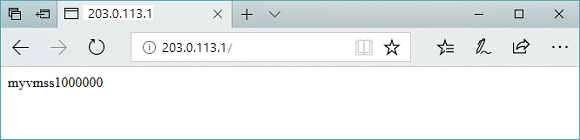
قم بتغيير عنوان URL إلى http://<ip-address>:8080/images/test.htm، واستبدال عنوان IP الخاص بك ل <ip-address>، ويجب أن ترى شيئا مثل المثال التالي:

قم بتغيير عنوان URL إلى http://<ip-address>:8080/video/test.htm، واستبدال عنوان IP الخاص بك ل <ip-address>، ويجب أن ترى شيئا مثل المثال التالي:

الآن، قم بتغيير عنوان URL إلى http://<ip-address>:8081/images/test.htm، واستبدال عنوان IP الخاص بك ل <ip-address>، ويجب أن ترى نسبة استخدام الشبكة معاد توجيهها مرة أخرى إلى تجمع الواجهة الخلفية للصور في http://<ip-address>:8080/images.
مراقبة الأداء
مراقبة مقاييس Application Gateway الرئيسية للحصول على الأداء الأمثل:
- عدد الطلبات: إجمالي عدد الطلبات التي تمت معالجتها
- وقت الاستجابة: متوسط وقت الاستجابة للطلبات
- عدد المضيفين غير السليمين: عدد خوادم الواجهة الخلفية غير السليمة
- معدل النقل: معدل نقل البيانات من خلال بوابة التطبيق
تنظيف الموارد
عندما لا تكون هناك حاجة إليها، قم بإزالة مجموعة الموارد وبوابة التطبيق وجميع الموارد ذات الصلة باستخدام Remove-AzResourceGroup.
Remove-AzResourceGroup -Name myResourceGroupAG
الخطوات التالية
الآن بعد أن تعلمت إعادة التوجيه المستندة إلى مسار URL باستخدام Application Gateway، استكشف هذه السيناريوهات المتقدمة: