إشعار
يتطلب الوصول إلى هذه الصفحة تخويلاً. يمكنك محاولة تسجيل الدخول أو تغيير الدلائل.
يتطلب الوصول إلى هذه الصفحة تخويلاً. يمكنك محاولة تغيير الدلائل.
The DocumentDB extension for Visual Studio Code brings Azure DocumentDB into your editor. Use this free, open-source extension to browse documents, run queries, and manage collections without leaving Visual Studio Code.
In this article, you install the extension, connect to your cluster with Microsoft Entra ID or database credentials, and run your first query. Then explore your cluster in a dashboard, build visual queries with field-aware suggestions, or switch to an interactive shell or a reusable script.
The extension runs on Windows, macOS, and Linux. Its query runtime is built in: you don't need to install MongoDB Shell or configure an external executable. Because it connects through the MongoDB API wire protocol, you can also use it with other MongoDB API-compatible databases.
Prerequisites
- An Azure subscription. If you don't have an Azure subscription, create a free account.
An existing Azure DocumentDB cluster
- If you don't have a cluster, create a new cluster
- Visual Studio Code.
- Network access from your development environment to the cluster. For public connections, configure firewall rules for your client IP address. For private connections, use an environment that can reach the cluster's private endpoint.
- A way to sign in to the cluster's data: a Microsoft Entra identity registered as a user on the cluster, or native database credentials. To try the sample, you need permissions to create a collection and insert documents. Use a development database rather than production data.
- To browse clusters in Azure from the extension, an Azure account with read access to the cluster resource. Without it, you can still connect with a connection string.
Install and connect
Install the DocumentDB extension from Visual Studio Marketplace. Or, in Visual Studio Code, search for DocumentDB in the Extensions view, select the DocumentDB extension published by Microsoft, and select Install.
Then connect to your cluster in the way that fits how you work:
| Option | Use it when |
|---|---|
| Service Discovery | You want to browse your Azure DocumentDB clusters across Azure accounts, tenants, and subscriptions without copying an endpoint. |
| Azure Resources view | You already manage your Azure resources in Visual Studio Code with the Azure Resources extension. |
| Connection string | You have a connection string, you connect with a managed identity, or your Azure account can't view the cluster resource. |
If a connection attempt fails, see Troubleshoot connection issues.
Connect with Service Discovery
Service Discovery signs in to Azure for you and lists your clusters, so you don't need to look up endpoints in the Azure portal.
- Open DocumentDB from the Activity Bar. In Service Discovery, select Azure DocumentDB and sign in to Azure if prompted.
- Expand a subscription to list its clusters, then expand your cluster to connect.
- Choose an authentication method supported by your cluster:
- Microsoft Entra ID: Select Sign in with my account. If your account belongs to more than one tenant, choose the tenant that contains the cluster.
- Username and Password: Enter the credentials of a native database user.
- To keep the cluster in DocumentDB Connections for next time, select its save icon or open its context menu and save it.
Don't see your cluster? Select Filter Entries (funnel icon) next to Azure DocumentDB to choose which tenants and subscriptions to show. Select Manage Credentials (key icon) to sign in to another Azure account or tenant. Your filter selections persist across sessions. For details, see Managing Azure accounts, tenants, and subscriptions (user manual).
Connect from the Azure Resources view
If you use the Azure Resources extension, your Azure DocumentDB clusters also appear in the Azure view next to your other Azure resources, grouped by subscription, resource group, or resource type.
Expand a cluster to see its databases and collections. From there, open Collection View, a Query Playground, or the interactive shell. You don't need to create a separate connection or copy a connection string.
Connect with a connection string
In the Azure portal, open your cluster and select Connection strings in the resource menu. Copy the connection string. For Microsoft Entra ID, use the value in the Microsoft Entra ID section.
In Visual Studio Code, open DocumentDB from the Activity Bar. In DocumentDB Connections, select New Connection, then select Connection String and paste the value.
Choose an authentication method:
- Microsoft Entra ID: Select Sign in with my account to use your own identity. When Visual Studio Code runs on an Azure virtual machine with a managed identity, select Use the identity assigned to this machine or Use a different managed identity instead. For details, see Connect with a managed identity (user manual).
- Username and Password: Enter the password. The connection string in the portal doesn't include it.
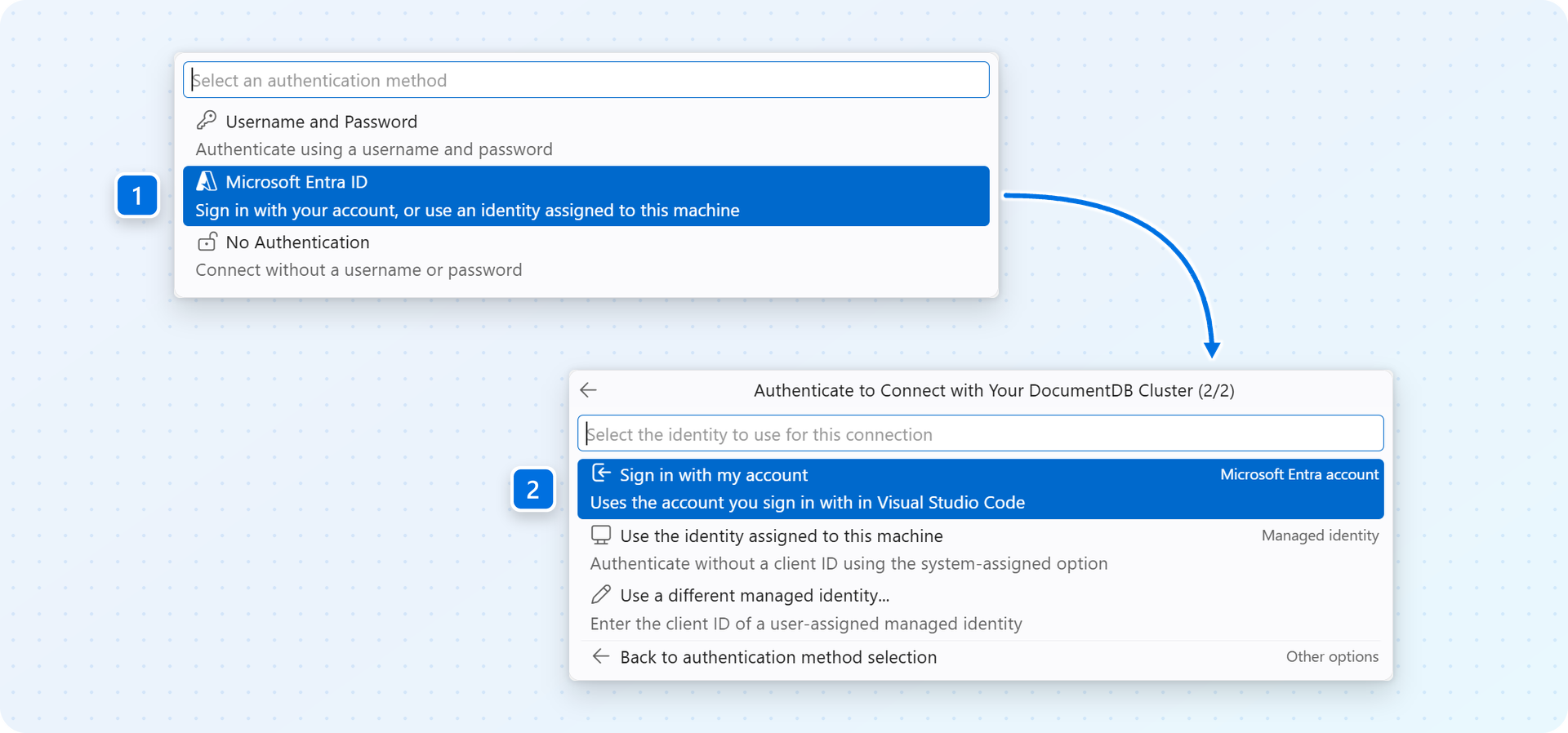
To reuse a connection in your application or another tool, open the cluster's context menu and select Copy Connection String. When you plan to share the string, choose to copy it without the password.
Explore your cluster dashboard
Open the context menu for your cluster and select Cluster Dashboard. The dashboard brings your databases, collections, and storage information into one view. Check connection status, filter the inventory, and open a collection without expanding every node in the sidebar.
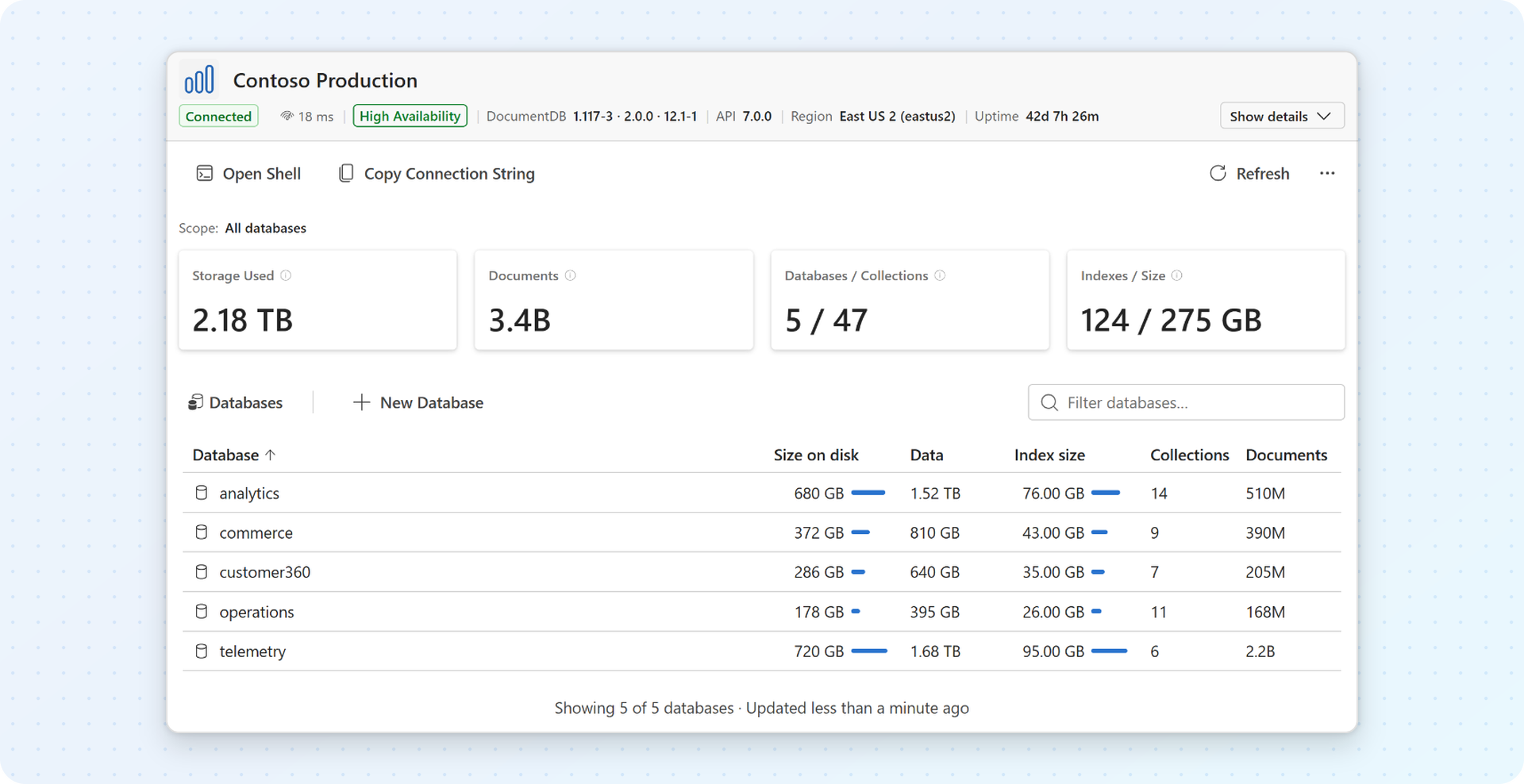
For an empty cluster, select New Database and name it store. Open that database, select New Collection, and name the collection products. If you already have data, select a database to explore its collections and open the collection you want to query.
Note
Don't include any personal, sensitive, or confidential information in resource names (for example, table name, database name) and resource tags. Data you enter in these fields isn't considered customer data.
Use Refresh after changes to update the inventory. Statistics depend on what the server reports; the dashboard shows a snapshot, not a live monitor of running operations. You can also open the shell, copy your connection string, and access collection actions from the dashboard.
Try a query with sample data
Already have a collection to explore? Skip the sample insert and use your own field names in the filter. Otherwise, add these three products to your new store.products collection. Screenshots in this article illustrate the extension with other demo datasets.
From the dashboard, select Open Shell. Alternatively, open the context menu for the
productscollection in the sidebar and select Open Interactive Shell.Run the following command to select the
storedatabase before inserting the sample documents:use storeRun the following command once to insert the sample documents into
store.products:db.products.insertMany([ { _id: "tent", name: "Trail Tent", price: 420, quantity: 140, sale: true }, { _id: "sleeping-bag", name: "Sleeping Bag", price: 150, quantity: 118, sale: true }, { _id: "mittens", name: "Mittens", price: 35, quantity: 121, sale: false } ])Open the collection in Collection View. You can use the Open Collection View icon beside the collection in the sidebar, or open the collection from the dashboard.
Find what you need
In Collection View, enter this expression in Filter to find sale items that cost more than 100:
{ sale: true, price: { $gt: 100 } }
Set Project to { name: 1, price: 1, _id: 0 } and Sort to { price: -1 }, then select Find Query. With the sample data, the results show Trail Tent and Sleeping Bag, ordered from highest to lowest price.
Tip
Azure DocumentDB indexes only _id by default. For larger collections, create indexes that match your query patterns. As an optional follow-up, use the Indexes tab in Collection View to manage indexes and Query Insights to inspect query performance.
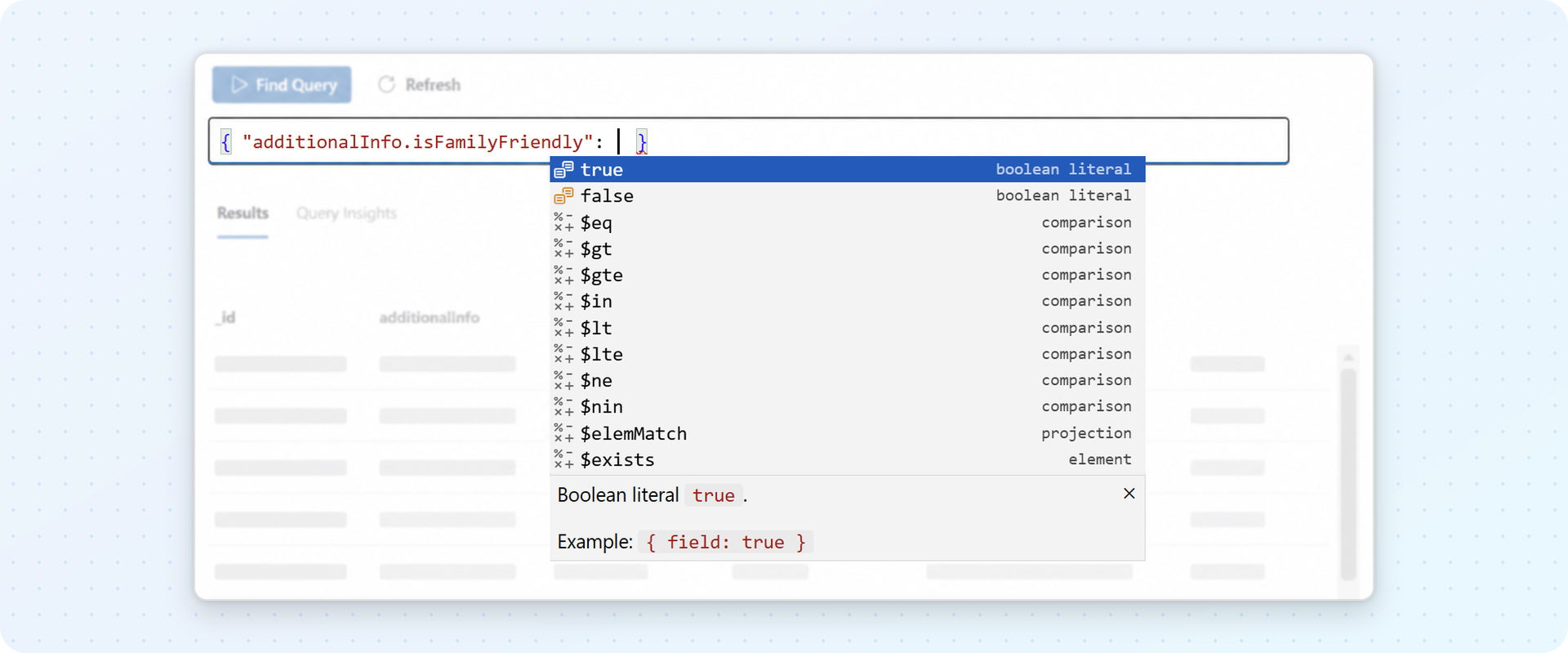
As you enter a query, the editor suggests fields from the documents you browse, relevant operators, and values that match each field's type. Hover over an operator for its documentation. Suggestions use locally gathered schema information, not an external service.
Switch between Table, Tree, and JSON views to inspect your results. You can create, edit, or delete documents, import JSON data, and export documents or query results.
Explore in the interactive shell
Use the built-in shell for quick questions: Which collections exist? How many products are on sale? What does one document look like?
Open it with Open Shell on the cluster dashboard or Open Interactive Shell on a cluster, database, or collection context menu. The shell reuses your connection, including Microsoft Entra ID authentication. Its header shows the connection, authentication method, and active database so you can check where you're working before running commands.
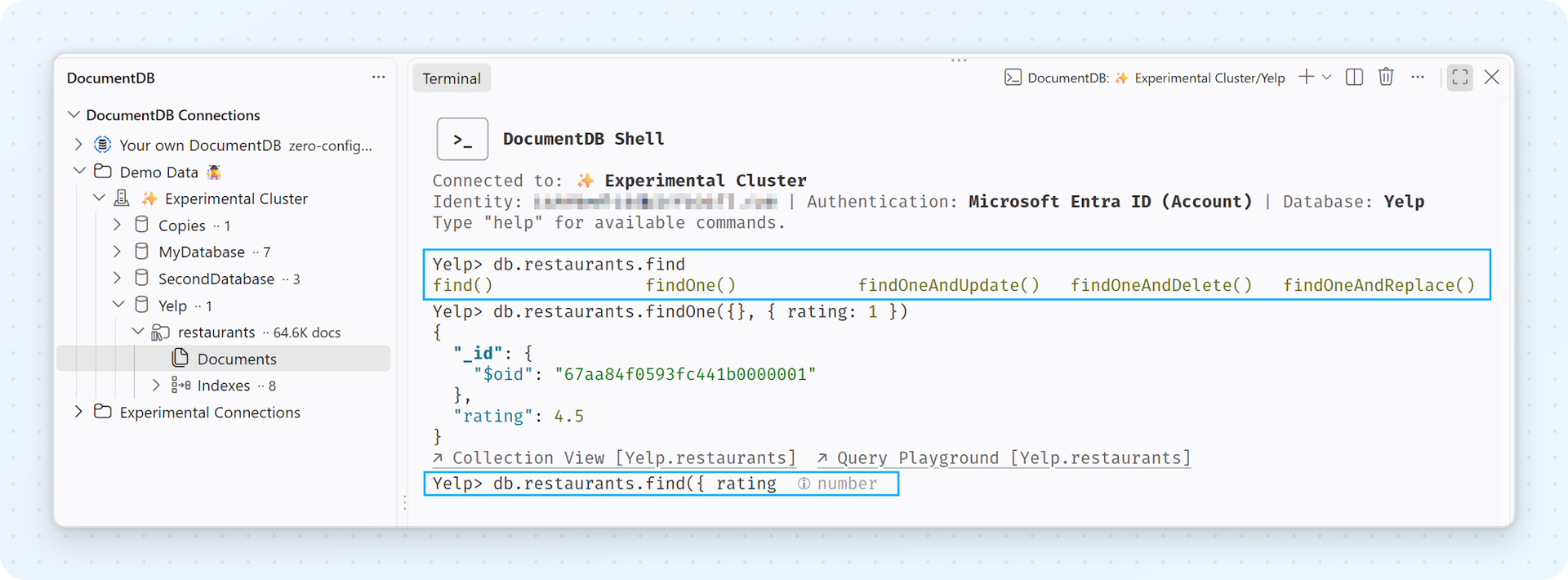
Try these commands one at a time:
use store
show collections
db.products.countDocuments({ sale: true })
Press Tab for completions, enter it to fetch the next batch of a query's results, or run help to see available commands. Variables persist within a session, so you can refine a query without starting over. Press Ctrl+C to cancel a long-running operation.
Save a query in a playground
When a one-off query becomes something you want to keep, move it to a Query Playground. Playground files use the .documentdb.js extension and support JavaScript, aggregation pipelines, variables, and loops.
Open the context menu for
storeorproductsand select New Query Playground. The file connects to that cluster and database automatically. From Collection View, you can also select Open in Playground to transfer your current find query.Replace the generated sample with this aggregation to find sale items with enough stock:
db.products.aggregate([
  { $match: { sale: true, price: { $gte: 100, $lte: 1000 }, quantity: { $gt: 50 } } },
  { $project: { _id: 0, name: 1, price: 1, quantity: 1 } },
  { $sort: { price: -1 } }
])
Select Run above the block, or Run All at the top of the file and confirm when prompted. Results appear in a side panel. Save the file as
sale-products.documentdb.jsto keep the script.
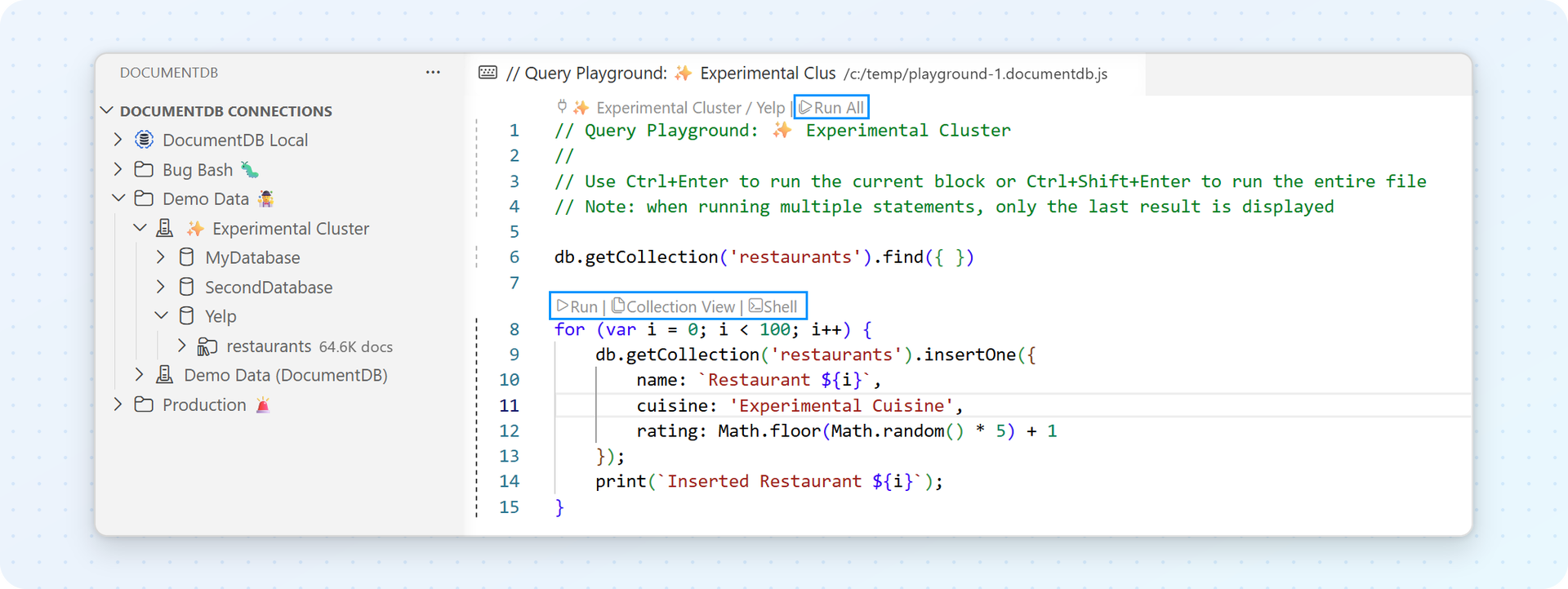
Separate queries with blank lines to run them independently. Use Run All when later blocks depend on variables from earlier blocks. The Collection View and Shell links above a block let you continue in another query surface without copying the code manually.
Make room for experiments
Want to try an update or delete without changing your original documents? Copy a small development collection, then run your experiment against the copy.
- In DocumentDB Connections, open the context menu for
productsand select Copy Collection. - Open the context menu for the destination database and select Paste Collection. You can use the same database or a database on another connected server.
- Name the new collection
products-experiment. Choose No, only copy documents for a data-only copy, then review the source and destination and confirm. - Open the copied collection and check its contents before experimenting. Create a playground from
products-experimentor change your shell commands to usedb.getCollection("products-experiment").
If you paste into an existing collection, the wizard offers strategies to stop on duplicate _id values, skip conflicting documents, overwrite them, or generate new IDs. Review the strategy before confirming: stopping on a conflict doesn't roll back documents already copied.
Important
Collection copy streams data through your development machine. It isn't an atomic snapshot or a replacement for backups, and changes to the source during the copy can affect the result. Use it for small, relatively static development datasets. For production migration, use a dedicated migration workflow.
You can also copy eligible secondary indexes with a collection, or copy index definitions separately from the Indexes nodes. If the source contains a TTL or unique index, choosing Yes, copy indexes stops the paste before confirmation. Run Paste Collection again and choose No, only copy documents. After copying the documents, copy the indexes separately by using the Indexes context menus. TTL indexes can delete documents during the copy, and unique indexes can reject them. See Copy and paste collections and indexes (user manual) for the separate index workflow and its safeguards.
Discover more tools
Recent releases add more ways to work with your data, from index management to a local development environment:
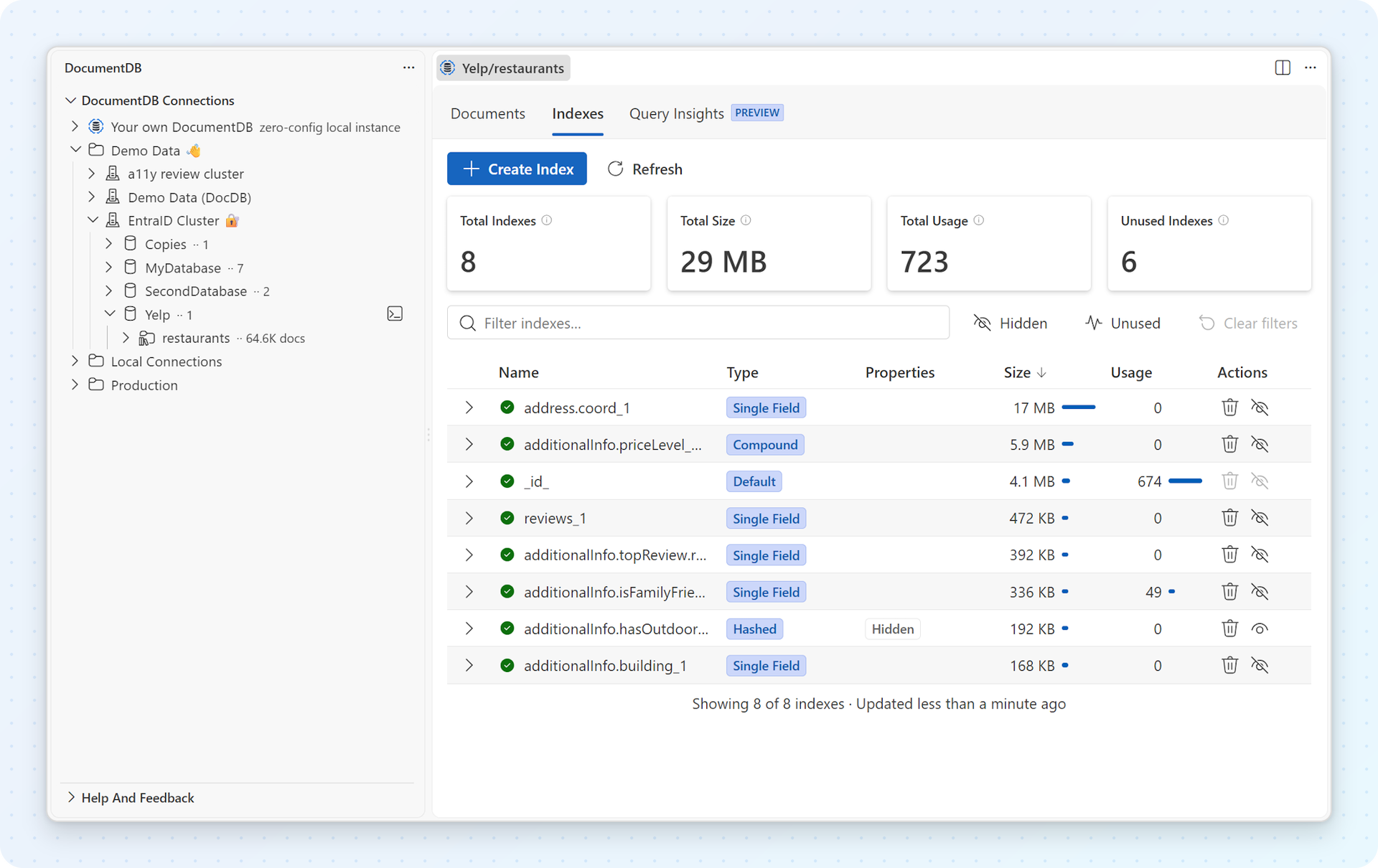
- Manage indexes beside your queries. Open Indexes in Collection View to inspect existing indexes and create new ones through a guided form. Use Preview as JSON to review a definition, or send the command to a playground or shell. Available index types and operations depend on your database.
- Investigate a slow query. Open Query Insights to examine explain plans and performance diagnostics. Optional AI-powered index recommendations are experimental and require opt-in, GitHub Copilot, and an active Copilot subscription.
- Try DocumentDB locally. Under Your own DocumentDB in the Connections view, select Set up DocumentDB Local for a guided setup with optional sample data. This optional workflow requires a working Docker Engine or Docker Desktop environment; connecting to Azure DocumentDB doesn't. See Set up DocumentDB Local (user manual).
- Connect from more environments. Service Discovery also finds Azure Cosmos DB for MongoDB (RU) accounts, DocumentDB on Azure virtual machines, Kubernetes, and MongoDB Atlas, so you can keep all your connections in one place. See Service Discovery (user manual).
For the latest additions and fixes, see the extension release announcements.
Troubleshoot connection issues
| Symptom | What to check |
|---|---|
| Your cluster doesn't appear in Service Discovery. | Use Filter Entries to include the cluster's subscription, or Manage Credentials to sign in to the tenant that contains it. Confirm that your Azure account can read the cluster resource, or connect with a connection string instead. |
| The connection times out. | Confirm that the firewall rules allow your client IP address, or that your environment can reach the cluster's private endpoint. |
A mongodb+srv:// connection fails with querySrv EBADRESP. |
Some routers, VPNs, and corporate DNS servers return SRV records that the Visual Studio Code runtime rejects. The extension retries the lookup through your configured DNS servers. If the connection still fails, see Troubleshoot SRV DNS lookups (user manual). |
| Microsoft Entra ID sign-in succeeds, but the cluster rejects the connection. | Confirm that Microsoft Entra ID authentication is enabled on the cluster and that your identity is registered as a user. If you belong to several tenants, sign in to the tenant that contains the cluster. |
| A managed identity connection fails. | The virtual machine's identity and the cluster must be in the same Microsoft Entra tenant. If the virtual machine has more than one identity, enter the client ID of the one to use. See Connect with a managed identity (user manual). |
For more detail, open the Output panel, select DocumentDB, set the log level to Trace, and connect again.