إشعار
يتطلب الوصول إلى هذه الصفحة تخويلاً. يمكنك محاولة تسجيل الدخول أو تغيير الدلائل.
يتطلب الوصول إلى هذه الصفحة تخويلاً. يمكنك محاولة تغيير الدلائل.
ملاحظة
تشير هذه الوثيقة إلى بوابة Microsoft Foundry (الكلاسيكية).
الوكلاء (الكلاسيكيون) الآن مهجورون وسيتم تقاعدهم في 31 مارس 2027. استخدم الوكلاء الجدد في خدمة وكلاء المسبك Microsoft المتاحة عموما. اتبع دليل الترحيل لتحديث أعباء عملك.
ملاحظة
هذا البدء السريع مخصص للإصدار السابق من الوكلاء. لاستخدام الإصدار الجديد من واجهة برمجة التطبيقات، راجع التشغيل السريع ل Microsoft Foundry.
تتيح لك خدمة Foundry Agent إنشاء وكلاء ذكاء اصطناعي مصممين لتلبية احتياجاتك من خلال تعليمات مخصصة ومدعومة بأدوات متقدمة مثل مفسر الكود والوظائف المخصصة.
المتطلبات الأساسية
اشتراك Azure - إنشاء واحد مجانا.
تأكد من أن الشخص الذي ينشئ الحساب والمشروع لديه دور مالك حساب Foundry ضمن نطاق الاشتراك، والذي يمنح الأذونات اللازمة لإنشاء المشروع
مهم
تم تغيير اسم أدوار RBAC في Foundry مؤخرا. Foundry User، Foundry Owner، Foundry Account Owner، وFoundry Project Manager تم تسميتها سابقا Azure مستخدم الذكاء الاصطناعي، ومالك الذكاء الاصطناعي Azure، ومالك حساب Azure الذكاء الاصطناعي، ومدير Project الذكاء الاصطناعي Azure. قد ترى الأسماء السابقة في بعض الأماكن أثناء صدور إعادة التسمية. معرفات الأدوار والأذونات الأساسية لم تتغير عند إعادة الاسم.
- بدلا من ذلك، وجود دور المساهم أو المالك على مستوى الاشتراك سيسمح بإنشاء المشروع
بمجرد إنشاء المشروع، تأكد من أن الشخص الذي ينشئ الوكيل داخل المشروع يحمل دور مستخدم المسبك على مستوى المشروع
مهم
بوابة Microsoft Foundry تدعم فقط إعداد الوكلاء الأساسي في الوقت الحالي. إذا كنت ترغب في تنفيذ إعداد وكيل قياسي، راجع مقالة إعداد البيئة لمعرفة المزيد.
أنشئ حساب ومشروع في Foundry في بوابة Foundry
لإنشاء حساب ومشروع في Foundry، اتبع الخطوات التالية:
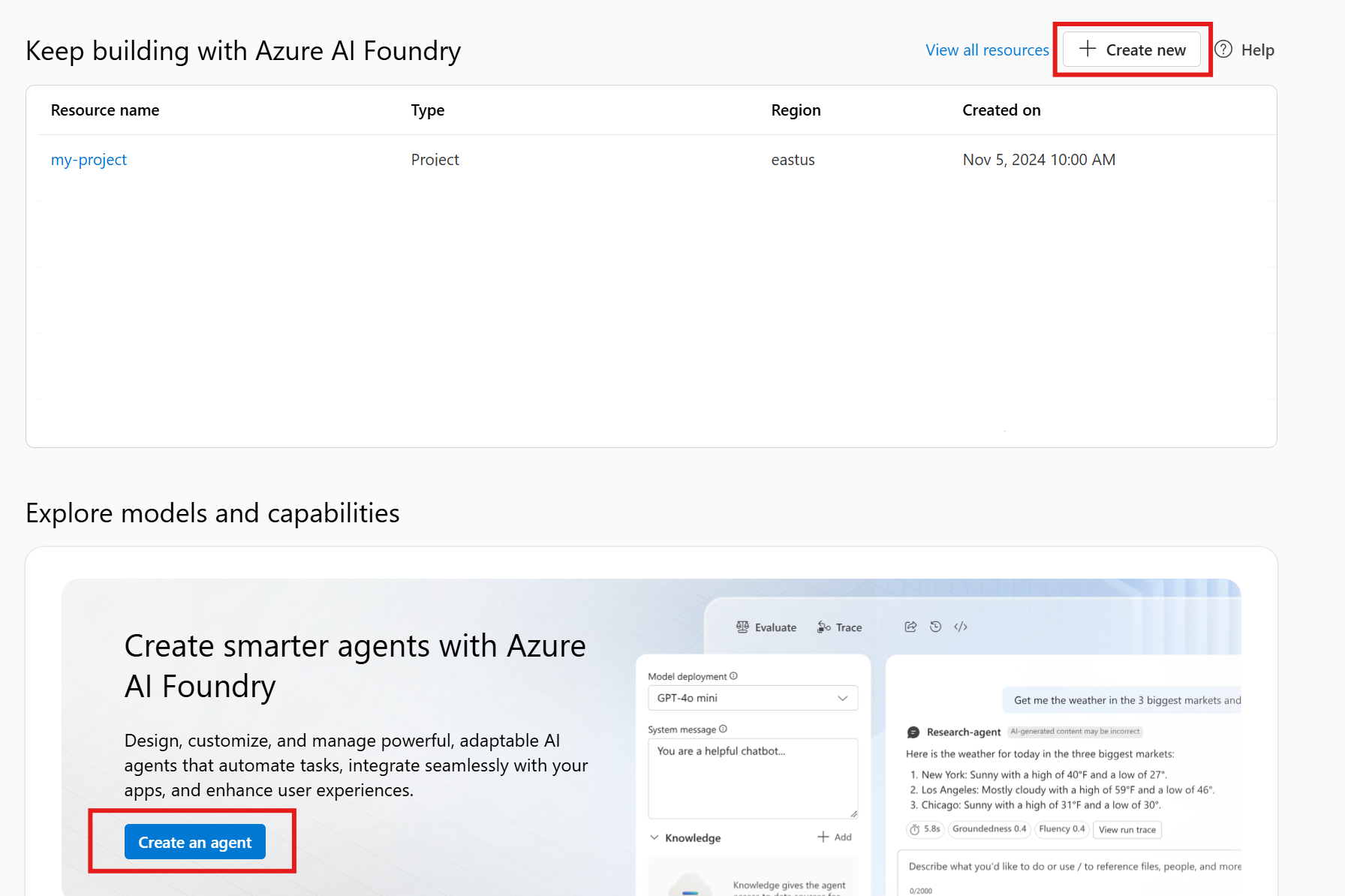
اذهب إلى فاوندري. إذا كنت في مشروع، اختر Foundry في أعلى يسار الصفحة للذهاب إلى الصفحة الرئيسية.
استخدم تدفق إنشاء الوكيل لأسرع تجربة. انقر على إنشاء وكيل.
أدخل اسم المشروع. إذا أردت تخصيص القيم الافتراضية، اختر الخيارات المتقدمة.
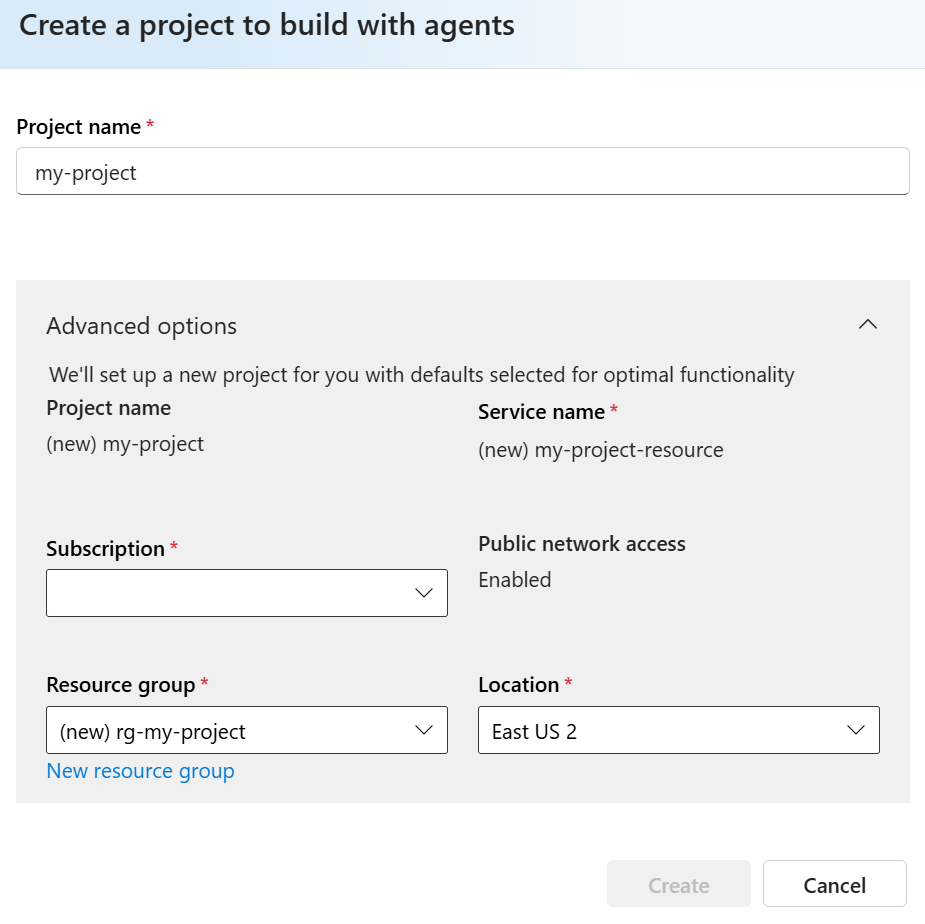
اختر الإنشاء.
انتظر حتى يتم توفير مواردك.
- سيتم إنشاء حساب ومشروع (مورد فرعي لحسابك).
- سيتم نشر نموذج gpt-4o تلقائيا
- سيتم إنشاء وكيل افتراضي
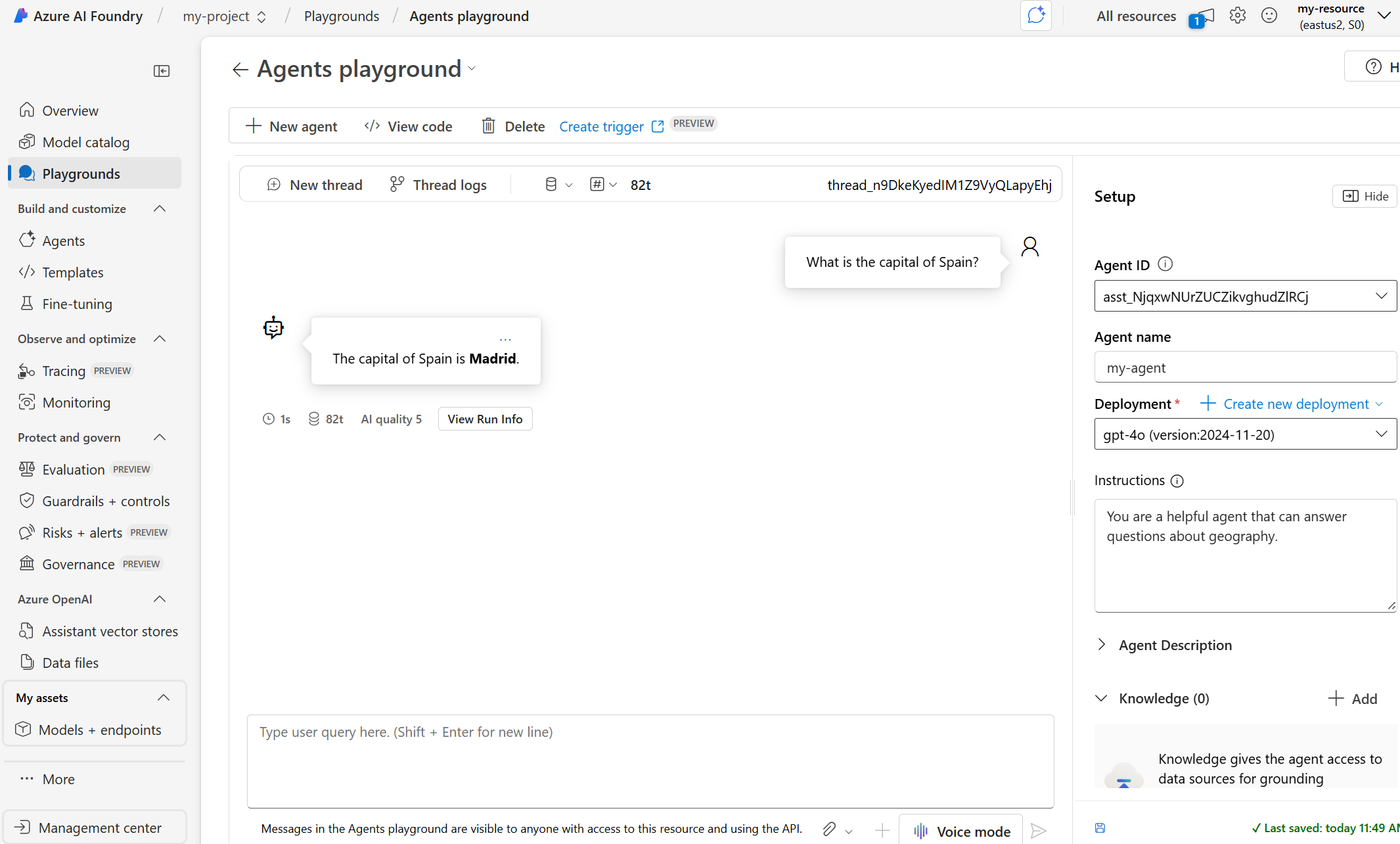
بمجرد الانتهاء، ستصل مباشرة إلى ساحة الوكلاء ويمكنك البدء في إنشاء وكلاء. يمكنك إعطاء وكيلك تعليمات حول ما يجب فعله وكيفية القيام به. على سبيل المثال: "أنت وكيل مفيد يمكنه الإجابة على أسئلة حول الجغرافيا." ثم يمكنك البدء في الدردشة مع وكيلك.
ملاحظة
إذا كنت تحصل على خطأ في الإذن عند محاولة تكوين أو إنشاء وكلاء، تأكد من وجود مستخدم Foundry على المشروع.
| وثائق المرجع | Samples | مصدر المكتبة | Package (NuGet) |
المتطلبات الأساسية
تعيين دور مستخدم Foundry RBAC لكل عضو في الفريق يحتاج إلى إنشاء أو تعديل الوكلاء باستخدام SDK أو ملعب الوكلاء
مهم
تم تغيير اسم أدوار RBAC في Foundry مؤخرا. Foundry User، Foundry Owner، Foundry Account Owner، وFoundry Project Manager تم تسميتها سابقا Azure مستخدم الذكاء الاصطناعي، ومالك الذكاء الاصطناعي Azure، ومالك حساب Azure الذكاء الاصطناعي، ومدير Project الذكاء الاصطناعي Azure. قد ترى الأسماء السابقة في بعض الأماكن أثناء صدور إعادة التسمية. معرفات الأدوار والأذونات الأساسية لم تتغير عند إعادة الاسم.
- يجب تعيين هذا الدور ضمن نطاق المشروع
- الحد الأدنى من الأذونات المطلوبة: agents/*/read, agents/*/action, agents/*/delete
تكوين وتشغيل وكيل
أنشئ مشروع وحدة تحكم .NET.
dotnet new console
قم بتثبيت حزمة .NET على مشروعك. على سبيل المثال، إذا كنت تستخدم واجهة تحكم .NET، شغل الأمر التالي.
dotnet add package Azure.AI.Agents.Persistent
dotnet add package Azure.Identity
بعد ذلك، لتوثيق طلبات واجهة برمجة التطبيقات وتشغيل البرنامج، استخدم أمر az login لتسجيل الدخول إلى اشتراك Azure الخاص بك.
az login
استخدم الكود التالي لإنشاء وكيل وتشغيله. لتشغيل هذا الكود، ستحتاج إلى الحصول على نقطة النهاية لمشروعك. هذه السلسلة بصيغة كالتالي:
https://<AIFoundryResourceName>.services.ai.azure.com/api/projects/<ProjectName>
مهم
بدءا من مايو 2025، تستخدم خدمة وكلاء الذكاء الاصطناعي Azure نقطة نهاية لمشاريع Foundry بدلا من سلسلة الاتصال التي كانت تستخدم سابقا للمشاريع المعتمدة على المركز. إذا كنت تستخدم مشروعا يعتمد على المركز، فلن تتمكن من استخدام الإصدارات الحالية من SDK وREST API. لمزيد من المعلومات، راجع استخدام SDK مع المشاريع القائمة على المركز.
يمكنك العثور على نقطة النهاية في نظرة عامة لمشروعك في بوابة Microsoft Foundry، تحت Libraries>Foundry.
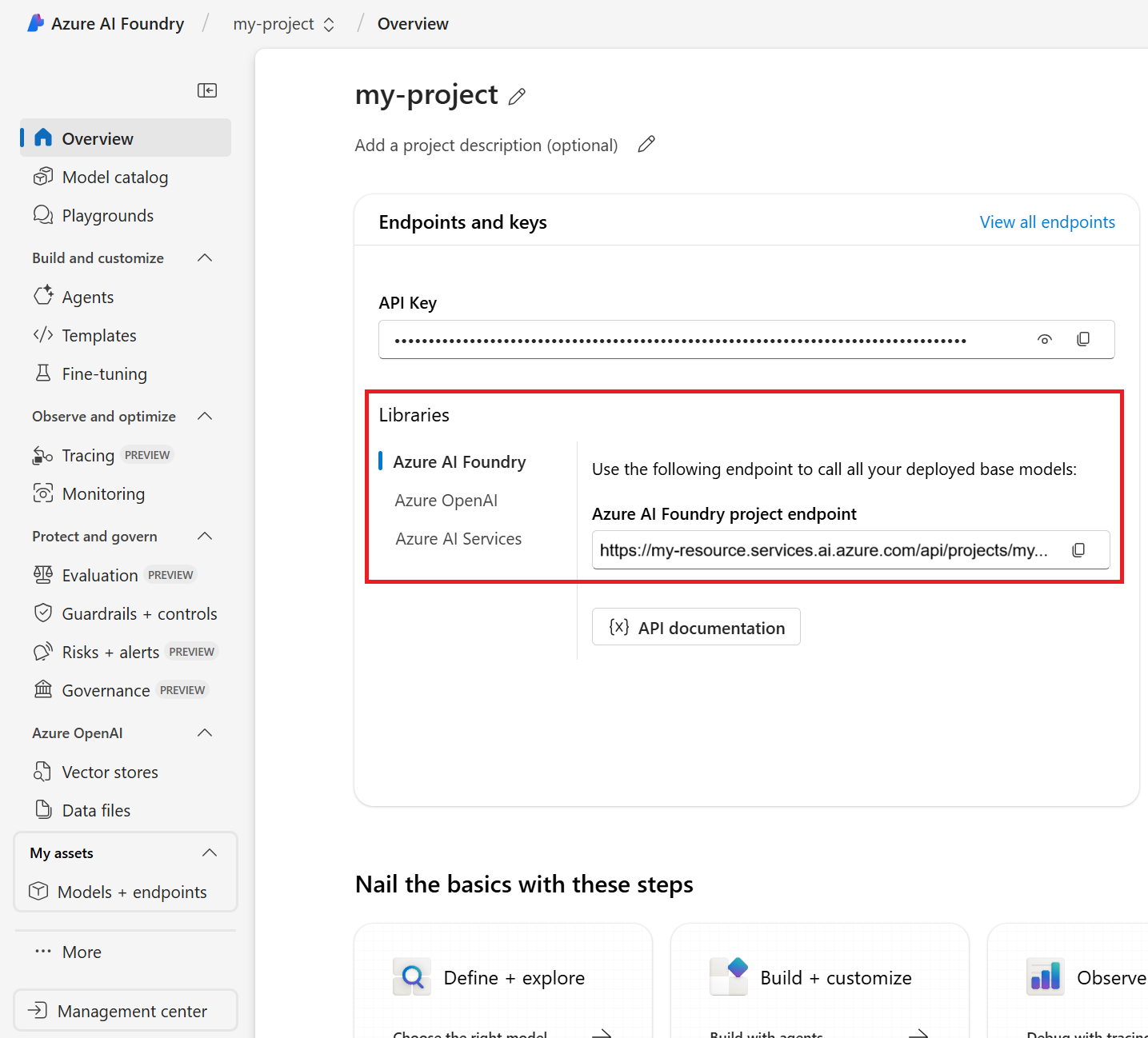
قم بتعيين هذه النقطة النهائية في متغير بيئي يسمى ProjectEndpoint.
تحتاج أيضا إلى اسم نشر نموذجك. يمكنك العثور عليه في النماذج + نقاط النهاية في قائمة التنقل اليسرى.
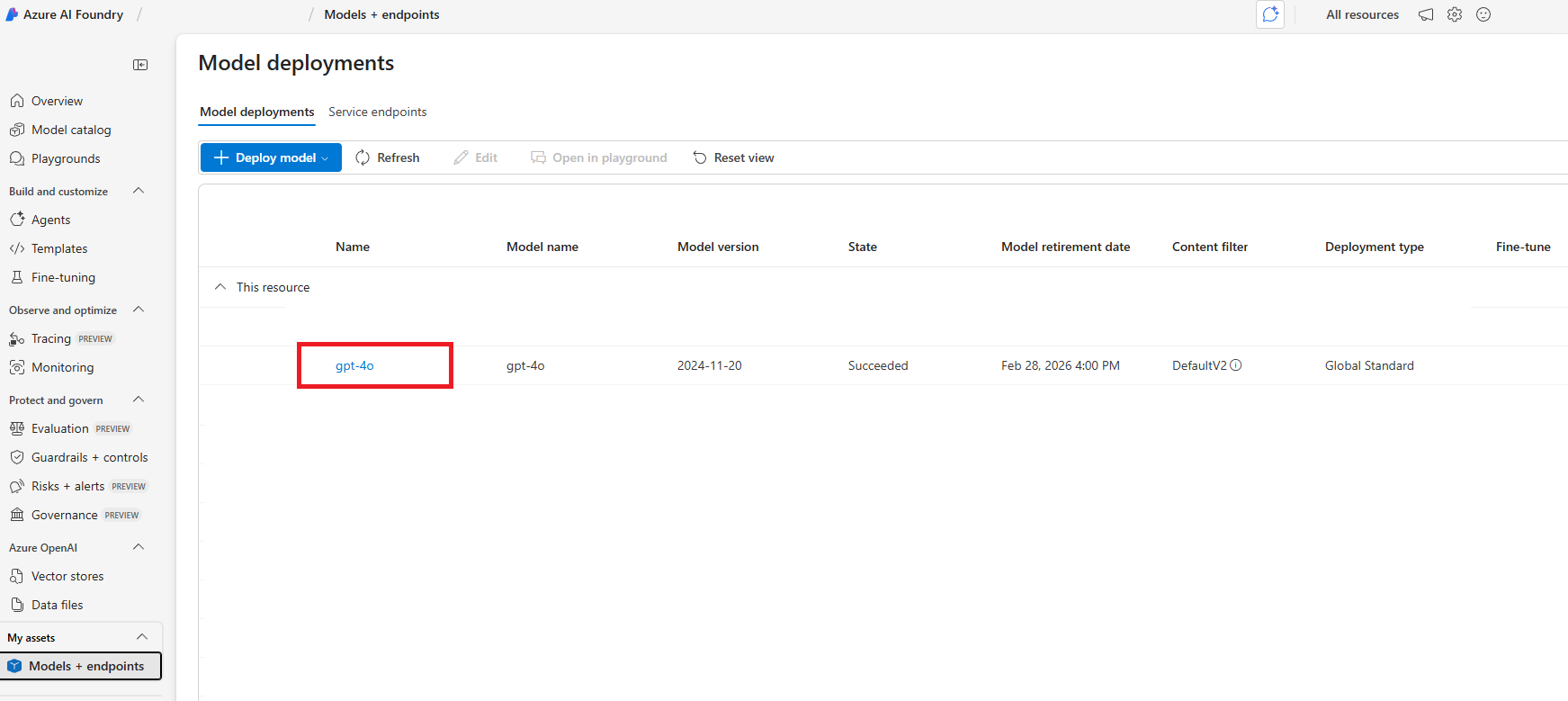
احفظ اسم النموذج الخاص بك كمتغير بيئي يسمى ModelDeploymentName.
using Azure;
using Azure.AI.Agents.Persistent;
using Azure.Identity;
using System.Diagnostics;

var projectEndpoint = System.Environment.GetEnvironmentVariable("ProjectEndpoint");
var modelDeploymentName = System.Environment.GetEnvironmentVariable("ModelDeploymentName");


//Create a PersistentAgentsClient and PersistentAgent.
PersistentAgentsClient client = new(projectEndpoint, new DefaultAzureCredential());

//Give PersistentAgent a tool to execute code using CodeInterpreterToolDefinition.
PersistentAgent agent = client.Administration.CreateAgent(
    model: modelDeploymentName,
    name: "My Test Agent",
    instructions: "You politely help with math questions. Use the code interpreter tool when asked to visualize numbers.",
    tools: [new CodeInterpreterToolDefinition()]
);

//Create a thread to establish a session between Agent and a User.
PersistentAgentThread thread = client.Threads.CreateThread();

//Ask a question of the Agent.
client.Messages.CreateMessage(
    thread.Id,
    MessageRole.User,
    "Hi, Agent! Draw a graph for a line with a slope of 4 and y-intercept of 9.");

//Have Agent begin processing user's question with some additional instructions associated with the ThreadRun.
ThreadRun run = client.Runs.CreateRun(
    thread.Id,
    agent.Id,
    additionalInstructions: "Please address the user as Jane Doe. The user has a premium account.");

//Poll for completion.
do
{
    Thread.Sleep(TimeSpan.FromMilliseconds(500));
    run = client.Runs.GetRun(thread.Id, run.Id);
}
while (run.Status == RunStatus.Queued
    || run.Status == RunStatus.InProgress
    || run.Status == RunStatus.RequiresAction);

//Get the messages in the PersistentAgentThread. Includes Agent (Assistant Role) and User (User Role) messages.
Pageable<PersistentThreadMessage> messages = client.Messages.GetMessages(
    threadId: thread.Id,
    order: ListSortOrder.Ascending);

//Display each message and open the image generated using CodeInterpreterToolDefinition.
foreach (PersistentThreadMessage threadMessage in messages)
{
    foreach (MessageContent content in threadMessage.ContentItems)
    {
        switch (content)
        {
            case MessageTextContent textItem:
                Console.WriteLine($"[{threadMessage.Role}]: {textItem.Text}");
                break;
            case MessageImageFileContent imageFileContent:
                Console.WriteLine($"[{threadMessage.Role}]: Image content file ID = {imageFileContent.FileId}");
                BinaryData imageContent = client.Files.GetFileContent(imageFileContent.FileId);
                string tempFilePath = Path.Combine(AppContext.BaseDirectory, $"{Guid.NewGuid()}.png");
                File.WriteAllBytes(tempFilePath, imageContent.ToArray());
                client.Files.DeleteFile(imageFileContent.FileId);

                ProcessStartInfo psi = new()
                {
                    FileName = tempFilePath,
                    UseShellExecute = true
                };
                Process.Start(psi);
                break;
        }
    }
}

//If you want to delete your agent, uncomment the following lines:
//client.Threads.DeleteThread(threadId: thread.Id);
//client.Administration.DeleteAgent(agentId: agent.Id);
| الوثائق المرجعية | عينات | شفرة | الحزمة (PyPi) |
المتطلبات الأساسية
تعيين دور مستخدم Foundry RBAC لكل عضو في الفريق يحتاج إلى إنشاء أو تعديل الوكلاء باستخدام SDK أو ملعب الوكلاء
مهم
تم تغيير اسم أدوار RBAC في Foundry مؤخرا. Foundry User، Foundry Owner، Foundry Account Owner، وFoundry Project Manager تم تسميتها سابقا Azure مستخدم الذكاء الاصطناعي، ومالك الذكاء الاصطناعي Azure، ومالك حساب Azure الذكاء الاصطناعي، ومدير Project الذكاء الاصطناعي Azure. قد ترى الأسماء السابقة في بعض الأماكن أثناء صدور إعادة التسمية. معرفات الأدوار والأذونات الأساسية لم تتغير عند إعادة الاسم.
- يجب تعيين هذا الدور ضمن نطاق المشروع
- الحد الأدنى من الأذونات المطلوبة: agents/*/read, agents/*/action, agents/*/delete
تكوين وتشغيل وكيل
شغل الأوامر التالية لتثبيت حزم بايثون.
pip install azure-ai-projects
pip install azure-identity
بعد ذلك، لتوثيق طلبات واجهة برمجة التطبيقات وتشغيل البرنامج، استخدم أمر az login لتسجيل الدخول إلى اشتراك Azure الخاص بك.
az login
استخدم الكود التالي لإنشاء وكيل وتشغيله. لتشغيل هذا الكود، ستحتاج إلى الحصول على نقطة النهاية لمشروعك. هذه السلسلة بصيغة كالتالي:
https://<AIFoundryResourceName>.services.ai.azure.com/api/projects/<ProjectName>
مهم
بدءا من مايو 2025، تستخدم خدمة وكلاء الذكاء الاصطناعي Azure نقطة نهاية لمشاريع Foundry بدلا من سلسلة الاتصال التي كانت تستخدم سابقا للمشاريع المعتمدة على المركز. إذا كنت تستخدم مشروعا يعتمد على المركز، فلن تتمكن من استخدام الإصدارات الحالية من SDK وREST API. لمزيد من المعلومات، راجع استخدام SDK مع المشاريع القائمة على المركز.
يمكنك العثور على نقطة النهاية في نظرة عامة لمشروعك في بوابة Microsoft Foundry، تحت Libraries>Foundry.
قم بتعيين هذه النقطة النهائية كمتغير بيئي يسمى PROJECT_ENDPOINT.
تحتاج أيضا إلى اسم نشر نموذجك. يمكنك العثور عليه في النماذج + نقاط النهاية في قائمة التنقل اليسرى.
احفظ اسم النموذج الخاص بك كمتغير بيئي يسمى MODEL_DEPLOYMENT_NAME.
import os
from pathlib import Path
from azure.ai.projects import AIProjectClient
from azure.identity import DefaultAzureCredential
from azure.ai.agents.models import CodeInterpreterTool

# Create an AIProjectClient instance
project_client = AIProjectClient(
    endpoint=os.getenv("PROJECT_ENDPOINT"),
    credential=DefaultAzureCredential(),
    # Use Azure Default Credential for authentication
)

with project_client:

    code_interpreter = CodeInterpreterTool()

    agent = project_client.agents.create_agent(
        model=os.getenv("MODEL_DEPLOYMENT_NAME"),  # Model deployment name
        name="my-agent",  # Name of the agent
        instructions="""You politely help with math questions.
        Use the Code Interpreter tool when asked to visualize numbers.""",
        # Instructions for the agent
        tools=code_interpreter.definitions,  # Attach the tool
        tool_resources=code_interpreter.resources,  # Attach tool resources
    )
    print(f"Created agent, ID: {agent.id}")

    # Create a thread for communication
    thread = project_client.agents.threads.create()
    print(f"Created thread, ID: {thread.id}")

    question = """Draw a graph for a line with a slope of 4
    and y-intercept of 9 and provide the file to me?"""

    # Add a message to the thread
    message = project_client.agents.messages.create(
        thread_id=thread.id,
        role="user",  # Role of the message sender
        content=question,  # Message content
    )
    print(f"Created message, ID: {message['id']}")

    # Create and process an agent run
    run = project_client.agents.runs.create_and_process(
        thread_id=thread.id,
        agent_id=agent.id,
        additional_instructions="""Please address the user as Jane Doe.
        The user has a premium account.""",
    )

    print(f"Run finished with status: {run.status}")

    # Check if the run failed
    if run.status == "failed":
        print(f"Run failed: {run.last_error}")

    # Fetch and log all messages
    messages = project_client.agents.messages.list(thread_id=thread.id)
    print(f"Messages: {messages}")

    for message in messages:
        print(f"Role: {message.role}, Content: {message.content}")
        for this_content in message.content:
            print(f"Content Type: {this_content.type}, Content Data: {this_content}")
            if this_content.text.annotations:
                for annotation in this_content.text.annotations:
                    print(f"Annotation Type: {annotation.type}, Text: {annotation.text}")
                    print(f"Start Index: {annotation.start_index}")
                    print(f"End Index: {annotation.end_index}")
                    print(f"File ID: {annotation.file_path.file_id}")
                    # Save every image file in the message
                    file_id = annotation.file_path.file_id
                    file_name = f"{file_id}_image_file.png"
                    project_client.agents.files.save(file_id=file_id, file_name=file_name)
                    print(f"Saved image file to: {Path.cwd() / file_name}")
    #Uncomment these lines to delete the agent when done
    #project_client.agents.delete_agent(agent.id)
    #print("Deleted agent")
| وثائق المرجع | العينات | الرمز المصدري للمكتبة | Package (npm) |
المتطلبات الأساسية
تعيين دور مستخدم Foundry RBAC لكل عضو في الفريق يحتاج إلى إنشاء أو تعديل الوكلاء باستخدام SDK أو ملعب الوكلاء
مهم
تم تغيير اسم أدوار RBAC في Foundry مؤخرا. Foundry User، Foundry Owner، Foundry Account Owner، وFoundry Project Manager تم تسميتها سابقا Azure مستخدم الذكاء الاصطناعي، ومالك الذكاء الاصطناعي Azure، ومالك حساب Azure الذكاء الاصطناعي، ومدير Project الذكاء الاصطناعي Azure. قد ترى الأسماء السابقة في بعض الأماكن أثناء صدور إعادة التسمية. معرفات الأدوار والأذونات الأساسية لم تتغير عند إعادة الاسم.
- يجب تعيين هذا الدور ضمن نطاق المشروع
- الحد الأدنى من الأذونات المطلوبة: agents/*/read, agents/*/action, agents/*/delete
تكوين وتشغيل وكيل
تشمل العناصر الرئيسية في هذا الكود:
أولا، قم بتهيئة مشروع TypeScript جديد عن طريق تشغيل:
npm init -y
npm pkg set type="module"
شغل الأوامر التالية لتثبيت حزم npm المطلوبة.
npm install @azure/ai-agents @azure/identity
npm install @types/node typescript --save-dev
بعد ذلك، لتوثيق طلبات واجهة برمجة التطبيقات وتشغيل البرنامج، استخدم أمر az login لتسجيل الدخول إلى اشتراك Azure الخاص بك.
az login
استخدم الكود التالي للإجابة على سؤال I need to solve the equation '3x + 11 = 14'. Can you help me?الرياضيات. لتشغيل هذا الكود، ستحتاج إلى الحصول على نقطة النهاية لمشروعك. هذه السلسلة بصيغة كالتالي:
https://<AIFoundryResourceName>.services.ai.azure.com/api/projects/<ProjectName>
يمكنك العثور على نقطة النهاية في نظرة عامة لمشروعك في بوابة Microsoft Foundry، تحت Libraries>Foundry.
قم بتعيين هذه النقطة النهائية كمتغير بيئي مسمى PROJECT_ENDPOINT في .env ملف.
تحتاج أيضا إلى اسم نشر نموذجك. يمكنك العثور عليه في النماذج + نقاط النهاية في قائمة التنقل اليسرى.
احفظ اسم النموذج الخاص بك كمتغير بيئي يسمى MODEL_DEPLOYMENT_NAME.
مهم
- يستخدم هذا الكود السريع متغيرات البيئة للتكوين الحساس. لا تلتزم أبدا بملفك
.envفي نظام التحكم بالإصدارات بالتأكد.envمن أنه مدرج في ملفك.gitignore. - تذكر: إذا قمت بتحميل معلومات حساسة عن طريق الخطأ، اعتبر تلك الاعتمادات مخترقة وقم بتدويرها فورا.
أنشئ ملف tsconfig.json يحتوي على المحتوى التالي:
{
  "compilerOptions": {
    "module": "nodenext",
    "target": "esnext",
    "types": ["node"],
    "lib": ["esnext"],
    "sourceMap": true,
    "declaration": true,
    "declarationMap": true,
    "noUncheckedIndexedAccess": true,
    "exactOptionalPropertyTypes": true,
    "strict": true,
    "verbatimModuleSyntax": true,
    "isolatedModules": true,
    "noUncheckedSideEffectImports": true,
    "moduleDetection": "force",
    "skipLibCheck": true,
  }
}
بعد ذلك، أنشئ ملفا index.ts والصق الكود التالي:
import { AgentsClient } from "@azure/ai-agents";
import { DefaultAzureCredential } from "@azure/identity";

const projectEndpoint = process.env["PROJECT_ENDPOINT"] || "<project endpoint>";
const modelDeploymentName = process.env["MODEL_DEPLOYMENT_NAME"] || "gpt-4o";

export async function main(): Promise<void> {
  // Create an Azure AI Client
  const client = new AgentsClient(projectEndpoint, new DefaultAzureCredential());

  // Create an agent
  const agent = await client.createAgent(modelDeploymentName, {
    name: "my-agent",
    instructions: "You are a helpful agent specialized in math. When providing mathematical explanations, use plain text formatting with simple characters like +, -, *, / for operations. Do not use LaTeX formatting with backslashes or special notation. Make your explanations clear and easy to read in a terminal.",
  });
  console.log(`Created agent, agent ID : ${agent.id}`);

  // Create a thread
  const thread = await client.threads.create();
  console.log(`Created thread, thread ID : ${thread.id}`);

  // List all threads for the agent
  const threads = client.threads.list();
  console.log(`Threads for agent ${agent.id}:`);
  for await (const t of threads) {
    console.log(`Thread ID: ${t.id} created at: ${t.createdAt}`);
  }

  // Create a message
  const message = await client.messages.create(thread.id, "user", "I need to solve the equation `3x + 11 = 14`. Can you help me?");
  console.log(`Created message, message ID : ${message.id}`);

  // Create and poll a run
  console.log("Creating run...");
  const run = await client.runs.createAndPoll(thread.id, agent.id, {
    pollingOptions: {
      intervalInMs: 2000,
    },
    onResponse: (response): void => {
      const parsedBody =
        typeof response.parsedBody === "object" && response.parsedBody !== null
          ? response.parsedBody
          : null;
      const status = parsedBody && "status" in parsedBody ? parsedBody.status : "unknown";
      console.log(`Received response with status: ${status}`);
    },
  });
  console.log(`Run finished with status: ${run.status}`);

  const messagesIterator = client.messages.list(thread.id);
  console.log("\n\n========================================================");
  console.log("=================== CONVERSATION RESULTS ===================");
  console.log("========================================================\n");

  // Collect all messages first
  const messages = [];
  for await (const m of messagesIterator) {
    messages.push(m);
  }

  // Reverse the order of messages (or sort by timestamp if available)
  messages.reverse();

  // Display messages in the new order
  for (const m of messages) {
    if (m.role === "user") {
      console.log(`\n❓ USER QUESTION: ${
        Array.isArray(m.content) && m.content[0]?.type === "text" && 'text' in m.content[0]
          ? m.content[0].text.value
          : JSON.stringify(m.content)
      }`);
    } else if (m.role === "assistant") {
      console.log("\n🤖 ASSISTANT'S ANSWER:");
      console.log("--------------------------------------------------");

      // Extract and print the text content in a more readable format
      if (m.content && Array.isArray(m.content)) {
        for (const content of m.content) {
          if (content.type === "text" && 'text' in content) {
            console.log(content.text?.value);
          } else {
            console.log(content);
          }
        }
      } else {
        console.log(JSON.stringify(m.content, null, 2));
      }
      console.log("--------------------------------------------------\n");
    }
  }

  console.log("\n========================================================");
  console.log("====================== END OF RESULTS ======================");
  console.log("========================================================\n");

  // Clean up
  await client.threads.delete(thread.id);
  await client.deleteAgent(agent.id);
}

main().catch((err) => {
  console.error("The sample encountered an error:", err);
});
شغل الكود باستخدام npx tsx -r dotenv/config index.ts. هذا الكود يجيب على السؤال I need to solve the equation '3x + 11 = 14'. Can you help me?. الردود ليست حتمية، سيبدو مخرجاك مشابها للمخرج أدناه:
Created agent, agent ID : asst_X4yDNWrdWKb8LN0SQ6xlzhWk
Created thread, thread ID : thread_TxqZcHL2BqkNWl9dFzBYMIU6
Threads for agent asst_X4yDNWrdWKb8LN0SQ6xlzhWk:
...
Created message, message ID : msg_R0zDsXdc2UbfsNXvS1zeS6hk
Creating run...
Received response with status: queued
Received response with status: in_progress
Received response with status: completed
Run finished with status: completed

========================================================
=================== CONVERSATION RESULTS ===================
========================================================

❓ USER QUESTION: I need to solve the equation `3x + 11 = 14`. Can you help me?

🤖 ASSISTANT'S ANSWER:
--------------------------------------------------
Certainly! Let's solve the equation step by step:

We have:
3x + 11 = 14

### Step 1: Eliminate the constant (+11) on the left-hand side.
Subtract 11 from both sides:
3x + 11 - 11 = 14 - 11
This simplifies to:
3x = 3

We have:
3x + 11 = 14

### Step 1: Eliminate the constant (+11) on the left-hand side.
Subtract 11 from both sides:
3x + 11 - 11 = 14 - 11
This simplifies to:
3x = 3

### Step 2: Solve for x.
Divide both sides by 3:
3x / 3 = 3 / 3
This simplifies to:
x = 1

### Final Answer:
x = 1
--------------------------------------------------

========================================================
====================== END OF RESULTS ======================
========================================================
الشفرة المصدرية الكاملة عينة الرمز متاحة.
| وثائق المرجع | العينات | المكتبة | Package (Maven) |
المتطلبات الأساسية
تعيين دور مستخدم Foundry RBAC لكل عضو في الفريق يحتاج إلى إنشاء أو تعديل الوكلاء باستخدام SDK أو ملعب الوكلاء
مهم
تم تغيير اسم أدوار RBAC في Foundry مؤخرا. Foundry User، Foundry Owner، Foundry Account Owner، وFoundry Project Manager تم تسميتها سابقا Azure مستخدم الذكاء الاصطناعي، ومالك الذكاء الاصطناعي Azure، ومالك حساب Azure الذكاء الاصطناعي، ومدير Project الذكاء الاصطناعي Azure. قد ترى الأسماء السابقة في بعض الأماكن أثناء صدور إعادة التسمية. معرفات الأدوار والأذونات الأساسية لم تتغير عند إعادة الاسم.
- يجب تعيين هذا الدور ضمن نطاق المشروع
- الحد الأدنى من الأذونات المطلوبة: agents/*/read, agents/*/action, agents/*/delete
تكوين وتشغيل وكيل
أولا، أنشئ مشروع لجهاز تحكم Java جديد. ستحتاج إلى التبعيات التالية لتشغيل الكود:
<dependencies>
    <dependency>
        <groupId>com.azure</groupId>
        <artifactId>azure-ai-agents-persistent</artifactId>
        <version>1.0.0-beta.2</version>
    </dependency>
    <dependency>
        <groupId>com.azure</groupId>
        <artifactId>azure-identity</artifactId>
        <version>1.17.0-beta.1</version>
    </dependency>
</dependencies>
بعد ذلك، لتوثيق طلبات واجهة برمجة التطبيقات وتشغيل البرنامج، استخدم أمر az login لتسجيل الدخول إلى اشتراك Azure الخاص بك.
az login
استخدم الكود التالي لإنشاء وكيل وتشغيله. لتشغيل هذا الكود، ستحتاج إلى الحصول على نقطة النهاية لمشروعك. هذه السلسلة بصيغة كالتالي:
https://<AIFoundryResourceName>.services.ai.azure.com/api/projects/<ProjectName>
مهم
بدءا من مايو 2025، تستخدم خدمة وكلاء الذكاء الاصطناعي Azure نقطة نهاية لمشاريع Foundry بدلا من سلسلة الاتصال التي كانت تستخدم سابقا للمشاريع المعتمدة على المركز. إذا كنت تستخدم مشروعا يعتمد على المركز، فلن تتمكن من استخدام الإصدارات الحالية من SDK وREST API. لمزيد من المعلومات، راجع استخدام SDK مع المشاريع القائمة على المركز.
يمكنك العثور على نقطة النهاية في نظرة عامة لمشروعك في بوابة Microsoft Foundry، تحت Libraries>Foundry.
قم بتعيين هذه النقطة النهائية في متغير بيئي يسمى PROJECT_ENDPOINT.
تحتاج أيضا إلى اسم نشر نموذجك. يمكنك العثور عليه في النماذج + نقاط النهاية في قائمة التنقل اليسرى.
احفظ اسم النموذج الخاص بك كمتغير بيئي يسمى MODEL_DEPLOYMENT_NAME.
مثال على الكود
package com.example.agents;

import com.azure.ai.agents.persistent.MessagesClient;
import com.azure.ai.agents.persistent.PersistentAgentsAdministrationClient;
import com.azure.ai.agents.persistent.PersistentAgentsClient;
import com.azure.ai.agents.persistent.PersistentAgentsClientBuilder;
import com.azure.ai.agents.persistent.RunsClient;
import com.azure.ai.agents.persistent.ThreadsClient;
import com.azure.ai.agents.persistent.models.CodeInterpreterToolDefinition;
import com.azure.ai.agents.persistent.models.CreateAgentOptions;
import com.azure.ai.agents.persistent.models.CreateRunOptions;
import com.azure.ai.agents.persistent.models.MessageImageFileContent;
import com.azure.ai.agents.persistent.models.MessageRole;
import com.azure.ai.agents.persistent.models.MessageTextContent;
import com.azure.ai.agents.persistent.models.PersistentAgent;
import com.azure.ai.agents.persistent.models.PersistentAgentThread;
import com.azure.ai.agents.persistent.models.RunStatus;
import com.azure.ai.agents.persistent.models.ThreadMessage;
import com.azure.ai.agents.persistent.models.ThreadRun;
import com.azure.ai.agents.persistent.models.MessageContent;
import com.azure.core.http.rest.PagedIterable;
import com.azure.identity.DefaultAzureCredentialBuilder;
import java.util.Arrays;

public class AgentSample {

    public static void main(String[] args) {
        // variables for authenticating requests to the agent service
        String projectEndpoint = System.getenv("PROJECT_ENDPOINT");
        String modelName = System.getenv("MODEL_DEPLOYMENT_NAME");

        // initialize clients to manage various aspects of agent runtime
        PersistentAgentsClientBuilder clientBuilder = new PersistentAgentsClientBuilder()
            .endpoint(projectEndpoint)
            .credential(new DefaultAzureCredentialBuilder().build());
        PersistentAgentsClient agentsClient = clientBuilder.buildClient();
        PersistentAgentsAdministrationClient administrationClient = agentsClient.getPersistentAgentsAdministrationClient();
        ThreadsClient threadsClient = agentsClient.getThreadsClient();
        MessagesClient messagesClient = agentsClient.getMessagesClient();
        RunsClient runsClient = agentsClient.getRunsClient();


        String agentName = "my-agent"; // the name of the agent
        CreateAgentOptions createAgentOptions = new CreateAgentOptions(modelName)
            .setName(agentName)
            .setInstructions("You are a helpful agent") // system instructions
            .setTools(Arrays.asList(new CodeInterpreterToolDefinition()));
        PersistentAgent agent = administrationClient.createAgent(createAgentOptions);

        PersistentAgentThread thread = threadsClient.createThread();
        ThreadMessage createdMessage = messagesClient.createMessage(
            thread.getId(),
            MessageRole.USER,
            "I need to solve the equation `3x + 11 = 14`. Can you help me?"); // The message to the agent

        try {
            //run the agent
            CreateRunOptions createRunOptions = new CreateRunOptions(thread.getId(), agent.getId())
                .setAdditionalInstructions("");
            ThreadRun threadRun = runsClient.createRun(createRunOptions);
            // wait for the run to complete before printing the message
            waitForRunCompletion(thread.getId(), threadRun, runsClient);
            printRunMessages(messagesClient, thread.getId());
        } catch (InterruptedException e) {
            throw new RuntimeException(e);
        } finally {
            //cleanup - uncomment these lines if you want to delete the agent
            //threadsClient.deleteThread(thread.getId());
            //administrationClient.deleteAgent(agent.getId());
        }
    }

    // A helper function to print messages from the agent
    public static void printRunMessages(MessagesClient messagesClient, String threadId) {

        PagedIterable<ThreadMessage> runMessages = messagesClient.listMessages(threadId);
        for (ThreadMessage message : runMessages) {
            System.out.print(String.format("%1$s - %2$s : ", message.getCreatedAt(), message.getRole()));
            for (MessageContent contentItem : message.getContent()) {
                if (contentItem instanceof MessageTextContent) {
                    System.out.print((((MessageTextContent) contentItem).getText().getValue()));
                } else if (contentItem instanceof MessageImageFileContent) {
                    String imageFileId = (((MessageImageFileContent) contentItem).getImageFile().getFileId());
                    System.out.print("Image from ID: " + imageFileId);
                }
                System.out.println();
            }
        }
    }

    // a helper function to wait until a run has completed running
    public static void waitForRunCompletion(String threadId, ThreadRun threadRun, RunsClient runsClient)
        throws InterruptedException {

        do {
            Thread.sleep(500);
            threadRun = runsClient.getRun(threadId, threadRun.getId());
        }
        while (
            threadRun.getStatus() == RunStatus.QUEUED
                || threadRun.getStatus() == RunStatus.IN_PROGRESS
                || threadRun.getStatus() == RunStatus.REQUIRES_ACTION);

        if (threadRun.getStatus() == RunStatus.FAILED) {
            System.out.println(threadRun.getLastError().getMessage());
        }
    }
}
| الوثائق المرجعية |
المتطلبات الأساسية
تعيين دور مستخدم Foundry RBAC لكل عضو في الفريق يحتاج إلى إنشاء أو تعديل الوكلاء باستخدام SDK أو ملعب الوكلاء
مهم
تم تغيير اسم أدوار RBAC في Foundry مؤخرا. Foundry User، Foundry Owner، Foundry Account Owner، وFoundry Project Manager تم تسميتها سابقا Azure مستخدم الذكاء الاصطناعي، ومالك الذكاء الاصطناعي Azure، ومالك حساب Azure الذكاء الاصطناعي، ومدير Project الذكاء الاصطناعي Azure. قد ترى الأسماء السابقة في بعض الأماكن أثناء صدور إعادة التسمية. معرفات الأدوار والأذونات الأساسية لم تتغير عند إعادة الاسم.
- يجب تعيين هذا الدور ضمن نطاق المشروع
- الحد الأدنى من الأذونات المطلوبة: agents/*/read, agents/*/action, agents/*/delete
تكوين وتشغيل وكيل
لتوثيق طلبات واجهة برمجة التطبيقات الخاصة بك، استخدم أمر az login لتسجيل الدخول إلى اشتراك Azure الخاص بك.
az login
بعد ذلك، ستحتاج إلى جلب رمز Entra ID لتوفير تفويض لاستدعاءات API. جلب الرمز باستخدام أمر CLI:
az account get-access-token --resource 'https://ai.azure.com' | jq -r .accessToken | tr -d '"'
اضبط رمز الوصول كمتغير بيئي يسمى AGENT_TOKEN.
لإجراء استدعاءات واجهة برمجة تطبيقات REST بنجاح إلى خدمة وكلاء الصيادة، ستحتاج إلى استخدام نقطة نهاية مشروعك:
https://<your_ai_service_name>.services.ai.azure.com/api/projects/<your_project_name>
على سبيل المثال، ستبدو نقطة النهاية على النحو التالي:
https://exampleaiservice.services.ai.azure.com/api/projects/project
قم بتعيين هذه النقطة النهائية كمتغير بيئي يسمى AZURE_AI_FOUNDRY_PROJECT_ENDPOINT.
ملاحظة
- بالنسبة
api-versionللمعلمة، فإن إصدار واجهة برمجة التطبيقات GA هو2025-05-01وأحدث إصدار2025-05-15-previewمعاينة هو . يجب عليك استخدام واجهة برمجة التطبيقات للمعاينة للأدوات التي هي في وضع المعاينة. - فكر في جعل نسخة واجهة برمجة التطبيقات الخاصة بك متغيرا بيئيا، مثل
$API_VERSION.
إنشاء وكيل
ملاحظة
مع خدمة وكلاء الذكاء الاصطناعي Azure، يتطلب معامل model اسم نشر النموذج. إذا كان اسم نشر النموذج مختلفا عن اسم النموذج الأساسي، فعليك تعديل الكود إلى "model": "{your-custom-model-deployment-name}".
curl --request POST \
  --url $AZURE_AI_FOUNDRY_PROJECT_ENDPOINT/assistants?api-version=2025-05-01 \
  -H "Authorization: Bearer $AGENT_TOKEN" \
  -H "Content-Type: application/json" \
  -d '{
    "instructions": "You are a helpful agent.",
    "name": "my-agent",
    "tools": [{"type": "code_interpreter"}],
    "model": "gpt-4o-mini"
  }'
أنشئ خيطا
curl --request POST \
  --url $AZURE_AI_FOUNDRY_PROJECT_ENDPOINT/threads?api-version=2025-05-01 \
  -H "Authorization: Bearer $AGENT_TOKEN" \
  -H "Content-Type: application/json" \
  -d ''
إضافة سؤال مستخدم إلى الموضوع
curl --request POST \
  --url $AZURE_AI_FOUNDRY_PROJECT_ENDPOINT/threads/thread_abc123/messages?api-version=2025-05-01 \
  -H "Authorization: Bearer $AGENT_TOKEN" \
  -H "Content-Type: application/json" \
  -d '{
      "role": "user",
      "content": "I need to solve the equation `3x + 11 = 14`. Can you help me?"
    }'
شغل الموضوع
curl --request POST \
  --url $AZURE_AI_FOUNDRY_PROJECT_ENDPOINT/threads/thread_abc123/runs?api-version=2025-05-01 \
  -H "Authorization: Bearer $AGENT_TOKEN" \
  -H "Content-Type: application/json" \
  -d '{
    "assistant_id": "asst_abc123",
  }'
استرجاع حالة الجولة
curl --request GET \
  --url $AZURE_AI_FOUNDRY_PROJECT_ENDPOINT/threads/thread_abc123/runs/run_abc123?api-version=2025-05-01 \
  -H "Authorization: Bearer $AGENT_TOKEN"
استرجاع استجابة الوكيل
curl --request GET \
  --url $AZURE_AI_FOUNDRY_PROJECT_ENDPOINT/threads/thread_abc123/messages?api-version=2025-05-01 \
  -H "Authorization: Bearer $AGENT_TOKEN"
الخطوات التالية
تعرف على الأدوات التي يمكنك استخدامها لتوسيع قدرات وكلائك، مثل الوصول إلى الويب، وتوفير معلومات التأريض، والمزيد.