إشعار
يتطلب الوصول إلى هذه الصفحة تخويلاً. يمكنك محاولة تسجيل الدخول أو تغيير الدلائل.
يتطلب الوصول إلى هذه الصفحة تخويلاً. يمكنك محاولة تغيير الدلائل.
The Conditional Access Optimization Agent helps organizations improve their security posture by analyzing Conditional Access policies for gaps, overlap, and exceptions. As Conditional Access becomes a central component of an organization's Zero Trust strategy, the capabilities of the agent must be configurable to meet your organization's unique needs.
The agent settings described in this article cover standard options like triggers, notifications, and scope. But the settings also include advanced options like custom instructions, Intune integrations, and permissions.
Important
The ServiceNow integration and activity-based runs in the Conditional Access Optimization Agent are currently in PREVIEW. This information relates to a prerelease product that might be substantially modified before release. Microsoft makes no warranties, expressed or implied, with respect to the information provided here.
How to configure agent settings
You can access the settings from two places in the Microsoft Entra admin center:
- From Agents > Conditional Access Optimization Agent > Settings.
- From Conditional Access > select the Conditional Access Optimization Agent card under Policy summary > Settings.
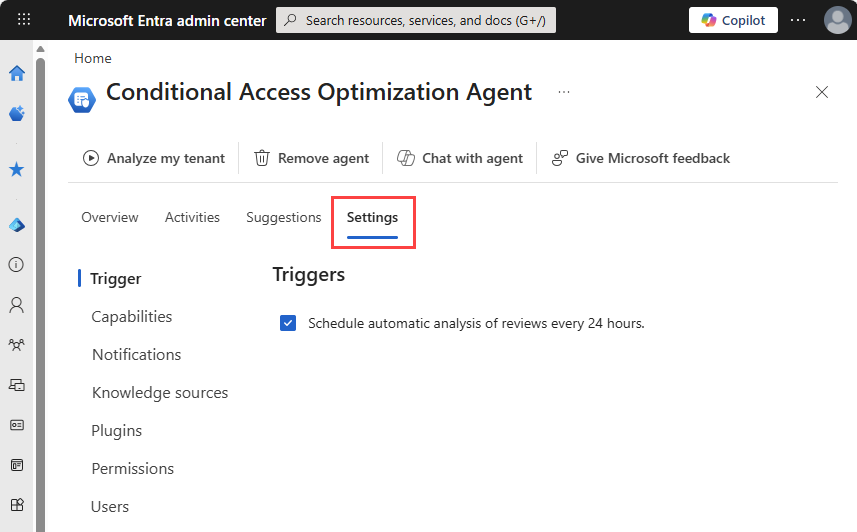
Select the category from the left-side menu to navigate through all the settings. After making any changes, select the Save button at the bottom of the page.
Trigger
The agent is configured to run every 24 hours, based on when it was initially configured. You can manually run the agent at any time.
In addition to the daily scheduled run, the agent can trigger runs when changes are made to policies that are turned on. Activity-based runs don't replace the daily scheduled run. To prevent excessive runs, activity-based triggers occur no more than once every six hours.
- If you haven't enabled the Conditional Access Optimization Agent, activity-based runs are enabled by default and can be turned off in the agent settings.
- If the Conditional Access Optimization Agent is already running in your tenant, activity-based runs are opt-in and can be enabled in the agent settings.
Scheduled runs
The agent is configured to run automatically every 24 hours, based on when it was initially configured. You can also manually run the agent at any time.
Activity-based runs (Preview)
In addition to the daily scheduled run, the agent can trigger runs based on changes to your Conditional Access policies. Activity-based runs are designed to help the agent respond to changes in your environment sooner, rather than waiting for the next daily run.
The following changes to Conditional Access policies trigger an activity-based run:
- An existing enabled policy is modified.
- A policy state is changed from any other state, such as Off or Report-only to On.
- A new policy is created with the state set to On.
The agent checks for these changes every five minutes. When a qualifying change is detected, the agent initiates a run. To prevent excessive runs during periods of frequent changes, the agent enforces a four-hour cooldown between activity-based runs. For example:
| Time | Event | Agent action |
|---|---|---|
| Minute 0 | An enabled policy is modified. | No action yet. |
| Minute 5 | Agent detects the change. | Agent runs. |
| Minute 6 | Another enabled policy is modified. | No action yet. |
| Minute 10 | Agent detects the change. | Cooldown active. No run. |
| Minute 12 | Another enabled policy is modified. | No action yet. |
| Minute 15 | Agent detects the change. | Cooldown active. No run. |
| Hour 4 | Cooldown expires. | Agent runs. |
Activity-based runs don't replace the daily scheduled run. If enabled, the daily run always occurs regardless of how many activity-based runs happen.
- New tenants: Activity-based runs are enabled by default. You can turn them off in the agent settings.
- Existing tenants: Activity-based runs are opt-in. You can enable them in the agent settings.
Capabilities
The Capabilities category includes important settings that you should review.
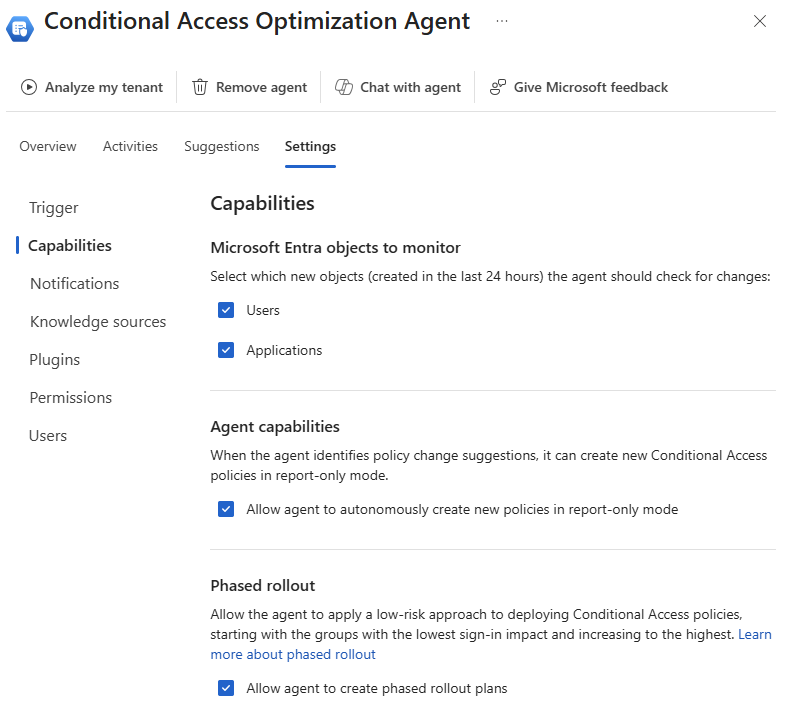
- Microsoft Entra objects to monitor: Use the checkboxes to specify what the agent should monitor when making policy suggestions. By default the agent looks for both new users and applications in your tenant over the previous 24 hour period.
- Agent capabilities: By default, the Conditional Access Optimization Agent can't create new policies, even in report-only mode. You can change this setting so that the agent can create report-only policies on your behalf.
- With this setting enabled, an administrator must approve the new report-only policy before it's turned on. After reviewing the policy impact, you can turn on the policy directly from the agent experience or from Conditional Access.
- With this setting disabled, you still receive the suggestion, insights, and policy details but you must manually approve the policy before it's created in report-only mode.
- Phased rollout: When the agent creates a new policy in report-only mode and that policy meets the criteria for a phased rollout, the policy is rolled out in phases, so you can monitor the effect of the new policy. Phased rollout is on by default. For more information, see Conditional Access Optimization Agent Phased Rollout.
Notifications
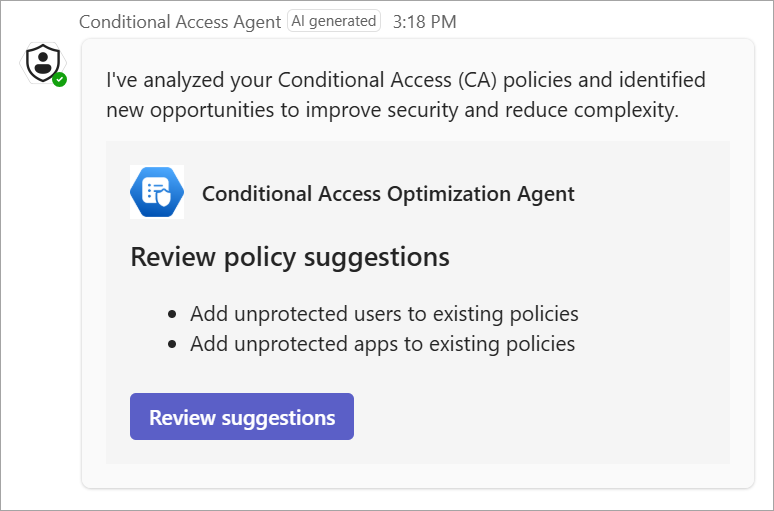
The Conditional Access Optimization Agent can send notifications through Microsoft Teams to a select set of recipients. With the Conditional Access agent app in Microsoft Teams, recipients receive notifications directly in their Teams chat when the agent surfaces a new suggestion.
To add the agent app to Microsoft Teams:
In Microsoft Teams, select Apps from the left navigation menu and search for and select the Conditional Access agent.
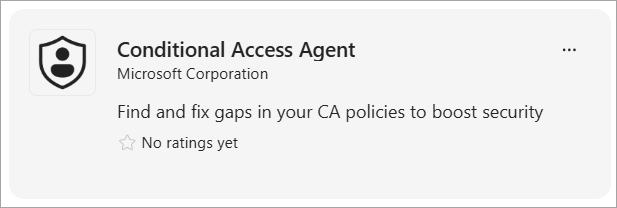
Select the Add button, then select the Open button to open the app.
To make accessing the app easier, right-click the app icon in the left navigation menu and select Pin.
To configure notifications in the Conditional Access optimization agent settings:
In the Conditional Access optimization agent settings, select the Select users and groups link.
Select the users or groups you want to receive notifications, then select the Select button.
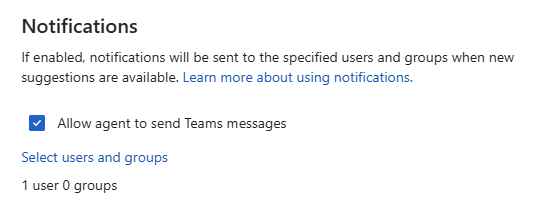
At the bottom of the main Settings page, select the Save button.
You can select up to 10 recipients to receive notifications. You can select a group to receive the notifications, but the membership of that group can't exceed 10 users. If you select a group that has fewer than 10 users but more are added later, the group no longer receives notifications. Similarly, the notifications can only be sent to five objects, such as a combination of individual users or groups. To stop receiving notifications, remove your user object or the group you're included in from the recipient's list.
At this time, the agent's communication is one direction, so you can receive notifications but can't respond to them in Microsoft Teams. To take action on a suggestion, select Review suggestion from the chat to open the Conditional Access Optimization Agent in the Microsoft Entra admin center.
Knowledge sources
The Conditional Access Optimization Agent can pull from two different knowledge sources to make suggestions that are tailored to your organization's unique setup.
Files
The Conditional Access Optimization Agent includes a mechanism to provide specific instructions about your organization. These instructions can include information such as Conditional Access policy naming conventions, unique procedures, and organizational structure so the agent suggestions are even more relevant to your environment. These uploaded files make up the knowledge base for the agent. For more information, see Conditional Access Optimization Agent knowledge base.
Important
Your data stays within the agent and isn't used for model training.
To add a file to the knowledge base:
- Browse to Conditional Access Optimization Agent > Settings > Files.
- Select the Upload button.
- Either drag and drop the file into the panel that opens or select the Upload file space to navigate to the file on your computer.
The agent processes the file and analyzes it to ensure it includes the necessary information.
Custom instructions
You can tailor the policy to your needs using the optional Custom Instructions field. This setting allows you to provide a prompt to the agent as part of its execution. These instructions can be used to:
- Include or exclude specific users, groups, and roles
- Exclude objects from being considered by the agent or added to the Conditional Access policy
- Apply exceptions to specific policies, such as excluding a specific group from a policy, requiring MFA, or requiring mobile application management policies.
You can enter either the name or the object ID in the custom instructions. Both values are validated. If you add the name of the group, the object ID for that group is automatically added on your behalf. Example custom instructions:
- "Exclude users in the "Break Glass" group from any policy that requires multifactor authentication."
- "Exclude user with Object ID dddddddd-3333-4444-5555-eeeeeeeeeeee from all policies"
A common scenario to consider is if your organization has lots of guest users that you don't want the agent to suggest adding to your standard Conditional Access policies. If the agent runs and sees new guest users that aren't covered by recommended policies, SCUs are consumed to suggest covering those guest users by policies that aren't necessary. To prevent guest users from being considered by the agent:
- Create a dynamic group called "Guests" where
(user.userType -eq "guest"). - Add a custom instruction, based on your needs.
- "Exclude the "Guests" group from agent consideration."
- "Exclude the "Guests" group from any mobile application management policies."
For more information about how to use custom instructions, check out the following video.
Some of the content in the video, such as the user interface elements, is subject to change as the agent is updated frequently.
Plugins
In addition to the Intune and Global Secure Access built-in integrations, the Conditional Access Optimization Agent also provides external integrations to streamline with your existing workflows.
ServiceNow integration (Preview)
Organizations that use the ServiceNow plugin for Security Copilot can now have the Conditional Access optimization agent create ServiceNow change requests for each new suggestion the agent generates. This feature allows IT and security teams to track, review, and approve or reject agent suggestions within existing ServiceNow workflows. At this time, only change requests (CHG) are supported.
To use the ServiceNow integration, your organization must have the ServiceNow plugin configured.
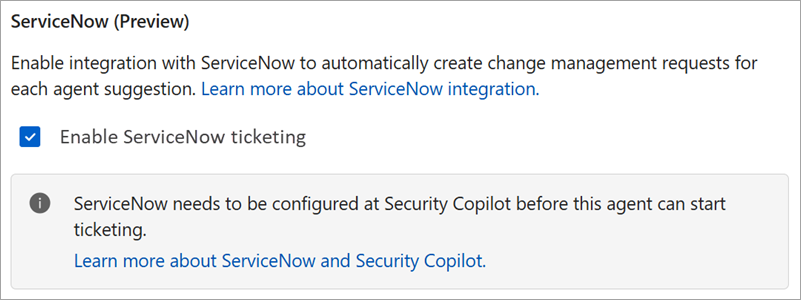
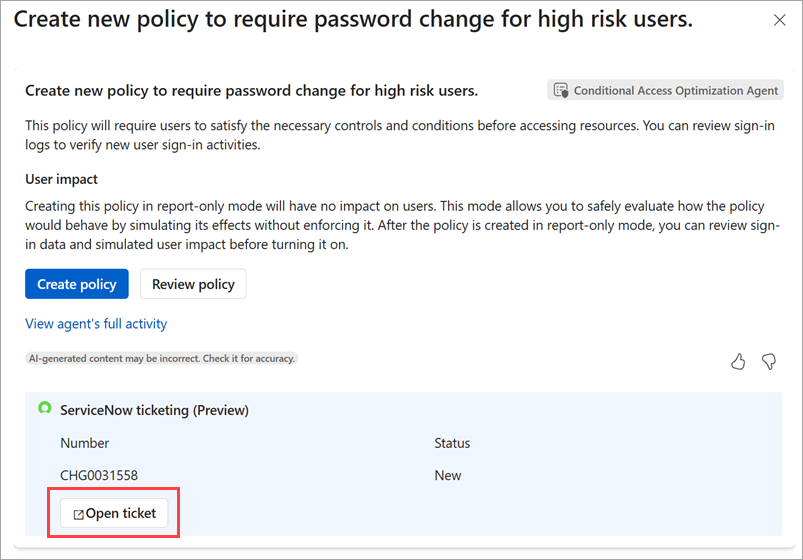
When the ServiceNow plugin is turned on in the Conditional Access optimization agent settings, each new suggestion from the agent creates a ServiceNow change request. The change request includes details about the suggestion, such as the type of policy, the users or groups affected, and the rationale behind the recommendation. The integration also provides a feedback loop: The agent monitors the state of the ServiceNow change request and can automatically implement the change when the change request is approved.
Permissions
This section of the agent settings describes the identity under which the agent runs and the permissions it uses to operate.
Agent identity
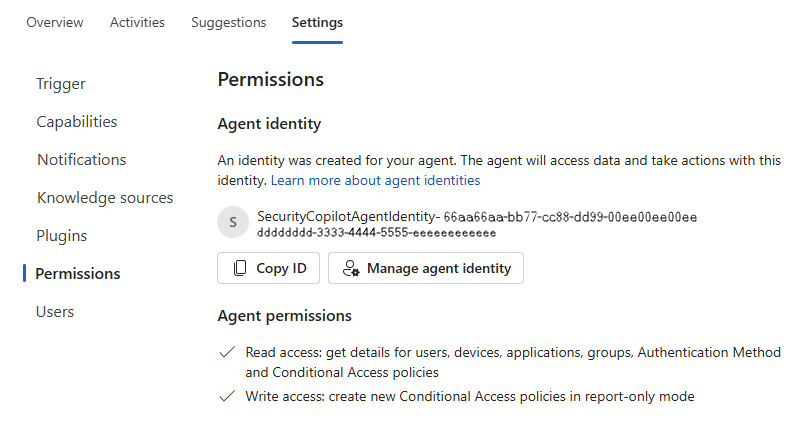
The Conditional Access Optimization Agent now supports Microsoft Entra Agent ID, allowing the agent to run under its own identity rather than a specific user’s identity. This capability improves security, simplifies management, and provides greater flexibility.
Select Manage agent identity to view the agent details in Microsoft Entra Agent ID.
- New installations of the agent default to use an agent identity.
- Existing installations can switch from the user context to run under an agent identity at any time.
- This change doesn't impact reporting or analytics.
- Existing policies and recommendations remain unaffected.
- Customers can't switch back to the former user context.
- Admins with the Security Administrator role can make this change. Select Create agent identity from either the banner message on the agent page or the Identity and permissions section of the agent settings.
Turning on and using the Conditional Access Optimization Agent also requires Security Copilot roles. Security Administrator has access to Security Copilot by default. You can assign Conditional Access Administrators with Security Copilot access. This authorization gives your Conditional Access Administrators the ability to use the agent as well. For more information, see Assign Security Copilot access.
Agent permissions
The agent identity uses the following permissions to perform its tasks. These permissions are assigned automatically when you create the agent identity.
AuditLog.Read.AllCustomSecAttributeAssignment.Read.AllDeviceManagementApps.Read.AllDeviceManagementConfiguration.Read.AllGroupMember.Read.AllLicenseAssignment.Read.AllNetworkAccess.Read.AllPolicy.Create.ConditionalAccessROPolicy.Read.AllRoleManagement.Read.DirectoryUser.Read.All
Users
The Conditional Access Optimization Agent uses role-based access control to use the agent. The least-privileged role needed to use the agent is Conditional Access Administrator.