إشعار
يتطلب الوصول إلى هذه الصفحة تخويلاً. يمكنك محاولة تسجيل الدخول أو تغيير الدلائل.
يتطلب الوصول إلى هذه الصفحة تخويلاً. يمكنك محاولة تغيير الدلائل.
In Microsoft Fabric, item settings are pieces of information associated with a specific item. They include properties that are frequently updated and the resources attached to the item. These settings are displayed to provide necessary item metadata information, so that users can easily read the values of the settings.
Change the item manifest
To add custom item settings, you first need to include getItemSettings under itemSettings in the front-end item manifest:
    "itemSettings": {
      "getItemSettings": {
            "action": "getItemSettings"
        },
      "schedule": {
        "itemJobType": "ScheduledJob",
        "refreshType": "Refresh"
      },
      "recentRun": {
        "useRecentRunsComponent": true
      }
    },
As the preceding code shows, getItemSettings must include an action string. This string is the name of the corresponding action that returns the list of custom item settings.
Add custom item tabs
The following screenshot shows an example of adding a custom item tab. The custom item tab is marked as number 1. The iframe that's loaded after selection of this tab is marked as number 2.
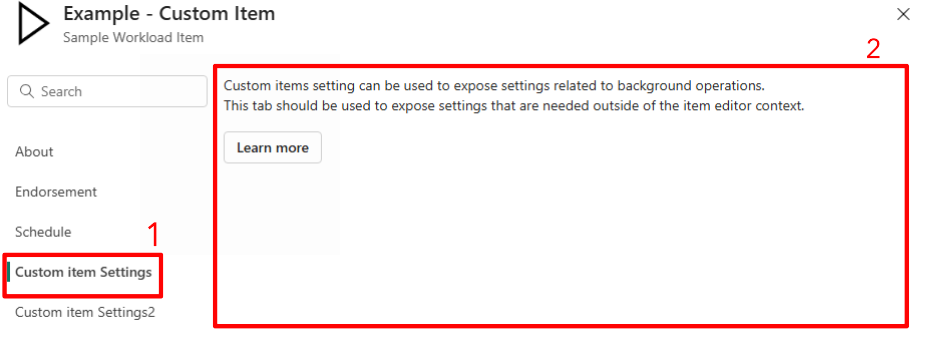
The preceding image displays two custom tabs, which you can create by using the following code in the index.worker.ts file:
workloadClient.action.onAction(async function ({ action, data }) {
    switch (action) {
        case 'getItemSettings': {
            return [
                {
                    name: 'customItemSettings',
                    displayName: 'Custom item Settings',
                    workloadSettingLocation: {
                        workloadName: sampleWorkloadName,
                        route: 'custom-item-settings',
                    },
                    searchTokenMatchesBySection: {
                        'custom search': [
                            'key words for search',
                            'custom item'
                        ],
                    },
                },
                {
                    name: 'customItemSettings2',
                    displayName: 'Custom item Settings2',
                    workloadSettingLocation: {
                        workloadName: sampleWorkloadName,
                        route: 'custom-item-settings2',
                    },
                },
            ];
        }
        default:
            throw new Error('Unknown action received');
    }
});
The code returns an array of defined custom items. Each one includes:
name(string): A unique identifier for the setting.displayName(string): The displayed string, which should be localized. (The displayed name of the first item is marked as number 1 in the preceding screenshot.)workloadSettingLocation(object):workloadName(string): The workload name.route(object): The specific route that the workload owns. When a specific setting tab is selected from item settings, a panel iframe is loaded into the right-side content area to load the route. (The iframe is marked as number 2 in the preceding screenshot.)
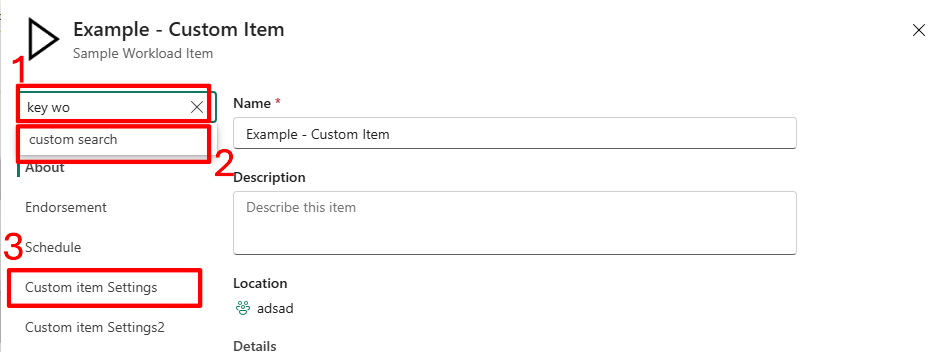
searchTokenMatchesBySection(object): An optional object that receives a section name as a key and an array of keywords as the value. The key is triggered whenever any of the array words are searched.
The following example shows that starting to type one of the keyword values (1) triggers the section name as a result option (2). Selecting this option opens the corresponding custom tab (3). This field is aligned with, and can be used for, localization.
Define the iframe route
To load an iframe, define a component and then add it to the app route.
Component definition
export function CustomItemSettings2() {
    return (
      <div>
        You can have additional tabs for item settings.
      </div>
    );
  }
Router example
export function App({ history, workloadClient }: AppProps) {
    return <Router history={history}>
        <Switch>
            ...
            <Route path="/custom-item-settings">
                <CustomItemSettings workloadClient={workloadClient}  />
            </Route>
            <Route path="/custom-item-settings2">
                <CustomItemSettings2 />
            </Route>
        </Switch>
    </Router>;
}
Customize the About page
The following screenshot shows an example of custom settings for an About page. The currently selected tab in the settings is the About tab, which is marked in a black frame. The loaded tab appears on the right side. The default settings (name, description, location, and details) appear at the top. Below the default section is the iframe for the custom About section, which is marked in a red frame.
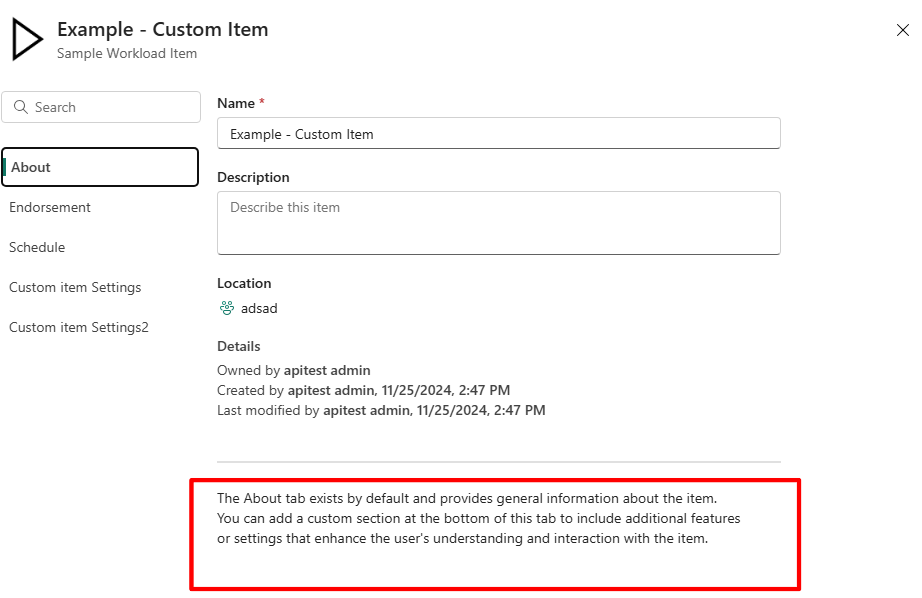
The About page item supports adding workload-specific content by using a hybrid view (default About settings and the workload's custom iframe). To achieve that, you should add another custom item setting:
workloadClient.action.onAction(async function ({ action, data }) {
    switch (action) {
        case 'getItemSettings': {
            return [
                {
                    name: 'about',
                    displayName: 'About',
                    workloadSettingLocation: {
                        workloadName: sampleWorkloadName,
                        route: 'custom-about',
                    },
                    workloadIframeHeight: '1000px'
                },
                ...
            ];
        }
        default:
            throw new Error('Unknown action received');
    }
});
The preceding code includes:
name: Must be defined asabout.displayName: Must be defined asAbout.route: Needed for the custom About component that's loaded into the iframe, as shown in the image.workloadIframeHeight: Provided as a string, in pixels. If you don't set the iframe height, it's set to a default value of102vh.