إشعار
يتطلب الوصول إلى هذه الصفحة تخويلاً. يمكنك محاولة تسجيل الدخول أو تغيير الدلائل.
يتطلب الوصول إلى هذه الصفحة تخويلاً. يمكنك محاولة تغيير الدلائل.
Before you can use the process mining capability in Power Automate effectively, you need to understand:
Here's a short video on how to upload data for use with the process mining capability:
Data requirements
Event logs and activity logs are tables stored in your system of record that document when an event or activity occurs. For example, activities you perform in your customer relationship management (CRM) app are saved as an event log in your CRM app. For process mining to analyze the event log, the following fields are necessary:
Case ID
Case ID should represent an instance of your process and is often the object that the process acts on. It can be a "patient ID" for an inpatient check-in process, an "order ID" for an order submission process, or a "request ID" for an approval process. This ID must be present for all activities in the log.
Activity Name
Activities are the steps of your process, and activity names describe each step. In a typical approval process, the activity names might be "submit request," "request approved," "request rejected," and "revise request."
Start Timestamp and End Timestamp
Timestamps indicate the exact time that an event or activity took place. Event logs have only one timestamp. This timestamp indicates the time that an event or activity occurred in the system. Activity logs have two timestamps: a start timestamp and an end timestamp. These timestamps indicate the start and end of each event or activity.
You can also extend your analysis by ingesting optional attribute types:
Resource
A human or technical resource executing a specific event.
Event Level Attribute
An analytical attribute that has a different value for each event, such as the department performing the activity.
Case Level Attribute (first event)
An analytical attribute that has a single value per case, such as the amount of an invoice in USD. However, the event log you ingest doesn't need to have the same value for all events in the case. It might not be possible to ensure consistency when using incremental data refresh. Power Automate Process Mining ingests the data as is, storing all values provided in the event log, but uses a case level attribute interpretation mechanism to work with the attributes on case level.
In other words, whenever the attribute is used for a specific function that requires event level values, such as event level filtering, the product uses the event level values. Whenever a case level value is needed, such as for a case level filter or root cause analysis, it uses the interpreted value, which is taken from the chronologically first event in the case.
Case Level Attribute (last event)
The same as Case Level Attribute (first event) but when interpreted on case level, the value is taken from the chronologically last event in the case.
Financial per Event
A fixed cost, revenue, or numeric value that changes for each activity performed, such as courier service costs. The financial value is calculated as a sum, mean, minimum, or maximum of the financial values for each event.
Financial Per Case (first event)
An analytical attribute that has a single value per case, such as the amount of an invoice in USD. However, the event log you ingest doesn't need to have the same value for all events in the case. It might not be possible to ensure consistency when using incremental data refresh. Power Automate Process Mining ingests the data as is, storing all values provided in the event log, but uses a case level attribute interpretation mechanism to work with the attributes on case level.
In other words, whenever the attribute is used for a specific function that requires event level values, such as event level filtering, the product uses the event level values. Whenever a case level value is needed, such as for a case level filter or root cause analysis, it uses the interpreted value, which is taken from the chronologically first event in the case.
Financial Per Case (last event)
The same as Financial Per Case (first event) but when interpreted on case level, the value is taken from the chronologically last event in the case.
Where to get log data from your application
The process mining capability needs event log data to perform process mining. While many tables in your application’s database contain the current state of the data, they might not contain a historical record of the events that happened, which is the required event log format. Fortunately, in many larger applications, this historical record or log is often stored in a specific table. For example, many Dynamics applications keep this record in the Activities table. Other applications, like SAP or Salesforce, have similar concepts, but the name might be different.
In these tables that log historical records, the data structure can be complex. You might need to join the log table with other tables in the application database to get specific IDs or names. Also, not all events that you're interested in are logged. You might need to determine what events should be kept or filtered out. If you need help, contact the IT team that manages this application to understand more.
Connect to a data source
The benefit of connecting to a database directly is keeping the process report up to date with the latest data from the data source.
Power Query supports a large variety of connectors that provide a way for the process mining capability to connect and import data from the corresponding data source. Common connectors include Text/CSV, Microsoft Dataverse, and SQL Server database. If you're using an application like SAP or Salesforce, you might be able to connect to those data sources directly via their connectors. For information on supported connectors and how to use them, see Connectors in Power Query.
Try the process mining capability with the Text/CSV connector
One easy way to try the process mining capability, regardless of where your data source is located, is to use the Text/CSV connector. You might need to work with your database admin to export a small sample of the event log as a CSV file. When you have the CSV file, import it into the process mining capability by using the following steps in the data source selection screen.
Note
You must have OneDrive for Business to use the Text/CSV connector. If you don't have OneDrive for Business, consider using Blank table instead of Text/CSV, as in the following step 3. You won't be able to import as many records in Blank table.
On the process mining home page, create a process by selecting Start here.
Enter a process name and select Create.
On the Choose data source screen, select All categories > Text/CSV.
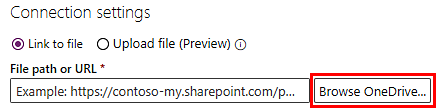
Select Browse OneDrive. You might need to authenticate.
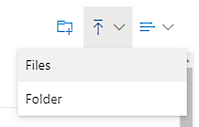
Upload your event log by selecting the Upload icon in the upper right and then selecting Files.
Upload your event log, select your file from the list, and then select Open to use that file.
Use the Dataflow connector
Microsoft Power Platform doesn't support the Dataflow connector. You can't use the existing Dataflow as a data source for Power Automate Process Mining.
Use the Dataverse connector
Microsoft Power Platform doesn't support the Dataverse connector. Connect to it by using the OData connector, which requires a few more steps.
Ensure you have access to the Dataverse environment.
Get the environment URL of the Dataverse environment you want to connect to. Normally it looks like this:

To learn how to find your URL, see Finding your Dataverse environment URL.
On Power Query - Choose data sources, select OData.
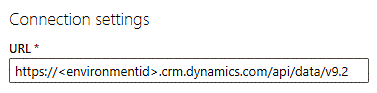
In the URL textbox, type api/data/v9.2 at the end of the URL so it looks like this:
Under Connection credentials, select Organizational account in the Authentication kind field.
Select Sign in and enter your credentials.
Select Next.
Expand the OData folder. You see all the Dataverse tables in that environment. For example, the Activities table is called activitypointers.
Select the checkbox next to the table you want to import, and then select Next.