إشعار
يتطلب الوصول إلى هذه الصفحة تخويلاً. يمكنك محاولة تسجيل الدخول أو تغيير الدلائل.
يتطلب الوصول إلى هذه الصفحة تخويلاً. يمكنك محاولة تغيير الدلائل.
This article describes the files and subfolders in a Microsoft Power BI Desktop project's Semantic Model folder. The files and subfolders here represent a Power BI semantic model. Depending on your project, the semantic model folder can include:
- .pbi\
- DAXQueries\ folder
- TMDLScripts\ folder
- definition\ folder3
- model.bim2
- diagramLayout.json
- .platform
- definition.pbism1
1 - This file is required.
2 - This file is required when saving using TMSL format.
3 - This file is required when saving using TMDL format.
Not every project semantic model folder includes all of the files and subfolders described here.
Semantic Model files
.pbi\localSettings.json
Contains semantic model settings that apply only for the current user and computer. It should be included in gitIgnore or other source control exclusions. By default, Git ignores this file.
For more information, see the localSettings.json schema document.
.pbi\editorSettings.json
Contains semantic model editor settings saved as part of the semantic model definition for use across users and environments.
For more information, see the editorSettings.json schema document.
.pbi\cache.abf
An Analysis Services Backup (ABF) file containing a local cached copy of the model and data when it was last edited. It should be included in gitIgnore or other source control exclusions. By default, Git ignores this file.
Power BI Desktop can open a project without a cache.abf file. In that case, it opens the report connected to a model with its entire definition but without data. If a cache.abf exists, Power BI Desktop loads the data and overwrites the model definition with the semantic model metadata in the project.
.pbi\unappliedChanges.json
Power BI Desktop allows you to save changes made in the Transform Data editor (Power Query) without first applying those changes to the data model.
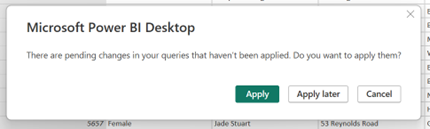
When you select Apply later, the unapplied changes are saved into the unappliedChanges.json file. When pending changes are in the unappliedChanges file, Power BI Desktop prompts you to apply or discard those pending changes:
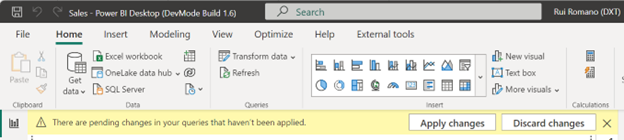
If you select Apply changes, Power BI Desktop overwrites the queries in semantic model metadata with the queries from unappliedChanges.json. If you edited queries outside of Power BI Desktop and there's a previous unappliedChanges.json file, your changes are lost and replaced by the queries in unappliedChanges.json when those changes are applied.
The unappliedChanges.json file is automatically incorporated into the semantic model definition and saved in Git by default. This allows you to commit your ongoing work to the development branch, serving as a backup and making it accessible to other team members. However, you can exclude this file from Git's tracking, preventing unfinished query work from affecting other developers.
For more information, see the unappliedChanges.json schema document.
definition.pbism
Contains the overall definition of a semantic model and core settings.
This file also specifies the supported semantic model definition formats through the 'version' property.
| Version | Supported formats |
|---|---|
| 1.0 | Semantic model definition must be stored as TMSL in the model.bim file. |
| 4.0 or above | Semantic model definition can be stored as TMSL (model.bim file) or TMDL (\definition folder). |
For more information, see the definition.pbism schema document.
model.bim
This file is only available if the Power BI project is saved using the TMSL format. It contains a Tabular Model Scripting Language (TMSL) Database object definition of the project model.
definition\ folder
This folder is only available if the Power BI project is saved using the TMDL format. It replaces the model.bim file.
This folder contains a Tabular Model Definition Language (TMDL) Database object definition of the project model.
diagramLayout.json
Contains diagram metadata that defines the structure of the semantic model associated with the report. You can't edit this file externally.
.platform
Fabric platform file that holds properties vital for establishing and maintaining the connection between Fabric items and Git.
To learn more, see Git integration automatically generated system files.
DAXQueries\ folder
Contains a file for each DAX query view query tab saved as a [Tab name].dax DAX file.
.pbi\daxQueries.json
Contains DAX query view editor settings such as defaultTab or tab order.
TMDLScripts\ folder
Contains a file for each TMDL view script tab saved as a [Tab name].tmdl TMDL file.
.pbi\tmdlscripts.json
Contains TMDL view editor settings such as defaultTab or tab order.
TMDL format
With the objective of providing a better source control and co-development experience, you can save your Power BI Project files (PBIP) using Tabular Model Definition Language (TMDL) as the semantic model file format.
Unlike Tabular Model Scripting Language (TMSL), TMDL has been designed from the ground up to be human-friendly, facilitating not only readability but also easy editing in any text editor. This represents a substantial enhancement for source control and collaborative development experiences.
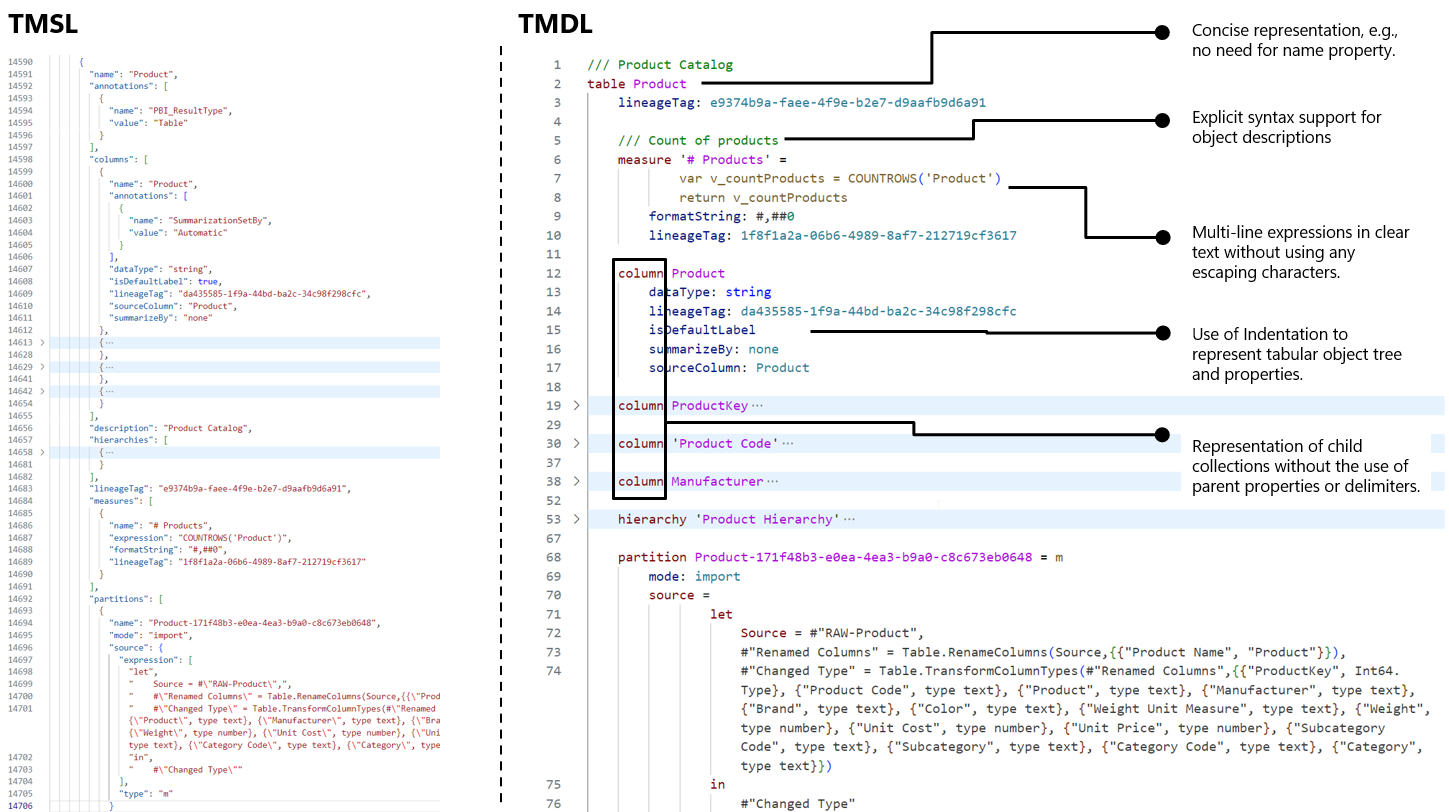
Instead of a big JSON file like Tabular Model Scripting Language (TMSL), TMDL has a folder structure with separate files for each table, perspective, role, and culture. This makes it easier to work with others, and to understand the semantic model structure by just looking at the folder and files. Ultimately, this leads to a great source control and co-development experience when dealing with git diff’s and merge conflicts.
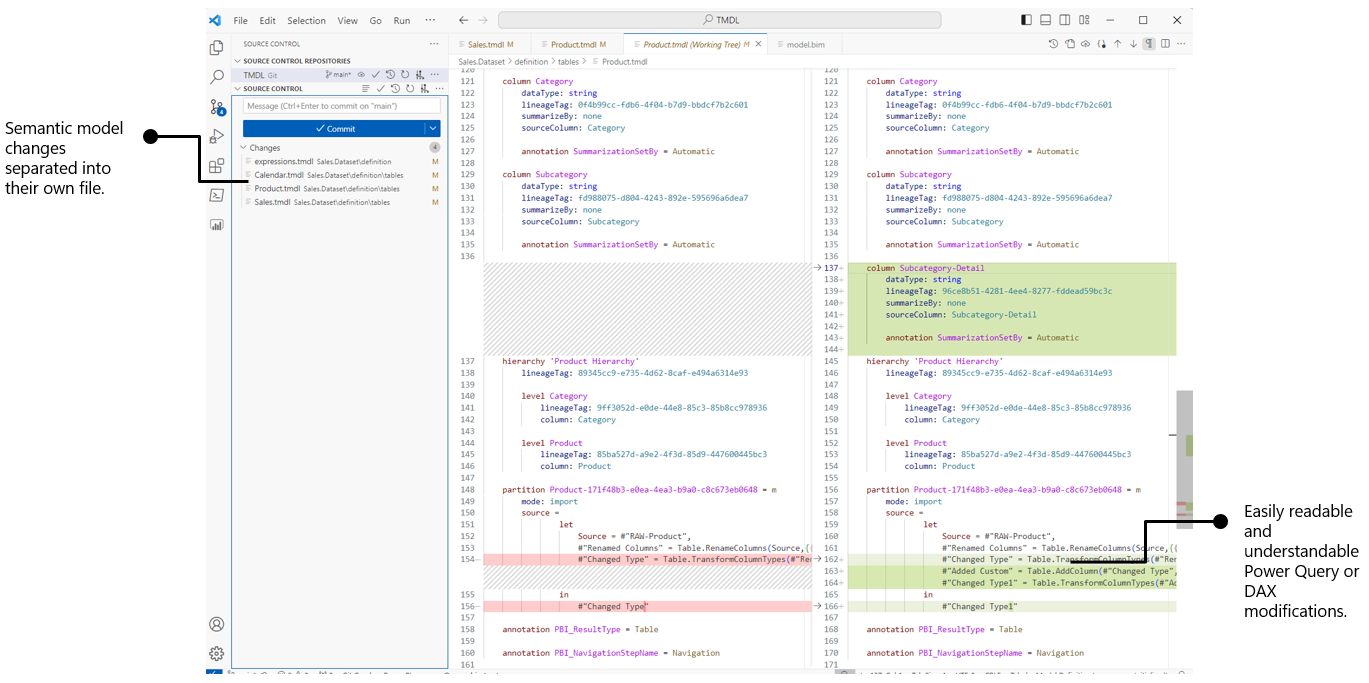
Learn more about TMDL here.
Make external changes to TMDL files
You can edit TMDL files in Visual Studio Code or another external tool while the project remains open in Power BI Desktop. For a better TMDL editing experience, install the TMDL extension for Visual Studio Code.
Before you edit the files externally, save any changes in Power BI Desktop. Open the PBIP folder in VS Code, navigate to the semantic model definition folder, and save your TMDL changes. Power BI Desktop detects the saved changes and displays the Apply external changes banner. Select Apply external changes to reload the semantic model without closing and reopening the project.
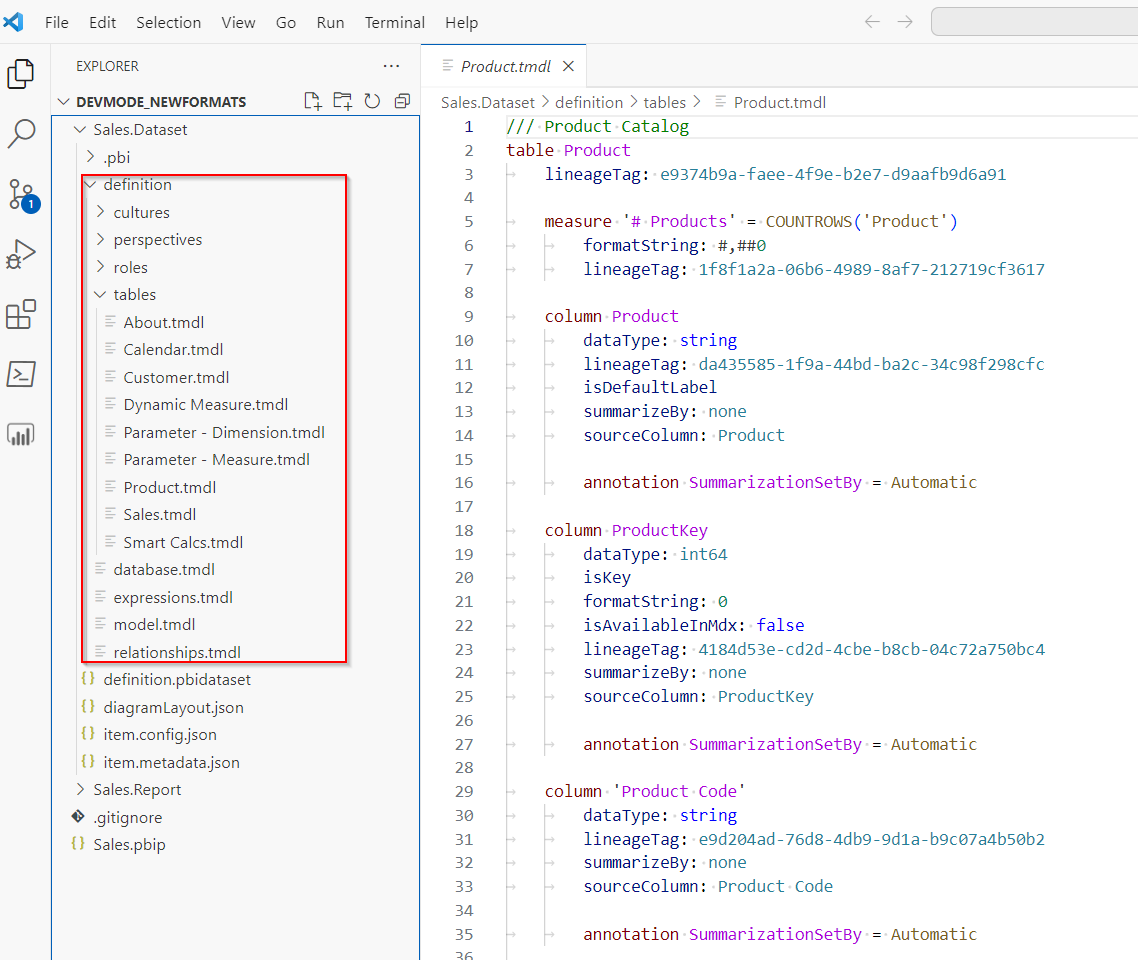
If Power BI Desktop has unsaved changes, it warns you that applying the external changes will overwrite them. For the complete workflow and limitations, see Edit PBIP files outside Power BI Desktop.
For supported write operations outside Power BI Desktop, see Model authoring.
TMDL errors
If a TMDL edit is invalid, Power BI Desktop displays an error when you apply the external changes or open the project. The error identifies the location that you must fix before Power BI Desktop can load the updated semantic model: