إشعار
يتطلب الوصول إلى هذه الصفحة تخويلاً. يمكنك محاولة تسجيل الدخول أو تغيير الدلائل.
يتطلب الوصول إلى هذه الصفحة تخويلاً. يمكنك محاولة تغيير الدلائل.
Note
This connector is owned and provided by Autodesk.
Summary
| Property | Value |
|---|---|
| Connector |  BuildingConnected & TradeTapp BuildingConnected & TradeTapp |
| Products | Power BI (semantic models) Power Query Online |
| Release state | General availability |
| Category | Online |
| Authentication kinds | OAuth |
| Data source kind | BuildingConnected |
| Function Reference Documentation | BuildingConnected.Contents |
| Support link | Support |
Prerequisites
To use the BuildingConnected connector, you must have a BuildingConnected account that is linked to your AutodeskID. An active Bidboard Pro subscription is required to access Opportunity data and an active TradeTapp subscription is required for TradeTapp data.
Supported capabilities
- Import
- Supports BuildingConnected and TradeTapp accounts
Parameters
Entry point: BuildingConnected.Contents
Required parameter count: 0
Returns a table of entities for the given url and entity name.
| Parameter | Display name | Required | Type | Description | Nullable | Additional metadata |
|---|---|---|---|---|---|---|
| rangeStart | Range Start | No | nullable datetimezone | The start of the range to filter by. | true | {"Documentation.Category": "", "Documentation.Examples": [], "Documentation.LongDescription": "The type that represents all date and time values relative to a timezone.", "Documentation.Name": "DateTimeZone.Type", "Documentation.Description": "The type that represents all date and time values relative to a timezone."} |
| rangeEnd | Range End | No | nullable datetimezone | The end of the range to filter by. | true | {"Documentation.Category": "", "Documentation.Examples": [], "Documentation.LongDescription": "The type that represents all date and time values relative to a timezone.", "Documentation.Name": "DateTimeZone.Type", "Documentation.Description": "The type that represents all date and time values relative to a timezone."} |
| includeClosed | Include Closed | No | nullable logical | Whether to include closed projects or previous versions of bids in the results. | true | {"Documentation.Category": "", "Documentation.Examples": [], "Documentation.LongDescription": "The type that represents all logical values.", "Documentation.Name": "Logical.Type", "Documentation.Description": "The type that represents all logical values."} |
Connect from Power Query Desktop
To connect to BuildingConnected data:
Select Get Data from the Home ribbon in Power BI Desktop. Select Online Services from the categories on the left, select BuildingConnected & TradeTapp, and then select Connect.
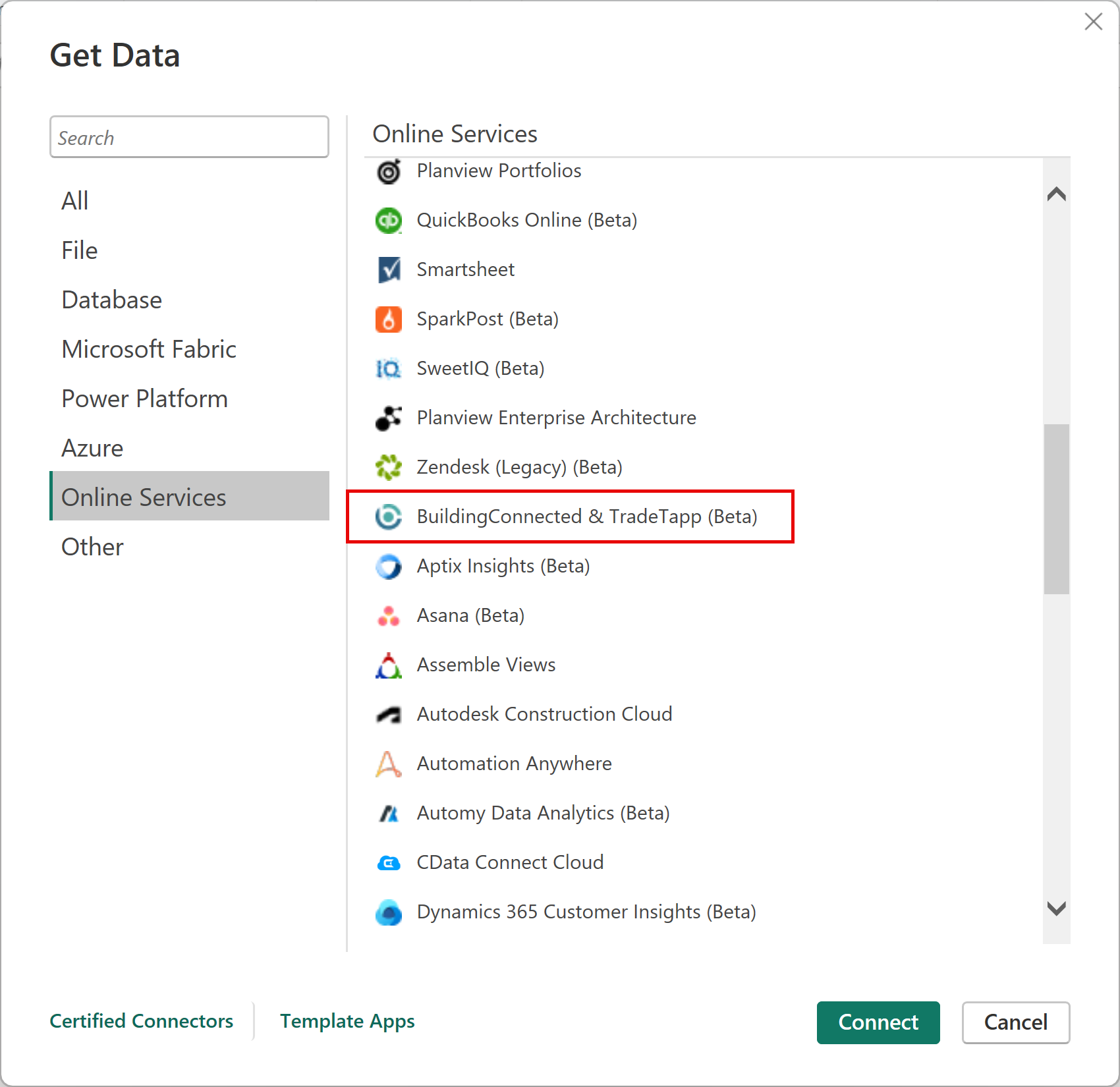
If you're getting data through the BuildingConnected & TradeTapp connector for the first time, a preview connector notice is displayed. Select Don't warn me again with this connector if you don't want this message to be displayed again, and then select Continue.
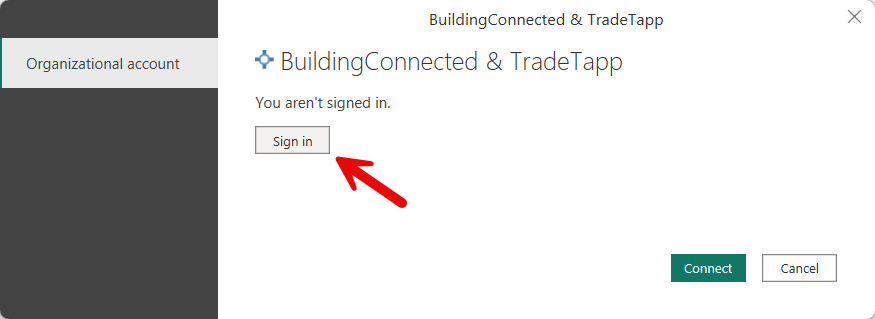
Select Sign in and use your Autodesk credentials to connect to your BuildlingConnected or TradeTapp account.
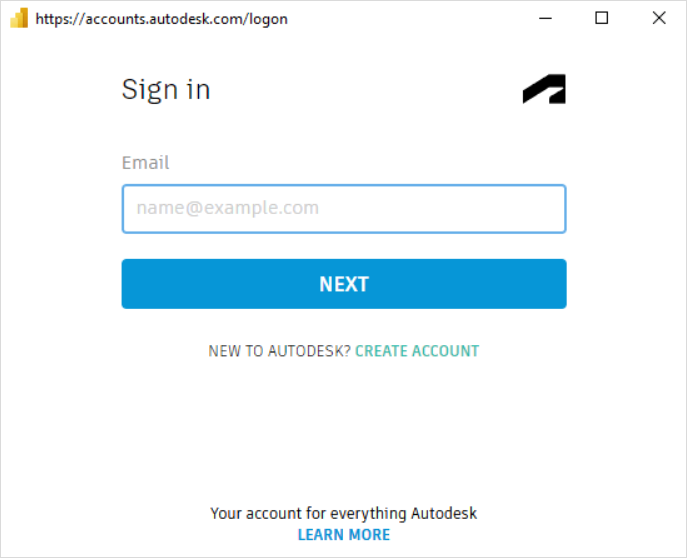
In the Autodesk window that appears, provide your credentials to sign in to your Autodesk account.
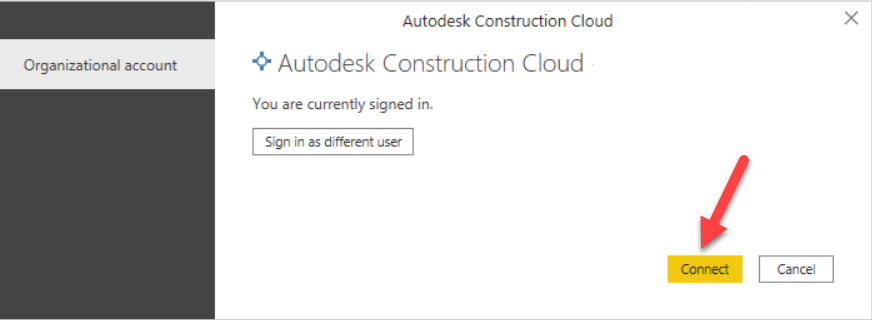
Once you successfully sign in, select Connect.
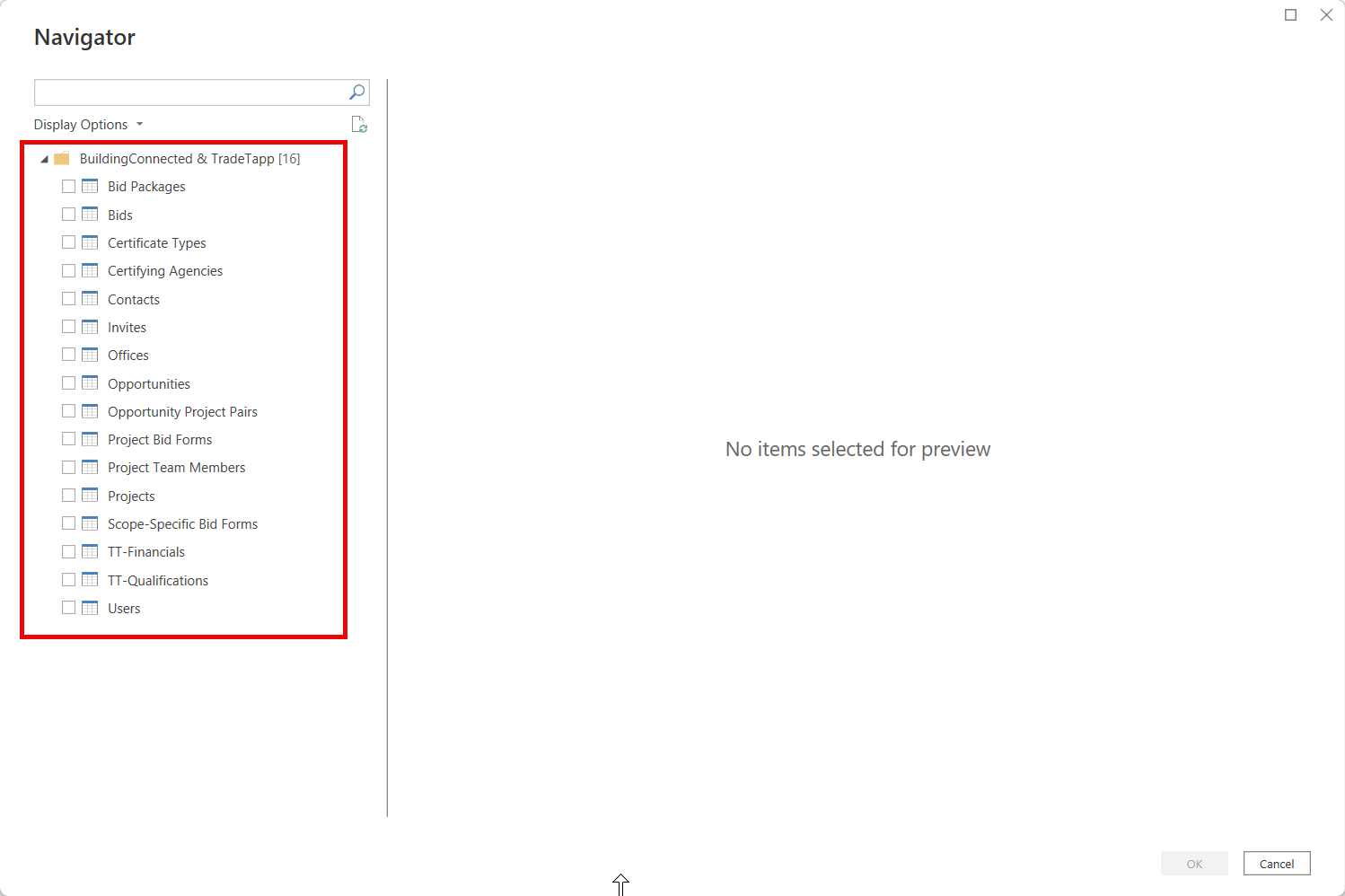
In the Navigator, select the data type you want to load to see a preview in the right pane. You can then load or transform the data. If you select Load, all records are loaded in to the Power BI model. It might take several minutes for all records to load depending on the number of objects.
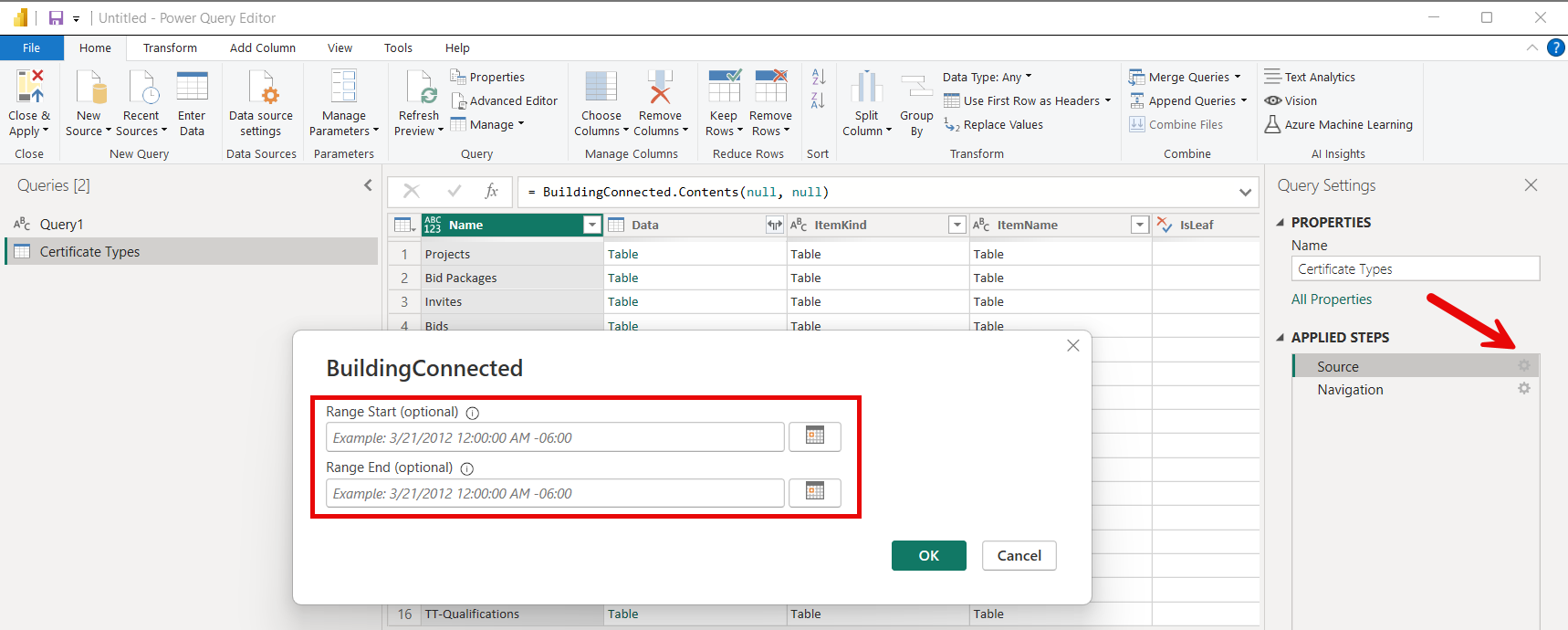
Optionally, you can use the Range Start and Range End inputs on the BuildingConnected function to load data based on the updatedAt query parameter. This allows you to implement incremental refresh to load only updated data once the initial data load has been ingested. To use the input dialog for these dates, select a table and transform it to load it in to Power Query. Then select the gear to the right of the Source step. Range Start and Range End are optional parameters. Using Range Start only provides all records updated on or after the provided Range Start date. Using Range End only provides all records updated on or before the provided Range End date. Providing both dates constrains to records updated between the two dates.
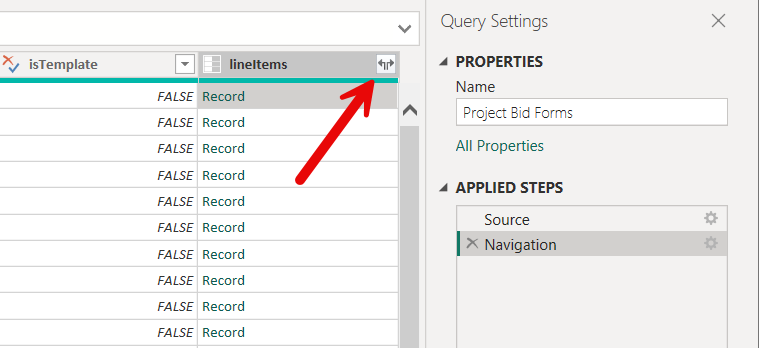
Some data types contain nested records and lists that might need to be expanded to see all data fields. Expand each Record and List items as needed to see all fields.