إشعار
يتطلب الوصول إلى هذه الصفحة تخويلاً. يمكنك محاولة تسجيل الدخول أو تغيير الدلائل.
يتطلب الوصول إلى هذه الصفحة تخويلاً. يمكنك محاولة تغيير الدلائل.
Summary
| Property | Value |
|---|---|
| Connector |  IBM Netezza IBM Netezza |
| Products | Power BI (semantic models) Power Query Online |
| Release state | General availability |
| Category | Database |
| Authentication kinds | IBM Netezza |
| Data source kind | Netezza |
| Function Reference Documentation | Netezza.Database |
Important
We're beginning the deprecation process for the Simba Netezza ODBC Driver for the Netezza Connector starting March, 2026. Instead, we'll be supporting the IBM Netezza ODBC Driver; customers will need to install their own IBM Netezza ODBC driver.
Note
Some capabilities might be present in one product but not others due to deployment schedules and host-specific capabilities.
Note
Since the July 2025 release for Power BI Desktop and the on-premises data gateway, we provide a new option to use the user-installed Netezza ODBC driver to connect to the IBM Netezza database, currently available in preview. Learn more from Use user-installed Netezza ODBC driver.
Supported capabilities
- Import
- DirectQuery (Power BI semantic models)
- Advanced options
- Command timeout in day.hr:min:sec
- Command timeout in day.hr:min:sec
- Normalize database name
- Create hierarchical navigation view
- Include relationship columns
Parameters
Entry point: Netezza.Database
Required parameter count: 2
Import data from an IBM Netezza database.
Returns a table of Netezza tables, views, and stored functions from the Netezza Server database database on server server. The port may be optionally specified with the server, separated by a colon. An optional record parameter, options, may be specified to control the following options:
CreateNavigationProperties: A logical (true/false) that sets whether to generate navigation properties on the returned values (default is true)HierarchicalNavigation: A logical (true/false) that sets whether to view the tables grouped by their schema names (default is false)ConnectionTimeout: A duration which controls how long to wait before abandoning an attempt to make a connection to the server. The default value is driver-dependent.CommandTimeout: A duration which controls how long the server-side query is allowed to run before it is canceled. The default value is driver-dependent.NormalizeDatabaseName: A logical (true/false) that sets whether to normalize database name to upper case or interpret it literally (default is true).
| Parameter | Display name | Required | Type | Group | Sample values | Nullable |
|---|---|---|---|---|---|---|
| server | Server | Yes | text | "netezza:5480" | false | |
| database | Database | Yes | text | "netezza_database" | false | |
| options | Advanced Options | No | nullable record | Advanced Options | true |
Fields in options
| Field | Display name | Required | Type | Group | Nullable | Optional |
|---|---|---|---|---|---|---|
| options.ConnectionTimeout | Connection timeout in day.hr:min:sec | No | nullable duration | Advanced Options | true | true |
| options.CommandTimeout | Command timeout in day.hr:min:sec | No | nullable duration | Advanced Options | true | true |
| options.NormalizeDatabaseName | No | nullable logical | Advanced Options | true | true | |
| options.HierarchicalNavigation | Create hierarchical navigation view | No | nullable logical | Advanced Options | true | true |
| options.CreateNavigationProperties | Include relationship columns | No | nullable logical | Advanced Options | true | true |
Connect from Power Query Desktop
To connect to an IBM Netezza database, take the following steps:
Select Get Data from the Home ribbon in Power BI Desktop.
Select Database from the categories on the left, select IBM Netezza on the right, and then select Connect.

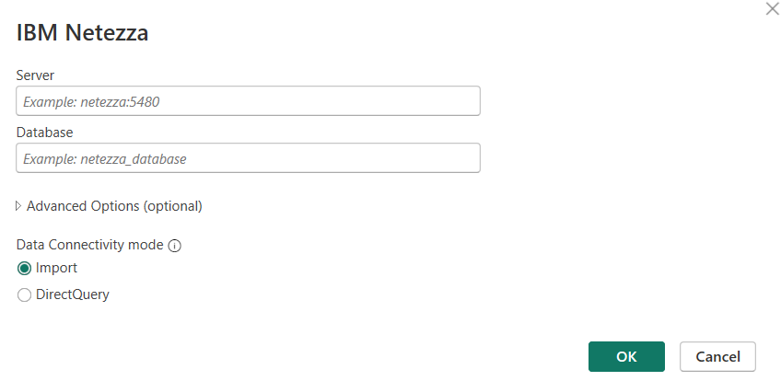
In the IBM Netezza window that appears, type or paste the name of your Netezza server and database into the boxes. You can Import data directly into Power BI or you can use DirectQuery. Learn more about using DirectQuery. Then select OK.
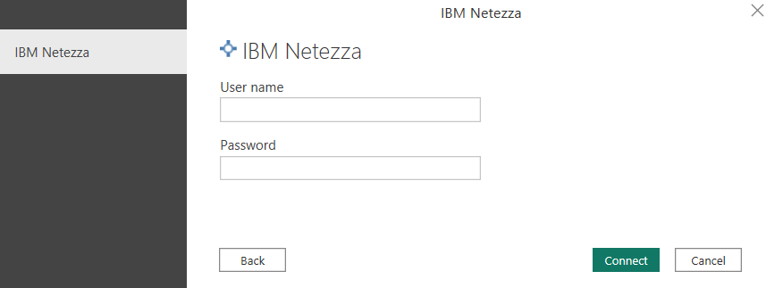
When prompted, enter your credentials. The IBM Netezza connector supports user name and password authentication.
For more information about authentication methods, go to Authentication with a data source.
After you connect, a Navigator window appears and displays the data that's available on the server. Either select Load to load the data or Transform Data to continue transforming the data in the Power Query editor.
Connect from Power Query Online
To connect to an IBM Netezza database, take the following steps:
Select the IBM Netezza option in the connector selection.
In Connect to data source, provide the name of the server and database.
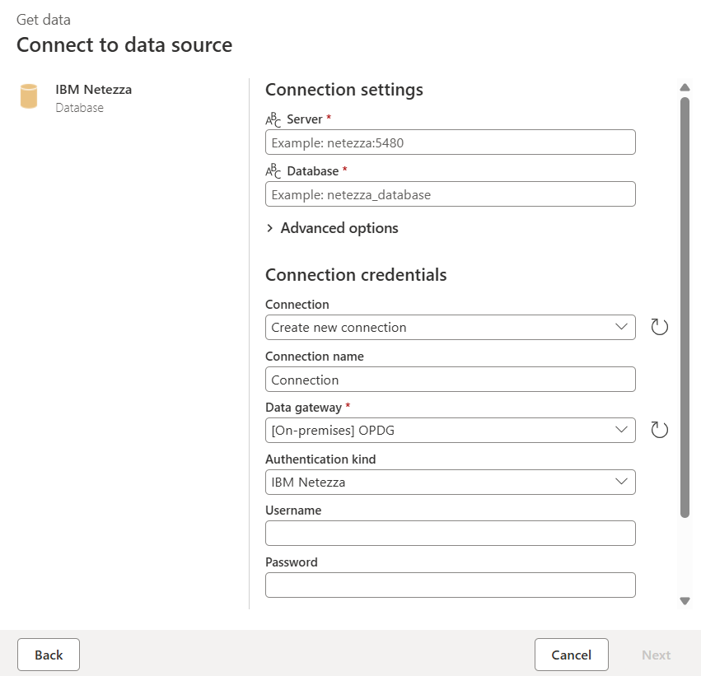
Select the name of your on-premises data gateway.
If this is the first time you're connecting to this Netezza database, configure the user name and password for the IBM Netezza authentication.
Select Next to continue.
In Navigator, select the data you require, then select Transform data to transform the data in the Power Query editor.
Additional information
Driver release states
The Simba ODBC driver is being deprecated. The user-installed IBM Netezza ODBC driver is in Preview.
Advanced options
Power Query Desktop and Power Query Online provide a set of advanced options that you can add to your query if needed.
The following table lists all of the advanced options you can set in Power Query Desktop and Power Query Online.
| Advanced option | Description |
|---|---|
| Command timeout in day.hr:min:sec | Specifies how long to wait for a response when interacting with the Snowflake service before returning an error. Default is no time-out. |
| Command timeout in day.hr:min:sec | Specifies how long to wait for a query to complete before returning an error. Default is no time-out. |
| Normalize database name | Specifies whether to normalize the database name. Default is true. |
| Create hierarchical navigation view | Specifies whether to provide the database navigation in hierarchy view. Default is true. |
| Include relationship columns | Specifies whether to include columns that might have relationships to other tables. Default is true. |
Once you've selected the advanced options you require, select OK in Power Query Desktop or Next in Power Query Online to connect to your IBM Netezza database.
Use the ODBC driver (Preview)
The IBM Netezza connector includes a built-in driver for connectivity by default. Starting from the July 2025 version of Power BI Desktop and the on-premises data gateway, there's a new option to use the user-installed Netezza ODBC driver to connect to the IBM Netezza database, currently available in preview. It enables you to utilize the native client tool provided by the data source.
To install the driver on the machine running Power BI Desktop or the on-premises data gateway, follow the IBM Netezza instruction from Installing and configuring ODBC (Windows).
To use the user-installed Netezza ODBC driver in Power BI Desktop, navigate to Options and settings (under the File tab) > Options > Preview features, and then select the checkbox to enable the Use user-installed Netezza ODBC driver option.

To use the user-installed Netezza ODBC driver in on-premises data gateway, update the gateway configurations using the following steps:
- On the local machine where the on-premises data gateway is installed, navigate to C:\Program Files\On-premises data gateway.
- Make a backup of the configuration file named Microsoft.PowerBI.DataMovement.Pipeline.GatewayCore.dll.config.
- Open the original Microsoft.PowerBI.DataMovement.Pipeline.GatewayCore.dll.config configuration file and locate the
MashupUseUserInstalledNetezzaODBCDriverentry. - Update the
MashupUseUserInstalledNetezzaODBCDrivervalue asTrue. - Restart your gateway.
<Microsoft.PowerBI.DataMovement.Pipeline.GatewayCore.GatewayCoreSettings>
   ...
   <setting name="MashupUseUserInstalledNetezzaODBCDriver" serializeAs="String">
      <value>True</value>
   </setting>
   ...
</Microsoft.PowerBI.DataMovement.Pipeline.GatewayCore.GatewayCoreSettings>
Currently, using the user-installed Netezza ODBC driver has the following known limitations:
- "Include relationship columns" is not supported. Relationships aren't returned. The capability will be added in the upcoming August release.
- "Create hierarchical navigation view" setting as
falseis not supported and will result in an error. The connector always provides the database navigation in hierarchy view which is the default behavior.
The remaining configurations to connect to an IBM Netezza database from Power Query Desktop or Power Query Online are the same as described in the previous sections.