إشعار
يتطلب الوصول إلى هذه الصفحة تخويلاً. يمكنك محاولة تسجيل الدخول أو تغيير الدلائل.
يتطلب الوصول إلى هذه الصفحة تخويلاً. يمكنك محاولة تغيير الدلائل.
Welcome to the PowerShell online documentation.
Features of the Learn platform
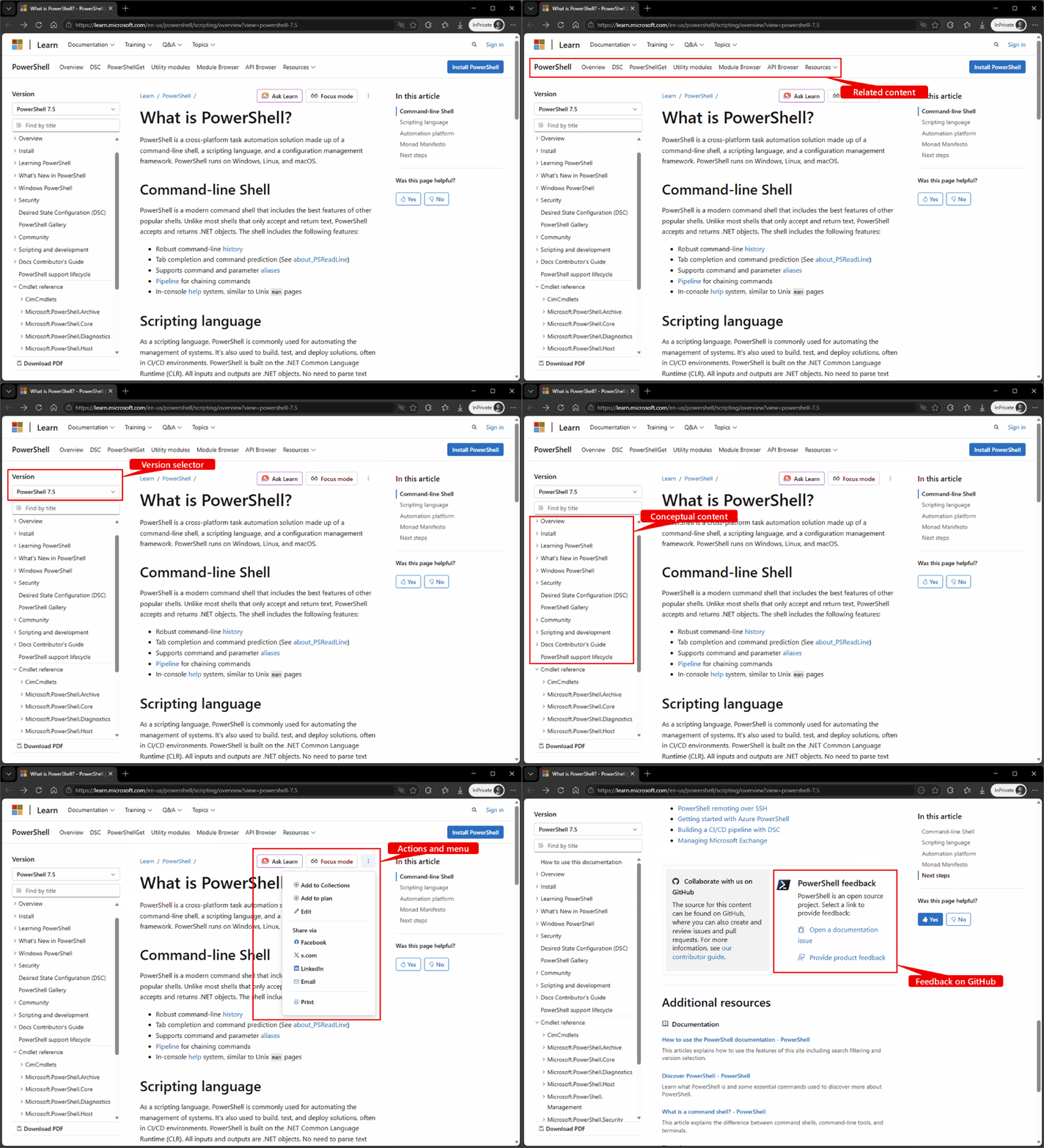
The web page contains multiple elements that help you use and navigate the documentation.
Navigation elements
- Site level navigation - The site level navigation appears at the top of the page. It contains links to other content on the Microsoft Learn platform.
- Related content navigation - The related content bar is immediately below the site level navigation. It contains links to content related to the current documentation set, which is PowerShell in this case.
- Article navigation - The article navigation appears at the top right of the article. It contains links to sections within the article.
Table of Contents
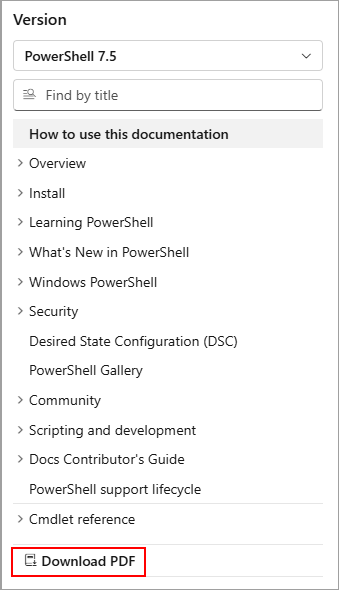
- Version selector - The version selector appears above the Table of Contents (TOC) and controls which version of the cmdlet reference appears in the TOC.
- The Filter and search box allows you to quickly find articles in the TOC by filtering on words that appear in the title of an article.
- Conceptual content - The top section of the TOC contains conceptual articles that aren't version-specific.
- Cmdlet reference - The bottom section of the TOC contains the cmdlet reference for the version of PowerShell selected in the version selector.
Action and menu buttons
These buttons provide other ways of interacting with the content.
- The Ask Learn button opens an AI chat pane where you can ask questions and get help about the content.
- The Focus mode button hides the TOC and other distractions, allowing you to focus on the content.
- The Menu button provides a way to add content to a collection, provide feedback, edit the content, or share the content with others.
Feedback elements
There are two ways to provide feedback on the documentation.
- Anonymous feedback - The Was this helpful? section on the right side of the article allows you to provide a thumbs-up or thumbs-down rating. You can also enter more feedback in a text box.
- Feedback on GitHub - At the bottom of each article, you can provide feedback on the documentation or the product. These links take you to the GitHub repository where you can open an issue and give feedback.
Filter and search for articles
There are two ways to search for content in Docs.
- The filter and search box under the version selector allows filtering articles by words that appear in the title of an article or command aliases. The filter displays a list of matching articles as you type. You can also select the option to search for the words in the body of articles. When you search from here, the search is limited to the PowerShell documentation.
- The search box in the site-level navigation bar searches the entire site. It returns a list of matching articles from all documentation sets.
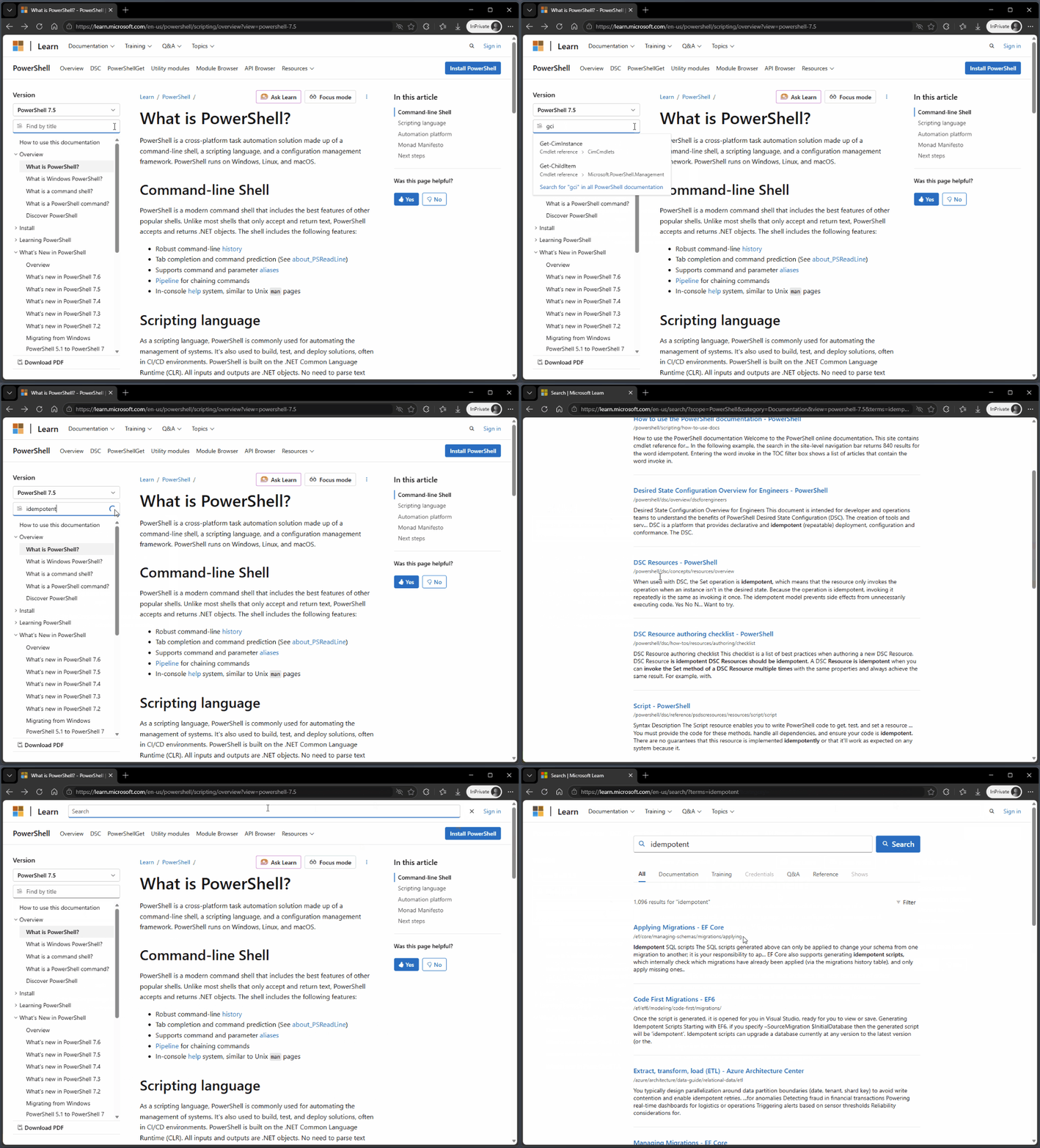
In the following example, you see how the drop-down list is filtered to show the Get-ChildItem
command as you type the name. When you enter gci, the filter shows the Get-CimInstance and
Get-ChildItem commands because the alias for both commands starts with gci.
Next, the word idempotent is entered. The filter shows no articles. Clicking the search link
searches for idempotent in the PowerShell documentation. This search only returns 12 results.
Notice the difference when the same word is searched using the site-level search box. The search
returns 1,096 articles from the entire Microsoft Learn site.
Selecting the version of PowerShell
This site contains cmdlet reference for the following versions of PowerShell:
- PowerShell 7.6 (preview)
- PowerShell 7.5
- PowerShell 7.4 (LTS)
- PowerShell 5.1
Use the version selector located above the TOC to select the version of PowerShell you want. By default, the page loads with the most current stable release version selected. The version selector controls which version of the cmdlet reference appears in the TOC under the Reference node. Some cmdlets work differently in different versions of PowerShell you're using. Be sure you're viewing the documentation for the correct version of PowerShell.
The version selector doesn't affect conceptual documentation. The conceptual documents appear above the Reference node in the TOC. The same conceptual articles appear for every version selected. If there are version-specific differences, the documentation makes note of those differences.
You can verify the version of PowerShell you're using by inspecting the $PSVersionTable.PSVersion
value. The following example shows the output for Windows PowerShell 5.1.
$PSVersionTable.PSVersion
Major  Minor  Build  Revision
-----  -----  -----  --------
5      1      26100  7705
Find articles for older versions of PowerShell
Documentation for older versions of PowerShell is archived in our Previous Versions site. You can choose Previous Versions from the version selector.
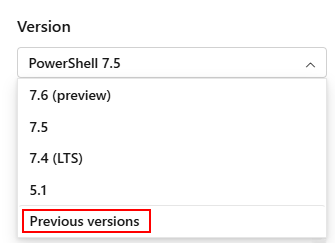
The Previous versions option takes you to the site containing documentation for older and unsupported versions of PowerShell:
- PowerShell 7.3
- PowerShell 7.2
- PowerShell 7.1
- PowerShell 7.0
- PowerShell 6
- PowerShell 5.0
- WMF 5.x Release notes
- PowerShell ISE object model
- PowerShell Workflows
- PowerShell Web Access
- PowerShell 4.0
- PowerShell 3.0
Download the documentation as a PDF
To download the documentation as a PDF, select the Download PDF button at the bottom of the TOC.
- If you're viewing a conceptual article, the Learn platform creates a PDF containing the conceptual content for the selected version.
- If you're viewing a reference article, the Learn platform creates a PDF containing the reference content for the selected version.
التعاون معنا على GitHub
يمكن العثور على مصدر هذا المحتوى على GitHub حيث يمكنك أيضاً إضافة مشاكل وطلبات سحب ومراجعتها. للحصول على معلومات إضافية، اطلع على دليل المساهم لدينا.

PowerShell