Use Performance analyzer to diagnose issues
Before you can fix a performance problem, you need to find it. Performance analyzer is the primary diagnostic tool built into Power BI for identifying what's slow in a report and why. It measures how long each visual takes to load and breaks that time into categories so you can pinpoint exactly where the bottleneck is.
Open Performance analyzer
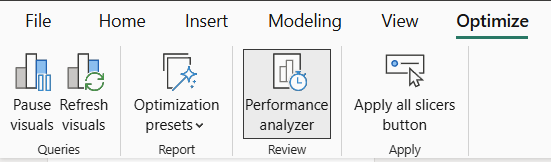
In Power BI Desktop, select the Optimize ribbon, and then select Performance analyzer. The Performance analyzer pane opens on the right side of the report canvas. Once the pane is visible, you're ready to start recording.
Note
Performance analyzer is also available in the Power BI service. Open a report in edit mode, select the View menu, and then select Performance analyzer. The timing breakdowns and copy query features work the same way.
Record and measure performance
To capture timing data, follow these steps:
- Select Start recording in the Performance analyzer pane.
- Interact with the report: refresh visuals, adjust slicers, or navigate between pages.
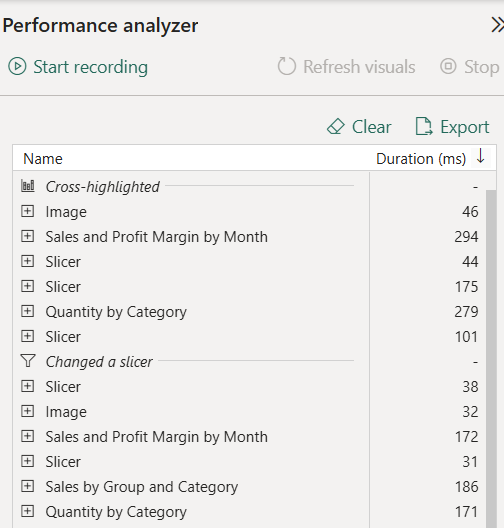
- Observe the timing results that appear in real time for each visual.
- Select Stop when you've captured enough data.
Each interaction (such as changing a slicer or refreshing a page) creates a section in the pane. Under each section, you see the individual visuals and their load times.
Tip
Clear the visual cache before measuring to get accurate results. In Power BI Desktop, you find this option in the Performance analyzer pane. Cached data can mask actual query performance, so clearing it ensures you're measuring real execution time.
You can also measure a single visual. When Performance analyzer is recording, select the Analyze this visual icon in the top-right corner of any visual to refresh and capture its performance data individually.
Understand timing metrics
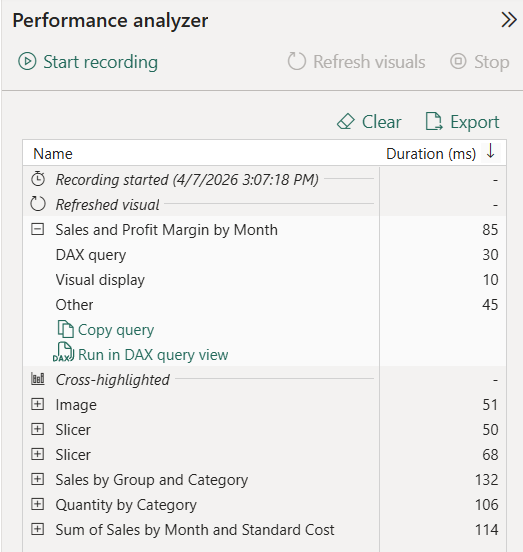
Performance analyzer breaks each visual's load time into several categories:
| Metric | What it measures |
|---|---|
| DAX query | Time for the visual to send a query to the semantic model and receive results. This is the most common bottleneck. |
| Visual display | Time for the visual to render on screen, including retrieving web images or geocoding. |
| Direct query | Time for queries sent to an external data source when using DirectQuery storage mode. |
| Other | Time for background processing, including waiting for other visuals to complete, preparing queries, and network overhead. |
The Duration (ms) value represents the total time from start to end for each operation. Because most operations execute sequentially on a single UI thread, reported durations can include time spent waiting in a queue while other visuals finish.
When you're diagnosing a slow report, focus on the largest contributor first. If the DAX query time dominates, the problem is in the model or the measure. If visual display time is high, the visual itself is rendering too much data. If Direct query time is large, the external data source or query folding might be the issue.
Export and analyze DAX queries
One of the most useful features of Performance analyzer is the ability to extract the exact DAX query that a visual sends to the semantic model. This lets you analyze why a specific query is slow.
To export a DAX query:
- Expand a visual's entry in the Performance analyzer pane.
- Select Run in DAX query view to open the query in a new tab automatically, or select Copy query to copy it to your clipboard.
- In DAX query view, run the query and review the results.
The result grid shows the data that the visual uses. You can inspect the query structure, identify expensive operations, and test optimizations directly in DAX query view.
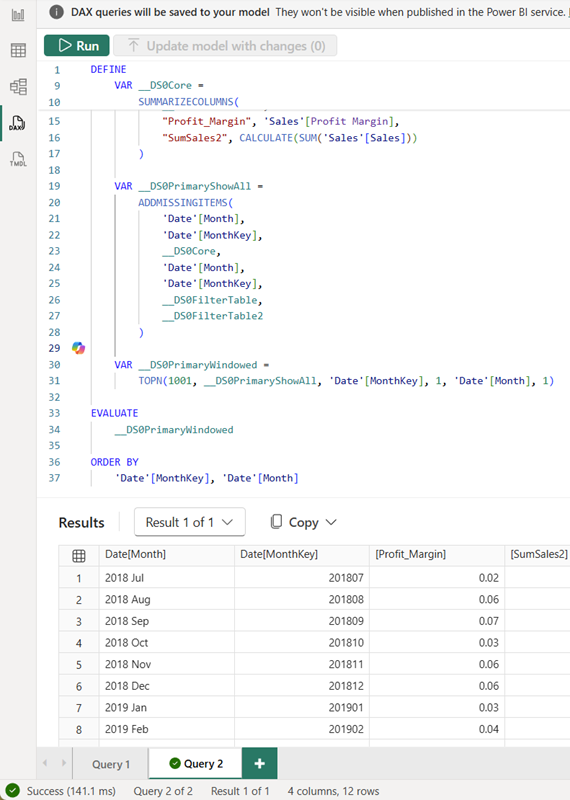
The DAX query generated by a visual is often more verbose than a hand-written query. It includes extra VARs, TOPN wrappers, and column references that support visual type switching. If Copilot is available, it can help simplify the query structure in DAX query view. Try a prompt like "Remove the VARs and TOPN and simplify this DAX query."
Note
In the Power BI service, the Run in DAX query view button isn't available. Instead, copy the query, select Open data model to open the web modeling experience, and then switch to DAX query view to paste and run it. Queries in the web aren't saved after you close the browser.
Use DAX Studio for deeper diagnostics
DAX Studio is a free, open-source tool that connects to your local semantic model or to a published semantic model through an XMLA endpoint. DAX Studio provides capabilities beyond the built-in DAX query view:
- Server Timings: separates query execution into formula engine (FE) and storage engine (SE) time, showing exactly where the engine spends its effort.
- Query Plan: displays the logical and physical query plan, which helps identify inefficient operations in complex measures.
- Model metrics: analyzes table and column sizes, cardinality, and compression statistics so you can identify the largest contributors to model size.
DAX Studio is especially useful when you need engine-level diagnostics that Performance analyzer and DAX query view don't expose, or when you don't have access to Copilot for query simplification. The workflow is the same: copy a DAX query from Performance analyzer, paste it into DAX Studio, and use server timings and query plans to understand where the engine spends its time.
Interpret results effectively
Raw numbers alone don't tell the full story. Effective diagnosis requires comparing results in context:
- Compare relative timings across visuals. If one visual takes 5,000 ms and all others take under 200 ms, that one visual is the focus area.
- Identify the bottleneck category. A visual with 4,800 ms in DAX query time and 200 ms in visual display has a data model or measure issue, not a rendering issue.
- Test with representative data. Performance measurements on a development dataset with 1,000 rows don't accurately reflect production performance on a dataset with 10 million rows.
- Repeat measurements. A single measurement can be affected by caching, network variability, or background processes. Run the measurement multiple times and observe the pattern.
Consider this example: a report page has five visuals. After clearing the cache and refreshing all visuals, the results look like this:
| Visual | DAX query (ms) | Visual display (ms) | Total (ms) |
|---|---|---|---|
| Revenue by region (bar chart) | 120 | 80 | 200 |
| Monthly trend (line chart) | 150 | 90 | 240 |
| Product detail (table) | 4,500 | 300 | 4,800 |
| KPI card | 50 | 30 | 80 |
| Top customers (table) | 180 | 110 | 290 |
The product detail table is clearly the outlier. Its DAX query time of 4,500 ms indicates an expensive measure or excessive data request. Your next step is to copy that query, analyze it in DAX query view, and determine whether the issue is a complex calculation, an inefficient filter pattern, or too much data being returned.
Best practices for performance measurement
Follow these guidelines to get reliable and actionable results from Performance analyzer:
- Clear the visual cache before every test. Cached results mask real query execution time.
- Isolate variables. Change one thing at a time, then measure again.
- Test realistic scenarios. Use production-sized data and typical filter selections.
- Document baselines. Record timing results before and after changes so you can quantify improvement.
- Focus on user-impacting visuals. Prioritize visuals on the default landing page and commonly used report pages.
Performance analyzer is your starting point in the troubleshooting workflow. It tells you what is slow and which category (DAX, visual, DirectQuery) contributes the most. The next step is to fix the issue: starting with DAX optimization.