Exercise - Add conditional logic for SharePoint or Microsoft Teams
- 12 minutes
In this exercise, you'll update the SharePoint Framework web part from the previous exercise to display different information depending on whether it's running within a SharePoint or Microsoft Teams context.
Locate and open the file ./src/webparts/spFxTeamsTogether/SpFxTeamsTogetherWebPart.ts.
Locate the _getEnvironmentMessage() method in the SpFxTeamsTogetherWebPart class. This code constructs a message indicating whether the web part is running in SharePoint or Teams by checking the value of this.context.sdks.microsoftTeams. If the microsoftTeams object has a value, then the web part is running in Teams. If the microsoftTeams object is undefined, then the web part isn't running in Teams:
  private _getEnvironmentMessage(): Promise<string> {
    if (!!this.context.sdks.microsoftTeams) { // running in Teams, office.com or Outlook
      return this.context.sdks.microsoftTeams.teamsJs.app.getContext()
        .then(context => {
          let environmentMessage: string = '';
          switch (context.app.host.name) {
            case 'Office': // running in Office
              environmentMessage = this.context.isServedFromLocalhost ? strings.AppLocalEnvironmentOffice : strings.AppOfficeEnvironment;
              break;
            case 'Outlook': // running in Outlook
              environmentMessage = this.context.isServedFromLocalhost ? strings.AppLocalEnvironmentOutlook : strings.AppOutlookEnvironment;
              break;
            case 'Teams': // running in Teams
            case 'TeamsModern':
              environmentMessage = this.context.isServedFromLocalhost ? strings.AppLocalEnvironmentTeams : strings.AppTeamsTabEnvironment;
              break;
            default:
              environmentMessage = strings.UnknownEnvironment;
          }

          return environmentMessage;
        });
    }

    return Promise.resolve(this.context.isServedFromLocalhost
      ? strings.AppLocalEnvironmentSharePoint
      : strings.AppSharePointEnvironment);
  }
Replace the implementation of _getEnvironmentMessage() method with the following code. It not only constructs a message indicating whether the web part is running in SharePoint or Teams, it also uses the appropriate context object to include the name of the team or SharePoint site where the web part is currently running:
private _getEnvironmentMessage(): Promise<string> {
  let environmentMessage: string = '';

  if (!!this.context.sdks.microsoftTeams) { // running in Teams, office.com or Outlook
    return this.context.sdks.microsoftTeams.teamsJs.app.getContext()
      .then(teamsContext => {
        environmentMessage = this.context.isServedFromLocalhost
          ? strings.AppLocalEnvironmentTeams
          : strings.AppTeamsTabEnvironment;

        environmentMessage += `. Team name: ${teamsContext.team?.displayName}`;

        return environmentMessage;
      });
  } else {
    environmentMessage = this.context.isServedFromLocalhost
      ? strings.AppLocalEnvironmentTeams
      : strings.AppTeamsTabEnvironment;

    environmentMessage += `. Site name: ${this.context.pageContext.web.title}`;

    return Promise.resolve(environmentMessage);
  }
}
Package and deploy the web part
Build and bundle the project for production by opening a command prompt, changing to the root folder of the project, then executing the following command. Heft's build task transpiles and bundles the project in a single step; the --production switch minifies the bundle and updates the manifests for deployment:
heft build --production
Next, create a deployment package of the project by running the following command on the command line from the root of the project:
heft package-solution --production
Navigate to the modern tenant app catalog (that is, the Manage Apps page).
Locate the file created by the Heft package-solution task, found in the ./sharepoint/solution folder with the name *.sppkg.
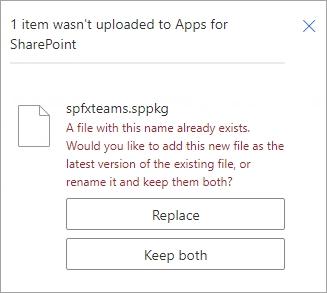
Drag this file into the Apps for SharePoint library in the browser. When prompted, select Replace.
In the Enable app panel, ensure the Enable this app and add it to all sites radio button is selected and then select Enable app.
In the This app has been enabled panel, select Close.
Test the changes
Navigate back to the SharePoint page where you added the web part in the previous exercise.
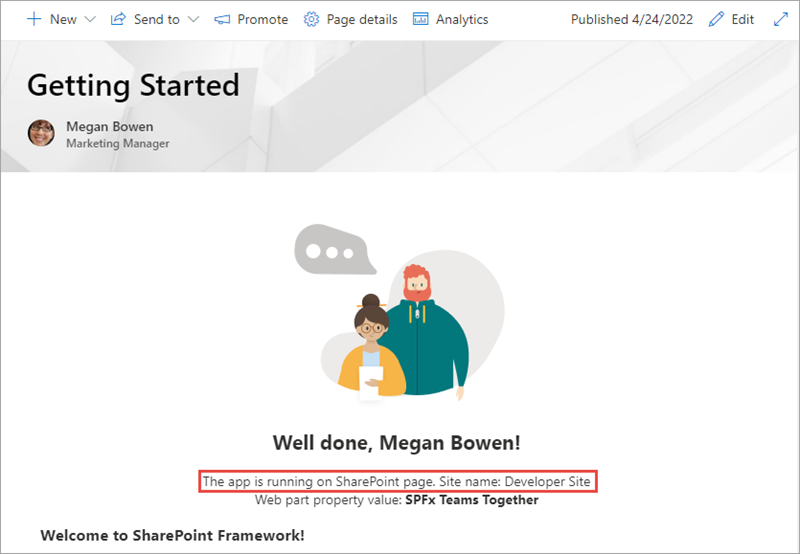
Notice how the page shows that it's currently in the SharePoint context and displays the current SharePoint site name:
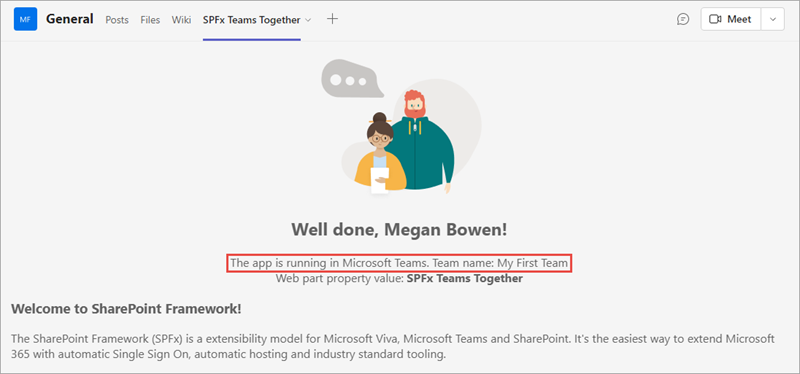
Now go back into the Microsoft Teams team and select the tab that you previously added. Notice how the message says you're currently in Teams and the name of the team:
Summary
In this exercise, you updated the SharePoint Framework web part from the previous exercise to display different information depending on whether it's running within a SharePoint or Microsoft Teams context.
Test your knowledge
الملاحظات
هل كانت هذه الصفحة مفيدة؟
لا
هل تحتاج إلى مساعدة مع هذا الموضوع؟
هل تريد محاولة استخدام Ask Learn لتوضيح هذا الموضوع أو إرشادك خلاله؟