Create a Shopify shop in Business Central
Companies can use multiple Shopify online stores for several reasons, such as legal requirements, or to create specific product groups for each store.
To sync data between Business Central and Shopify, you'll need to connect a Shopify online store to a Business Central Shopify shop. You can do so with the Shopify URL that you enter on the shop card.
To create a new Shopify shop and connect it to an online store, follow these steps:
Select the Search for Page icon, enter shopify shops and then select the related link.
Select New to create a new shop.
In the Code field, enter the name of the shop. Usually, this name is the name of the Shopify online store, but you can also enter a different name.
In the Shopify URL field, enter the unique online store URL that needs to be connected. Use the following format:
https://{store}.myshopify.com/, for examplehttps://mslearn.myshopify.com/. By opening your Shopify online store, you can copy the URL from the address bar.Activate the Enabled toggle, and then review and accept the terms and conditions.
Business Central will try to connect to your Shopify online store. If you're not already signed in, you might need to sign in to your Shopify account. When the connection is successful, the Has AccessKey field will be activated automatically.
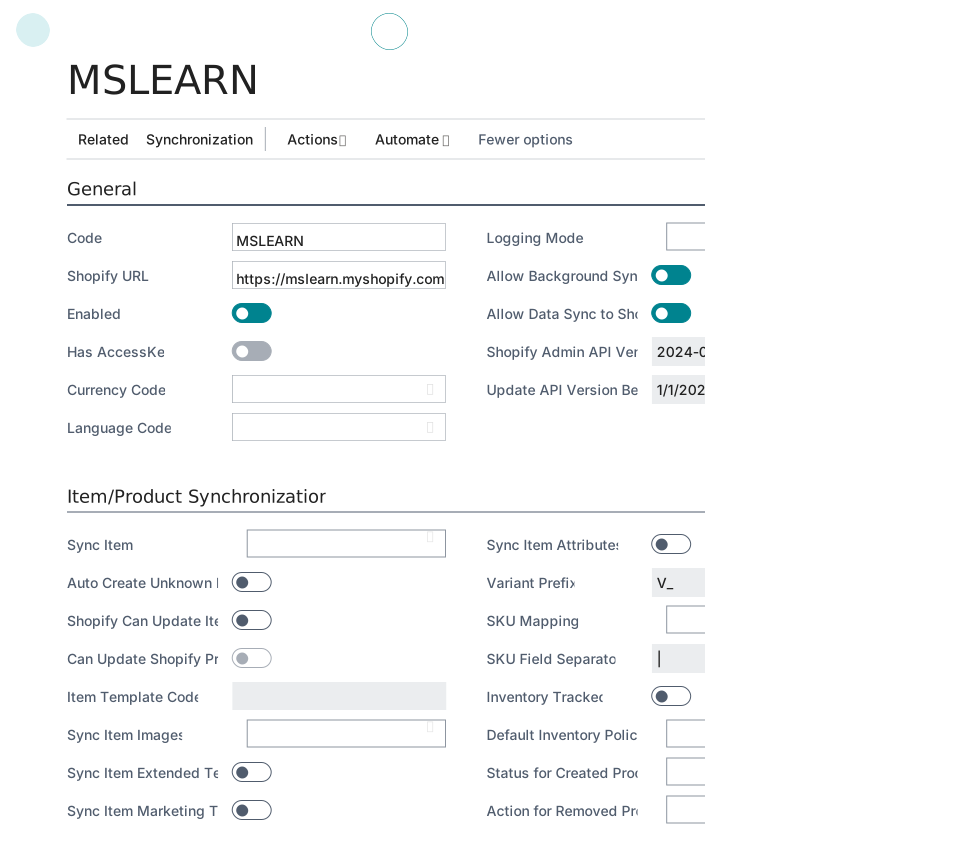
On the General FastTab, by selecting Show more, you can enter information in the following fields:
Currency Code - Specifies the currency code of the Shopify online store. You can leave this field blank if the currency of the Shopify online store is the same as the local currency in Business Central.
Language Code - Specifies the language of the Shopify store.
Logging Mode – Specifies whether Shopify log entries are created. You can select one of the following options:
Error Only
All
Disabled
If log entries are created, you can review them anytime on the Shopify Log Entries page.
Allow Background Sync - Specifies whether background syncs are allowed. How to sync in the background and using job queues is explained in subsequent modules.
Allow Data Sync to Shopify - Specifies whether syncing data to Shopify is enabled or not. Deactivating this field means that no data will be synced from Business Central to Shopify.
Shopify Admin API Version - Specifies the version of Shopify Admin API used by current version of the Shopify connector.
Update API Version Before - Specifies the date on which Business Central won't support the Shopify Admin API version. To continue to use your integration, upgrade to the latest version of Business Central before this date.
The other FastTabs of the Shopify shop card are covered in subsequent modules of this learning path.