Set up locations
When items are ready to be delivered, they're shipped from a location. The result of posting the shipment is that the inventory decreases in the specified location.
When you sell items from a Shopify store, it's important that they're shipped from the correct location. By mapping Shopify locations to Business Central locations, the synced Shopify orders are also posted to the correct location.
In Business Central, you can run the Get Shopify Locations function to automatically create Shopify locations that you can map to the Business Central locations. Therefore, you'll need to create locations in Shopify first, as follows:
Open your Shopify store.
Select Settings.
In the left navigation pane, select Locations.
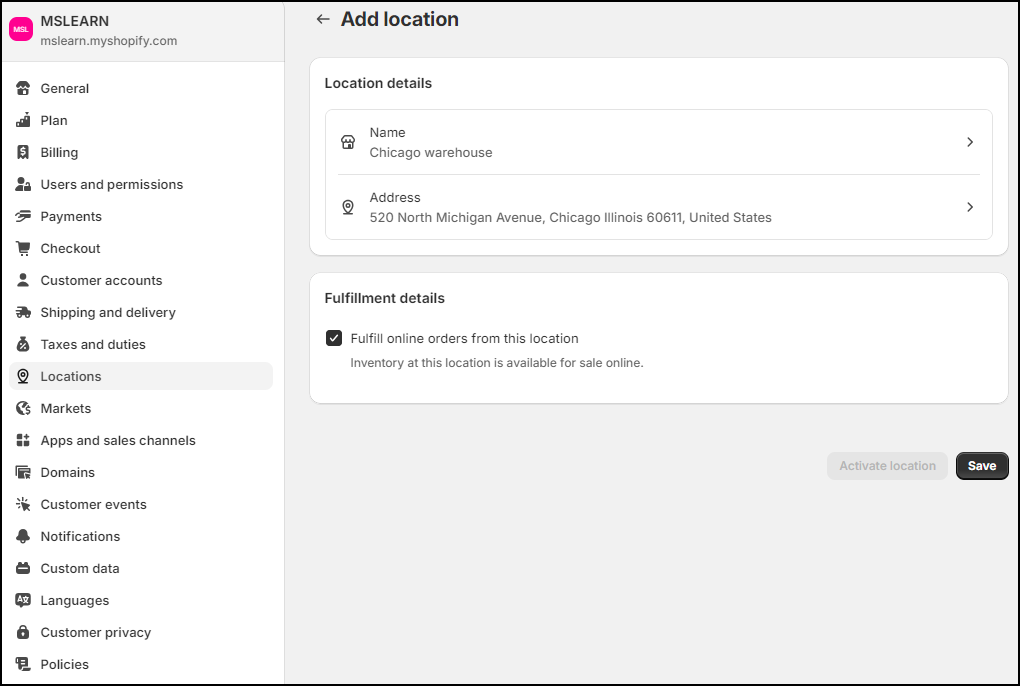
Select Add location.
In the Location Name field, enter a short name that makes the location easy to identify. You can use the same names as the Business Central locations, but you aren't required to.
In the Address section, enter the address details.
If you want to fulfill orders from this location, make sure that the Fulfill online orders from this location field is activated.
Select Save.
When you have multiple Shopify locations, you can select the default location and the location priority from the location overview in the Shopify settings.
After you've created all Shopify locations that you want, you can sync them to Business Central and then map them to the Business Central locations as follows:
Select the Search for Page icon, enter shopify shops and then select the related link.
Open the Shopify Shop Card page for the shop that you want to sync the locations.
Select Related > Locations.
Select Get Shopify Locations.
If the location serves as a fulfillment service, the Is Fulfillment Service field is selected. This field is synced from Shopify.
In the Default Location Code field, enter the Business Central location to be used in orders.
In the Location Filter field, enter the location(s) for which the inventory must be counted. By default, the location that you entered in the Default Location Code field is copied to this field.
In the Stock Calculation field, you can specify if you want to sync inventory. If you don't want to sync inventory from Business Central to Shopify, or the other way around, set this field to Off. When you select Projected Available Balance at Today or Free Inventory (not reserved), inventory is synced between Business Central and Shopify. This concept of syncing items and inventory is demonstrated in a subsequent module in this learning path.
