Identify different page types
In Business Central, you can develop different types of pages, which are indicated in the layout of each page.
You can distinguish the following page types:
Card
List
CardPart
ListPart
HeadlinePart
Document
RoleCenter
Worksheet
ConfirmationDialog
StandardDialog
ListPlus
Navigate
API
Card page
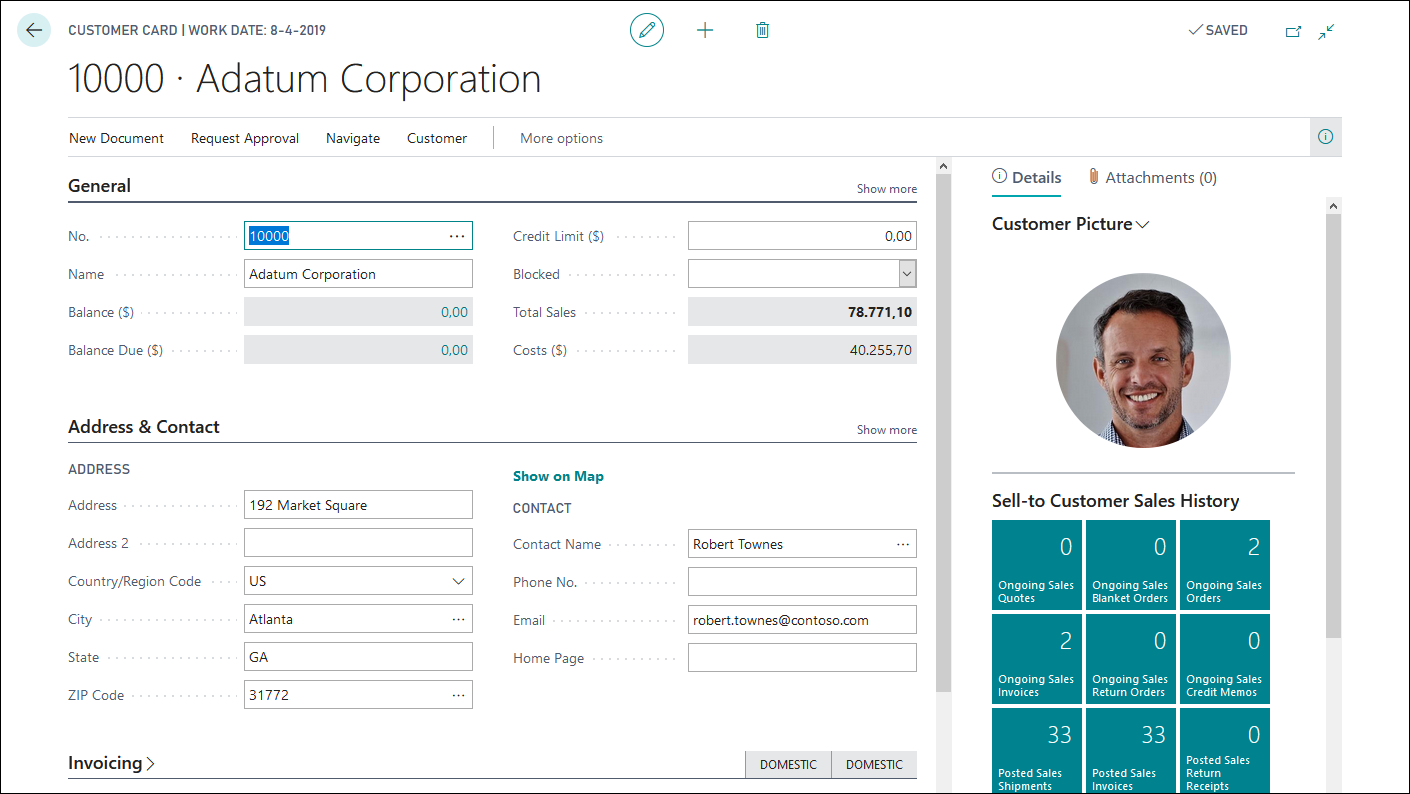
The Card page is used with every master table (customer, item, vendor, and so on) to input data. The Card page is an editable form.
List page
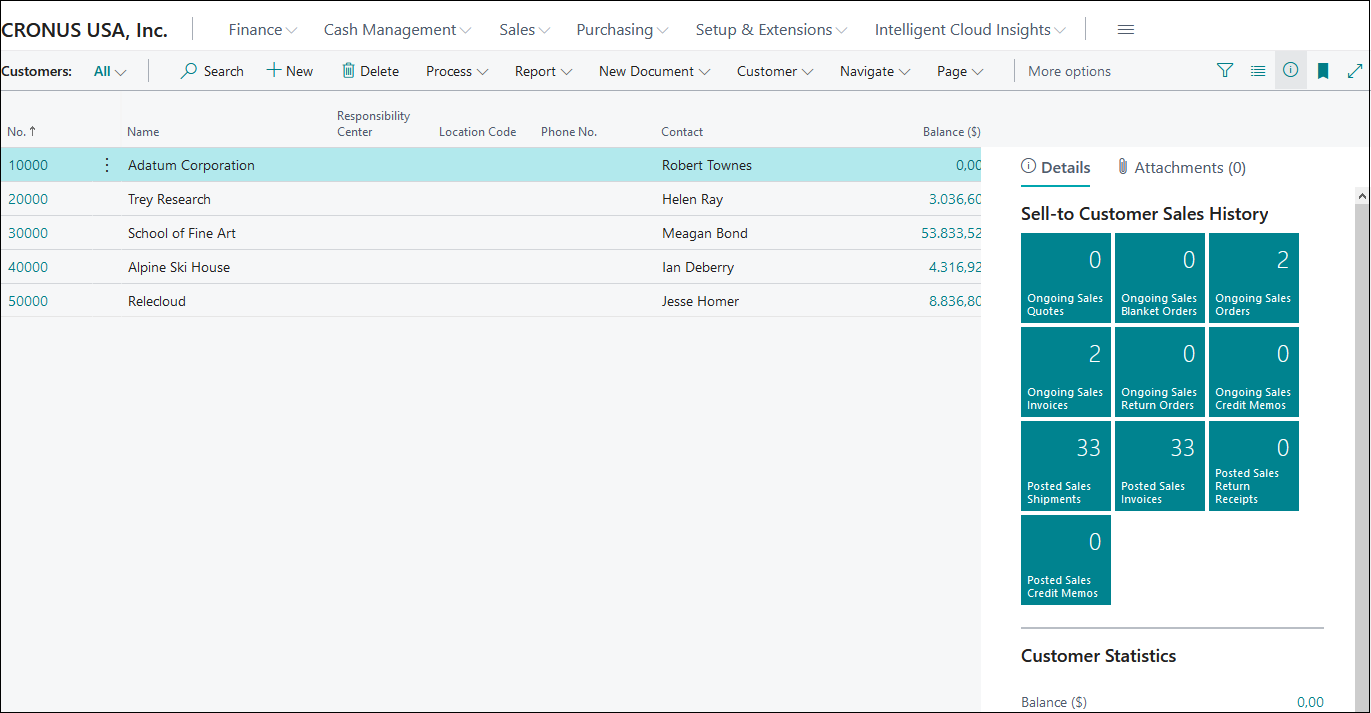
A List page is often read-only and shows the records in a list form. You can select a record in a list to open the linked Card page to add and modify data.
Document page
A Document page is used to enter document data like a sales order, an invoice, a credit-memo, and so on. A Document page looks like a Card page, but it also includes a list with lines. Every page can only be linked to one source table. In a Document page such as Sales Order, the Document page is linked to the Sales Header table, which contains information about the header information (like the bill to customer no., order date, due date, and so on).
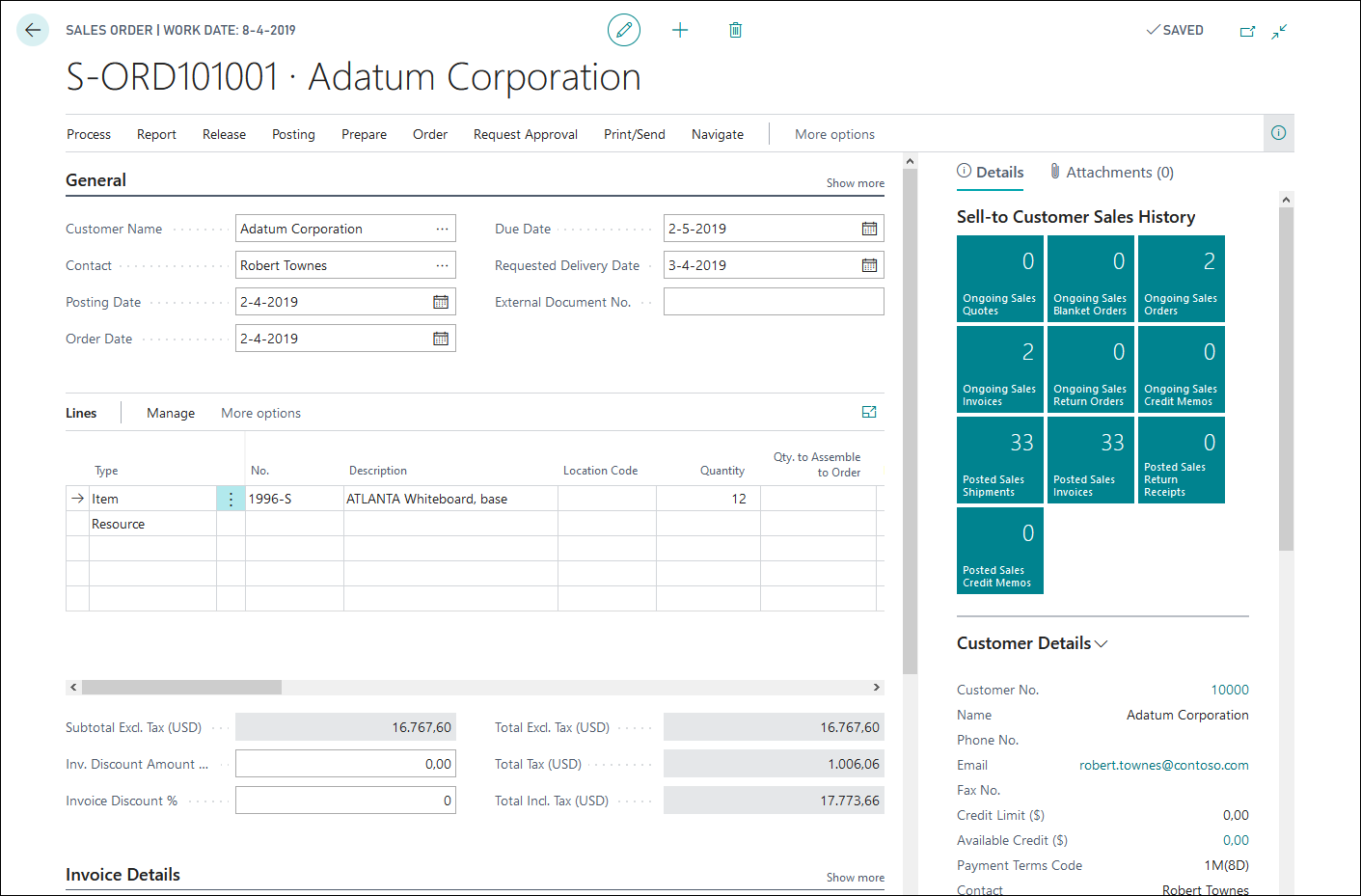
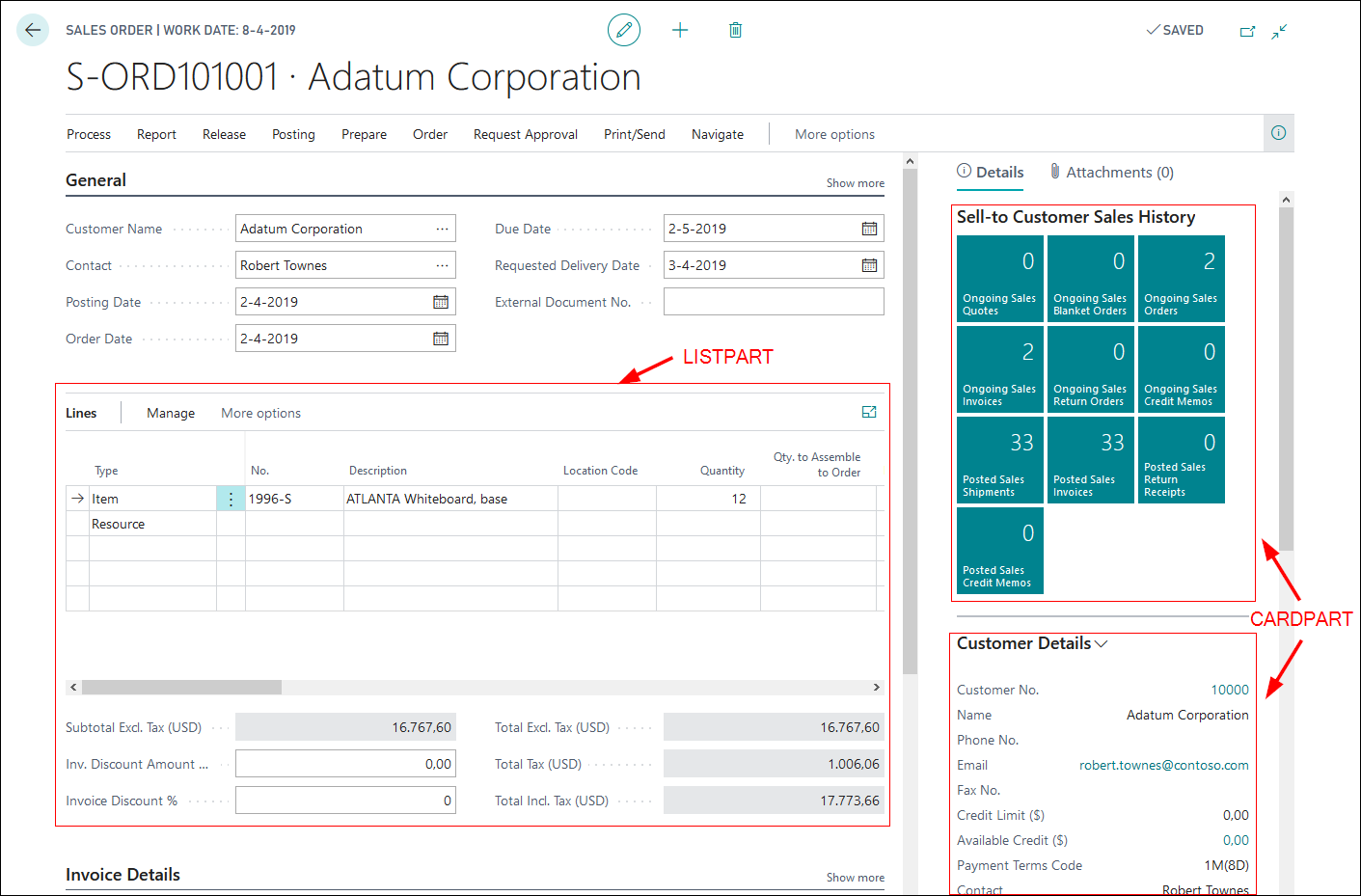
In the middle of the Document page are sales lines, which contain detailed information about every item, resource, and G/L account that is specified in the sales order. This information comes from the Sales Line table and is linked in a separate page that has the page type of ListPart. Therefore, you can use the ListPart page to put the records on another page, like a Document page, and then link it to a page so the ListPart page only shows records that are linked to a selected record on the main page.
CardPart and ListPart pages
The previous Document page section contained an example of a ListPart page. A page can only be linked to one source table. If you want to display information from other tables as well, you need to use parts that are linked to the other tables to display that information.
The following example shows two CardParts (next to the ListPart). These CardParts give more, detailed information about the selected customer in the document (the Sales Header table).
HeadlinePart
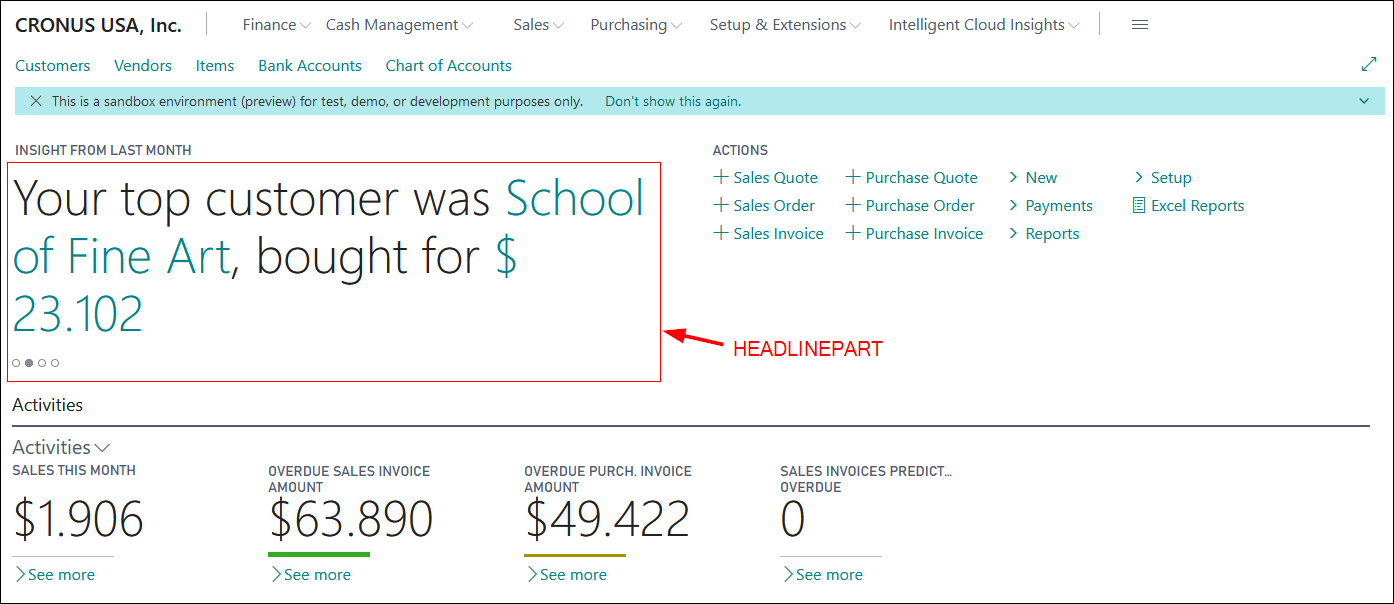
A RoleCenter page is built with several parts. These parts can be ListParts, CardParts, and HeadlineParts. The HeadlinePart is shown at the top of a RoleCenter page. It displays important insights, such as the top customer, top selling item, and so on.
RoleCenter page
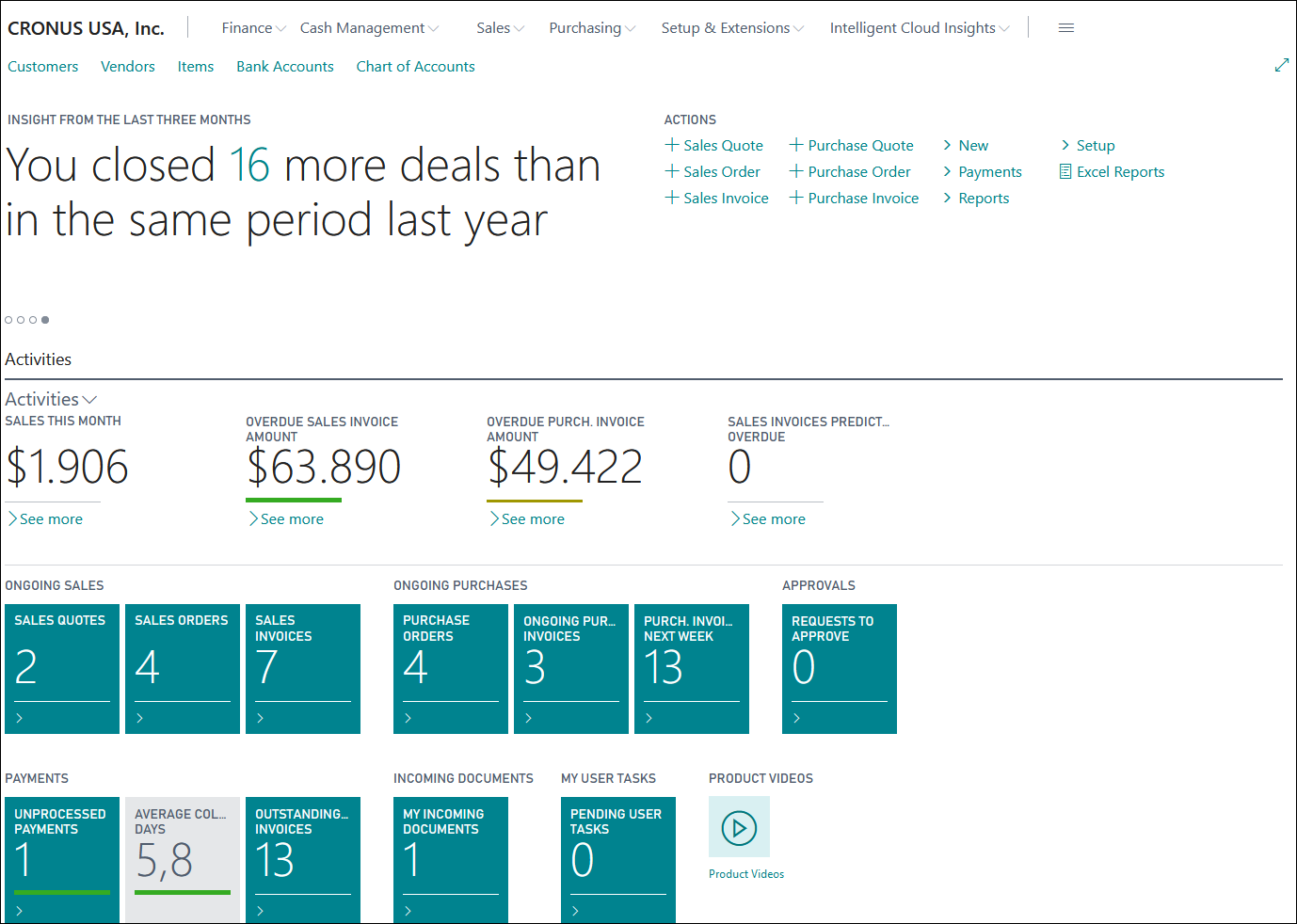
A RoleCenter page is usually the first page that you'll see when opening Business Central. From this page, you can go to different pages by using the different actions and links on the page.
You can also have some dashboard information about your company. The RoleCenter page can display information about the open sales orders, ongoing purchases, overdue invoice amounts, payments, and so on.
A RoleCenter page is never linked to a source table but is built by putting parts on the page. Each part is linked to a source table.
Navigate page
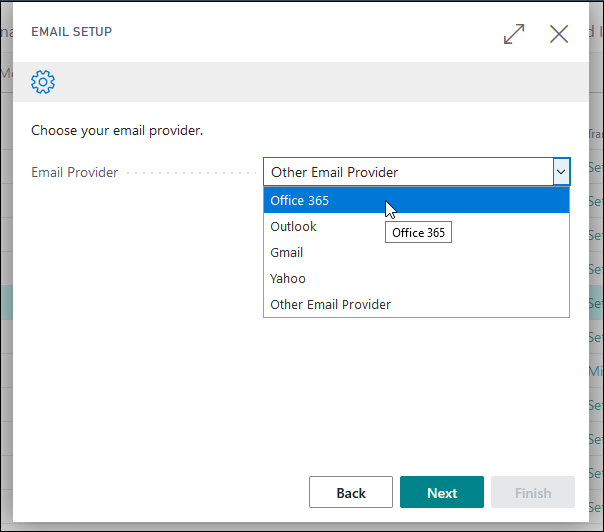
The page type NavigatePage can be used to create wizards in Business Central. You can find examples of these wizards when you use the Assisted Setup functionality.