إشعار
يتطلب الوصول إلى هذه الصفحة تخويلاً. يمكنك محاولة تسجيل الدخول أو تغيير الدلائل.
يتطلب الوصول إلى هذه الصفحة تخويلاً. يمكنك محاولة تغيير الدلائل.
Note
This article applies to Visual Studio 2022 version 17.14 and later, and Visual Studio 2026.
GitHub Copilot includes built-in tools to help you choose and manage models and track your monthly plan usage. Plan usage measures the usage applied to your monthly Copilot allowance and is separate from the conversation capacity used in the current chat thread.
View Copilot usage
The Copilot Usage window provides real-time updates about your plan usage, remaining monthly allowance, plan details, and relevant billing actions. This plan usage is separate from the conversation capacity available in a chat thread.
To open the Copilot Usage window:
- Select the down arrow next to the Copilot badge in the top-right corner.
- Select Copilot Usage from the menu to view the dialog.
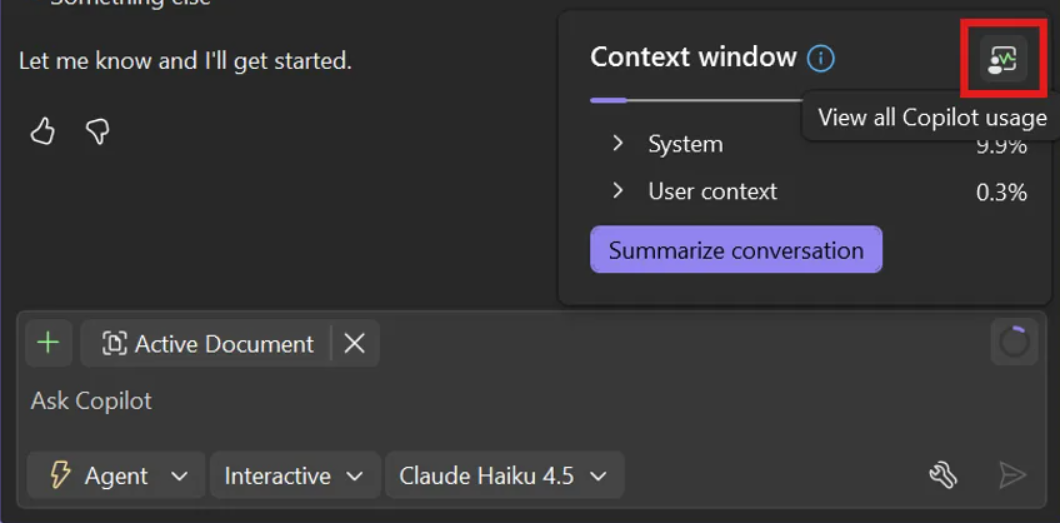
You can also open the Copilot Usage window by using the button in the context-window usage view. Depending on your Visual Studio version and where you use Copilot Chat, open that view from the indicator in the prompt box or editor.
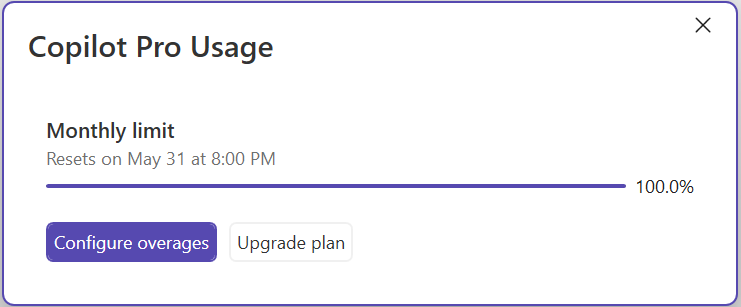
The usage window looks different depending on your plan category.
Individual plans
Individual plans show personal monthly usage details and continuation options.
Business and Enterprise plans
Business and Enterprise plans show organization-managed usage details. In some organizations, no individual monthly limit is set and usage draws from a shared pool.
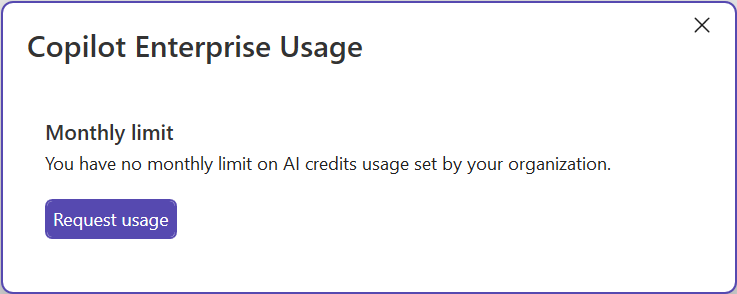
The usage window shows monthly usage, remaining monthly balance, plan details, and relevant actions you can take to manage billing. Depending on your plan, it might also show information on additional usage.
Select the Copilot badge in the top-right corner of Visual Studio, and then select Copilot Usage.
In older versions, this experience might appear as Copilot Consumptions.
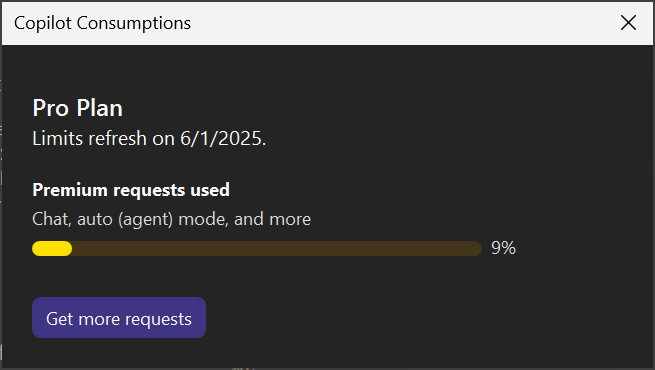
The panel provides usage details and monthly limit information for your plan.
Note
Labels and fields in the usage window vary by GitHub Copilot plan type and Visual Studio version. GitHub manages billing and subscriptions. For details, see your GitHub billing settings.
Understand how plan usage is calculated
On usage-based billing plans, GitHub measures Copilot usage in GitHub AI Credits. Copilot interactions consume input tokens, output tokens, and cached tokens. GitHub calculates the cost based on the number of tokens consumed and the selected model's published rates, and then converts that cost to AI Credits.
Code completions and next edit suggestions don't consume AI Credits and remain unlimited on paid Copilot plans. Copilot Free includes a separate monthly code-completion allowance. For per-token rates and details about which features consume AI Credits, see Models and pricing.
For Business and Enterprise plans, included AI Credits are pooled at the billing-entity level. As a result, an organization might not set an individual monthly limit for each user.
Note
Eligible Copilot Pro and Copilot Pro+ subscribers on existing annual plans can remain on legacy premium request-based billing until their plan expires. For details, see Requests in GitHub Copilot (legacy).
Monitor usage and manage alerts
Visual Studio proactively displays alerts based on your plan and current usage. Alerts can indicate that:
- You're approaching your included monthly usage limit.
- You've reached your included monthly usage limit.
- Additional usage is active after you've exhausted your included usage.
The alert text and available actions depend on your plan and, for Business and Enterprise plans, your organization's policies and budgets.
Set a personal usage warning threshold
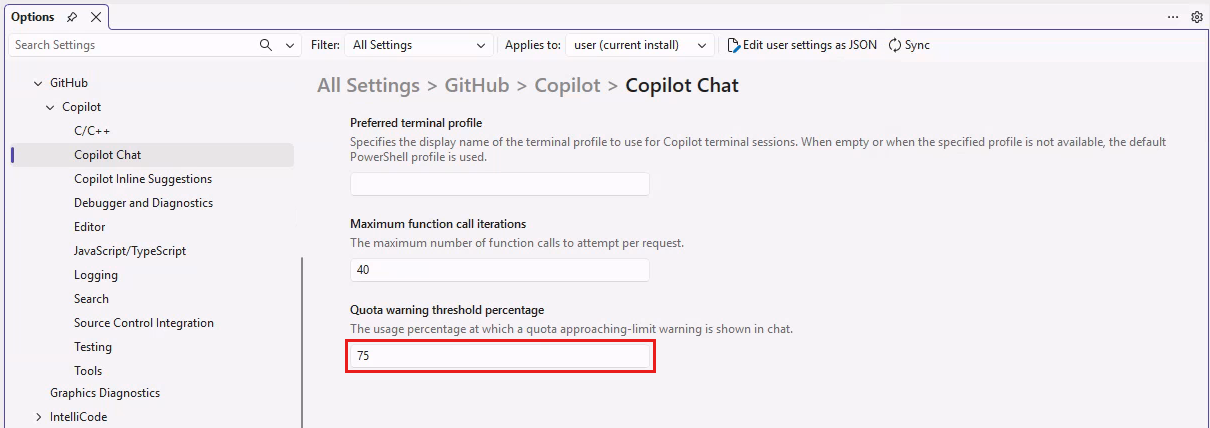
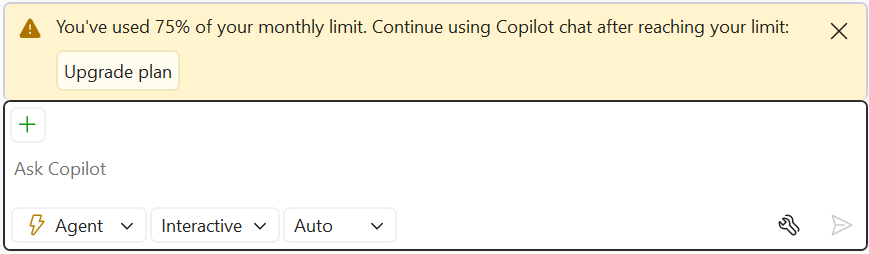
By default, Visual Studio displays an approaching-limit warning when your usage reaches 75% of your monthly usage limit. You can change this threshold to match your usage needs.
To set a personal usage warning threshold:
- Open Tools > Options > GitHub > Copilot > Copilot Chat.
- Find the Quota warning threshold percentage setting.
- Enter the percentage of your monthly usage limit at which you want to be warned.
- Select OK to save your changes.
Once configured, Copilot Chat displays a warning banner when your usage reaches the threshold percentage you set.
This setting controls only the local alert threshold. It doesn't stop usage or enforce a spending cap.
Note
This setting applies locally to your Visual Studio installation. Your Copilot plan and any organization policies determine your actual monthly allowance and additional-usage options.
When included usage is exhausted
The actions available after you exhaust your included usage depend on your plan. The Copilot Usage window and Copilot Chat display limit notifications and relevant actions.
Individual plans
For individual plans, you can upgrade your plan, set a budget for additional usage when available, or wait for your monthly allowance to reset. When additional usage is active, Visual Studio displays an alert and usage continues at the published rates.
Business and Enterprise plans
Business and Enterprise usage draws from a shared pool of included AI Credits. When the pool is exhausted, Copilot usage continues at the published rates if the organization allows additional usage. If additional usage isn't allowed or an applicable budget is exhausted, Copilot access is blocked until the next monthly cycle or until an administrator changes the policy or budget.
When monthly usage limits are configured, Copilot displays an alert banner with available actions. Contact your organization administrator if you need a higher limit or a policy change.

Copilot Free completion limit
Copilot Free includes a monthly code-completion allowance that is separate from AI Credit usage. When you exhaust the completion allowance, Copilot completions are unavailable until the monthly reset or until you upgrade. Visual Studio might provide IntelliCode suggestions while Copilot completions are unavailable. For details, see GitHub Copilot Free usage limits in Visual Studio.
For plan behavior details, see About usage limits.
Tip
See your Copilot settings on GitHub to explore model options and subscription details.
Understand model selection
Copilot supports multiple AI models. On usage-based billing plans, model rates and token consumption determine how many AI Credits an interaction uses. For rates by model, see Models and pricing.
For most prompts, use Auto. Auto routes you to a model based on model reliability and availability. On paid plans, Auto applies a discount to model costs. For complex tasks, consider switching to a different model.
Your model choice affects three things:
- Cost: Models have different per-token rates.
- Response quality: Higher-capability models often return more detailed and structured responses.
- Performance: Lower-cost models are often faster for simple tasks, while higher-capability models might take longer for complex reasoning.
To view or change your current model:
- Open the Copilot Chat window.
- Use the Model picker dropdown to select a model.
The model picker shows model cost indicators for each model. Available model options might vary by plan.
Organize models in the picker
You can pin frequently used models so they remain at the top of the Model picker. Expand the list to view all available models or collapse it to show only your pinned models.
Manage models
Select Manage models in the Model picker to open the language models view. Use this view to compare model capabilities, context-window size, cost level, and available thinking-effort options.
From this view, you can add custom models from supported providers by using your own API key. Custom models appear alongside Copilot models, where you can pin them, review their capabilities, or configure a provider.
Monitor context window usage
Use the context-window usage indicator to track conversation capacity for the current thread. Depending on your Visual Studio version and where you use Copilot Chat, the donut chart can appear in the prompt box or editor. Select the indicator to view usage. As usage approaches 100%, summarize the conversation, start a new thread, or select a model with a larger context window to make more context available and preserve response quality.
The context-window usage view also includes a button that opens the Copilot Usage window for your full plan usage.
For more information, see Manage chat context in GitHub Copilot Chat.
To manage model usage for non-chat scenarios, turn off Enhance non-chat requests with premium models in GitHub > Copilot > Editor.
For more information, see Change the chat model, Supported AI models, and Auto model selection.
Configure thinking effort
Some supported models expose a thinking effort (also called reasoning effort) setting that controls how much reasoning the model performs before responding. Availability and the levels offered vary by model; some models don't provide this control at all.
Thinking effort levels typically include Low, Medium, and High, and some models additionally offer Extra High or Max. Higher levels can increase the depth of a response and might be preferable for complex prompts, while lower levels use fewer AI Credits and can provide quicker responses for simpler tasks.
Note
Adjusting thinking effort changes AI Credit consumption and response time independently of switching models. Higher thinking effort levels consume more AI Credits.
To configure thinking effort for a model:
- Open the Copilot Chat window.
- Select the Model picker dropdown.
- Select Manage models to open the model management view.
- Find the model you want to configure. The view shows each model's capabilities, context size, cost, and thinking effort options (if supported).
- Select the thinking effort level you want for that model.
Tips to optimize usage
- Use Auto in the model picker for most prompts, then switch models for complex tasks.
- For complex prompts that benefit from deeper reasoning, consider increasing the thinking effort level for a supported model. For simpler prompts, a lower thinking effort level can reduce AI Credit usage and yield quicker responses.
- To reduce AI Credit usage for non-chat scenarios, turn off Enhance non-chat requests with premium models in GitHub > Copilot > Editor. For more context, see Understand model selection.
- If you use multiple GitHub accounts in Visual Studio, verify the active account is the account with your expected Copilot plan.
- Use Manage plan from the usage window to verify your current plan tier and additional-usage policy.
- Use Auto in the model picker for most prompts, then switch models for complex tasks.
- If you use multiple GitHub accounts in Visual Studio, verify the active account is the account with your expected Copilot plan.
- Use Manage plan from the usage window to verify your current plan tier and additional-usage policy.