Note
Access to this page requires authorization. You can try signing in or changing directories.
Access to this page requires authorization. You can try changing directories.
Important
This feature is in Beta. To use it, a workspace admin must turn on Tag propagation from the Previews page. See Manage Azure Databricks previews.
This page explains tag propagation, which automatically applies a governed tag to tables and views derived from a tagged source through a supported operation. For an overview of governed tags, see Governed tags. To enable propagation for a tag, see Enable tag propagation.
What is tag propagation?
Tag propagation copies a governed tag from a source table or column to the new tables and views you build from it. When you run a supported operation, such as CREATE TABLE AS SELECT, Azure Databricks identifies the source objects from lineage and applies their governed tags to the object the operation creates or updates.
For example, if a source column carries the pii tag with the value ssn and you build a table from it with CREATE TABLE AS SELECT, propagation applies the same pii tag to the corresponding column in the new table.
Propagation keeps governed tags consistent as data moves downstream, so you don't have to tag each new table and view by hand. This matters most for attribute-based access control (ABAC): when a tag propagates to a derived column, an existing ABAC policy that matches that tag, such as a column mask, applies to the derived data without anyone tagging it first.
Propagation applies only to governed tags, including system tags, and you enable it for each governed tag individually.
Why use tag propagation?
When you build a new table or view from a tagged source, the source's governed tags do not carry over on their own. Without propagation, you tag each derived object again by hand, tags drift out of sync, and an ABAC policy that masks a column on the source might not apply to the same data downstream.
Tag propagation moves governed tags with the data, so you can:
- Tag the source one time. Azure Databricks applies the source's governed tags to the tables and to the views derived from them.
- Enforce ABAC policies on derived data automatically. When a governed tag propagates to a derived column, an existing ABAC policy that matches that tag applies immediately, without tagging the derived column first.
How tag propagation works
After you enable propagation for a governed tag, Azure Databricks propagates that tag whenever it detects a supported operation that derives or updates a target object from one or more sources. Propagation is:
- Per tag. Propagation is off by default and enabled individually for each governed tag. See Enable tag propagation.
- Lineage-based. Tags follow the lineage recorded for a supported operation, at both the table and column level.
- A system operation. After a tag is enabled for propagation, Azure Databricks propagates it automatically. It does not depend on any permission the user who runs the operation has on the derived object or the governed tag.
- Asynchronous. Propagation runs in the background and does not block query execution. It happens shortly after the operation completes, so propagated tags usually appear on the derived object within minutes.
Supported operations
Tag propagation applies when you run one of the following operations on serverless compute:
CREATE TABLE AS SELECT(CTAS)CLONE(table-level tags only)CREATE VIEW,ALTER VIEW, andCREATE OR REPLACE VIEWINSERT INTO ... SELECTMERGE
Governed tags propagate at both the table and column level:
- Table-level tags on a source table propagate to the derived table or view. If a source table carries several governed tags, the derived object receives all of them.
- Column-level tags propagate to the corresponding derived column. For example, a source column tagged
piiwith the valuessnpropagates the same tag to the matching column in the new table.
Conflict resolution
A conflict occurs when a target would receive the same governed tag key with more than one value. This happens when multiple sources carry the same tag key with different values, or when the target already has that tag key assigned with a different value.
For example, if two source tables carry sensitivity_level with different values, Azure Databricks treats the propagation to a derived table as a conflict.
When a conflict occurs, Azure Databricks applies the tag's default propagation value. A user with MANAGE on the governed tag sets this value when they enable propagation, which lets your organization define deterministic behavior, such as always applying the most restrictive sensitivity level. See Enable tag propagation.
Propagation visibility
Propagated tags appear alongside directly assigned tags on Unity Catalog objects in Catalog Explorer. For each tag assignment, you can see how the tag was applied, so you can tell a propagated tag apart from one that was:
- Directly assigned
- Inherited
- Applied by automation, such as Data Classification
Permissions
Tag propagation uses the existing governed tag permissions model and introduces no new permissions.
| Permission | Role in propagation |
|---|---|
MANAGE on a governed tag |
Enable or disable propagation for the tag and set its default propagation value. MANAGE at the account level grants this for every governed tag in the account. |
ASSIGN on a governed tag |
Not required. Propagation is a system operation and does not depend on the user who runs the operation having ASSIGN. |
Account admins have MANAGE and ASSIGN on all governed tags by default. See Manage permissions on governed tags.
Viewing propagated tags requires no propagation-specific permission. Propagated tags are part of an object's metadata, so any privilege that lets you view the object's tags, such as BROWSE, SELECT, or READ METADATA, also shows its propagated tags. See Unity Catalog privileges reference.
Requirements
- The workspace must be attached to a Unity Catalog metastore.
- Governed tags must be enabled on the account.
- Supported operations must run on serverless compute. Classic compute is not supported.
- A workspace admin must turn on the Tag propagation preview. See Manage Azure Databricks previews.
Enable tag propagation for a governed tag
To enable propagation for a governed tag, you must have MANAGE on that tag. Propagation is configured per tag, so repeat these steps for each governed tag you want to propagate.
In your Azure Databricks workspace, click
 Catalog.
Click the
 Govern button.
In the dropdown menu, click Governed Tags.
Select the governed tag you want to propagate.
Click Configure to open the Configure tag propagation dialog.
Turn on the Tag propagation toggle.
For a tag with allowed values, select a Default propagation value. Azure Databricks applies this value when propagation results in a conflict.
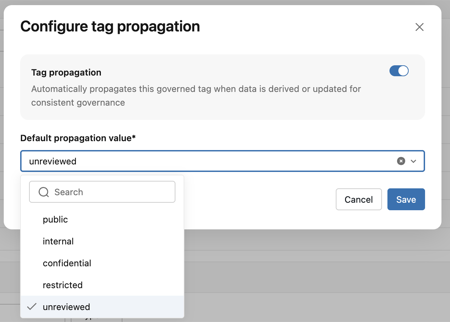
Click Save.
Note
Propagation is asynchronous but runs shortly after an operation completes, so there is usually only a brief delay before its tags appear on the derived object. During this short window, ABAC policies that reference the propagated tag are not enforced on the derived object until the tag appears.
Limitations
Tag propagation has the following limitations:
- Propagation is asynchronous. It runs shortly after an operation completes, so propagated tags usually appear within minutes, but ABAC policies that reference a propagated tag are not enforced on the derived object until the tag appears.
- Propagation is supported on serverless compute only. Classic compute is not supported.
- Only governed tags, including system tags, are propagated. Custom, ungoverned tags are not propagated.
- Propagation is supported for the table securable type only, including its table-level and column-level tags. Volumes and other Unity Catalog securables are not supported.
- Propagation is not supported for streaming tables or materialized views created by Lakeflow Declarative Pipelines.
- A single object can have a maximum of 50 tags, including propagated tags. Propagation does not exceed this limit.