Note
Access to this page requires authorization. You can try signing in or changing directories.
Access to this page requires authorization. You can try changing directories.
When automatic identity management is enabled, every group from Microsoft Entra ID is visible in Azure Databricks directory search and group pickers. Group visibility filters let account admins control which Microsoft Entra ID groups are visible, so that only the groups you allow appear in search and can be added to policies.
Group visibility filters change only which groups are discoverable. Provisioning is unchanged: every user and service principal in Microsoft Entra ID is still just-in-time provisioned and can sign in. For more information on JIT provisioning, see Automatically provision users (JIT).
How group visibility filters work
Group visibility filters are an account-level configuration that applies across all workspaces. You can define two types of rules:
- Exact match: matches a group by its external ID.
- Starts with: matches groups whose display name begins with a value.
A group is visible when it, or any of its transitive parent groups, matches at least one rule. For example, a Starts with rule for data- makes data-platform visible, along with its child groups. Two exceptions apply:
- If you haven't configured any filters, all groups are visible.
- Already-provisioned groups and local Azure Databricks groups are always visible, regardless of your filters.
Filters apply to provisioning as well as discovery: once you configure a filter, creating or updating a group whose external ID matches no filter is rejected.
Filters are immutable. To change a rule, delete it and create a new one. When you remove a rule, groups that no longer match stop appearing in search and can't be added to policies, but already-provisioned groups aren't deleted. To fully remove a provisioned group, delete it from your identity provider so it syncs out.
Configure group visibility filters
Account admins configure group visibility filters in the account console.
- As an account admin, log in to the account console.
- In the sidebar, click Security.
- Click the Identity provider setup tab, then in the Identity management section click Automatic identity management.
- Under Control which groups are visible in Databricks, click Manage filters.
- In the Group visibility filter dialog, click Add rules and choose a rule type: Exact match on a group's external ID, or Starts with to match a display name prefix.
- Save your changes.
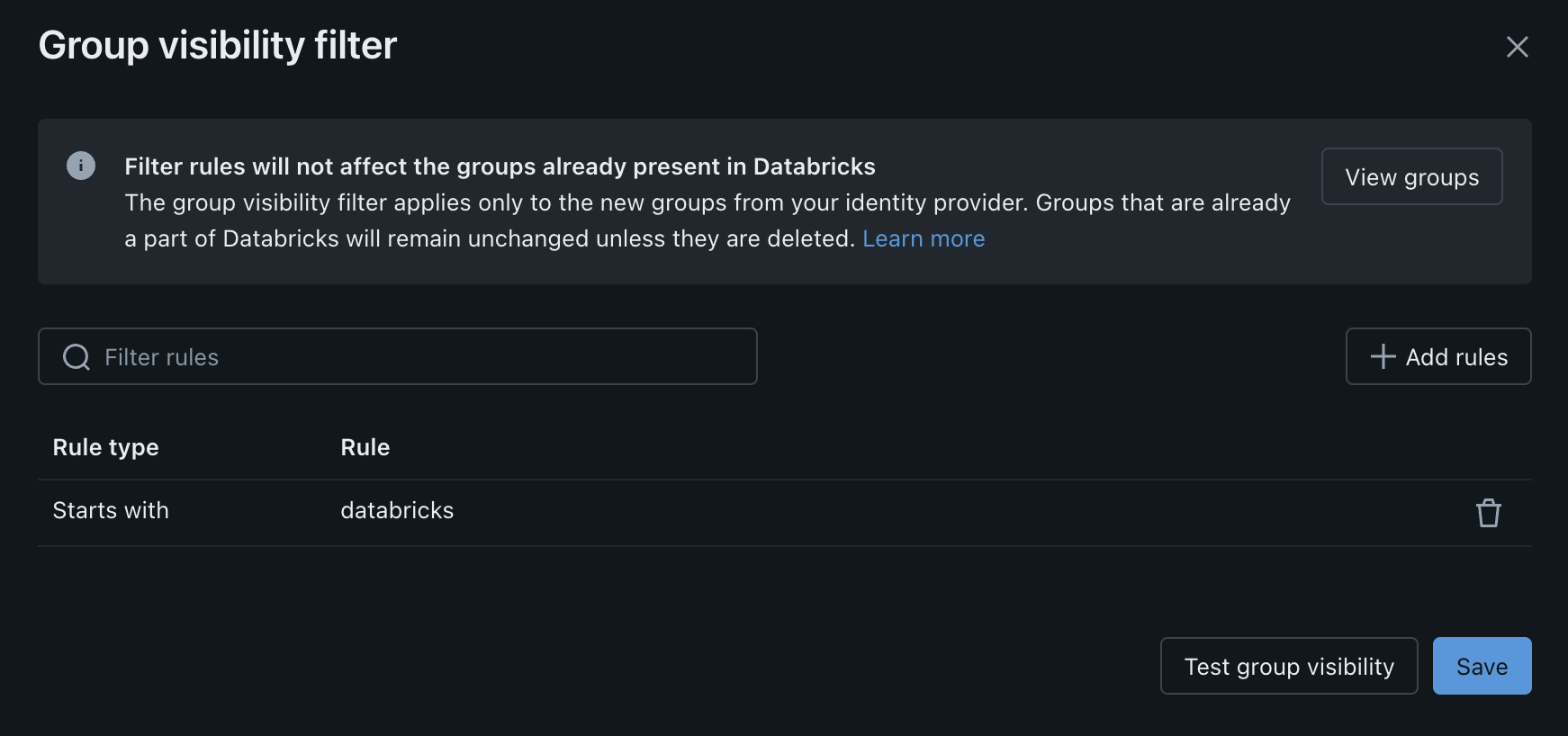
Test group visibility
Before you apply your filters, you can test whether a specific group would be visible under the current configuration.
- In the Group visibility filter dialog, click Test group visibility.
- Search for the group you want to test.
- Review the result to see whether the group would be visible.
Manage filters with the API
You can manage group visibility filters with the account REST API. The API supports creating, getting, listing, and deleting filters:
POST   /2.0/identity/accounts/{account_id}/identity-visibility-filters
GET    /2.0/identity/accounts/{account_id}/identity-visibility-filters/{filter_id}
GET    /2.0/identity/accounts/{account_id}/identity-visibility-filters
DELETE /2.0/identity/accounts/{account_id}/identity-visibility-filters/{filter_id}
To create a filter for groups, set principal_type to GROUP. Because filters are immutable, there is no update operation. To change a filter, delete it and create a new one.
Limitations
Group visibility filters support only Exact match (on a group's external ID) and Starts with (display name prefix) rules. Matching on display name suffix, substring, or regular expressions is not supported.