Note
Access to this page requires authorization. You can try signing in or changing directories.
Access to this page requires authorization. You can try changing directories.
Delete a workspace from your Azure Databricks account.
Note
When you delete an Azure Databricks workspace, most compute resources such as VMs and disks are automatically cleaned up. However, the DBFS storage account and access connector in the managed resource group are retained unless you force delete them. See Force delete the workspace catalog.
To delete an Azure Databricks workspace:
- Log in to your Azure Databricks workspace as the account owner (the user who created the service).
- Click your username in the top bar of the workspace, and select Azure portal from the dropdown menu.
- In the Azure Databricks service, click Delete and then follow the instructions to delete the workspace.
Workspace deletion retention policy
When you delete an Azure Databricks workspace on Azure, the workspace enters a soft-deleted state for 7 days before it is permanently (hard) deleted. During this 7-day retention period, Azure Databricks may be able to partially restore the workspace on a best-effort basis. After 7 days, the workspace is permanently deleted and cannot be recovered.
Important
The 7-day soft-delete retention period and workspace restore aren't supported in the Azure Government regions US Gov Virginia (usgovva) and US Gov Arizona (usgovaz). In these regions, deleting a workspace is immediate and permanent.
Warning
Workspace restoration is not guaranteed and has no SLA. You should treat workspace deletion as a permanent action and ensure that all important data is backed up before deleting a workspace.
What is preserved during the retention period
During the 7-day soft-delete window, Azure Databricks-managed workspace resources such as notebooks, jobs, and workspace configurations may be recoverable. With the exception of serverless serving endpoints, Azure cloud resources associated with the workspace, including VMs, managed disks, and networking configurations, are cleaned up immediately when the workspace is deleted. These Azure resources cannot be restored.
If a workspace is restored during the retention period, you must reconfigure Azure-specific resources. This can include creating a new workspace and migrating your data and configurations.
Important
The 7-day retention period applies only to Azure Databricks-managed workspace metadata. Azure cloud resources are not subject to this retention policy and are removed immediately upon deletion.
Serverless serving endpoints billing
Serverless serving endpoints, including AI Search (Vector Search) endpoints and model serving endpoints, are not stopped when you delete the workspace. They remain provisioned and continue to accrue serverless Databricks unit (DBU) charges throughout the 7-day retention period, until the workspace is permanently deleted. AI Search endpoints bill on endpoint presence rather than query volume, so they accrue charges (for example, under the PREMIUM_SERVERLESS_REAL_TIME_INFERENCE_* SKU) even when they receive no queries.
Warning
To avoid these charges, delete your serverless serving endpoints before you delete the workspace:
- To delete an AI Search endpoint, see
vector-search-endpointscommand group. - To delete a model serving endpoint, see Delete a model serving endpoint.
Deleting the workspace alone does not stop billing for these endpoints.
Recommendations before deleting a workspace
To avoid data loss and reduce the risk of needing a workspace restore, Azure Databricks recommends the following before you delete a workspace:
- Back up all notebooks, job configurations, and other workspace assets.
- Export any data stored in DBFS that you need to retain.
- Delete any serverless serving endpoints, such as AI Search (Vector Search) and model serving endpoints, to stop charges that otherwise continue while the workspace is being deleted.
- Document your workspace configuration, including cluster policies, access control lists, and secret scopes.
- Verify that no production workloads depend on the workspace.
- If the workspace uses Unity Catalog, review the workspace catalog retention behavior to understand which catalog resources persist after deletion.
Workspace catalog retention behavior
If your workspace has Unity Catalog enabled by default, the default workspace catalog is retained even after you delete the workspace. This preserves the data files for managed tables in this catalog. Azure Databricks converts the managed resource group into a regular resource group, and the storage container that holds the Unity Catalog data is retained alongside the access connector in that resource group.
To see if this applies to your workspace, see Step 1: Confirm that your workspace is enabled for Unity Catalog.
If you want to completely remove the workspace catalog and all associated data, see Force delete the workspace catalog.
Force delete the workspace catalog
You can force delete the workspace catalog and its associated managed resource group when deleting the workspace. This permanently removes all data in the workspace catalog, including managed tables and volumes.
Warning
Force deletion is irreversible. Make sure you have backed up any data you need before proceeding.
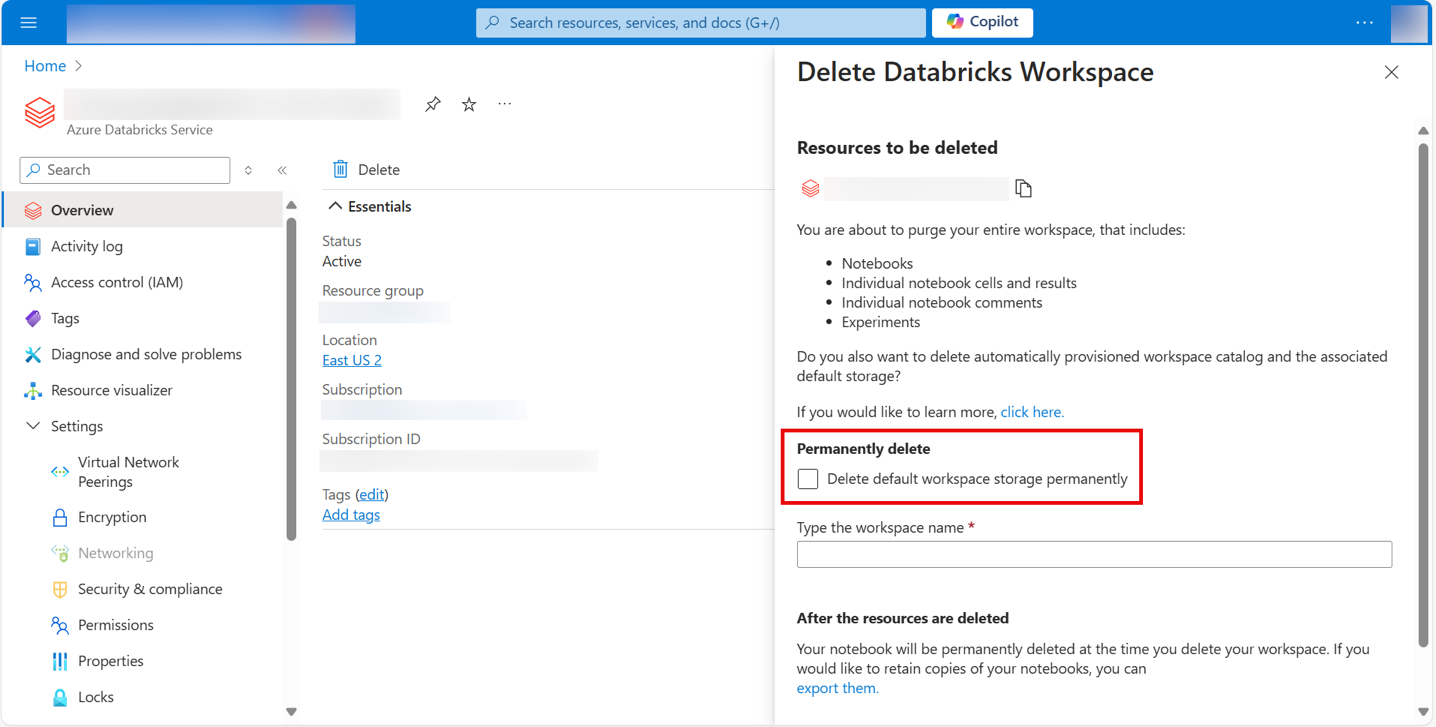
Force delete using the Azure Portal
When deleting a workspace in the Azure Portal, select the checkbox option to delete the workspace along with its managed resource group. This removes the workspace catalog and all associated data.
Force delete using Azure PowerShell
To force delete a workspace and its managed resource group using Azure PowerShell, use the Remove-AzDatabricksWorkspace cmdlet with the -ForceDeletion flag:
Remove-AzDatabricksWorkspace -ForceDeletion -Name <NameOfWorkspace> -ResourceGroupName <NameOfResourceGroup>
Replace <NameOfWorkspace> with your workspace name and <NameOfResourceGroup> with the name of the resource group containing the workspace.
Force delete using Azure CLI
To force delete a workspace and its managed resource group using the Azure CLI, use the az databricks workspace delete command with the --force-deletion flag:
az databricks workspace delete --force-deletion --name <NameOfWorkspace> --resource-group <NameOfResourceGroup>
Replace <NameOfWorkspace> with your workspace name and <NameOfResourceGroup> with the name of the resource group containing the workspace.
Force delete using resource group deletion
When deleting the resource group that contains an Azure Databricks workspace, you can force delete the workspace catalog by specifying force deletion types.
Using Azure CLI:
az group delete --name <NameOfResourceGroup> --force-deletion-types Microsoft.Databricks/workspaces
Using Azure PowerShell:
Remove-AzResourceGroup -Name <NameOfResourceGroup> -ForceDeletionType Microsoft.Databricks/workspaces -Force
Replace <NameOfResourceGroup> with the name of the resource group containing the workspace.
Important
Deleting a resource group through the Azure Portal UI doesn't automatically force delete the workspace catalog or managed resource group. You must use the Azure CLI or PowerShell with the appropriate force deletion parameters to ensure complete cleanup.