Note
Access to this page requires authorization. You can try signing in or changing directories.
Access to this page requires authorization. You can try changing directories.
Important
Smart Routing is in Beta and is enabled per account. An account admin must turn on the Smart Routing preview before your users can use it. Availability, supported models, and the API are subject to change during the Beta.
Smart Routing automatically selects the best model for each task a coding agent takes on. In Omnigent, it also selects the best coding harness. Instead of asking every developer to pick a model for every request, Unity AI Gateway routes each task to the lowest-cost model capable of handling it.
Set up Smart Routing through Omnigent or ucode, depending on how you run your coding agent.
Requirements
- Smart Routing account-level preview enabled for your account. Reach out to your account admin to enable and allow 1-2 minutes after enablement for it to propagate to your workspace.
- Access to the candidate models that Smart Routing can select. Smart Routing chooses only among
system.ai-prefixed model services.
- A Azure Databricks workspace in an Unity AI Gateway supported region.
- To route across coding harnesses, not just models, use Omnigent version v0.8.0 or later. Routing across harnesses is available only in Omnigent.
Set up Smart Routing using Omnigent
Omnigent gives Smart Routing its fullest form. It can choose both the model and the coding harness for each task. The choice applies to the main agent and to every subagent a session launches.
To set up Omnigent:
Configure Claude Code and Codex to use your Azure Databricks workspace for inference:
omni setupConnect your computer to the Omnigent server:
omni host --server <workspace-url>Replace
<workspace-url>with your Azure Databricks workspace URL.
Then turn on Smart Routing from the UI or the CLI.
From the UI
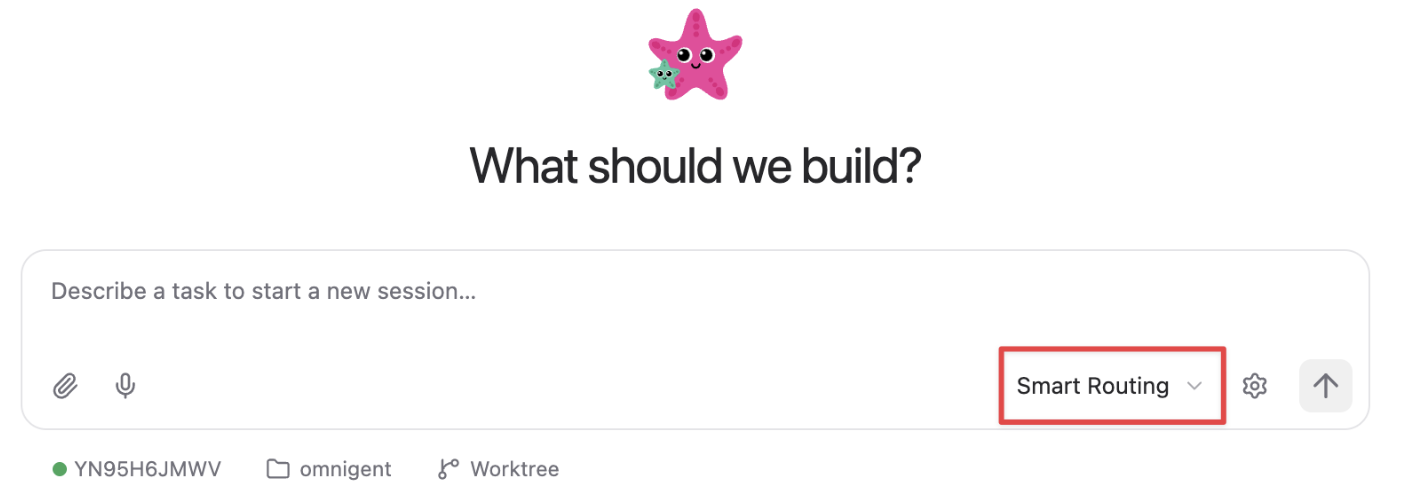
Select Smart Routing as the harness so Omnigent chooses both your model and harness:
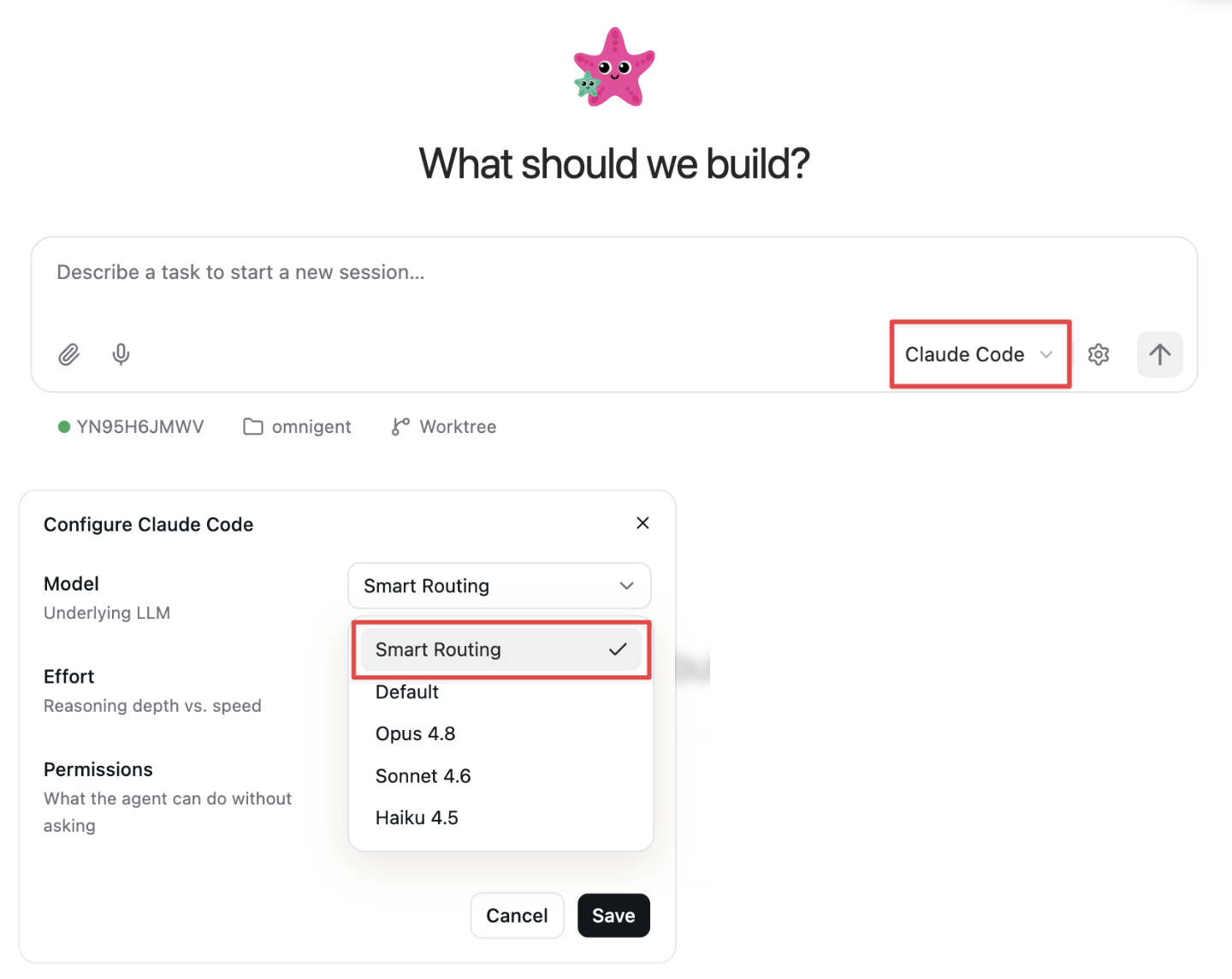
Or, after choosing Claude Code or Codex, click the gear icon and select Smart Routing for your model:
From the CLI
Pass --smart-routing to the harness:
omni claude --smart-routing --server <workspace-url>
omni codex --smart-routing --server <workspace-url>
Replace <workspace-url> with your Azure Databricks workspace URL.
Set up Smart Routing using ucode
ucode is the Azure Databricks CLI for running coding agents against Unity AI Gateway. If you run Codex or Claude Code through ucode, enable Smart Routing per agent:
ucode codex --enable-smart-routing
ucode claude --enable-smart-routing
The setting persists per agent, so later ucode codex or ucode claude sessions keep Smart Routing on. To turn it off:
ucode codex --disable-smart-routing
ucode claude --disable-smart-routing
After Smart Routing is enabled, pass your prompt on the command line to route it. Smart Routing does not apply to an interactive root session, so you must supply the prompt with --:
ucode claude -- "<prompt>"
ucode codex -- "<prompt>"
Smart Routing selects the model for that prompt, and any subagents the task spawns are routed the same way. Routing across harnesses is available only in Omnigent.
Limitations
- Smart Routing is in Beta and enabled per account.
- Smart Routing selects only among
system.ai-prefixed model services. Custom model services are not currently supported. - The user needs access to every candidate model the router can select, or Smart Routing fails. For example, if the router can route to
gpt-5.5,claude-opus-4-8, andglm-5.2, the user needsEXECUTEon thesystem.ai.gpt-5-5,system.ai.claude-opus-4-8, andsystem.ai.glm-5-2model services. If the user lacks access to any candidate, the request returns an error naming the model services they need. - Outside Omnigent, Smart Routing can be configured only with
ucode. Native Claude Code and Codex (run directly, not throughucode) do not support Smart Routing through Unity AI Gateway. ucoderoutes among models within a harness. Routing across harnesses requires Omnigent v0.8.0 or later.