Note
Access to this page requires authorization. You can try signing in or changing directories.
Access to this page requires authorization. You can try changing directories.
This page explains how to manage access to serverless compute and how to implement serverless rate limits. Workspace admins govern serverless compute using built-in serverless compute objects. A serverless compute object is a resource type that defines the permission boundary for serverless workloads. Your workspace automatically gets two default compute objects:
- Default Interactive Compute: Governs access to notebooks and Databricks Connect.
- Default Automated Compute: Governs access to jobs and Spark Declarative Pipelines on Lakeflow.
By default, all workspace users have Can Use on both objects, so existing workloads continue to run without any changes. A workspace admin can remove users or groups from either object to restrict access. A user who loses access will see the Serverless compute option as unavailable in their product surfaces.
Manage access to serverless compute
To control who has access to serverless compute, workspace admins can edit the permissions on the Default Interactive Compute and Default Automated Compute objects. Workspace admins have the Can Manage permission by default, but they can grant the permission to any user. These default compute objects cannot be renamed or deleted.

Each serverless compute object supports two permission levels:
| Permission | Allows you to |
|---|---|
| Can Use | Run workloads on this compute |
| Can Manage | Run workloads on this compute and edit the compute's permissions |
You can also manage permissions for serverless compute objects programmatically using the Permissions API. Serverless compute objects use the serverless-compute object type, and each object is identified by its ID.
Restrict access to serverless interactive
To limit who can use serverless for notebooks and Databricks Connect:
- Click Compute in the workspace sidebar.
- In the Serverless tab, click the kebab menu
 next to Default Interactive Compute, then click Edit permissions.
 - Remove the All Users group, or the group that includes all workspace users.
- Add only the specific users, groups, or service principals that you want to authorize.
If you revoke a user's interactive serverless permissions, notebooks already attached to serverless will fail to connect when the user runs a cell and the user will no longer see the Serverless option as available in the notebook's compute picker. If they attempt to run Databricks Connect, the connection request fails with an error indicating that the user doesn't have access to serverless.
Restrict access to serverless jobs and pipelines
To limit who can use serverless in jobs and pipelines:
- Click Compute in the workspace sidebar.
- In the Serverless tab, click the kebab menu next to Default Automated Compute, then click Edit permissions.
- Remove the All Users group, or the group that includes all workspace users.
- Add only the specific users, groups, or service principals that you want to authorize.
If you revoke a user's automated serverless permissions, all of the user's existing jobs or pipelines running on serverless will fail to run. The user will see an error message if they attempt to run a job on serverless.
Before you revoke a user's access to Default Automated Compute, audit which jobs and pipelines the affected users own. The following query identifies recent serverless workloads for a specific user:
SELECT *
FROM system.billing.usage
WHERE usage_date >= date_add(now(), -30)
  AND billing_origin_product IN ('JOBS', 'DLT')
  AND identity_metadata.run_as = '<user_email>';
Check the usage_metadata column to see the affected resources, such as job IDs and pipeline IDs.
Audit serverless usage
Serverless billing records include a serverless_compute_id field in usage_metadata. Use it to track which compute object a workload ran on:
SELECT
  usage_metadata.serverless_compute_id,
  identity_metadata.run_as,
  SUM(usage_quantity) AS total_dbus
FROM system.billing.usage
WHERE billing_origin_product IN ('JOBS', 'DLT', 'INTERACTIVE')
  AND usage_metadata.serverless_compute_id IS NOT NULL
  AND usage_date >= date_add(now(), -30)
GROUP BY 1, 2
ORDER BY 3 DESC;
Supported serverless compute access control features
The following features are integrated with serverless compute access controls.
Interactive (Default Interactive Compute)
- Notebooks and AI Runtime notebooks
- Databricks Connect
Automated (Default Automated Compute)
- Jobs and AI Runtime jobs
- Spark Declarative Pipelines on Lakeflow
Unsupported serverless compute access control features
The following features aren't integrated with serverless compute access controls:
- Databricks SQL (DBSQL)
- Batch inference (
ai_query()) - Model Serving
- Foundation Model API provisioned throughput endpoints
- Lakebase
- Databricks Apps
- Agent Evaluation and synthetic data
- Vector Search indexing
- Predictive Optimization
- Lakehouse Monitoring
- Fine-grained access control on dedicated compute. Access to the dedicated compute determines whether a user can use fine-grained access control.
For any feature not listed here, contact your Azure Databricks account team to ask about its status.
Serverless access control limitations
Important
In the event of a service disruption, access checks might fail open, and users who would otherwise be denied access might be able to start serverless workloads. This feature is intended to help govern access to serverless compute. Do not use this feature to ensure an absolute spend cap on final billed amounts. Azure Databricks is not responsible for costs incurred by workloads that run during such an event.
- You can't rename or delete default compute objects.
- A job or pipeline already configured to run on serverless fails for any user who loses Can Use access to Default Automated Compute. Review active workloads before you remove a user's access.
- Background compute (system-initiated jobs) is exempt from serverless compute access controls.
Set rate limits on serverless compute
Important
Rate limits are in Private Preview. To join this preview, contact your Azure Databricks account team. After joining the preview, workspace admins can enable it from the Previews page using the Serverless Compute Rate Limit setting.
A rate limit caps how much an automated workload can spend by limiting how far it can autoscale. Workspace admins can create custom automated compute objects and assign each one a rate limit. When a workload runs on a compute object that has a rate limit, the serverless autoscaler doesn't scale the workload's Spark executors beyond the size set on the object.
Rate limits only apply to automated workloads (jobs and Spark Declarative Pipelines on Lakeflow). Interactive workloads (notebooks and Databricks Connect) aren't rate-limited.
A rate limit is expressed as a size. Each size maps to an approximate cap on the DBUs a workload can consume per hour. The rate limit caps Spark executor autoscaling only. It doesn't cap other components of a workload, such as the driver, REPL VMs, GPUs, or materialized view and streaming table refreshes.
The rate limit cap applies per workload. Each job and each pipeline that uses a compute object is capped independently. Two jobs that use the same compute object each receive the full cap. Within a single job, the cap is shared across all the job's tasks.
Rate limit requirements
- To create and manage serverless compute objects, you must be a workspace admin or a user with unrestricted cluster creation.
- Serverless rate limits require Azure Databricks Runtime 17.3.1 or above. Jobs use the latest runtime automatically. For Spark Declarative Pipelines on Lakeflow, opt in to the preview channel runtime.
Create a serverless compute with a rate limit
- Click Compute in the workspace sidebar.
- In the Serverless tab, click Create serverless compute.
- Enter a name.
- For Size, select the rate limit to apply, from Small to 2X-Large. Leave it set to Default to use your workspace's default cap.
- Click Create.
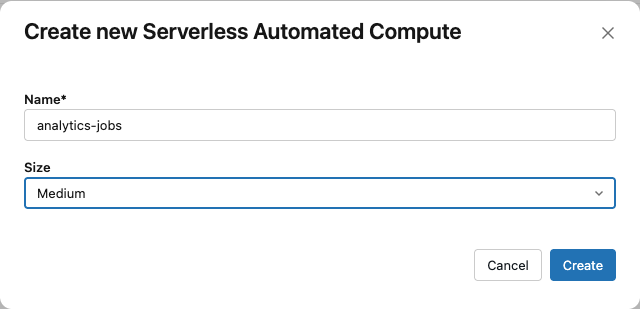
The new compute object appears on the Serverless tab with a type of Automated. To let users run workloads on it, grant them Can Use or Can Manage as described in Manage access to serverless compute. You can't edit the size of a default compute object.
Rate limit sizes
Each size maps to an approximate hourly DBU cap:
| Size | Approximate cap |
|---|---|
| Small | ~60 DBUs per hour |
| Medium | ~120 DBUs per hour |
| Large | ~240 DBUs per hour |
| X-Large | ~480 DBUs per hour |
| 2X-Large | ~960 DBUs per hour |
These caps are directional thresholds. Actual usage can fluctuate around them because of the inherent variability of serverless infrastructure.
Choosing Default applies your workspace's default cap: Medium for premium-tier workspaces, or Large for enterprise-tier workspaces. These match the existing default maximum autoscaling caps for serverless automated workloads.
Run a workload on rate-limited compute
A user with Can Use on a compute object can select it when configuring a job or pipeline. The workload then runs under the compute's rate limit. If a workload doesn't specify a compute object, it falls back to your workspace's Default Automated Compute. If the user doesn't have access to that default, the workload fails to run.
- Jobs: Select the serverless compute object at the job level, either in the job's Compute settings in the UI or by referencing the compute's ID in the Jobs API. To copy the ID, open the compute object on the Serverless tab and click Copy compute ID.
- Spark Declarative Pipelines on Lakeflow: Select the automated compute object as the serverless compute for a pipeline in the Lakeflow editor.
When a rate limit throttles a workload, you can view the impact in the workload's query history, or for pipelines, in the Lakeflow UI.
Rate limit limitations
- Rate limits cap Spark executor autoscaling only. Other cost components, such as the driver, REPL VMs, GPUs, and materialized view or streaming table refreshes, aren't capped.
- The DBU-per-hour cap for each size is an estimate. Actual usage can exceed the target because of modest fluctuations in the applied limit and the inherent variability of serverless infrastructure.
- A workload at the 2X-Large size might perform below expectations because the physical cluster size is capped at 256 executors. If two or more 2X-Large workloads are scheduled on the same runtime cluster, each might attain less than the expected performance.
- Because of billing implementation details, the same workload might incur different DBU usage under different rate limit sizes.
- You can't set a rate limit on a default compute object.