Note
Access to this page requires authorization. You can try signing in or changing directories.
Access to this page requires authorization. You can try changing directories.
This page shows the most common authentication methods for the Kafka connector on Azure Databricks.
The full list of supported authentication methods can be found in the Kafka documentation. For the authentication options reference, see Authentication.
Connect to Azure Event Hubs with a service principal
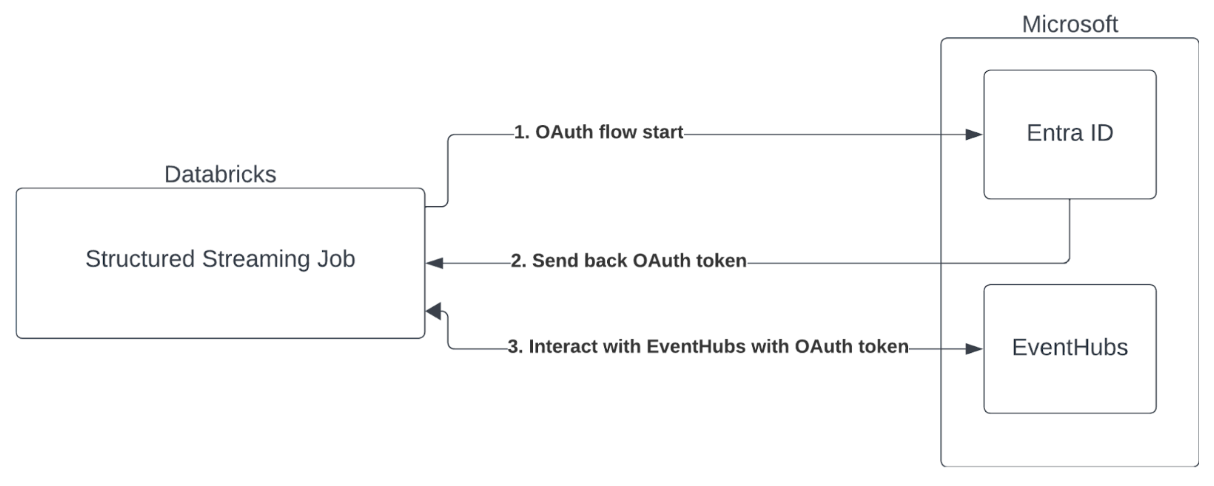
Azure Databricks supports the authentication of Spark jobs with Event Hubs services using OAuth with Microsoft Entra ID.
Connect with Unity Catalog service credentials
In Databricks Runtime 16.1 and above, Azure Databricks supports Unity Catalog service credentials for authenticating to Azure Event Hubs. Databricks recommends this approach if you run Kafka streaming on shared clusters or serverless compute.
To use an Unity Catalog service credential for authentication, do the following:
- Create a new Unity Catalog service credential. See Create service credentials.
- Confirm that the access connector attached to your service credential has the correct permissions to connect to Azure Event Hubs.
- Set the source option
databricks.serviceCredentialto the name of your service credential.
The following example configures Kafka as a source using a service credential:
Python
kafka_options = {
  "kafka.bootstrap.servers": "<bootstrap-hostname>:9092",
  "subscribe": "<topic>",
  "databricks.serviceCredential": "<service-credential-name>",
  # Optional: set this only if Databricks can't infer the scope for your Kafka service.
  # "databricks.serviceCredential.scope": "https://<event-hubs-server>/.default",
}

df = spark.readStream.format("kafka").options(**kafka_options).load()
Scala
val kafkaOptions = Map(
  "kafka.bootstrap.servers" -> "<bootstrap-hostname>:9092",
  "subscribe" -> "<topic>",
  "databricks.serviceCredential" -> "<service-credential-name>",
  // Optional: set this only if Databricks can't infer the scope for your Kafka service.
  // "databricks.serviceCredential.scope" -> "https://<event-hubs-server>/.default",
)

val df = spark.readStream.format("kafka").options(kafkaOptions).load()
SQL
SELECT * FROM read_kafka(
  bootstrapServers => '<bootstrap-hostname>:9092',
  subscribe => '<topic>',
  serviceCredential => '<service-credential-name>'
);
Note
When you use a Unity Catalog service credential to connect to Kafka, don't use the following options:
kafka.sasl.mechanismkafka.sasl.jaas.configkafka.security.protocolkafka.sasl.client.callback.handler.classkafka.sasl.oauthbearer.token.endpoint.url
Connect with a client ID and secret
Azure Databricks supports Microsoft Entra ID authentication with a client ID and secret in the following compute environments:
- Databricks Runtime 12.2 LTS and above on compute configured with dedicated access mode.
- Databricks Runtime 14.3 LTS and above on compute configured with standard access mode.
- Lakeflow pipelines configured without Unity Catalog.
Azure Databricks does not support Microsoft Entra ID authentication with a certificate in any compute environment, or in Lakeflow pipelines configured with Unity Catalog.
This authentication does not work on compute with standard access mode or on Unity Catalog Lakeflow pipelines.
To perform authentication with Microsoft Entra ID, you must have the following values:
A tenant ID. You can find this in the Microsoft Entra ID services tab.
A clientID, also known as an Application ID.
A client secret. Add this as a secret to your Databricks Workspace. See Secret management.
An EventHubs topic. You can find a list of topics in the Event Hubs section under the Entities section on a specific Event Hubs Namespace page. To work with multiple topics, you can set the IAM role at the Event Hubs level.
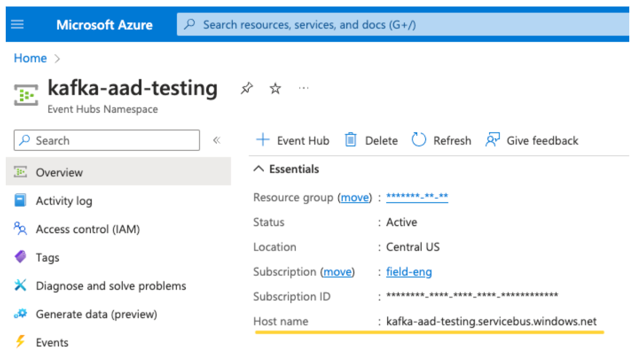
An EventHubs server. You can find this on the overview page of your specific Event Hubs namespace:
To use Entra ID, you must configure Kafka to use the OAuth SASL:
- Set
kafka.security.protocoltoSASL_SSL - Set
kafka.sasl.mechanismtoOAUTHBEARER - Set
kafka.sasl.login.callback.handler.classto be a fully qualified name of the Java class. The qualified name iskafkashadedand the login callback handler of the Databricks shaded Kafka class. See the following example for the exact class.
SASL is a generic authentication protocol, and OAuth is an SASL mechanism.
The following example configures Kafka to connect to Azure Event Hubs using Microsoft Entra ID authentication with a client ID and secret:
Python
# This is the only section you need to modify for auth purposes
# ------------------------------
tenant_id = "..."
client_id = "..."
client_secret = dbutils.secrets.get("your-scope", "your-secret-name")

event_hubs_server = "..."
event_hubs_topic = "..."
# -------------------------------

sasl_config = f'kafkashaded.org.apache.kafka.common.security.oauthbearer.OAuthBearerLoginModule required clientId="{client_id}" clientSecret="{client_secret}" scope="https://{event_hubs_server}/.default" ssl.protocol="SSL";'

kafka_options = {
    "kafka.bootstrap.servers": f"{event_hubs_server}:9093", # Port 9093 is the EventHubs Kafka port
    "kafka.sasl.jaas.config": sasl_config,
    "kafka.sasl.oauthbearer.token.endpoint.url": f"https://login.microsoft.com/{tenant_id}/oauth2/v2.0/token",
    "subscribe": event_hubs_topic,

    # You should not need to modify these
    "kafka.security.protocol": "SASL_SSL",
    "kafka.sasl.mechanism": "OAUTHBEARER",
    "kafka.sasl.login.callback.handler.class": "kafkashaded.org.apache.kafka.common.security.oauthbearer.secured.OAuthBearerLoginCallbackHandler"
}

df = spark.readStream.format("kafka").options(**kafka_options)

display(df)
Scala
// This is the only section you need to modify for auth purposes
// -------------------------------
val tenantId = "..."
val clientId = "..."
val clientSecret = dbutils.secrets.get("your-scope", "your-secret-name")

val eventHubsServer = "..."
val eventHubsTopic = "..."
// -------------------------------

val saslConfig = s"""kafkashaded.org.apache.kafka.common.security.oauthbearer.OAuthBearerLoginModule required clientId="$clientId" clientSecret="$clientSecret" scope="https://$eventHubsServer/.default" ssl.protocol="SSL";"""

val kafkaOptions = Map(
  "kafka.bootstrap.servers" -> s"$eventHubsServer:9093", // Port 9093 is the EventHubs Kafka port
  "kafka.sasl.jaas.config" -> saslConfig,
  "kafka.sasl.oauthbearer.token.endpoint.url" -> s"https://login.microsoft.com/$tenantId/oauth2/v2.0/token",
  "subscribe" -> eventHubsTopic,

  // You should not need to modify these
  "kafka.security.protocol" -> "SASL_SSL",
  "kafka.sasl.mechanism" -> "OAUTHBEARER",
  "kafka.sasl.login.callback.handler.class" -> "kafkashaded.org.apache.kafka.common.security.oauthbearer.secured.OAuthBearerLoginCallbackHandler"
)

val scalaDF = spark.readStream
  .format("kafka")
  .options(kafkaOptions)
  .load()

display(scalaDF)
SQL
CREATE OR REFRESH STREAMING TABLE <table_name>
AS
SELECT * FROM STREAM read_kafka(
  bootstrapServers => '<event-hubs-server>:9093',
  subscribe => '<event-hubs-topic>',
  `kafka.security.protocol` => 'SASL_SSL',
  `kafka.sasl.mechanism` => 'OAUTHBEARER',
  `kafka.sasl.jaas.config` => 'kafkashaded.org.apache.kafka.common.security.oauthbearer.OAuthBearerLoginModule required clientId="<client-id>" clientSecret="<client-secret>" scope="https://<event-hubs-server>/.default" ssl.protocol="SSL";',
  `kafka.sasl.oauthbearer.token.endpoint.url` => 'https://login.microsoft.com/<tenant-id>/oauth2/v2.0/token',
  `kafka.sasl.login.callback.handler.class` => 'kafkashaded.org.apache.kafka.common.security.oauthbearer.secured.OAuthBearerLoginCallbackHandler'
);
Use SASL/PLAIN to authenticate
To connect to Kafka using SASL/PLAIN (username and password) authentication, configure the following options. Use the shaded PlainLoginModule class name:
Python
kafka_options = {
  "kafka.bootstrap.servers": "<bootstrap-server>:9093",
  "subscribe": "<topic>",
  "kafka.security.protocol": "SASL_SSL",
  "kafka.sasl.mechanism": "PLAIN",
  "kafka.sasl.jaas.config":
    'kafkashaded.org.apache.kafka.common.security.plain.PlainLoginModule required username="<username>" password="<password>";',
}

df = spark.readStream.format("kafka").options(**kafka_options).load()
Scala
val kafkaOptions = Map(
  "kafka.bootstrap.servers" -> "<bootstrap-server>:9093",
  "subscribe" -> "<topic>",
  "kafka.security.protocol" -> "SASL_SSL",
  "kafka.sasl.mechanism" -> "PLAIN",
  "kafka.sasl.jaas.config" ->
    """kafkashaded.org.apache.kafka.common.security.plain.PlainLoginModule required username="<username>" password="<password>";""",
)

val df = spark.readStream.format("kafka").options(kafkaOptions).load()
SQL
SELECT * FROM STREAM read_kafka(
  bootstrapServers => '<bootstrap-server>:9093',
  subscribe => '<topic>',
  `kafka.security.protocol` => 'SASL_SSL',
  `kafka.sasl.mechanism` => 'PLAIN',
  `kafka.sasl.jaas.config` => 'kafkashaded.org.apache.kafka.common.security.plain.PlainLoginModule required username="<username>" password="<password>";'
);
Azure Databricks recommends that you store your password as a secret rather than including it directly in your code. For more information, see Secret management.
Use SASL/SCRAM to authenticate
To connect to Kafka using SASL/SCRAM (SCRAM-SHA-256 or SCRAM-SHA-512), configure the following options. Use the shaded ScramLoginModule class name:
Python
kafka_options = {
  "kafka.bootstrap.servers": "<bootstrap-server>:9093",
  "subscribe": "<topic>",
  "kafka.security.protocol": "SASL_SSL",
  "kafka.sasl.mechanism": "SCRAM-SHA-512",
  "kafka.sasl.jaas.config":
    'kafkashaded.org.apache.kafka.common.security.scram.ScramLoginModule required username="<username>" password="<password>";',
}

df = spark.readStream.format("kafka").options(**kafka_options).load()
Scala
val kafkaOptions = Map(
  "kafka.bootstrap.servers" -> "<bootstrap-server>:9093",
  "subscribe" -> "<topic>",
  "kafka.security.protocol" -> "SASL_SSL",
  "kafka.sasl.mechanism" -> "SCRAM-SHA-512",
  "kafka.sasl.jaas.config" ->
    """kafkashaded.org.apache.kafka.common.security.scram.ScramLoginModule required username="<username>" password="<password>";""",
)

val df = spark.readStream.format("kafka").options(kafkaOptions).load()
SQL
SELECT * FROM STREAM read_kafka(
  bootstrapServers => '<bootstrap-server>:9093',
  subscribe => '<topic>',
  `kafka.security.protocol` => 'SASL_SSL',
  `kafka.sasl.mechanism` => 'SCRAM-SHA-512',
  `kafka.sasl.jaas.config` => 'kafkashaded.org.apache.kafka.common.security.scram.ScramLoginModule required username="<username>" password="<password>";'
);
Note
Replace SCRAM-SHA-512 with SCRAM-SHA-256 if your Kafka cluster is configured to use SCRAM-SHA-256.
Azure Databricks recommends that you store your password as a secret rather than including it directly in your code. For more information, see Secret management.
Use SSL to connect Azure Databricks to Kafka
To enable SSL/TLS connections to Kafka, set kafka.security.protocol to SSL and provide the trust store and key store configuration options prefixed with kafka.. For SSL connections that require only server authentication (one-way TLS), you must use a trust store. For mutual TLS (mTLS) where the Kafka broker also authenticates the client, you must use both a trust store and a key store.
The following SSL/TLS options are available. For the full list of SSL properties, see the Apache Kafka SSL configuration documentation and Encryption and Authentication with SSL in the Confluent documentation.
| Option | Description |
|---|---|
kafka.security.protocol |
Set to SSL to enable TLS encryption. |
kafka.ssl.truststore.location |
Path to the trust store file containing trusted CA certificates. |
kafka.ssl.truststore.password |
Password for the trust store file. |
kafka.ssl.truststore.type |
Trust store file format (default: JKS). |
kafka.ssl.keystore.location |
Path to the key store file containing the client certificate and private key (required for mTLS). |
kafka.ssl.keystore.password |
Password for the key store file. |
kafka.ssl.key.password |
Password for the private key in the key store. |
kafka.ssl.endpoint.identification.algorithm |
Hostname verification algorithm. Defaults to https. Set to an empty string to disable. |
If you use SSL, Databricks recommends that you:
- Store your certificates in a Unity Catalog volume. Users who have access to read from the volume can use your Kafka certificates. For more information, see What are Unity Catalog volumes?.
- Store your certificate passwords as secrets in a secret scope. For more information, see Manage secret scopes.
The following example uses object storage locations and Databricks secrets to enable an SSL connection:
Python
df = (spark.readStream
  .format("kafka")
  .option("kafka.bootstrap.servers", "<bootstrap-server>:9093")
  .option("kafka.security.protocol", "SSL")
  .option("kafka.ssl.truststore.location", <truststore-location>)
  .option("kafka.ssl.keystore.location", <keystore-location>)
  .option("kafka.ssl.keystore.password", dbutils.secrets.get(scope=<certificate-scope-name>,key=<keystore-password-key-name>))
  .option("kafka.ssl.truststore.password", dbutils.secrets.get(scope=<certificate-scope-name>,key=<truststore-password-key-name>))
)
Scala
val df = spark.readStream
  .format("kafka")
  .option("kafka.bootstrap.servers", "<bootstrap-server>:9093")
  .option("kafka.security.protocol", "SSL")
  .option("kafka.ssl.truststore.location", <truststore-location>)
  .option("kafka.ssl.keystore.location", <keystore-location>)
  .option("kafka.ssl.keystore.password", dbutils.secrets.get(scope = <certificate-scope-name>, key = <keystore-password-key-name>))
  .option("kafka.ssl.truststore.password", dbutils.secrets.get(scope = <certificate-scope-name>, key = <truststore-password-key-name>))
SQL
SELECT * FROM read_kafka(
  bootstrapServers => '<bootstrap-server>:9093',
  subscribe => '<topic>',
  `kafka.security.protocol` => 'SSL',
  `kafka.ssl.truststore.location` => '<truststore-location>',
  `kafka.ssl.keystore.location` => '<keystore-location>',
  `kafka.ssl.keystore.password` => secret('<certificate-scope-name>', '<keystore-password-key-name>'),
  `kafka.ssl.truststore.password` => secret('<certificate-scope-name>', '<truststore-password-key-name>')
);
Connect Kafka on HDInsight to Azure Databricks
Create an HDInsight Kafka cluster.
See Connect to Kafka on HDInsight through an Azure Virtual Network for instructions.
Configure the Kafka brokers to advertise the correct address.
Follow the instructions in Configure Kafka for IP advertising. If you manage Kafka yourself on Azure Virtual Machines, make sure that the
advertised.listenersconfiguration of the brokers is set to the internal IP of the hosts.Create an Azure Databricks cluster.
Peer the Kafka cluster to the Azure Databricks cluster.
Follow the instructions in Peer virtual networks.
Use Databricks shaded Kafka class names
Azure Databricks bundles proprietary, shaded versions of the Kafka client libraries. All Kafka client class names that you reference in authentication configuration options must use the shaded class name prefix instead of the standard open-source class name. This applies to any class referenced in options like kafka.sasl.jaas.config, kafka.sasl.login.callback.handler.class, and kafka.sasl.client.callback.handler.class.
If you use unshaded class names, your code raises a RESTRICTED_STREAMING_OPTION_PERMISSION_ENFORCED error. See the FAQ for more details.
Handling potential errors
Failed to create a new
KafkaAdminClientThis internal Kafka error is thrown if any of the following authentication options are incorrect:
- Client ID (also known as Application ID)
- Tenant ID
- Event Hubs server
To resolve the error, verify that the values are correct for these options. Additionally, you might see this error if you modify the configuration options provided by default in the example (such as
kafka.security.protocol).No records returned
If you are trying to display or process your DataFrame but aren't getting results, you will see the following in the UI.
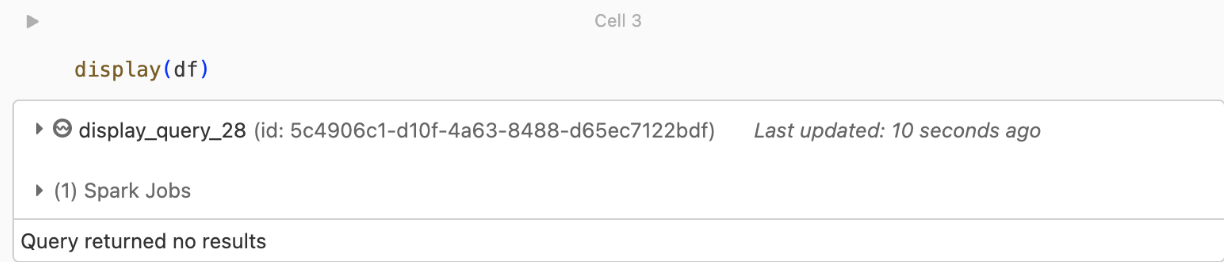
This message means that authentication was successful, but EventHubs didn't return any data. Some possible (though by no means exhaustive) reasons are:
- You specified the wrong EventHubs topic.
- The default Kafka configuration option for
startingOffsetsislatest, and you're not currently receiving any data through the topic yet. You can setstartingOffsetstoearliestto start reading data starting from Kafka's earliest offsets.