Note
Access to this page requires authorization. You can try signing in or changing directories.
Access to this page requires authorization. You can try changing directories.
You can export and import dashboards as files to facilitate the sharing of editable dashboards across different workspaces. To transfer a dashboard to a different workspace, export it as a file and then import it into the new workspace. You can also replace dashboard files in place. That means that when you edit a dashboard file directly, you can upload that file to the original workspace and overwrite the existing file while maintaining the existing sharing settings.
The following sections explain how to export and import dashboards in the UI. You can also use the Databricks API to import and export dashboards programmatically. See POST /api/2.0/workspace/import.
Export a dashboard file
To export a dashboard file:
- Open a draft dashboard.
- Click the
 kebab menu at the screen's upper-right corner.
 - Click File actions > Export.
When the export succeeds, a .lvdash.json file is saved to your web browser's default download directory.
Import a dashboard file
- From the dashboards listing page, click
 > Import dashboard from file.
 - Click Choose file to open your local file dialog, then select the
.lvdash.jsonfile you want to import. - Click Import dashboard to confirm and create the dashboard.
The imported dashboard is saved to your user folder. If an imported dashboard with the same name already exists in that location, the conflict is automatically resolved by appending a number in parentheses to create a unique name.
Replace a dashboard from a file
To replace a dashboard from a file:
- Open a draft dashboard.
- Click the kebab menu at the screen's upper-right corner.
- Click File actions > Replace.
- Click Choose file to open the file dialog and select the
.lvdash.jsonfile to import. - Click Overwrite to overwrite the existing dashboard.
Edit a dashboard file
The serialized lvdash.json file that you have after exporting a dashboard includes complete query syntax and widget settings. In some cases, such as editing an automatically generated page or widget name value, it's useful to be able to edit this file directly.
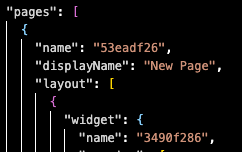
To edit automatically generated page and widget ID values:
- Export the draft dashboard and open the
.lvdash.jsonfile in a text editor. - Edit the
namevalues associated with the page and widget. Save the file. - Import the file to your workspace and republish.
Note
The name value in the JSON file is separate from the displayName field, which defines the page name shown in the UI.