Note
Access to this page requires authorization. You can try signing in or changing directories.
Access to this page requires authorization. You can try changing directories.
AI/BI dashboards are an interactive data visualization platform that allows you to transform data into actionable insights and share them across your organization. Dashboards feature AI-assisted authoring, an enhanced visualization library, and a streamlined configuration experience to help you quickly build and publish reports. When published, your dashboards can be shared with anyone registered to your Azure Databricks account, even if they don't have access to the workspace.
Key features
AI/BI dashboards provide a comprehensive set of features to support data visualization and collaboration:
| Feature | Description |
|---|---|
| AI-assisted authoring | Use Genie Code to generate visualizations from natural language prompts, reducing the time needed to create complex charts and calculations. |
| Genie for dashboard insights | Ask questions about your dashboard data using natural language. Published dashboards include a companion Genie Agent that lets viewers explore data conversationally without relying on predefined visualizations. |
| Governed data models | Define datasets from tables, views, metric views, or custom SQL queries. Datasets inherit Unity Catalog permissions and are bundled with dashboards when sharing, importing, or exporting. |
| Custom calculations | Create calculated measures and dimensions without modifying the source dataset. Build complex metrics using level-of-detail expressions and window functions. |
| Interactive filtering | Apply global, page-level, and widget-level filters. Enable cross-filtering and drill-through for interactive data exploration. |
| Account-level sharing | Publish dashboards to share across workspaces and with users who don't have workspace access. Control permissions at workspace and account levels. |
| Monitoring | Track dashboard activity using audit logs and system tables. Monitor who views, edits, and interacts with your dashboards for usage analysis and compliance. |
| Automation and source control | Manage dashboards as code using bundles, automate workflows with REST APIs, and version-control your work with Git. Import and export dashboards across workspaces and environments. |
Common use cases
Organizations use AI/BI dashboards to solve a wide variety of business challenges:
| Use case | Description |
|---|---|
| Executive reporting | Create comprehensive executive dashboards that track KPIs, business metrics, and operational performance across departments. |
| Sales analytics | Monitor sales pipeline, track deal progress, analyze revenue trends, and measure team performance with interactive visualizations. |
| Marketing insights | Measure campaign effectiveness, analyze customer engagement, and track conversion metrics to optimize marketing strategies. |
| Operational monitoring | Track system health, monitor application performance, and visualize operational metrics for DevOps and site reliability teams. |
| Financial reporting | Build financial dashboards for budget tracking, expense analysis, and forecasting with drill-down capabilities. |
| Customer analytics | Visualize customer behavior, track retention metrics, and analyze user journeys to improve customer experience. |
Dashboard components
AI/BI dashboards consist of two main areas: the Data tab where you define datasets and calculations, and the pages tabs where you build visualizations and interactive filters. The canvas can be organized into multiple pages to structure complex reports and minimize scrolling. For details on pages, see Create multi-page reports.
Data modeling
Datasets
Datasets define the data sources that power your dashboard visualizations. Each dataset is based on a table, view, metric view, or custom SQL query.
| Dataset type | Description |
|---|---|
| Table or view | Connect directly to Unity Catalog tables or views. The dataset inherits the schema from the source object. |
| Metric view | Use metric views to pre-define dimensions, measures, and aggregations. Metric views provide consistent metrics across multiple dashboards. |
| Custom SQL query | Write custom SQL queries to join tables, filter data, or transform columns before visualization. |
Datasets support the following features:
- Custom calculations: Define calculated measures and dimensions specific to the dataset
- Prompt matching: Enable natural language prompts when using Genie Code
- Caching: Improve performance with automatic caching for datasets under 100MB and under 100,000 rows
- Bundled sharing: Datasets are included when you share, export, or import dashboards
For details, see Create and manage dashboard datasets.
Custom calculations
Custom calculations let you create new metrics and transformations without modifying your source data. You can define up to 200 custom calculations per dataset.
| Calculation type | Description |
|---|---|
| Calculated measures | Aggregated values such as total revenue, average cost, or profit margin. Calculated measures automatically adjust to the dimensions in your visualization. |
| Calculated dimensions | Unaggregated values or transformations such as categorizing age ranges, concatenating fields, or formatting dates. |
| Level of detail expressions | Control aggregation granularity independently of your visualization groupings. Use fixed LOD for dataset-wide aggregates or exclude LOD for coarser-grained calculations. |
| Window functions | Perform calculations across a set of rows, such as rolling averages, cumulative sums, or trailing N-day metrics. |
Custom calculations support SQL expressions including aggregate functions, window functions, and conditional logic. You can reference other calculations to build complex metrics incrementally.
For details, see What are custom calculations? and Level of detail (LOD) expressions. To define time-series and period-over-period metrics in the semantic layer instead of per-dashboard, see Window measures.
Visualizations
AI/BI dashboards provide a rich library of visualization types to display your data effectively. You can create visualizations manually or use Genie Code to generate them from natural language prompts.
| Category | Visualization types |
|---|---|
| Chart visualizations | Bar, line, area, scatter, pie, combo, funnel, and more |
| Table visualizations | Pivot tables, detail tables with sorting and formatting |
| Statistical visualizations | Box plots, histograms, heatmaps for distribution analysis |
| Map visualizations | Choropleth maps and point maps for geographic data |
| Specialized visualizations | Gauge charts, single value indicators, and custom formatting |
Each visualization can be configured with:
- Axes and encodings: Map data fields to x-axis, y-axis, color, size, and other visual properties
- Aggregations: Choose aggregation functions like sum, average, count, min, max, and more
- Sorting and limits: Control the order and number of data points displayed
- Formatting: Customize colors, labels, legends, and tooltips
- Conditional formatting: Apply color rules based on data values
For details, see Dashboard visualizations.
Interactivity
Filters and interactive features allow viewers to explore dashboards dynamically and focus on specific data. AI/BI dashboards support multiple filter scopes and types.
| Filter scope | Description |
|---|---|
| Global filters | Apply across all pages and visualizations in the dashboard. Use for high-level filtering like date ranges or regions. |
| Page-level filters | Apply only to visualizations on the current page. Use to create page-specific views of the data. |
| Widget-level filters | Apply to individual visualizations. Use for visualization-specific filtering without affecting other widgets. |
Interactive capabilities include:
- Field filters: Filter on specific columns with operators like equals, contains, greater than, and more
- Parameters: Create dynamic filters that can be referenced in SQL queries and calculations
- Cross-filtering: Click on data points in one visualization to filter others on the same page
- Drill-through: Navigate between dashboard pages while preserving filter context
For details, see Use dashboard filters.
Mobile layout
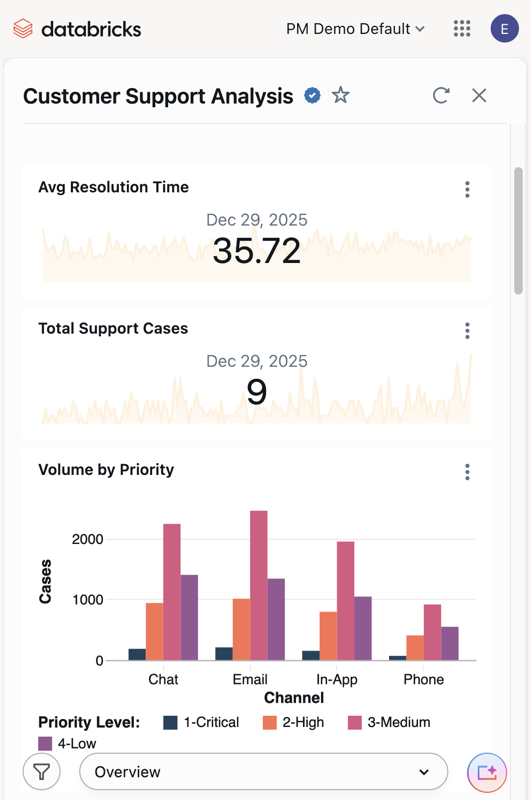
When a dashboard is viewed on a small screen in Genie One, it automatically switches to a mobile-friendly layout without rebuilding. No configuration is required. The layout adapts to the device orientation:
- In portrait orientation, widgets reflow to a single column and spacing adjusts for touch interaction, making the dashboard easy to read on small screens.
- In landscape orientation, the dashboard preserves its original design on both phones and tablets.
Publishing and sharing
Dashboards support two states: draft and published. Changes to a draft dashboard are saved automatically but are not visible to viewers until you publish.
Publishing
When you publish a dashboard, you create a snapshot that viewers can access. The published version remains unchanged until you publish again, even if you continue editing the draft.
Publishing options:
- Shared data permissions: Viewers see data based on the publisher's permissions. This simplifies sharing with users who don't have direct access to the underlying data, but requires careful permission management.
- Individual data permissions: Viewers see data based on their own Unity Catalog permissions. This ensures data governance and row-level security are enforced.
Sharing levels
| Sharing level | Description |
|---|---|
| Workspace sharing | Share with users and groups within the same workspace. Users must have workspace access to view the dashboard. |
| Account-level sharing | Share with users across all workspaces in your account. Users can view the dashboard even without workspace access, enabling broader collaboration. |
Additional sharing capabilities:
- Embedding: Embed published dashboards in external websites and applications using iframes
- Schedules and subscriptions: Set up automated refresh schedules and email or Slack notifications for stakeholders
- Genie Agents: Publish companion Genie Agents to enable natural language data exploration alongside your dashboards
For details, see Share a dashboard and Manage scheduled dashboard updates and subscriptions.
Draft and published workflows
Understanding the relationship between draft and published dashboards is important for collaboration and maintenance:
- Draft dashboards: All edits happen in draft mode. Multiple users with edit permissions can collaborate on a draft. Changes are auto-saved but not visible to viewers.
- Publishing: When ready, click Publish to create or update the published version. You can optionally include a changelog message.
- Viewer experience: Viewers always see the last published version, not the current draft. This prevents work-in-progress changes from affecting stakeholders.
- Discard changes: If you want to revert your draft to match the last published version, use Discard changes from the dashboard menu.
Performance and optimization
AI/BI dashboards are optimized for performance with several built-in features:
- Client-side caching: Datasets under 100MB and 100,000 rows are cached in the browser for faster visualization updates
- Query optimization: Dashboards automatically optimize queries to reduce compute usage and improve response times
- Incremental loading: Large datasets are loaded progressively to maintain responsiveness
- Scheduled refresh: Configure refresh schedules for published dashboards to pre-compute results
For details, see Dataset optimization and caching.
Governance and security
AI/BI dashboards integrate with Azure Databricks security and governance features:
| Security feature | Description |
|---|---|
| Unity Catalog integration | All data access is governed by Unity Catalog permissions, including row filters and column masks |
| Permission levels | Control who can view, edit, or manage dashboards using workspace and account-level permissions |
| Audit logs | Track dashboard access and modifications using audit logs and system tables |
| Tags | Organize and categorize dashboards using tags for governance and discovery |
For details, see Monitor dashboard usage.
Automation and integration
AI/BI dashboards support programmatic workflows for teams that need to automate dashboard management:
- Import and export: Transfer dashboards across workspaces by exporting and importing JSON files
- Git integration: Version control your dashboards using Git repos and sync changes across environments
- Declarative Automation Bundles: Manage dashboards as code using Declarative Automation Bundles for infrastructure-as-code workflows
- REST APIs: Automate dashboard creation, updates, and sharing using Azure Databricks REST APIs
- Lakeflow Jobs: Schedule dashboard updates and refreshes using Lakeflow Jobs
For details, see Dashboard developer workflows.
Next steps
- Create your first dashboard: Follow the quickstart tutorial to build a dashboard from scratch. See Create a dashboard.
- Use AI-assisted visualizations: Learn how to use Genie Code to create a dashboard using natural language prompts. See Use Genie Code for dashboard authoring.
- Explore datasets: Understand how to define datasets from tables, views, and custom queries. See Create and manage dashboard datasets.
- Build custom calculations: Create calculated measures and level-of-detail expressions. See What are custom calculations?.
- Set up filters: Add interactive filtering to enable data exploration. See Use dashboard filters.