Note
Access to this page requires authorization. You can try signing in or changing directories.
Access to this page requires authorization. You can try changing directories.
Important
This feature is in Beta.
Overview
A PostgreSQL integrated change data capture (CDC) pipeline ingests change data from a PostgreSQL source into Azure Databricks using a single pipeline.
Unlike the standard gateway-based architecture, which requires a separate ingestion gateway and ingestion pipeline, an integrated CDC pipeline runs both extraction and application stages in one pipeline update.
Key benefits over the two-pipeline approach:
- Simpler setup: one pipeline instead of two.
- Less operational overhead: no separate long-running gateway process to manage.
- Auto full refresh: If you configure an auto full refresh policy, the pipeline runs a full refresh automatically when a table needs one, instead of waiting for you to run it.
Architecture comparison: integrated vs. gateway-based
| Feature | Gateway-based (standard) | Integrated CDC |
|---|---|---|
| Number of pipelines | Two (ingestion gateway + ingestion pipeline) | One (unified pipeline) |
| Setup complexity | Create a gateway, then create an ingestion pipeline referencing the gateway ID | Create a single pipeline with a Unity Catalog connection |
| Gateway mode | Gateway runs continuously as a separate long-running process | Extraction is embedded in the pipeline |
| Connection reference | ingestion_gateway_id |
connection_name |
| Connector type | Implicit default CDC behavior | Explicit: connector_type: CDC |
| Staging volume | Managed internally by gateway | Auto-created in the destination schema or configured through data_staging_options |
| Pipeline mode | Continuous | Continuous (default) and triggered |
| Compute | Classic for the gateway, serverless for the managed ingestion pipeline | Classic or serverless |
| Auto full refresh | Not supported for the existing PostgreSQL gateway-based flow | Supported |
Both architectures support API-based and UI-based pipeline authoring, incremental ingestion, Unity Catalog governance, and a maximum of 250 tables per pipeline.
How an integrated CDC pipeline runs
Each pipeline update runs two stages in sequence:
- Extraction: The pipeline connects to the source database using the Unity Catalog connection. On the first run or a full refresh, it captures an initial snapshot. On subsequent runs, it captures incremental changes (inserts, updates, and deletes) using PostgreSQL logical replication through a replication slot with the pgoutput plugin. The pipeline writes extracted data to a Unity Catalog staging volume.
- Application: The pipeline reads from the staging volume and applies changes to destination streaming tables in Unity Catalog. Merge operations use the configured primary keys and slowly changing dimension (SCD) type. The pipeline is designed to provide exactly-once semantics.
Requirements
To create an integrated CDC pipeline, you must meet the following requirements:
Your workspace is enabled for Unity Catalog.
If you plan to create a connection: You have
CREATE CONNECTIONprivileges on the metastore. See Manage privileges in Unity Catalog.If your connector supports UI-based pipeline authoring, you can create the connection and the pipeline at the same time by completing the steps on this page. However, if you use API-based pipeline authoring, you must create the connection in Catalog Explorer before you complete the steps on this page. See Connect to managed ingestion sources.
If you plan to use an existing connection: You have
USE CONNECTIONprivileges orALL PRIVILEGESon the connection.You have
USE CATALOGprivileges on the target catalog.You have
USE SCHEMA,CREATE TABLE, andCREATE VOLUMEprivileges on an existing schema orCREATE SCHEMAprivileges on the target catalog.
- You have access to a primary PostgreSQL instance. Logical replication is only supported on primary instances and not on read replicas.
- To ingest from PostgreSQL, you must also complete the source setup.
Compute requirements
An integrated CDC pipeline runs on classic or serverless compute:
Classic compute: The classic compute plane runs in your Azure Databricks workspace virtual private cloud (VPC) or VNet and must reach your PostgreSQL instance over the network. Supported network paths include VPC or VNet peering, public endpoints, and, for on-premises PostgreSQL, VPN.
For on-premises PostgreSQL, you can also use Azure ExpressRoute.
Serverless compute: Configure serverless network connectivity between Azure Databricks serverless compute and your source database. On-premises sources require a network path through the configured serverless egress (for example, a transit gateway or VPN).
You can also use a peered VNet with ExpressRoute.
For classic compute, you can use unrestricted cluster creation permissions or a custom cluster policy with cluster_type fixed to dlt, runtime_engine fixed to STANDARD, and at least 8 cores recommended for efficient extraction.
Create a Unity Catalog connection to PostgreSQL
Create a Unity Catalog connection to PostgreSQL before creating a pipeline. See Create a PostgreSQL connection.
Create an integrated CDC pipeline
Create integrated CDC pipelines using the API, the Databricks CLI, notebooks, or Declarative Automation Bundles.
Declarative Automation Bundles
Define the pipeline resource in a bundle file (for example, resources/integrated_cdc_pipeline.yml):
variables:
  pipeline_name:
    description: 'Name for the integrated CDC pipeline'
  connection_name:
    description: 'Unity Catalog connection name'
  dest_catalog:
    description: 'Destination catalog for ingested data'
  dest_schema:
    description: 'Destination schema for ingested data'

resources:
  pipelines:
    integrated_cdc_pipeline:
      name: ${var.pipeline_name}
      catalog: ${var.dest_catalog}
      schema: ${var.dest_schema}
      # Pipeline mode: true runs in continuous mode (the default if omitted).
      # Set to false to run in triggered mode, and schedule the pipeline with a job.
      continuous: true
      ingestion_definition:
        connection_name: ${var.connection_name}
        connector_type: CDC
        objects:
          - table:
              source_catalog: 'my_database'
              source_schema: 'public'
              source_table: 'customers'
              destination_catalog: ${var.dest_catalog}
              destination_schema: ${var.dest_schema}
              destination_table: 'customers'
              table_configuration:
                scd_type: 'SCD_TYPE_1'
If you enable triggered mode (continuous: false), set up a job like the following to run the pipeline on a schedule (for example, resources/integrated_cdc_job.yml). Because each triggered update runs for up to approximately 30 minutes, an interval of 60 minutes is a good starting point:
resources:
  jobs:
    integrated_cdc_job:
      name: '${var.pipeline_name}-job'
      tasks:
        - task_key: 'cdc_ingestion'
          pipeline_task:
            pipeline_id: ${resources.pipelines.integrated_cdc_pipeline.id}
      schedule:
        quartz_cron_expression: '0 0 * * * ?'
        timezone_id: 'UTC'
Deploy the bundle with the Databricks CLI:
databricks bundle deploy

# Continuous mode (default): start the pipeline
databricks bundle run integrated_cdc_pipeline

# Triggered mode (continuous: false): run the scheduled job
databricks bundle run integrated_cdc_job
For more information, see What are Declarative Automation Bundles?.
Databricks notebook
The following example creates a pipeline in continuous mode. Set continuous to False for triggered mode.
from databricks.sdk import WorkspaceClient
from databricks.sdk.service.pipelines import (
    ConnectorType,
    IngestionConfig,
    IngestionPipelineDefinition,
    TableSpec,
)

w = WorkspaceClient()

pipeline = w.pipelines.create(
    name="<pipeline-name>",
    catalog="<destination-catalog>",
    schema="<destination-schema>",
    continuous=True,  # Set to False to run in triggered mode.
    ingestion_definition=IngestionPipelineDefinition(
        connection_name="<unity-catalog-connection-name>",
        connector_type=ConnectorType.CDC,
        objects=[
            IngestionConfig(
                table=TableSpec(
                    source_catalog="<source-database>",
                    source_schema="<source-schema>",
                    source_table="<source-table>",
                    destination_catalog="<destination-catalog>",
                    destination_schema="<destination-schema>",
                )
            )
        ],
    ),
)

print(f"Pipeline created: {pipeline.pipeline_id}")
Databricks CLI
The following example creates a pipeline in continuous mode. Set continuous to false for triggered mode.
databricks pipelines create --json '{
  "name": "<pipeline-name>",
  "catalog": "<destination-catalog>",
  "schema": "<destination-schema>",
  "continuous": true,
  "ingestion_definition": {
    "connection_name": "<unity-catalog-connection-name>",
    "connector_type": "CDC",
    "objects": [
      {
        "table": {
          "source_catalog": "<source-database>",
          "source_schema": "<source-schema>",
          "source_table": "<source-table>"
        }
      }
    ]
  }
}'
REST API
The following example replicates two tables from a PostgreSQL database. The customers table uses SCD Type 1, and the orders table uses SCD Type 2. Both inherit the top-level destination main.ingestion. The example omits serverless, which defaults to false (classic compute). Add "serverless": true to run on serverless compute instead. The examples set continuous to true, which is also the default if omitted. Set continuous to false to run in triggered mode.
POST /api/2.0/pipelines

{
  "name": "my-integrated-cdc-pipeline",
  "catalog": "main",
  "schema": "ingestion",
  "continuous": true,
  "ingestion_definition": {
    "connection_name": "my-postgresql-connection",
    "connector_type": "CDC",
    "objects": [
      {
        "table": {
          "source_catalog": "my_database",
          "source_schema": "public",
          "source_table": "customers",
          "table_configuration": {
            "scd_type": "SCD_TYPE_1"
          }
        }
      },
      {
        "table": {
          "source_catalog": "my_database",
          "source_schema": "public",
          "source_table": "orders",
          "table_configuration": {
            "scd_type": "SCD_TYPE_2"
          }
        }
      }
    ],
    "data_staging_options": {
      "catalog_name": "main",
      "schema_name": "ingestion_staging"
    }
  }
}
To replicate every table in a source schema, use a schema object instead of individual table objects:
POST /api/2.0/pipelines

{
  "name": "my-integrated-cdc-schema-pipeline",
  "catalog": "main",
  "schema": "ingestion",
  "continuous": true,
  "ingestion_definition": {
    "connection_name": "my-postgresql-connection",
    "connector_type": "CDC",
    "objects": [
      {
        "schema": {
          "source_catalog": "my_database",
          "source_schema": "public",
          "destination_catalog": "main",
          "destination_schema": "ingestion"
        }
      }
    ]
  }
}
To start a pipeline update:
POST /api/2.0/pipelines/<pipeline-id>/updates

{
  "full_refresh": false
}
Operational safeguards
Pipeline mode and scheduling
PostgreSQL integrated CDC pipelines run in continuous mode by default when continuous is not set. Continuous mode keeps the replication slot caught up with the source, which minimizes the risk of write-ahead log (WAL) bloat.
To run in triggered mode, set continuous to false and schedule the pipeline with a Lakeflow Jobs task. Each triggered update stops after it catches up with the source (see Smart closure for integrated CDC pipelines). Each update runs for a maximum of approximately 30 minutes. A large backlog can span several updates, and each update resumes where the previous one stopped.
Schedule updates often enough for the pipeline to catch up and to prevent WAL accumulation on the source. A 60-minute interval is a good starting point for most workloads. If a trigger fires while an update is still running, the new update is queued.
Replication slot health monitoring
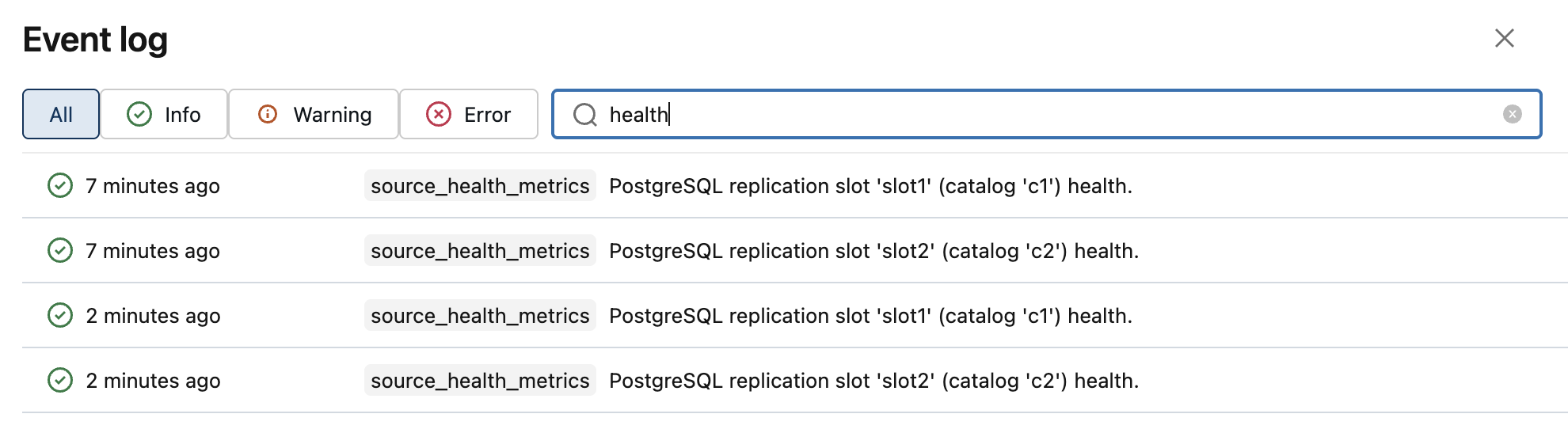
Integrated CDC pipelines monitor the health of the replication slots they use and report their status every 5 minutes in the event log. You can also see slot health in the UI and query it from the event log.
The monitoring runs as part of the pipeline, so slot health metrics are emitted only while the pipeline is running.
To see detailed slot health information, click a slot health event and expand its details. The following image shows slot health events in the event log, followed by an example of the event details:
{
  "origin": {
    "pipeline_id": "<pipeline-id>",
    "pipeline_type": "MANAGED_INGESTION",
    "pipeline_name": "<pipeline-name>",
    "update_id": "<update-id>",
    "ingestion_source_type": "POSTGRESQL"
  },
  "message": "PostgreSQL replication slot '<slot-name>' (catalog '<catalog-name>') health.",
  "level": "INFO",
  "details": {
    "source_health_metrics": {
      "scope": {
        "catalog": "<catalog-name>"
      },
      "details": {
        "postgres": {
          "slot_details": [
            {
              "slot": "<slot-name>",
              "slot_type": "CUSTOMER_MANAGED",
              "wal_status": "RESERVED",
              "retained_wal_bytes": 1616,
              "max_slot_wal_keep_size_bytes": -1,
              "confirmed_flush_backlog_bytes": 776,
              "active_pid": 14323
            }
          ]
        }
      }
    }
  },
  "event_type": "source_health_metrics",
  "maturity_level": "EVOLVING"
}
Replication slot monitoring and cleanup
Use the replication slot monitoring and cleanup notebook to monitor the replication slots used by your integrated CDC pipelines and to drop slots that retain too much WAL. Run it on a schedule so that a stopped or deleted pipeline can't leave behind a slot that fills up your database's disk. The notebook supports integrated CDC pipelines only.
Download lakeflow_pg_slot_monitoring_and_cleanup.ipynb
To set up the notebook:
- Choose the action: When you run the notebook for the first time, a widget appears at the top of the notebook. Select what happens when a slot exceeds the size limit (
max_slot_wal_keep_size):FAIL_ONLY: Fail the notebook run without dropping the slot, so that you can investigate.DROP_SLOTS: Drop the slots that exceed the limit. If you chooseDROP_SLOTS, setMAX_DROPS_PER_RUNto a positive number (for example,5) to cap how many slots a single run can drop. The notebook fails ifMAX_DROPS_PER_RUNis not set.
- Configure the slots to monitor: Add each PostgreSQL database to
monitored_instances, with its connection details, the Azure Databricks secret scope and keys for its credentials, and the pipelines and replication slots to monitor. - Set up notifications: Configure notifications for job failures so that you're alerted when the notebook finds a slot that needs attention.
- Schedule the notebook: Schedule the notebook as a Lakeflow Jobs task so that it checks your slots regularly.
Schema evolution
Integrated CDC pipelines for PostgreSQL detect add column, drop column, and truncate table operations on source tables, but the affected tables require a full refresh. If you configure an auto full refresh policy, the pipeline runs the full refresh automatically. See Auto full refresh policy.
Partial row update for PostgreSQL tables with TOAST columns
By default, PostgreSQL integrated CDC requires REPLICA IDENTITY FULL on tables that have TOAST columns, so that update events include the full row. Partial row update mode lets the pipeline apply updates in which unchanged TOAST column values are missing from the change event, keeping the existing values in the destination table. With partial row update mode enabled, tables that have a primary key can use REPLICA IDENTITY DEFAULT, which reduces the amount of WAL generated on the source.
Enable partial row update mode
UI
Open the integrated CDC pipeline and click Edit pipeline.
Under the Configuration section, set the following property:
pipelines.gateway.postgresql.partialRowUpdateMode: "PIPELINE_LEVEL_ENFORCED"
To disable the feature, remove the following configuration from the pipeline: pipelines.gateway.postgresql.partialRowUpdateMode.
API
To enable the feature using the Pipeline Create API or Pipeline Update API, set the following configuration:
"configuration": {
  "pipelines.gateway.postgresql.partialRowUpdateMode": "PIPELINE_LEVEL_ENFORCED"
}
To disable the feature, remove the pipelines.gateway.postgresql.partialRowUpdateMode configuration from the API request.
Important considerations
- Partial row update mode applies at the pipeline level. You can't enable it for individual tables.
- After you add or remove the setting, restart the pipeline: stop the running update and start a new one.
- After the restart, the pipeline skips the tables that it was ingesting. Run a full refresh of these tables.
- After the full refresh completes, the pipeline runs in partial row update mode. If you removed the setting, it runs in the default mode instead.
Additional behavioral details
- Tables without a primary key:
REPLICA IDENTITY FULL(no change). - Tables with a primary key and TOAST columns:
REPLICA IDENTITY DEFAULTis sufficient when the feature is enabled. When the feature is disabled,REPLICA IDENTITY FULLis required. - Primary key updates:
- If
REPLICA IDENTITY DEFAULTis used and the table contains a TOASTed column other than the primary key, ingestion for that table fails and requires a full refresh. - If
REPLICA IDENTITY FULLis used, primary key updates are fully supported.
- If
Performance considerations
- There may be performance implications associated with applying CDC records from the staging tables to the destination Delta tables.
- There is no expected performance impact on the source database as a result of enabling the feature.
Configuration reference
Pipeline parameters
| Parameter | Type | Description |
|---|---|---|
name |
string | A name for the pipeline. |
channel |
string | Optional. Defaults to CURRENT. Set to CURRENT for the stable release or PREVIEW for early access to upcoming features. |
serverless |
Boolean | Optional. Defaults to false. Set to true for serverless compute or false for classic compute. Serverless compute requires serverless networking to your source database. |
continuous |
Boolean | Optional. Defaults to true for PostgreSQL integrated CDC pipelines. Set to false to run the pipeline in triggered mode. |
catalog |
string | The default destination catalog. Used when a per-table destination_catalog is not specified. |
schema |
string | The default destination schema. Used when a per-table destination_schema is not specified. |
ingestion_definition.connection_name |
string | The Unity Catalog connection to the source database. |
ingestion_definition.connector_type |
string | Must be CDC. |
ingestion_definition.objects |
array | The list of tables or schemas to ingest. |
ingestion_definition.data_staging_options |
object | Optional. The catalog and schema where the pipeline creates the staging volume. Defaults to the pipeline's destination schema. |
Table specification
| Parameter | Required | Description |
|---|---|---|
source_catalog |
Yes | The source database name. |
source_schema |
Yes | The source schema name. |
source_table |
Yes | The source table name. |
destination_catalog |
No | The destination catalog. Defaults to the pipeline's catalog. |
destination_schema |
No | The destination schema. Defaults to the pipeline's schema. |
destination_table |
No | The destination table name. Defaults to source_table. |
Table configuration
| Parameter | Default | Description |
|---|---|---|
scd_type |
SCD_TYPE_1 |
SCD_TYPE_1 keeps the latest version only. SCD_TYPE_2 keeps full history. |
sequence_by |
Autodetected | The columns used to order CDC events. Autodetected based on the source CDC mechanism if not specified. |
auto_full_refresh_policy |
Disabled | Configures automatic full refresh when unsupported DDL operations are detected. See Auto full refresh policy. |
Data type mappings
For PostgreSQL data type mappings, see Automatic data transformations.
Monitor the pipeline
After you create and start an integrated CDC pipeline, monitor its status using the following:
- Azure Databricks UI: Open the pipeline in the Pipelines section to view update status, per-table ingestion metrics, and lineage.
- REST API:
GET /api/2.0/pipelines/<pipeline-id> - Events API:
GET /api/2.0/pipelines/<pipeline-id>/events
The first pipeline update performs a full snapshot of all selected tables. In triggered mode, unlike incremental updates, the initial snapshot completes in a single update. Snapshot completion may take longer than subsequent incremental updates.
To verify ingestion:
-- Check row counts in the destination table
SELECT COUNT(*) FROM <destination_catalog>.<destination_schema>.<destination_table>;

-- View recent changes (SCD Type 2 tables)
SELECT * FROM <destination_catalog>.<destination_schema>.<destination_table>
ORDER BY __START_AT DESC
LIMIT 10;
For full refresh and auto full refresh behavior, see Fully refresh target tables.
Integrated CDC pipelines enable vertical autoscaling by default. If a pipeline update fails because of an out-of-memory condition, the next update automatically provisions a larger driver. To override this behavior, use a custom cluster policy.
Limitations
- Connection and connector type are immutable:
connection_nameandconnector_typecannot be changed after the pipeline is created. To change the source, create a new pipeline. - Tables without primary keys: If the table has a unique key whose columns are all
NOT NULL, the pipeline uses it as the key. Otherwise, it treats all columns except large objects as a composite key. Duplicate rows might collapse to a single row. - Initial snapshot completes in one update (triggered mode only): In triggered mode, the integrated CDC connector completes the initial snapshot in a single pipeline update, even for large tables.
- Update runtime is managed automatically (triggered mode only): In triggered mode, smart closure determines when each update stops. An update completes after it catches up with the source, bounded by a maximum runtime. See Smart closure for integrated CDC pipelines. You cannot configure the minimum or maximum runtime. A large change backlog might span multiple updates. Subsequent scheduled updates resume where the previous update left off.