Note
Access to this page requires authorization. You can try signing in or changing directories.
Access to this page requires authorization. You can try changing directories.
Important
This feature is in Beta. Workspace admins can control access to this feature from the Previews page. See Manage Azure Databricks previews.
Learn how to create an API Integration Package in Salesforce Marketing Cloud to enable authentication from Azure Databricks.
Requirements
- Access to Salesforce Marketing Cloud with administrative permissions
- Ability to create and configure API Integration Packages
Create an API Integration Package
Visit https://mc.exacttarget.com/cloud/login.html and log into your Salesforce Marketing Cloud instance.
In the top right corner of the page, click your profile. Then, select Setup.
In the left pane, visit Platform Tools >> Apps >> Installed Packages.
Click New. In the New Package Details pop-up, add a Name and Description to create a new package.
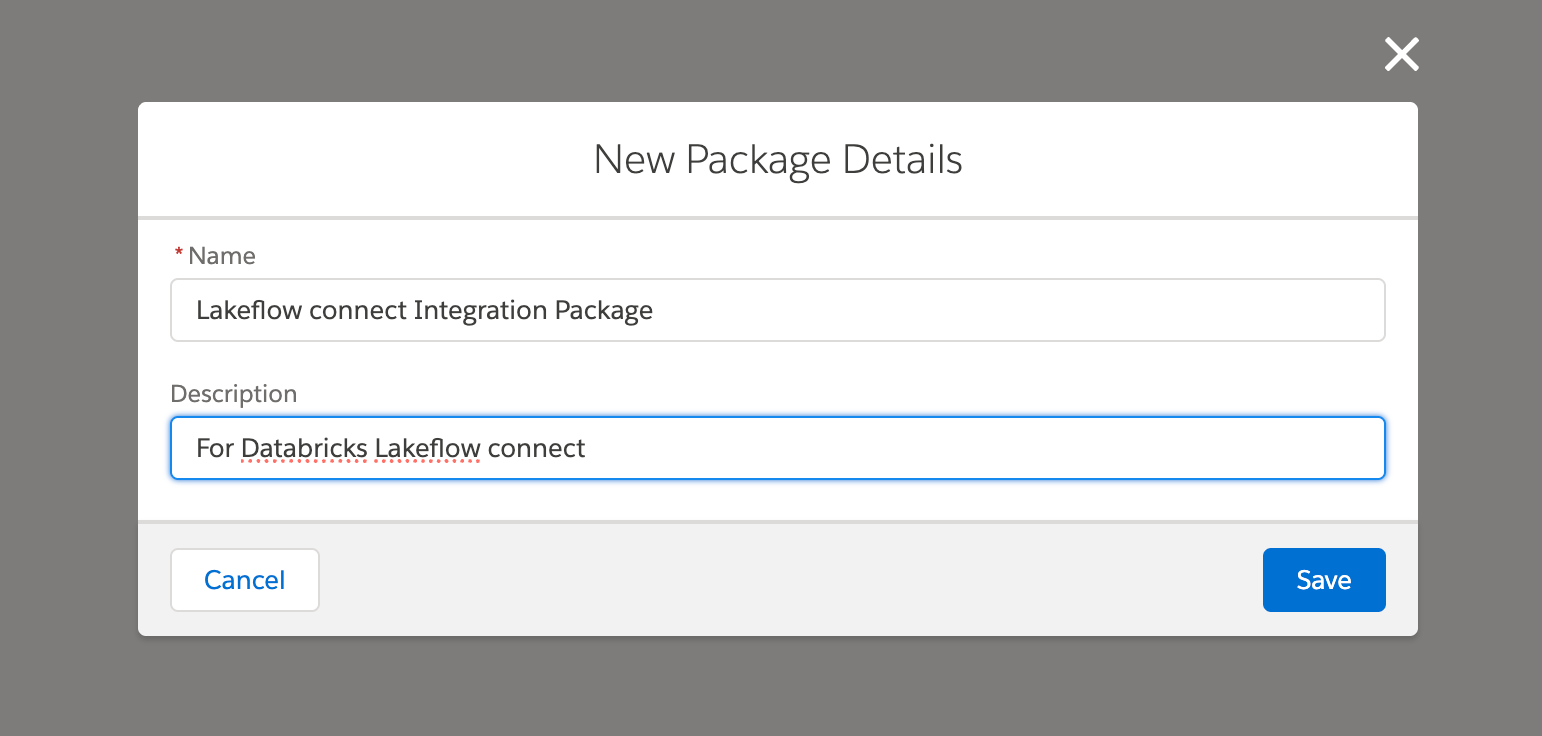
Click Save.
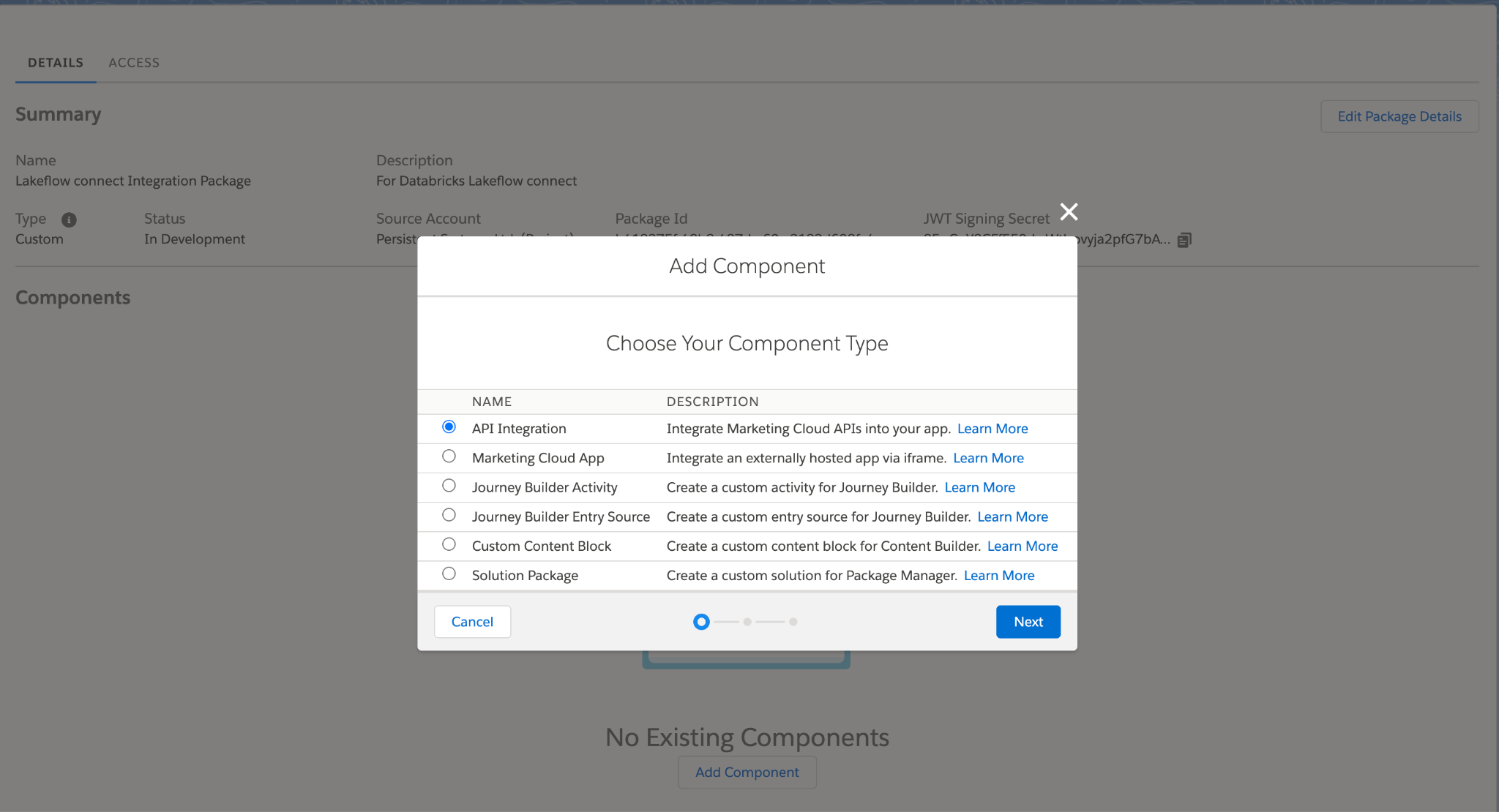
In the Component section, click Add Component >> API Integration >> Next.
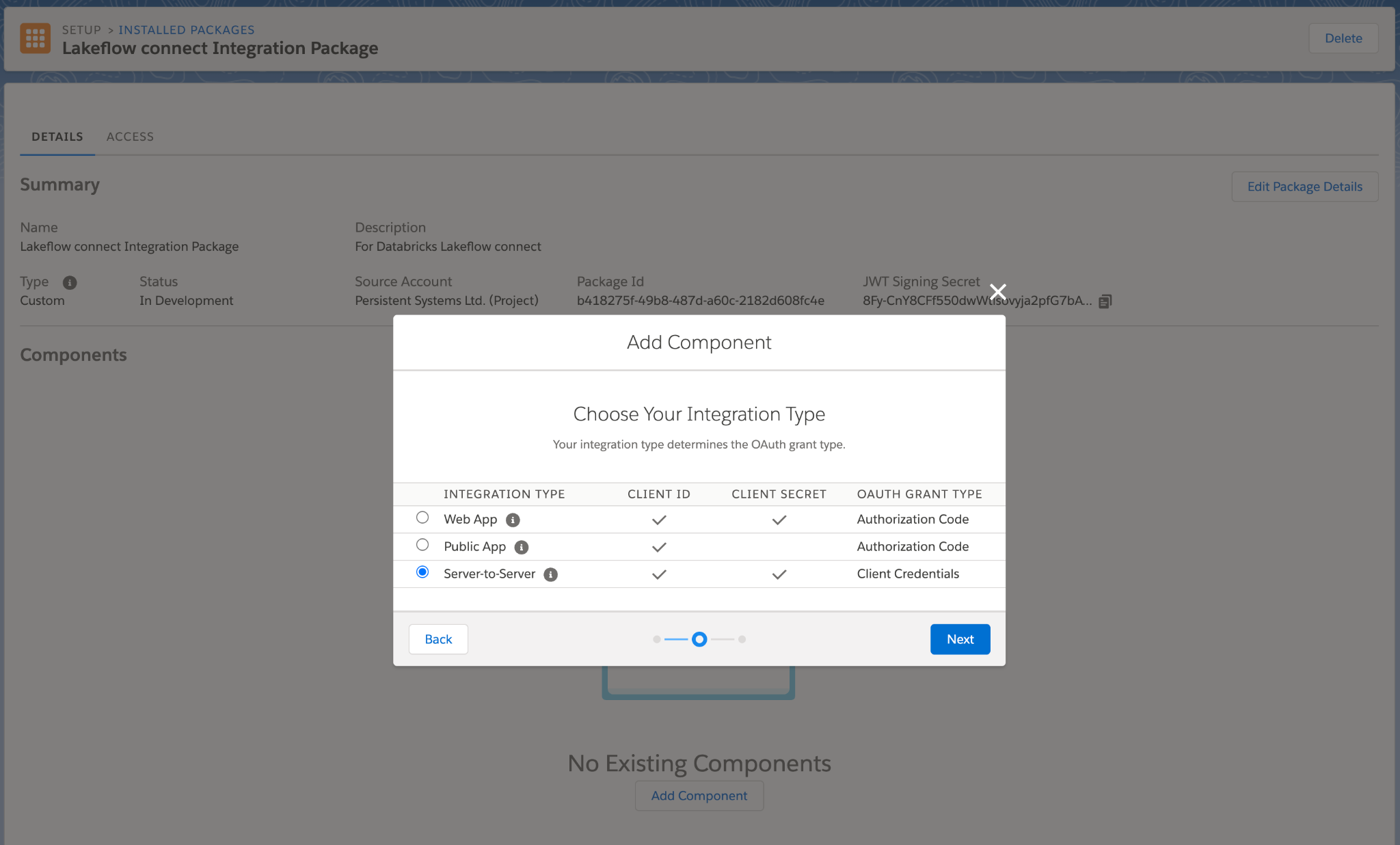
For the Integration Type, choose Server-to-Server. Then, click Next.
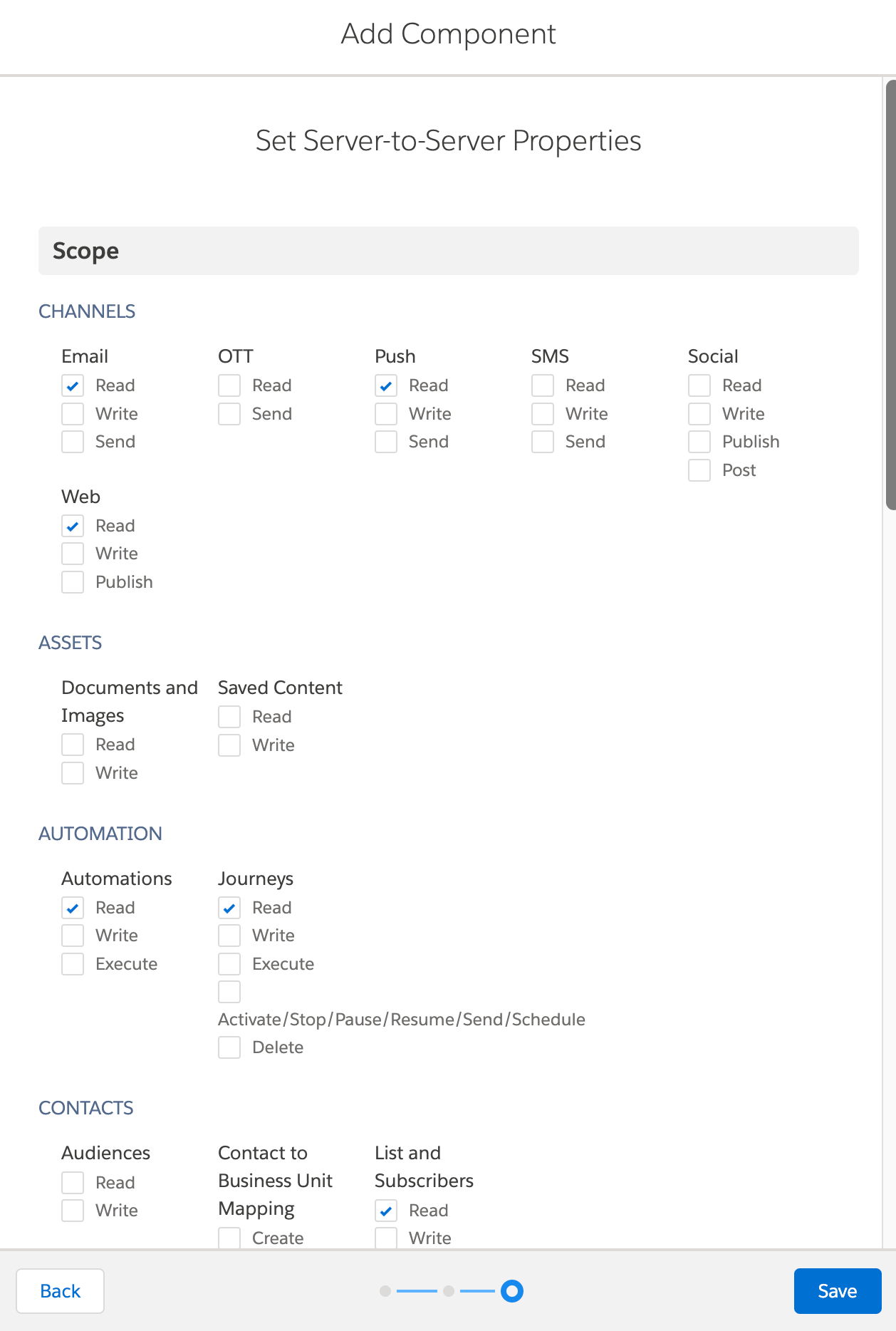
In the Set Server-to-Server Properties pop-up >> Scope section, provide the following read scopes, then click Save.
- Channels >> Email >> Read
- Channels >> Push >> Read
- Automation >> Automations >> Read
- Automation >> Journeys >> Read
- Contacts >> List and Subscribers >> Read
- Data >> Data Extensions >> Read
- Data >> Tracking Events >> Read
- Hub >> Campaign >> Read
Note the Client Secret.
In the Package Details page, note the Client ID and the 28-character subdomain for this Marketing Cloud instance, which starts from
mcin the Authentication Base URI. For example, if your Authentication Base URI ishttps://mc1234abcdzz9t0k5l7m8n9p0q.auth.marketingcloudapis.com/, your marketing instance domain ismc1234abcdzz9t0k5l7m8n9p0q.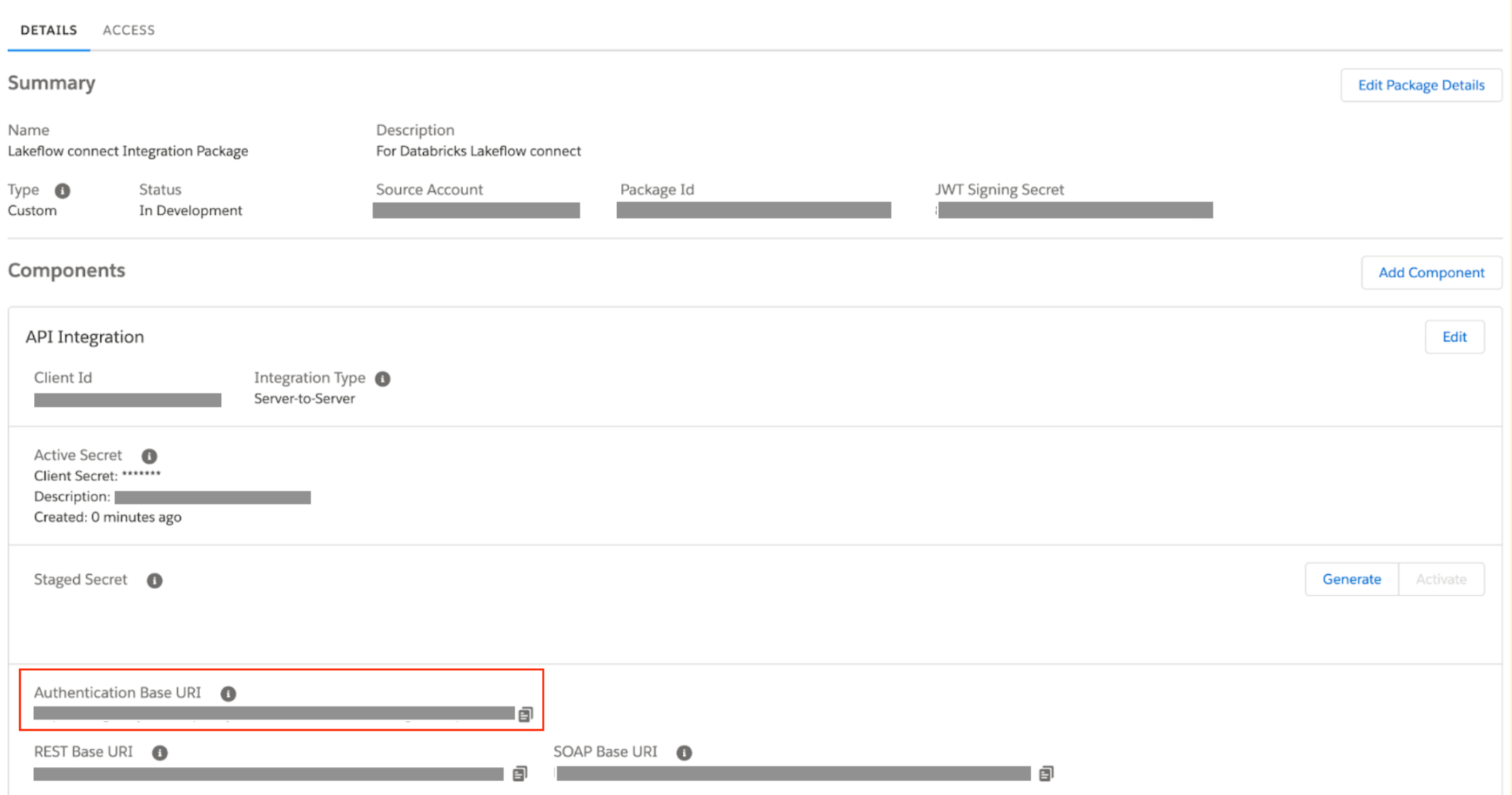
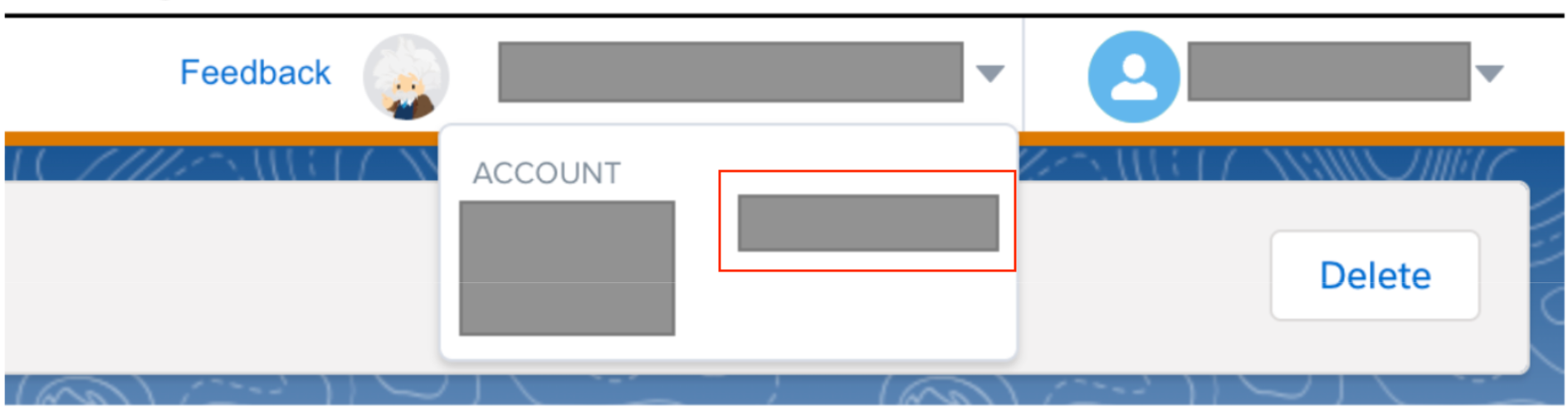
In the top right corner of the page, click your business account name, then note down the Marketing ID (MID).
You now have the credentials required to create a Unity Catalog connection:
- Client ID
- Client secret
- Subdomain (28-character string starting with
mc) - Marketing ID (MID)
Next steps
Use Catalog Explorer to create a connection so that any user with USE CONNECTION or ALL PRIVILEGES can create pipelines. See Create a Salesforce Marketing Cloud connection.