Note
Access to this page requires authorization. You can try signing in or changing directories.
Access to this page requires authorization. You can try changing directories.
This page describes how to schedule automatic data refreshes in the Databricks Connector for Google Sheets to keep your imported data up to date. Scheduled refreshes run your saved queries on a recurring basis and update the corresponding sheets.
Requirements
Create a Unity Catalog connection
Scheduled refreshes require the following:
- A Unity Catalog connection called
databricks_google_connection, created by a metastore administrator in Google Sheets. - The
USE CONNECTIONprivilege on the connection, granted to users who need to create or manage scheduled refreshes.
- As a Azure Databricks metastore administrator, in Google Sheets, open the Databricks Connector for Google Sheets sidebar.
- Click the Saved imports tab.
- Click the calendar in the upper-right side.
- Click Setup connection.
Share a connection in Azure Databricks
After the connection is created, grant the USE CONNECTION privilege to users who need to create or manage scheduled refreshes. A metastore administrator or any user with the MANAGE privilege on the connection can grant this privilege. For more information on managing connections, see Manage connections for Lakehouse Federation.
Create a schedule
Each import can be assigned to only one schedule. To create a new schedule for an existing import:
In the Azure Databricks connector sidebar in Google Sheets, click the Saved imports tab.
Click the calendar icon and click New Schedule.
Select the import to create a schedule for.
Enter a name for the schedule.
Select the Frequency of your schedule:
- For Hourly, select the minute of the hour to run the refresh.
- For Daily, select the time of day to run the refresh.
- For Weekly, select the day of the week and the time to run the refresh.
The schedule uses your local time zone.
Select the SQL warehouse to use for the scheduled queries.
Click Create schedule.
View run history and schedule details
To see the run history of all your scheduled refreshes, do the following:
- In the Azure Databricks connector sidebar in Google Sheets, click the Saved imports tab.
- Click the calendar icon and click View run history.
- Click a specific run to view the schedule's details.
To view the run history and configuration details of a scheduled refresh, do the following:
From the View run history pane, select the name of the schedule you want to view. Under Recent runs, the status of each run is shown.
Hover over a status icon to see a run's Run ID, Start time, and Run status.
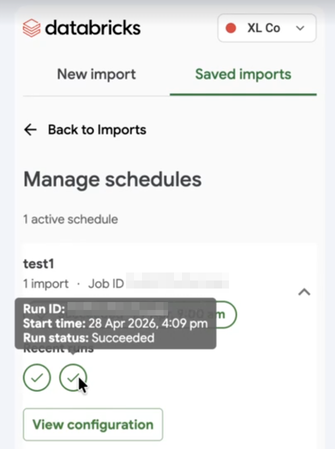
Click View configuration to see schedule details, which include the selected import and schedule configuration.
- If you are viewing a schedule created by someone else, the time shown is the time in the creator's local time zone.
Delete a scheduled refresh
To delete your scheduled refreshes, do the following:
- In the Azure Databricks connector sidebar in Google Sheets, click the Saved imports tab.
- Click the calendar icon and click Manage schedules.
- Select the schedule you want to delete.
- Click View configuration, then click Delete.
Troubleshooting
If you are running into issues with your scheduled refreshes, delete the schedule in Google Sheets and the corresponding Unity Catalog connections on Azure Databricks, and recreate the schedule. For more on Unity Catalog connections, see Manage connections for Lakehouse Federation.
Limitations
- You can't edit a scheduled refresh. You can only view or delete existing schedules. To modify a schedule, delete it and create a new one.
- If you edit a query that a schedule uses, the schedule doesn't automatically pick up your changes. To apply the updated query text, delete the schedule and recreate it.
- You can't schedule a refresh on pivot tables. The Google API updates only the raw query data and can't modify the pivot configuration if the query result schema changes.
- A single schedule can include a maximum of 20 imports.
- Query text for imports used in a scheduled refresh has a 4,096-character limit.