Note
Access to this page requires authorization. You can try signing in or changing directories.
Access to this page requires authorization. You can try changing directories.
Environment variables provide deployment-specific configuration to application code in serverless Lakeflow Jobs tasks. Define named environment variable entries on a job, then select an entry for each task that needs it.
Important
This feature is in Beta. To use it, a workspace admin must turn on Environment variables in Lakeflow Jobs from the Previews page. See Manage Azure Databricks previews.
These environment variables apply to serverless jobs only. Serverless compute doesn't support init scripts. If your workload runs on classic compute, see Set and use environment variables with init scripts.
How environment variables work
Environment variable entries are defined at the job level. Each entry has a unique key and contains inline variables, paths to .env files, or both. An entry works with all serverless task types. An entry key can contain only letters, numbers, hyphens, and underscores. Each inline variable name must start with a letter or underscore and can contain only letters, numbers, and underscores.
Each task selects a single environment variable entry with environment_variables_key and receives only that entry's variables. Entries are never combined, and one entry can't inherit from another. A task that omits environment_variables_key receives no environment variables.
Environment variables are available only to application code that runs in the task process. They aren't available to Spark execution logic.
Requirements
- A workspace admin has turned on Environment variables in Lakeflow Jobs from the Previews page. See Manage Azure Databricks previews.
- Tasks that run on serverless environment version 5 and above.
- For
.envfiles, the job's Run as identity must have read access to each file. - For secret references, the job's Run as identity must have at least
READpermission on each referenced secret scope. See Secret ACLs.
Limitations
User-defined functions (UDFs) can't read environment variables, because UDFs run in Spark execution logic rather than the task process.
Only workspace-level Azure Databricks secrets are supported. Support for Unity Catalog secrets is coming soon.
The following limits apply:
| Configuration | Limit |
|---|---|
| Environment variable entries per job | 10 |
| Entry key | 1–100 characters; must match ^[\w-_]+$ |
| Inline variables per entry | 20 |
| Inline variable name | 1–256 characters; must match ^[A-Za-z_][A-Za-z0-9_]*$ |
| Inline variable value | 512 characters |
.env files per entry |
5 |
| File path | 1,024 characters |
| File size | 32 KiB (32,768 bytes) |
| Line size in a file | 1 KiB (1,024 bytes), measured in UTF-8 bytes |
Use .env files
You can load environment variables from workspace files (/Workspace/...) or files in Unity Catalog volumes (/Volumes/...). Add the file paths to an entry's Files list in the UI or its spec.files array in the Jobs API. Files are read when a task starts, rather than when you create or update the job.
For serverless jobs, Azure Databricks uses its own .env file format. The following rules apply:
- Define one variable per line as
KEY=VALUE, with no leading whitespace or spaces before the=. - Variable names must start with an ASCII letter or underscore. The remaining characters can be ASCII letters, digits, or underscores.
- Everything after the first
=is the value, including spaces and additional=characters. Empty values are allowed. Values can contain Unicode text. Save the file using UTF-8 encoding. - Blank and whitespace-only lines are ignored. To add a comment, put
#as the first character of the line.
For example, an execution.env file can contain:
# Application configuration
APP_ENV=production
REGION=us-west-2
GREETING=こんにちは
OPTIONAL_VALUE=
This format doesn't interpret quotation marks, escape sequences, inline comments, or variable references such as ${OTHER_VARIABLE}. These characters remain part of the value. For example, APP_ENV="production" includes the quotation marks in the value. An export prefix is invalid.
Secret references use a separate syntax and are resolved after the file and inline variables are combined. See Use secrets.
If a variable has multiple definitions:
- Within a file, the last definition takes precedence.
- Across files, a file listed later overrides values from files listed earlier.
- Inline variables override values from files.
For example, if a file defines LOG_LEVEL=DEBUG and the entry also defines the inline variable LOG_LEVEL=INFO, the task receives LOG_LEVEL=INFO.
If a file contains an invalid line or exceeds a file or line size limit, the task fails.
Use secrets
Environment variables for serverless jobs support workspace-level Azure Databricks secrets, which are organized into secret scopes. Use a secret reference to pass credentials or tokens to application code without storing the secret value in the job configuration or a .env file. To create a secret scope and add a secret, see Secret management.
Set an environment variable's value to a secret reference in the following format:
{{secrets/<scope-name>/<secret-name>}}
Replace <scope-name> with the secret scope name and <secret-name> with the secret's key in that scope. The reference must be the entire value. References embedded in a larger string, such as Bearer {{secrets/production/service-token}}, remain literal text.
In the UI, enter the reference as the value under Variables. In the Jobs API, use it as a value in spec.variables:
{
  "SERVICE_TOKEN": "{{secrets/production/service-token}}"
}
To reference the same secret in a .env file, add the following line without quotation marks or spaces around the reference:
SERVICE_TOKEN={{secrets/production/service-token}}
Azure Databricks resolves secret references when the task starts, using the job's Run as identity. The task receives the resolved secret value in its process environment. Application code reads it with os.environ["SERVICE_TOKEN"] in Python or sys.env("SERVICE_TOKEN") in Scala.
Azure Databricks attempts to redact secret values in notebook output, but redaction is best effort. Secrets that your application prints or writes to logs can appear in plaintext in compute logs, even when notebook output displays [REDACTED]. Avoid printing secret values or writing them to logs. See Secret redaction.
The same precedence rules apply to secret references. Only the resulting values are resolved. Job settings retain the secret references, not the resolved secret values.
If a referenced secret doesn't exist or the Run as identity lacks permission to read it, the task fails before the application code runs. Check the scope name, secret key, and secret scope permissions.
Configure environment variables in the UI
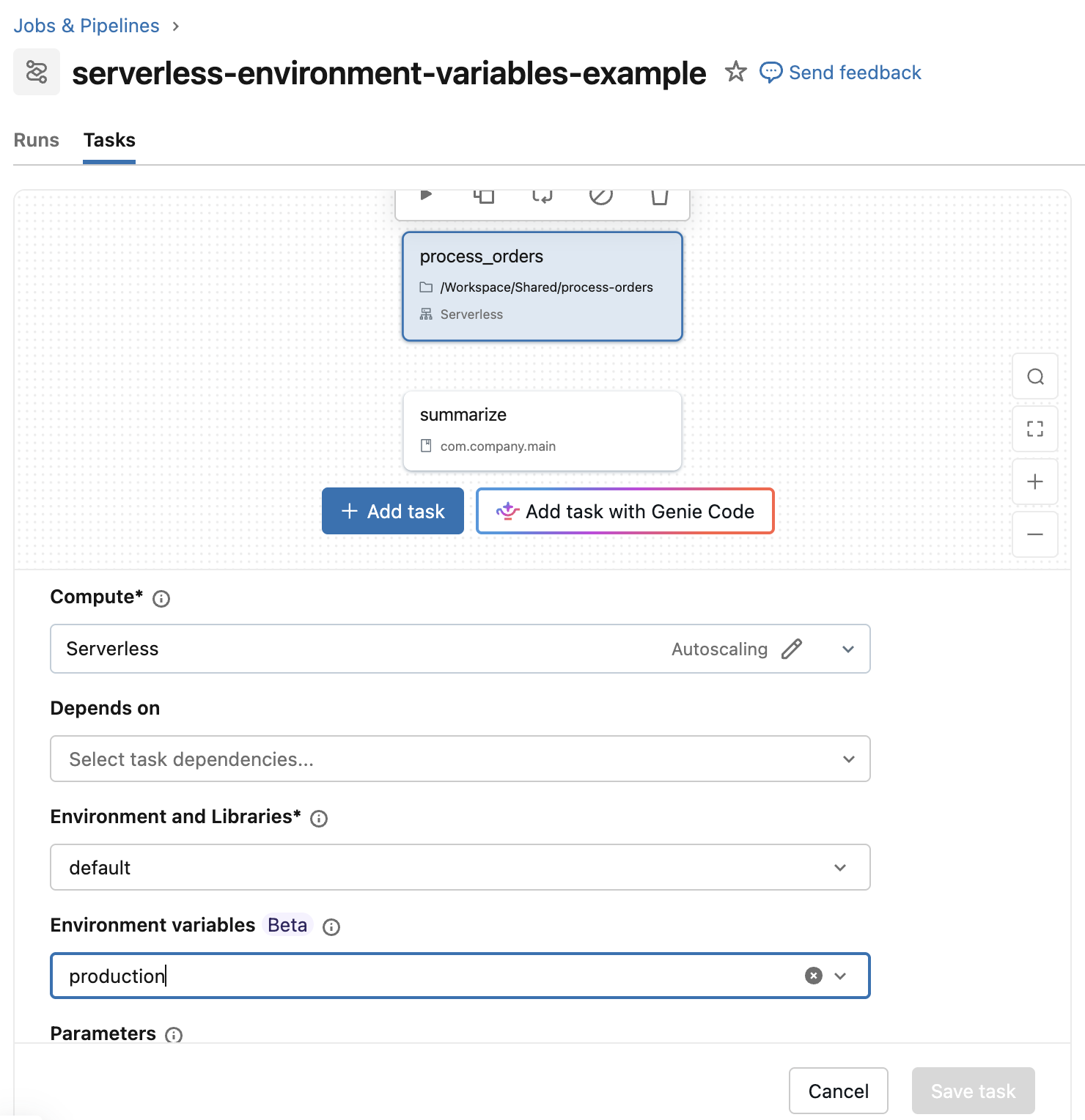
On the job's Tasks tab, select a task. Use Environment variables to select or create an environment variable entry, such as production.
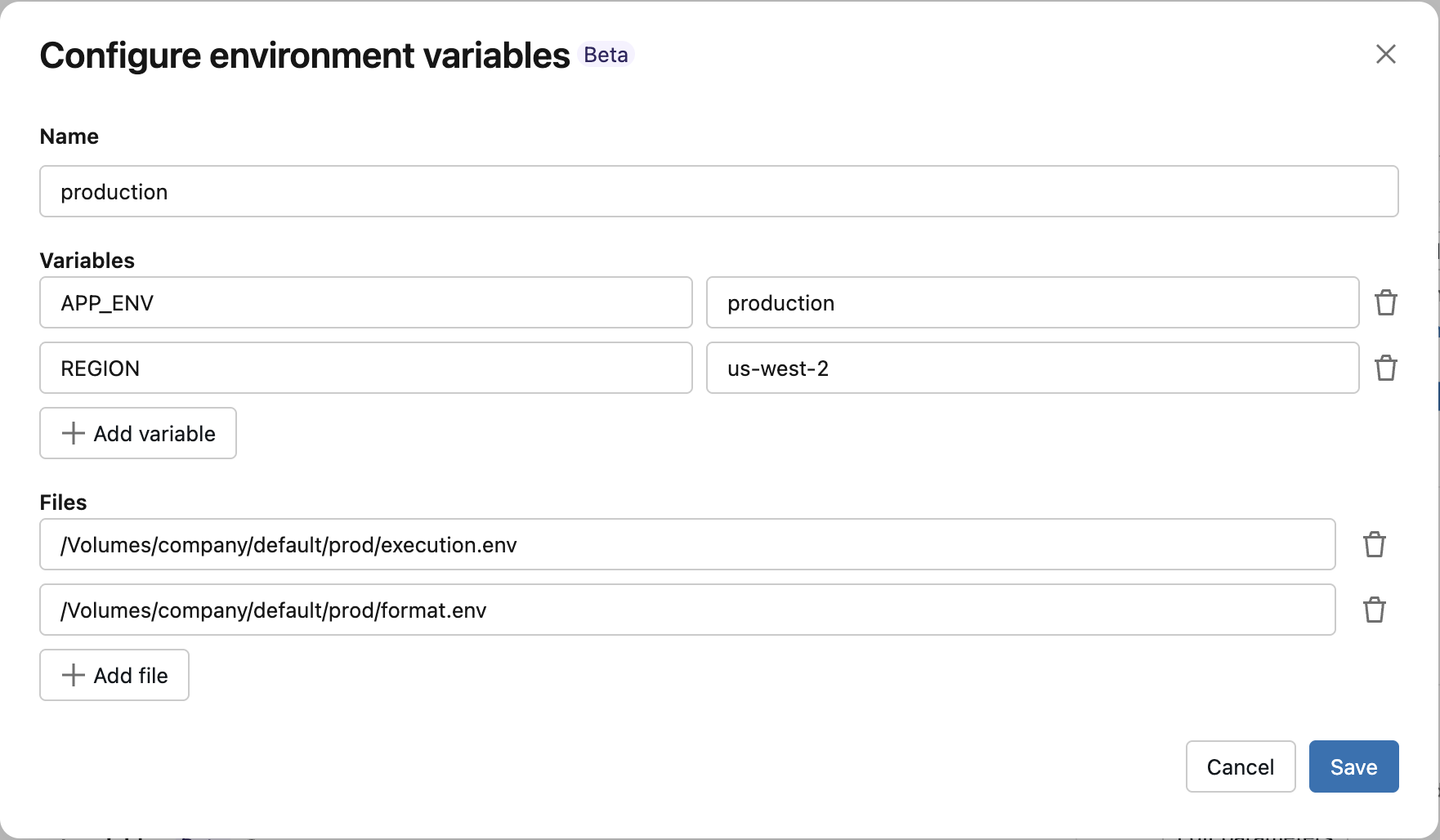
In Configure environment variables, enter a name. Optionally, add key-value pairs under Variables, paths to .env files under Files, or both. You can also leave both sections empty. Click Save.
Configure environment variables with the Jobs API
Use the environment_variables field in a POST /api/2.2/jobs/create request to define environment variable entries. Set environment_variables_key on each task that uses an entry.
Before running the following example, create the service-token secret in the production scope and grant the job's Run as identity access to it. See Use secrets. The example defines separate environment variable entries for a notebook task and a JAR task. Each entry uses spec.variables for inline values and spec.files for file paths. Each task selects its entry with environment_variables_key:
{
  "name": "serverless-environment-variables-example",
  "tasks": [
    {
      "task_key": "process_orders",
      "notebook_task": {
        "notebook_path": "/Workspace/Shared/process-orders"
      },
      "environment_key": "default",
      "environment_variables_key": "production"
    },
    {
      "task_key": "summarize",
      "spark_jar_task": {
        "main_class_name": "com.company.main"
      },
      "environment_key": "summary_env",
      "environment_variables_key": "summary_vars"
    }
  ],
  "environments": [
    {
      "environment_key": "default",
      "spec": {
        "environment_version": "5",
        "dependencies": []
      }
    },
    {
      "environment_key": "summary_env",
      "spec": {
        "environment_version": "5",
        "java_dependencies": ["/Volumes/company/default/prod/summarize.jar"]
      }
    }
  ],
  "environment_variables": [
    {
      "environment_variables_key": "production",
      "spec": {
        "variables": {
          "APP_ENV": "production",
          "REGION": "us-west-2",
          "SERVICE_TOKEN": "{{secrets/production/service-token}}"
        },
        "files": ["/Volumes/company/default/prod/execution.env", "/Volumes/company/default/prod/format.env"]
      }
    },
    {
      "environment_variables_key": "summary_vars",
      "spec": {
        "variables": {
          "APP_ENV": "production",
          "LOG_LEVEL": "INFO",
          "LOG_FILE": "service.log"
        },
        "files": ["/Volumes/company/default/prod/format.env"]
      }
    }
  ]
}
You can also configure environment variable entries with the Update a job, Overwrite all settings for a job, and Submit a one-time run operations.
Read environment variables in application code
Application code reads configured variables from the process environment.
Python
import os

app_environment = os.environ["APP_ENV"]
region = os.environ["REGION"]
Scala
val appEnvironment = sys.env("APP_ENV")
val region = sys.env("REGION")