Note
Access to this page requires authorization. You can try signing in or changing directories.
Access to this page requires authorization. You can try changing directories.
Important
This feature is in Beta. Workspace admins can control access to this feature from the Previews page. See Manage Azure Databricks previews.
Custom Model Serving can run your GPU endpoint behind the NVIDIA Triton Inference Server backend. Triton batches incoming requests together before they reach your model, which raises throughput on GPU-bound models under concurrency. This page shows you when Triton helps, how to enable it on a GPU serving endpoint, and how to confirm that it is active.
When to use Triton
Triton coalesces concurrent requests into batches on the GPU, so it helps most when the GPU is your bottleneck. Good candidates are heavy, batchable GPU workloads under real-time, high-concurrency traffic, where throughput gains can be substantial:
- BERT and other transformer inference
- Embedding models
- Image classification
- Object detection
Triton helps less when the GPU is not the bottleneck, such as small models or a vision model that decodes and resizes images on the CPU. There, the GPU sits idle waiting on CPU preprocessing, so batching in front of it only adds a hop. Moving preprocessing onto the GPU is what makes such a model benefit.
Batching trades a small amount of per-request latency for higher throughput, and the gain depends on concurrency. If traffic is low, batches stay small and the benefit is limited. Before you release widely, start with one endpoint and measure both throughput and latency under realistic concurrency.
Requirements
This feature requires that:
- The preview is turned on for your workspace. A workspace admin turns on the preview from the Previews page. See Manage Azure Databricks previews. Nothing below works until this is done.
- GPU serving. The served entity must use a GPU workload type (
GPU_SMALL,GPU_MEDIUM,GPU_LARGE, and so on). Triton is a no-op for CPU endpoints. - A batch-eligible model. The model must be batch-friendly: input counts match output counts (N inputs produce N outputs), and requests have no cross-request dependencies. The model must also process a whole batch in one call. In a
pyfunc, pass the batch at once (for example,model(**batched_inputs)) instead of looping over inputs one at a time — a per-item loop gets no batching benefit. - A model on the express deployment path. Register the model with
env_pack="databricks_model_serving"so its weights and environment are staged as deployable artifacts. A model that falls back to the container-build path cannot get the Triton backend. Register from Serverless GPU compute v4, v5, or v6, both Standard and AI. See Express deployments for model serving endpoints.
Step 1: Register your model for express deployment
Log and register the model with env_pack="databricks_model_serving". Run this from a Serverless GPU runtime. Logging from a non-GPU runtime packages CPU dependencies, and the GPU endpoint fails to start.
import mlflow

mlflow.set_registry_uri("databricks-uc")

with mlflow.start_run():
    model_info = mlflow.pyfunc.log_model(
        artifact_path="model",
        python_model=MyModel(),
        # An input example enables automatic tuning of batching parameters in PuPr.
        input_example=example,
    )

# env_pack puts the model on the express deployment path (required for Triton).
mlflow.register_model(
    model_info.model_uri,
    "<catalog>.<schema>.<model>",
    env_pack="databricks_model_serving",
)
Step 2: Enable throughput optimization and create the endpoint
Turn on request batching when you create the endpoint. This serves the model on Triton, and Azure Databricks profiles the model and applies tuned batching settings.
Batching is available only when all of the following are true:
- The served entity uses a GPU workload type, not CPU.
- The served model has no custom entrypoint.
- The model version is express-deployment (SOD) eligible. See Step 1.
- The preview is turned on for your workspace. See Requirements.
Create the endpoint as a normal GPU endpoint from the Serving UI:
- On the Create serving endpoint form, select an express-deployment eligible model version and a GPU workload type.
- Select Throughput optimized. This checkbox appears only when the preceding conditions are met.
- Finish configuring the endpoint, then select Create.
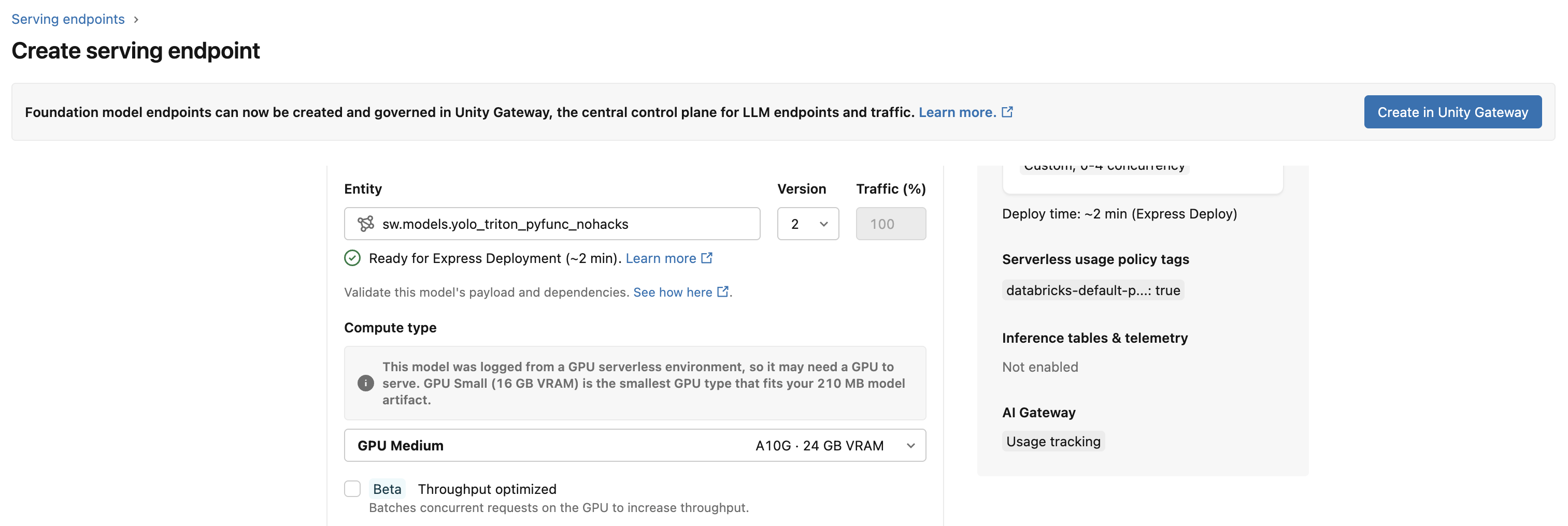
To change the setting later, edit the endpoint and select or clear Throughput optimized. The batching decision is re-evaluated on each deploy: it rolls Triton in or out on the next deploy and is not applied retroactively to an already-running deployment.
Step 3: Query the endpoint
Send a small batch to confirm that the endpoint serves. Match the input shape that your model expects.
import numpy as np
import requests

host = "https://<workspace-host>"
endpoint = "my-detector"

batch = np.zeros((2, 3, 224, 224), dtype=np.float32)  # example input shape

resp = requests.post(
    f"{host}/serving-endpoints/{endpoint}/invocations",
    headers={
        "Authorization": f"Bearer {DATABRICKS_TOKEN}",
        "Content-Type": "application/json",
    },
    json={"inputs": batch.tolist()},
)
resp.raise_for_status()
predictions = np.array(resp.json()["predictions"])
Step 4: Confirm Triton is active
A READY status alone does not prove that the Triton backend attached. There is currently no dedicated API field or UI badge for it, and a READY endpoint looks identical either way. Confirm with one of the following:
- Service logs. Check the endpoint's service logs for Triton startup lines (the Triton Inference Server banner and model-loading messages). Their presence means the backend attached. A sample log follows:
[ts/g7zw9] I0911 22:42:18.894428 1 cuda_memory_manager.cc:107] "CUDA memory pool is created on device 0 with size 67108864"
[ts/g7zw9] I0911 22:42:18.916439 1 model_lifecycle.cc:473] "loading: model:1"
[ts/g7zw9] I0911 22:42:23.775240 1 python_be.cc:2289] "TRITONBACKEND_ModelInstanceInitialize: model_0_0 (GPU device 0)"
[ts/g7zw9] I0911 22:43:22.356197 1 model_lifecycle.cc:849] "successfully loaded 'model'"
[ts/g7zw9] I0911 22:43:22.357208 1 server.cc:681]
[ts/g7zw9] +-------+---------+--------+
[ts/g7zw9] | Model | Version | Status |
[ts/g7zw9] +-------+---------+--------+
[ts/g7zw9] | model | 1       | READY  |
[ts/g7zw9] +-------+---------+--------+
[ts/g7zw9] I0911 22:43:22.387088 1 grpc_server.cc:2562] "Started GRPCInferenceService at 127.0.0.1:8001"
[ts/g7zw9] I0911 22:43:22.387651 1 http_server.cc:4809] "Started HTTPService at 127.0.0.1:8002"
[ts/g7zw9] I0911 22:43:22.430569 1 http_server.cc:358] "Started Metrics Service at 0.0.0.0:8003"
- Contact your Azure Databricks account team to confirm that the backend attached for your endpoint. If it did not, they can tell you why. Common causes are covered in Troubleshooting.
Then benchmark under realistic concurrency. Triton's throughput gain shows up under load, and batching adds some per-request latency, so measure both before rolling out.
(Optional) Tune batching
Batching defaults are tunable per deployment. To adjust them for your endpoint, contact your Azure Databricks account team.
Troubleshooting
| Issue | Cause and fix |
|---|---|
READY, but no performance change and no Triton in the logs |
Throughput optimization isn't enabled, or the preview is off. Confirm the preview is on and that Throughput optimized is enabled (Step 2), then redeploy. |
| Deploy fell back with no Triton backend | The model isn't on the express deployment path. Re-register with env_pack="databricks_model_serving", then redeploy. |
| No throughput gain versus a non-Triton endpoint | The model isn't GPU-bound (GPU idle, or CPU-bound preprocessing). This is expected; for vision models, move image decode and resize onto the GPU. |
| Triton crashes on large inputs | /dev/shm is too small. Ask your Azure Databricks account team to raise the /dev/shm size (8 GiB or more for vision). |
| Endpoint over-provisions to max concurrency during steady-state traffic | Autoscaling is currently aggressive and can provision to max concurrency early. Contact your Azure Databricks account team to tune autoscaling more conservatively. |
Reach out to your Azure Databricks account team for feedback or questions.