Note
Access to this page requires authorization. You can try signing in or changing directories.
Access to this page requires authorization. You can try changing directories.
Important
Review queues are in Beta. A workspace admin turns them on from Manage previews by enabling MLflow Review Queues. If you do not see review queues in your workspace, contact your Azure Databricks account team.
Give human feedback on AI output using review queues to improve AI quality. Review queues give reviewers a structured, sequential backlog of questions to answer, so feedback stays consistent as the number of items grows.
Azure Databricks recommends review queues for new human-review workflows. They bring together the structured questions you would define with labeling schemas and the reviewer coordination of labeling sessions into a single, focused review experience.
You can review two kinds of items:
- Traces: the requests and responses your app produced.
- Dataset records: the inputs and expectations in an evaluation dataset, for example, to have a human curate ground-truth answers.
Prerequisites
- An MLflow Experiment with the items you want reviewed: traces logged from your AI app, or records in an evaluation dataset.
- Can Edit on the experiment to flag items and create queues. Reviewers who only answer questions need Can Read and to be assigned to the queue. See Permissions for the full breakdown.
- Reviewers who do not have workspace access must be provisioned in your Azure Databricks account. See User and group management.
Create a review queue
Every experiment has a Reviews tab. When no queues exist yet, it shows an empty state with a New queue button.
To create a queue:
- Open the Reviews tab in your experiment and click New queue.
- Give the queue a name and assign one or more reviewers.
- Select the questions reviewers should answer. A queue uses a subset of the experiment's questions, so different queues can ask different things. A live preview shows exactly what each reviewer will see.
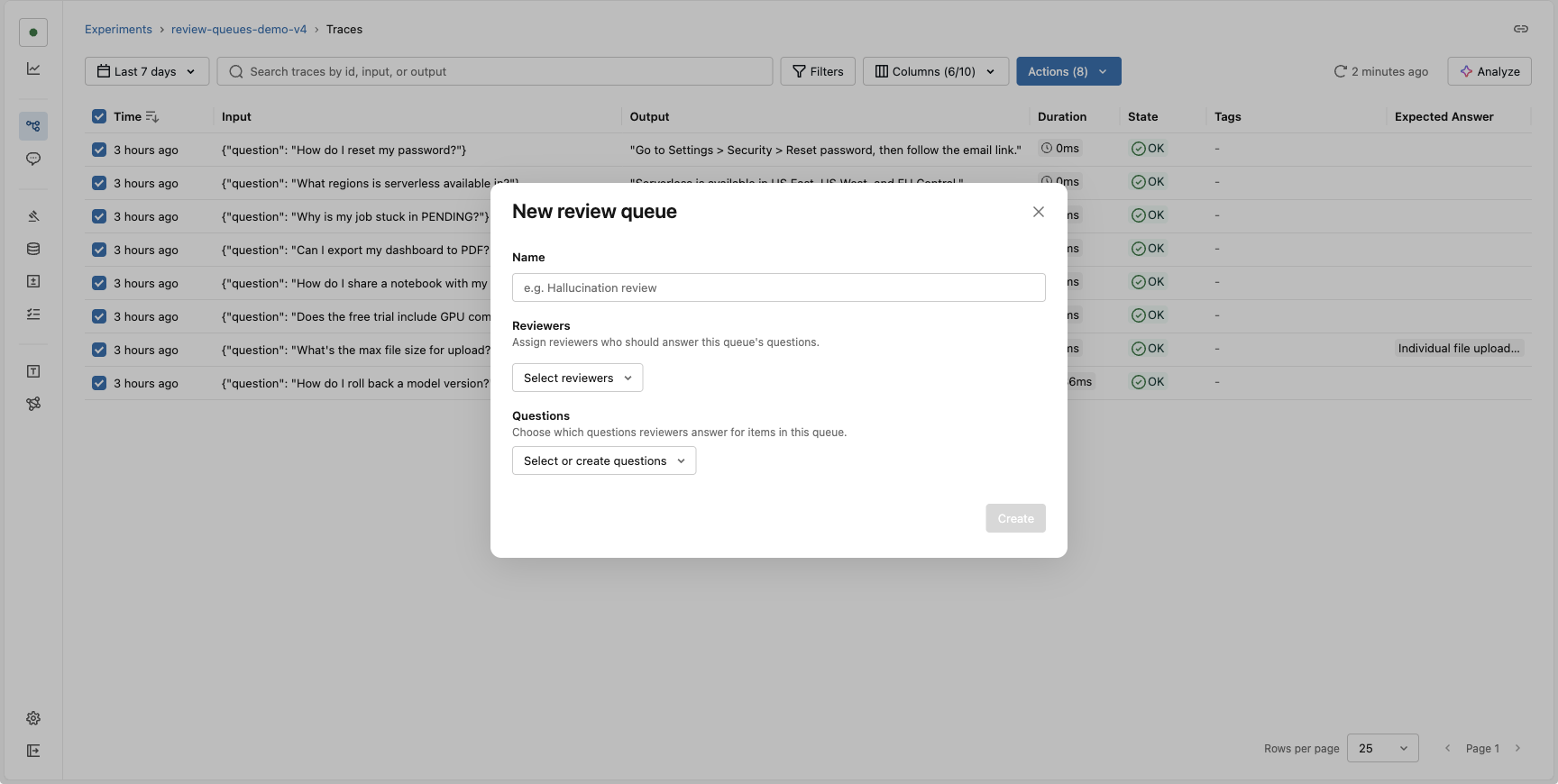
Define the questions
Questions are what you ask reviewers to answer about each item. They are defined once at the experiment level and shared across queues: questions are separate objects from queues, and each queue selects the subset it needs. Editing a question updates it everywhere it is used.
A review question has:
- Title: the short prompt the reviewer sees (for example, "Is the response factually correct?").
- Instruction (optional): longer guidance shown alongside the question.
- Type: whether the question captures feedback or an expectation. See Feedback vs. expectation.
- Answer format: how the reviewer responds. See Answer formats.
- Comment (optional): let reviewers add a free-text comment alongside their answer.
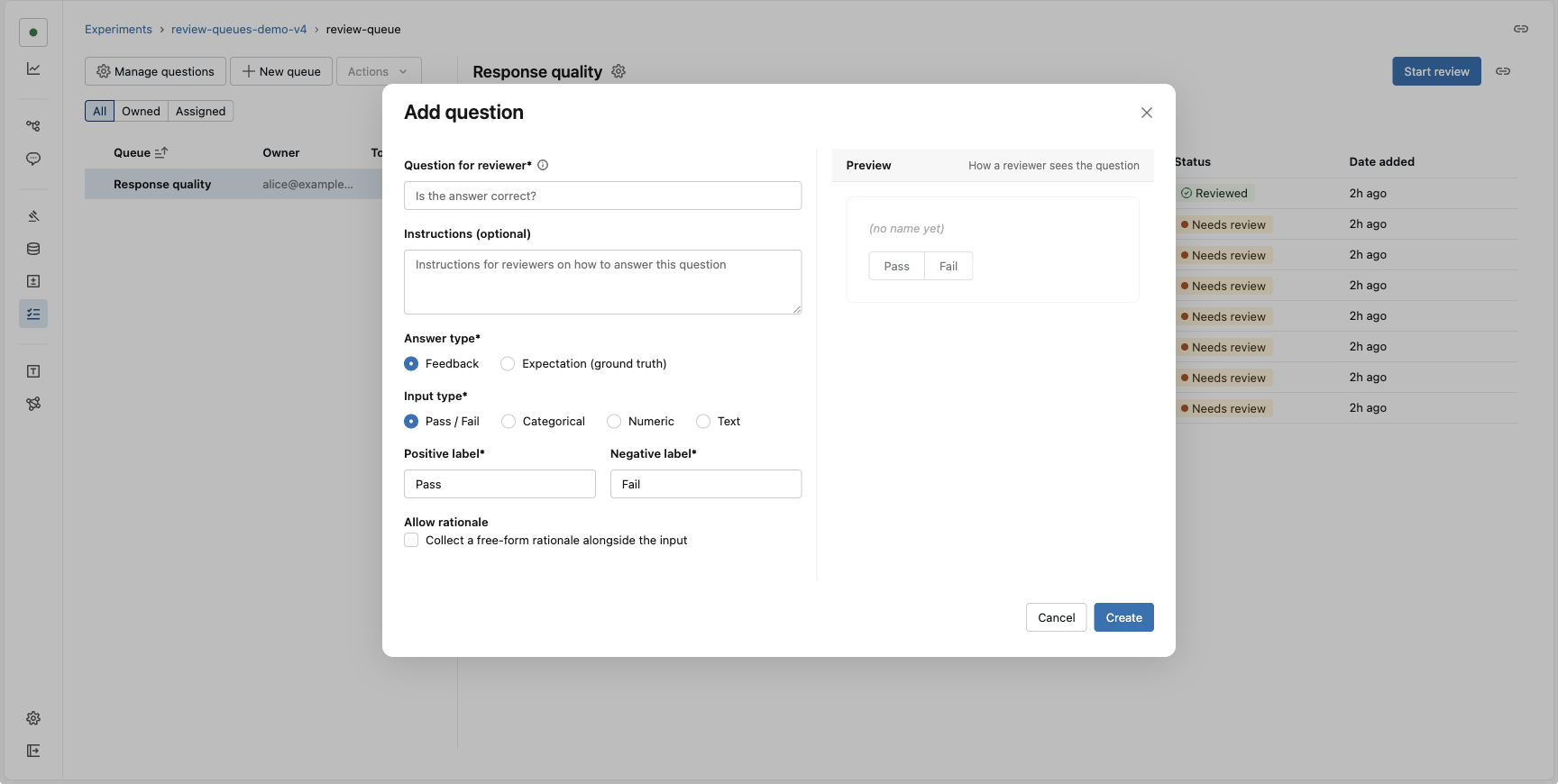
Feedback vs. expectation
Every question is either a feedback question or an expectation question. This choice determines what the reviewer provides and where their answer is written:
- Feedback: the reviewer's judgment of an item over a bounded set of choices, such as a pass/fail rating or a quality score. Feedback answers are written back as assessments on the trace, ready to use when you evaluate quality or align LLM judges.
- Expectation: a ground-truth answer the reviewer supplies, such as the ideal response for a given input. Expectation answers are written back as expectations: onto the trace, or onto the record's expectations when the item is a dataset record.
Note
Feedback questions apply only to traces. Dataset records take only expectation questions, because a record holds a single ground-truth value per field. If you flag dataset records to a queue, make sure it includes expectation questions.
Answer formats
Each question uses one answer format:
- Pass / Fail: a two-choice toggle with labels you set (defaults to Pass and Fail).
- Categorical: a fixed set of options (up to 10), as single-select or multi-select.
- Numeric: a number, with optional minimum and maximum bounds.
- Text: a free-form text answer, with an optional maximum length.
Flag items for review
Flagging is how items enter a queue. You can flag two kinds of items: traces and dataset records. The starting point differs, but the review experience that follows is identical.
There are two ways to get items in front of a reviewer:
- Flag to a reviewer: assign selected items to one or more people, and each gets a personal queue automatically, with no separate setup. The personal queue inherits every question in the experiment.
- Add to a shared queue: send items to a queue you created, which asks its own selected questions.
Flag traces
From the Traces tab, select the traces you want reviewed and choose Flag for review from the Actions menu.
Choose where the traces go: an existing queue, a specific reviewer, or a new queue you create on the spot.
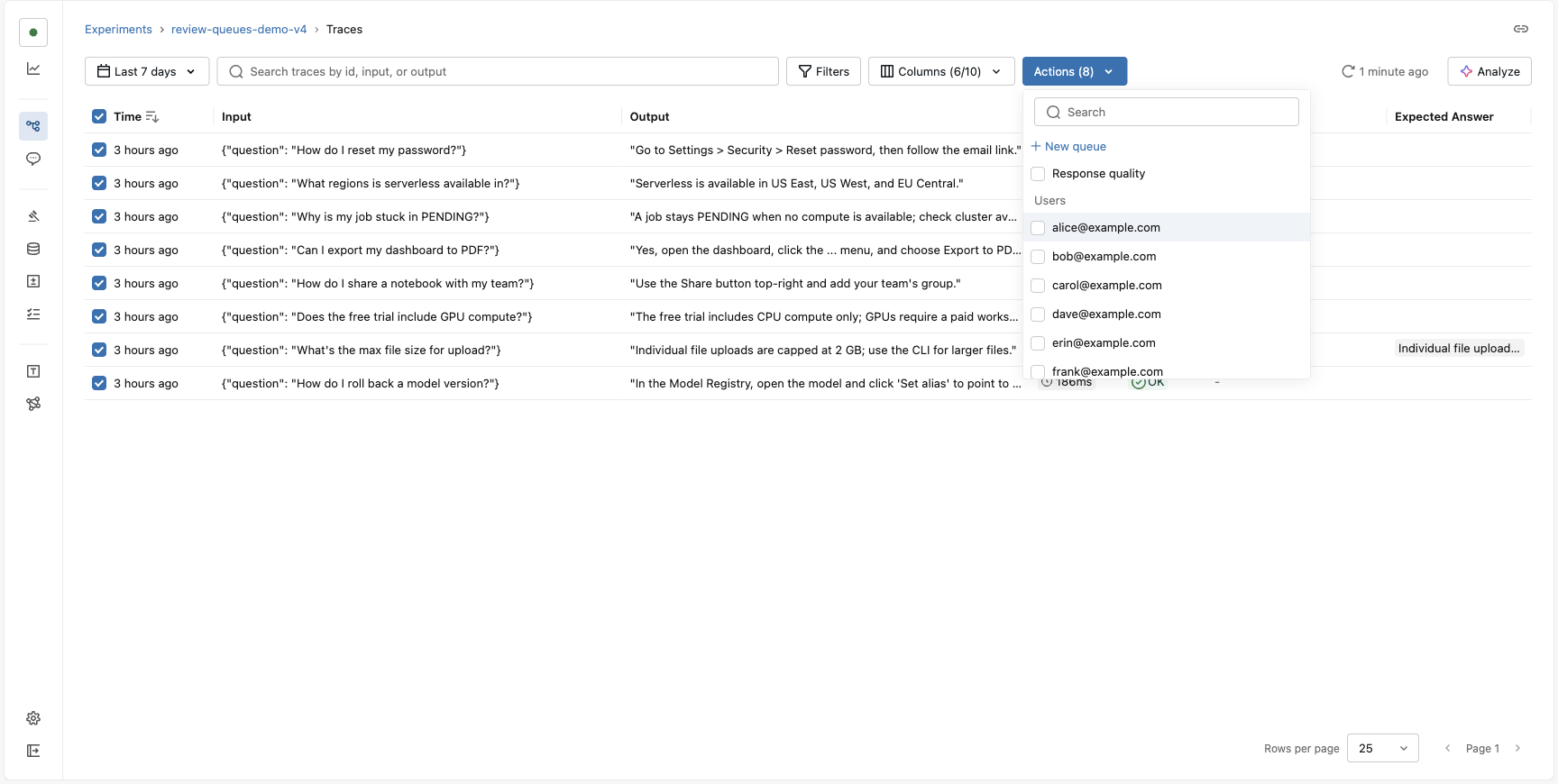
Flag dataset records
From the Datasets tab, open a dataset, select the records you want reviewed, and choose Flag for review.
Assign the selected records to one or more reviewers. Each reviewer gets a personal queue holding those records, so they can curate expectations (ground-truth answers) for them.
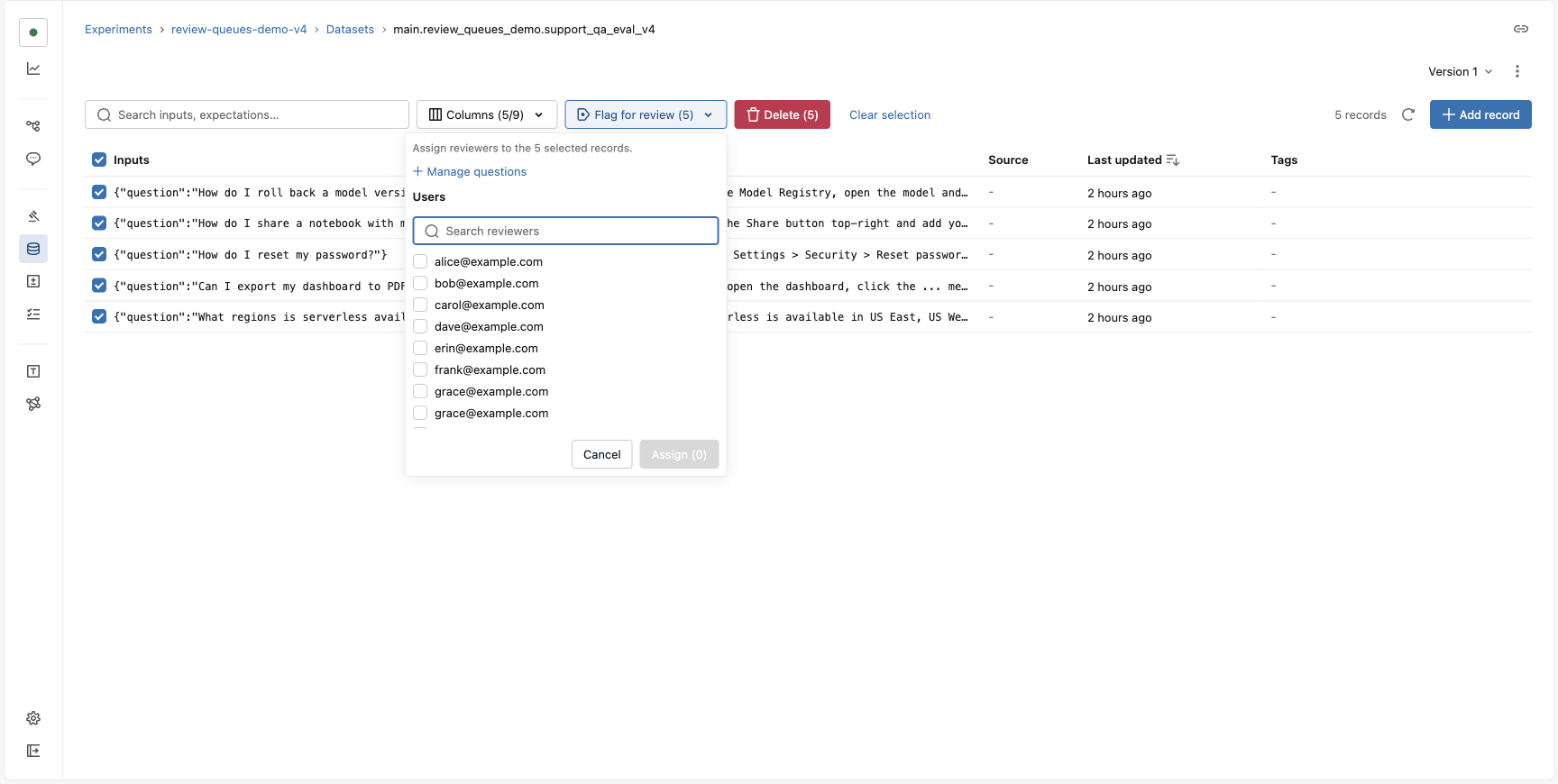
Manage questions
Select Manage questions on the Reviews tab to open the experiment's question library, the one place where you create, edit, and delete questions. Because questions live at the experiment level rather than inside a single queue, the library is shared: a question can be reused across many queues, and editing it updates every queue that uses it. Before you delete a question, the library shows which queues currently use it.
Review items as a reviewer
Reviewers work through their assigned items one at a time. The focused review view puts the item's content on the left and the queue's questions on the right, with a progress bar and previous / next controls to move through the backlog. Reviewers can open the full item when they need more context. The same surface handles both traces and dataset records, so only the content on the left differs.
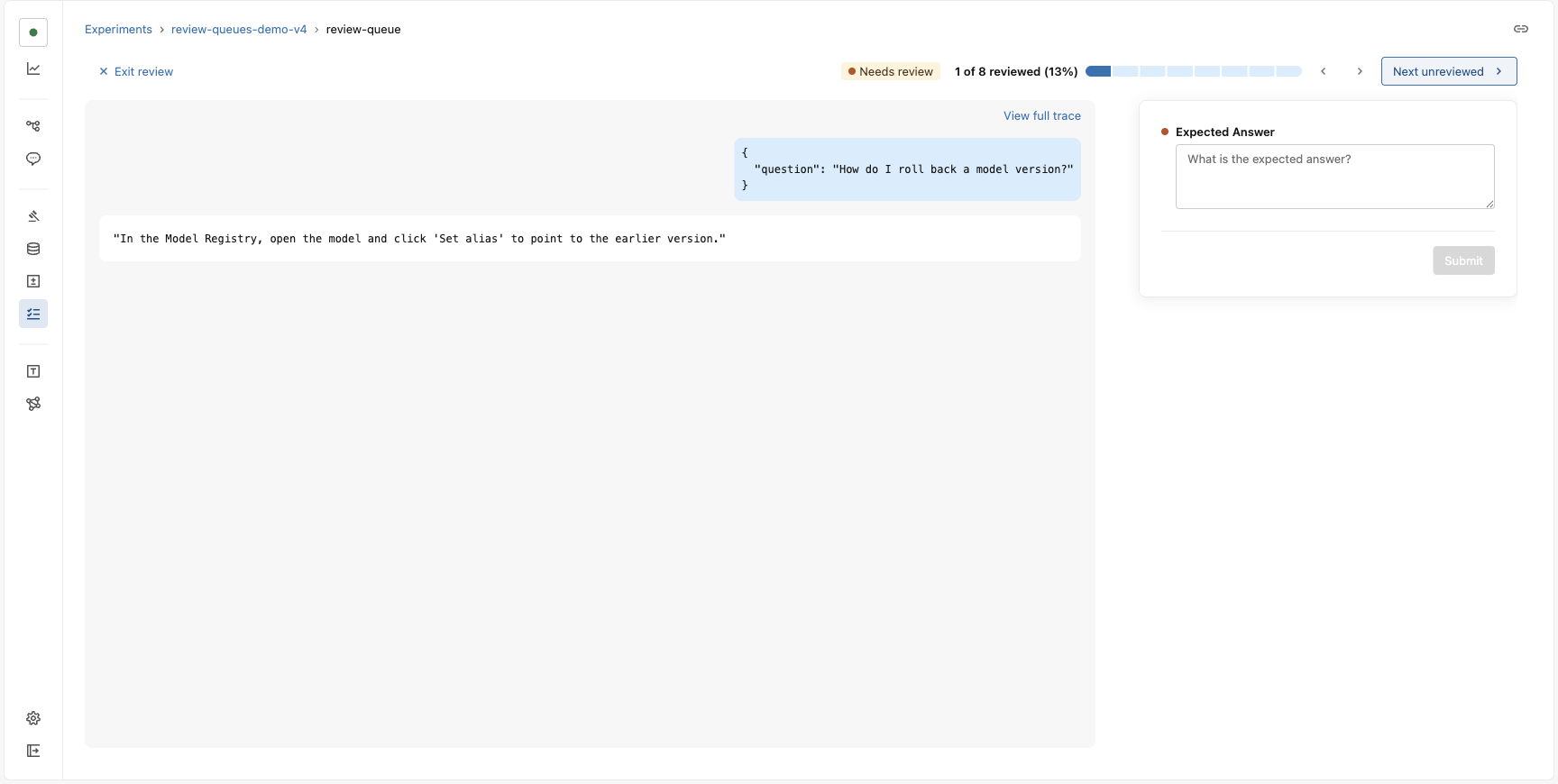
As a reviewer answers each question, the answer is saved back onto the item (as an assessment on a trace, or as a curated expectation on a dataset record), so the results flow into your evaluation workflows automatically.
Monitor progress
Each queue lists its items with their content, review status, and when they were added. Filter by Needs review or Completed to see what is left, and select Start review to begin.
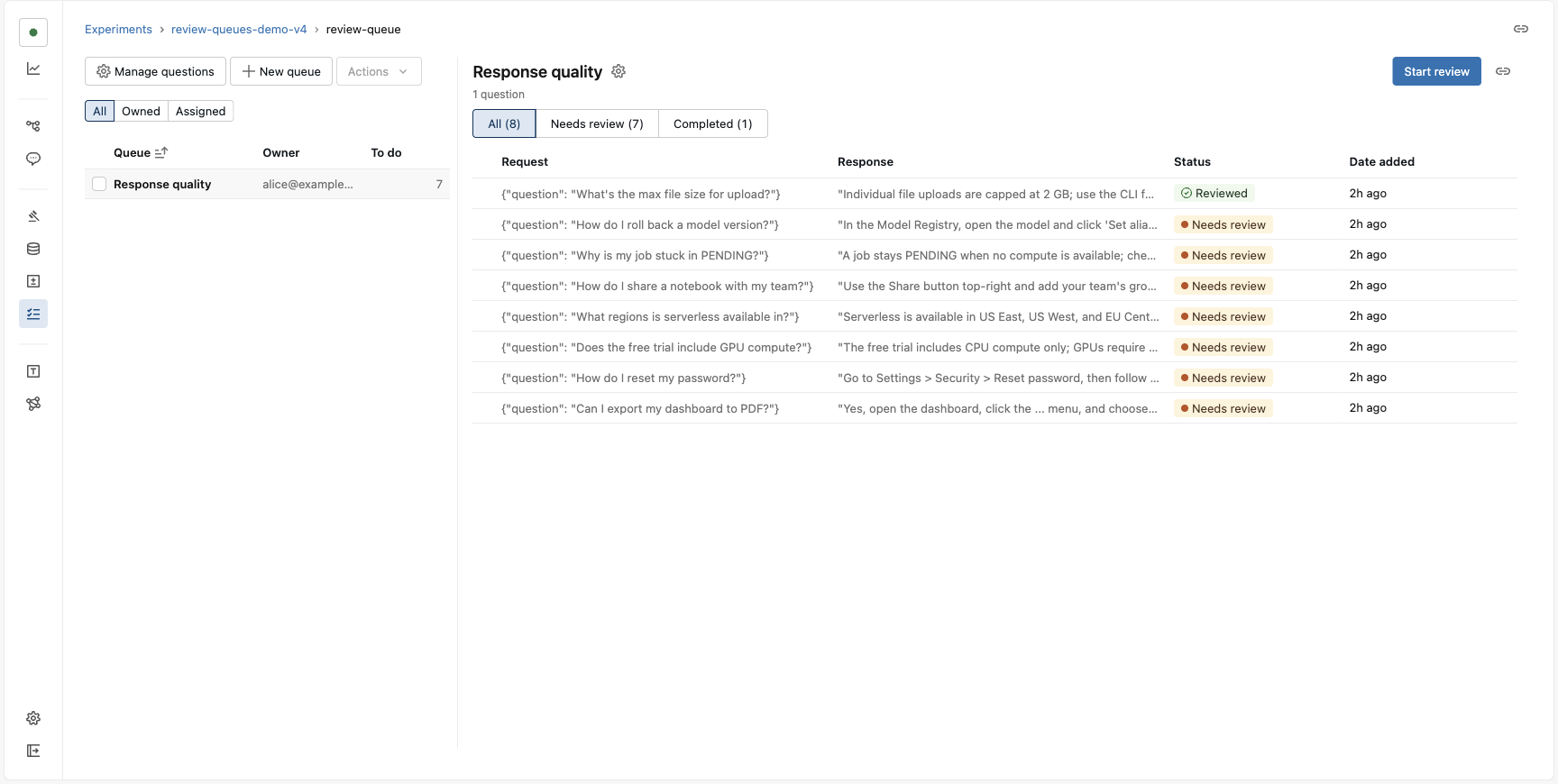
As reviewers submit answers, items flip from Needs review to Reviewed and the queue's counts update in real time, so you always know how far along a review effort is.
Permissions
Review-queue access is governed by the reviewer's permission on the experiment that owns the queue. There are no separate per-queue grants.
| To… | A reviewer needs… |
|---|---|
| Open a queue and answer its questions | Can Read on the experiment (and to be the queue's assigned reviewer). |
| Flag items into a queue (traces or dataset records) | Can Edit on the experiment. |
| Create a queue, or add or remove reviewers | Can Edit on the experiment (for a queue you own) or Can Manage. |
| Delete a queue or remove its items | Can Manage, or Can Edit on a custom queue you own. |
Reviewers who only need to do the reviewing just need to be assigned to the queue; setting up and administering queues requires Can Edit (or Can Manage) on the experiment. All of these are enforced on the server for every action, and the UI only hides affordances a reviewer can't use.
Additional resources
- Human feedback in MLflow - Overview of how MLflow captures human feedback as assessments.
- Capture feedback and expectations with existing traces - The Review App approach to expert labeling.
- Create and manage labeling schemas - Define the questions reviewers answer in the Review App labeling flow.
- Create and manage labeling sessions - Organize expert review of traces with the Review App.