Note
Access to this page requires authorization. You can try signing in or changing directories.
Access to this page requires authorization. You can try changing directories.
Important
This feature is in Beta.
Back a Unity Catalog schema with Azure Key Vault to use your Azure Key Vault secrets in notebooks, jobs, and UDFs without copying them. The values stay in Key Vault, and Unity Catalog privileges control who can read or use each secret.
Unlike an Azure Key Vault-backed secret scope, which exposes a whole vault to one workspace, a Key Vault-backed Unity Catalog schema is available in every workspace attached to the metastore and grants access to each secret separately.
To compare external secrets with Azure Databricks-managed secrets and workspace secret scopes, see Choose where to store a secret.
How external secrets work
A schema is backed by one connection to your cloud secret manager. Two independent controls decide who can use a secret. The service credential's permissions in your secret manager decide which secrets Unity Catalog can import and read, and Unity Catalog privileges decide which principals can use them.
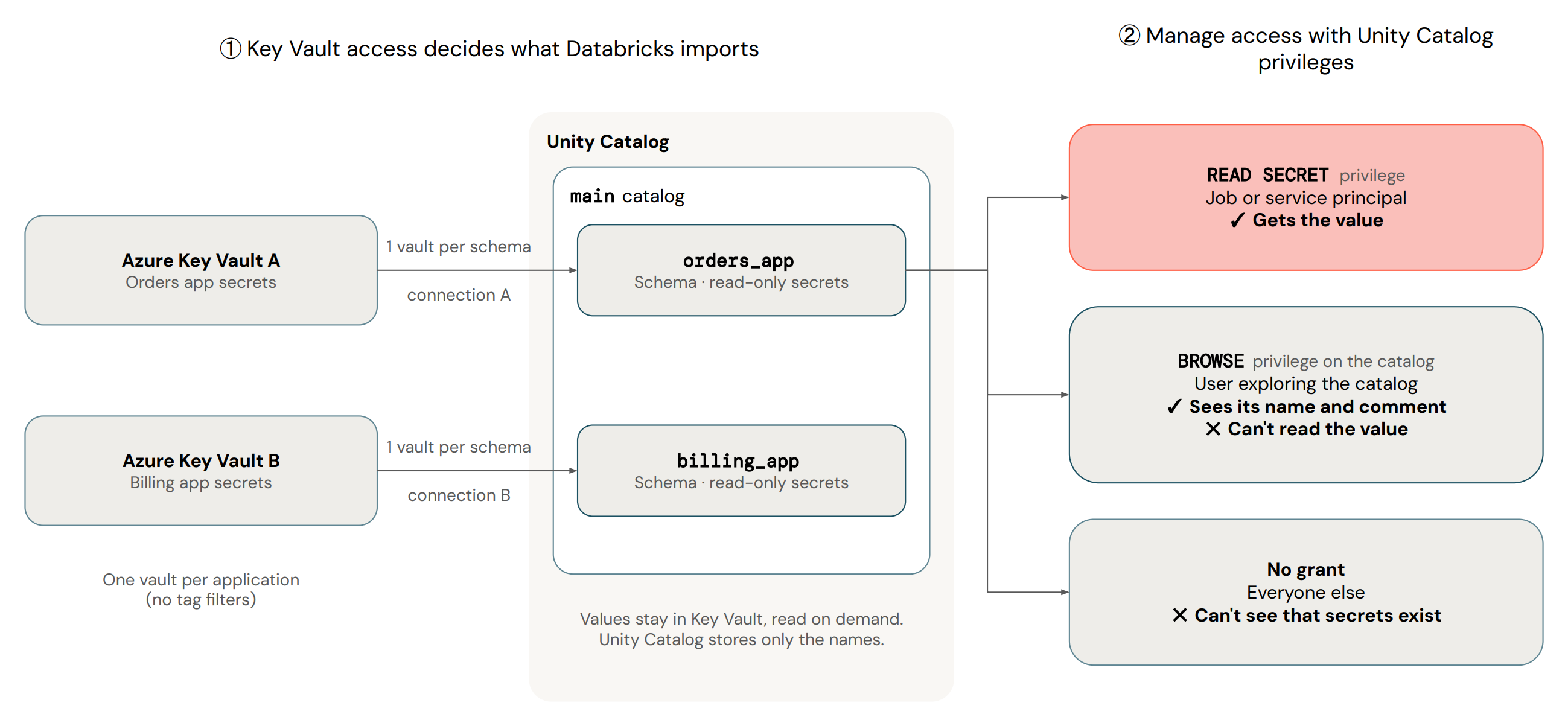
After you back a schema, external secrets behave as follows:
- Each read fetches the current value: A value you rotate in your secret manager takes effect on the next read, with no change in Azure Databricks. Code that already holds a value keeps it until it reads the secret again. Retrieved values may be cached on the compute that requested them, as with other secrets.
- Manage secrets in your secret manager: Create, update, rotate, and delete secrets there. They are read-only in Unity Catalog. When you permanently delete a secret in your secret manager, Azure Databricks removes the Unity Catalog secret, including its permissions and tags.
- Listing imports new secrets: Listing the schema starts an asynchronous import. A secret added to or removed from your secret manager appears in Unity Catalog after a later list, which can take a few minutes for large stores. You can read a secret by name before it appears in a list.
- Audit logs record both sides: Unity Catalog audit logs record the Azure Databricks principal that read a secret. Cloud-side logs attribute access to the service credential.
Requirements
- Meet the requirements for Unity Catalog secrets.
- The external secrets Beta must be enabled for your workspace. See Manage Azure Databricks previews.
- You need a Unity Catalog service credential and a Unity Catalog connection that uses it to authenticate to your secret manager. See Create service credentials and Create a connection.
- To back the schema, you need
USE CATALOGon the catalog, ownership of the schema orMANAGEon it, andUSE CONNECTIONon the connection. The schema must not contain any Azure Databricks-managed secrets, so delete any before you back it.
Set up external secrets
Create a service credential
The connection authenticates to your secret manager with a Unity Catalog service credential.
- Create a service credential backed by a managed identity or service principal, as described in Create service credentials.
- Grant the identity permission to list and read secrets in the Key Vault. For example, assign the Key Vault Secrets User role, or an access policy with get and list secret permissions.
Create a connection
Create a Unity Catalog connection that uses the service credential and points to your secret manager. You need CREATE CONNECTION on the metastore.
Catalog Explorer
- In Catalog Explorer, click the + menu and select Create a connection.
- Enter a Connection name and select the Azure Key Vault connection type.
- Select the service credential, and set the vault name of your Key Vault.
- Click Create.
Databricks CLI
To create the connection, run the following. Set vault_name to the name of your Key Vault and credential to the service credential name:
databricks connections create --json '{
  "name": "my_key_vault_connection",
  "connection_type": "AZURE_KEY_VAULT",
  "options": {
    "vault_name": "my-vault",
    "credential": "my_key_vault_credential"
  }
}'
REST API
To create the connection, run the following. Azure Databricks resolves vault_name to https://<vault_name>.vault.azure.net:
curl -X POST \
  -H "Authorization: Bearer $DATABRICKS_TOKEN" \
  -H 'Content-Type: application/json' \
  -d '{
    "name": "my_key_vault_connection",
    "connection_type": "AZURE_KEY_VAULT",
    "options": {
      "vault_name": "my-vault",
      "credential": "my_key_vault_credential"
    }
  }' \
  "$DATABRICKS_HOST/api/2.1/unity-catalog/connections"
Back a schema with the connection
- In Catalog Explorer, go to the schema.
- In the schema's details, find the external secrets manager setting and click Enable. Enable stays unavailable until the schema has no secrets.
- Select the connection you created, then confirm.
To point the schema at a different connection, click Edit. To return the schema to Azure Databricks-managed storage, edit the schema and disable external secrets. Either change removes the previously imported secrets from the schema, including their permissions and tags.
Verify the setup
To confirm that Unity Catalog can list and read your secrets, run the following in a notebook:
# List the secrets in the schema. This also starts an import of new secrets.
dbutils.secrets.list(catalog="main", schema="orders_app")

# Read one secret by name
dbutils.secrets.get(catalog="main", schema="orders_app", key="example_secret")
If the list is empty, run it again after a few minutes. If a read fails, see Troubleshooting.
Secret names in Unity Catalog
Unity Catalog imports an external secret only if its name meets these rules:
- Names longer than 255 characters are not imported.
- Names are case-insensitive. If two secrets differ only by case, Unity Catalog keeps the first one imported and ignores the rest.
.becomes:and/becomes|. Azure Databricks recommends avoiding these characters in external secret names.
To read a secret before it appears in a list, use its name with these substitutions.
Troubleshooting
- A secret is listed, but reading it fails: The identity can list the secret but can't read its value, or the secret is disabled in Key Vault. Grant the Key Vault Secrets User role or an access policy with get permission, or re-enable the secret.
- A secret disappeared: Unity Catalog doesn't show soft-deleted Key Vault secrets. Recover the secret in Key Vault.
- A new secret doesn't appear: List the schema, wait a few minutes, and list it again. Check the naming restrictions and the schema quota.
- Some secrets never appear: A schema holds up to 1,000 secrets. When your secret manager has more, Unity Catalog imports the oldest first by creation date and skips the rest. Expose only the secrets you need in each schema. See Group secrets by who needs them.
Limitations
In addition to the limitations that apply to all Unity Catalog secrets, externally backed secrets have the following limitations:
- Cross-cloud access is not supported: Back schemas with the secret manager native to the workspace's cloud.
- Read latency and cost: Every read fetches the value from the external secret manager, which adds latency and can incur cloud provider costs.
- No tag filtering: Azure Key Vault does not support filtering imported secrets by tag.
Note
If the external secret manager that backs a schema is in a different region from the metastore or workspace that reads it, secret values and their metadata cross regions. Azure Databricks does not guarantee in-region processing of external secrets.
External secret names and values can contain personal data. You are responsible for keeping personal data out of them unless your use case requires it.
Additional resources
| Resource | Description |
|---|---|
| Best practices for Unity Catalog secrets | Organize secrets by environment, application, or team, and let workloads use secrets without reading them. |
| Secrets in Unity Catalog | Create, grant, and read Unity Catalog secrets. |