Note
Access to this page requires authorization. You can try signing in or changing directories.
Access to this page requires authorization. You can try changing directories.
Unity Catalog managed tables are the default and recommended table type in Azure Databricks. Unity Catalog manages storage, layout, and maintenance for you, which lowers storage and compute costs while keeping tables optimized automatically. For a full description of managed tables and their benefits, see Unity Catalog managed tables for Delta Lake and Apache Iceberg.
To convert an external or foreign Delta Lake table to a Unity Catalog managed table in Azure Databricks, use the ALTER TABLE ... SET MANAGED command or, for external tables, Catalog Explorer. The conversion retains table configurations, including name, settings, permissions, and views, and retains table history.
The exact SET MANAGED syntax depends on whether your source table is external or foreign. Using the wrong syntax for your source type causes the command to fail. Before you convert, see Choose the correct command for your source table.
For external table conversions, SET MANAGED also:
- Minimizes reader and writer downtime.
- Handles concurrent writes during conversion.
- Allows you to roll back a converted managed table to an external table.
- Redirects path-based reads and writes to allow legacy code to function after conversion.
Although you can also use CREATE TABLE AS SELECT (CTAS) to convert an external table to a managed table, Databricks recommends SET MANAGED for the preceding benefits.
Choose the correct command for your source table
External tables and foreign tables use different SET MANAGED syntax. Confirm your source table type in Catalog Explorer or with DESCRIBE EXTENDED before you convert, then use the matching command, as described in the following table:
| Source table type | Command | Notes |
|---|---|---|
| External | ALTER TABLE ... SET MANAGED |
Don't add MOVE or COPY. See the prerequisites and conversion instructions. |
| Foreign | ALTER TABLE ... SET MANAGED {MOVE \| COPY} |
You must specify either MOVE or COPY. See the prerequisites and conversion instructions. |
The MOVE and COPY options are for foreign tables only, because an external catalog manages a foreign table's data and metadata. MOVE and COPY control whether that source table stays accessible after conversion. External tables have no external catalog to preserve, so this choice doesn't apply to them.
If you use the incorrect command for your source table type, Spark raises the following errors:
- If you add
MOVEorCOPYoptions when converting an external table, the command fails withDELTA_ALTER_TABLE_SET_MANAGED_UNSUPPORTED_COPY_MOVE_SYNTAX. To resolve, runALTER TABLE ... SET MANAGEDwithout either option. - If you omit both
MOVEandCOPYwhen converting a foreign table, the command fails withDELTA_ALTER_TABLE_SET_MANAGED_COPY_OR_MOVE_REQUIRED. To resolve, add eitherMOVEorCOPY.
Prerequisites
Prerequisites differ depending on whether you convert an external table or a foreign table.
External tables
Converting external tables to managed tables has the following prerequisites:
- Format: The table must use the Delta Lake format.
- Runtime: You must use Databricks Runtime 17.3 LTS or above or Serverless compute to use
SET MANAGED,UNSET MANAGED, orTRUNCATE UNIFORM HISTORY. - Permissions: Ownership of the table.
- Readers and writers: Azure Databricks readers and writers for your source tables must use Databricks Runtime 15.4 LTS or above. If your readers or writers use 14.3 LTS or below, see Legacy readers and writers.
- External clients: External (non-Databricks) clients must support reads to Unity Catalog managed tables. See Access tables with Delta clients.
- Use the Access Insights dashboard to see whether readers and writers accessing your tables are Databricks Runtime or external non-Databricks.
- Feature compatibility: If your table has
minReaderVersion=2,minWriterVersion=7, andtableFeatures={..., columnMapping}, theSET MANAGEDcommand fails with aDELTA_TRUNCATED_TRANSACTION_LOGerror. Verify if your table has these properties usingDESCRIBE DETAIL. See Delta Lake feature compatibility and protocols.
After conversion, path-based reads and writes are automatically redirected to the new managed location with slight performance overhead. Databricks recommends migrating all path-based access to name-based access to avoid the performance overhead. See Path-based redirect.
Important
To avoid conflicts, cancel any existing OPTIMIZE command jobs (liquid clustering, compaction, ZORDER) operating on your external table, and do not schedule any jobs while you convert your external tables to managed tables.
Foreign tables
When converting a foreign table to a managed table, only foreign tables federated using Hive metastore and Glue Federation are supported.
Converting foreign tables to managed tables has the following prerequisites:
- Data format: The foreign table must use the Delta Lake format. To perform a one-time conversion for Parquet, see Convert to Delta Lake.
- Runtime: Databricks Runtime 17.3 or above.
- Table type: The Hive metastore (HMS) table type must be an external HMS table. The command fails if the table is a managed HMS table.
- Permissions:
OWNERorMANAGEpermissions on the table andCREATEpermission on theEXTERNAL LOCATION.
To convert foreign tables to external tables, see Convert a foreign table to an external Unity Catalog table.
Downtime and data copy times
The SET MANAGED command minimizes or eliminates downtime compared to alternative approaches, such as DEEP CLONE.
External tables
The conversion process for external tables uses a two-step approach:
- Initial data copy (no downtime): The command copies table data and Delta transaction log from the external location to the managed location. Active readers and writers to the external table run without interruption.
- Switch to managed location (brief downtime): Commits made to the external location during the first step are moved to the managed location, and the table metadata is updated to register the new managed location. During this step, all writes to the external location are temporarily blocked, resulting in writer downtime. Readers on Databricks Runtime 16.4 LTS or above experience no downtime, but readers on Databricks Runtime 15.4 LTS and below might experience downtime.
The following table shows estimated downtime based on the size of the source table and an estimated throughput rate of 0.5-2 GB/CPU core/minute:
| Table size | Recommended cluster size | Estimated data copy time | Estimated reader and writer downtime |
|---|---|---|---|
| 100 GB or less | 32-core / X-Large SQL warehouse | ~6 min or less | ~1-2 min or less |
| 1 TB | 64-core / 2X-Large SQL warehouse | ~30 min | ~1-2 min |
| 10 TB | 256-core / 4X-Large SQL warehouse | ~1.5 hrs | ~1-5 min |
Note
Downtime might vary based on factors such as file size, number of files, and number of commits.
Foreign tables
Foreign table conversion downtime depends on whether you use MOVE or COPY:
- For
MOVE, downtime might occur as described for external tables. See External tables. - For
COPY, you are responsible for managing downtime because the conversion process copies the source table to the managed storage location, creating two separate copies of the data. You are responsible for disabling reads and writes to the source table in the external catalog, and migrating workloads to use the new managed table.
Convert to a managed table
Convert an external table using Catalog Explorer or SQL, or convert a foreign table using SQL.
External tables using the Catalog Explorer (Beta)
Important
Converting external to managed tables using Catalog Explorer is in Beta.
Using Catalog Explorer, you can convert one or more external tables in a schema at a time.
Go to the table or schema you want to convert in Catalog Explorer.
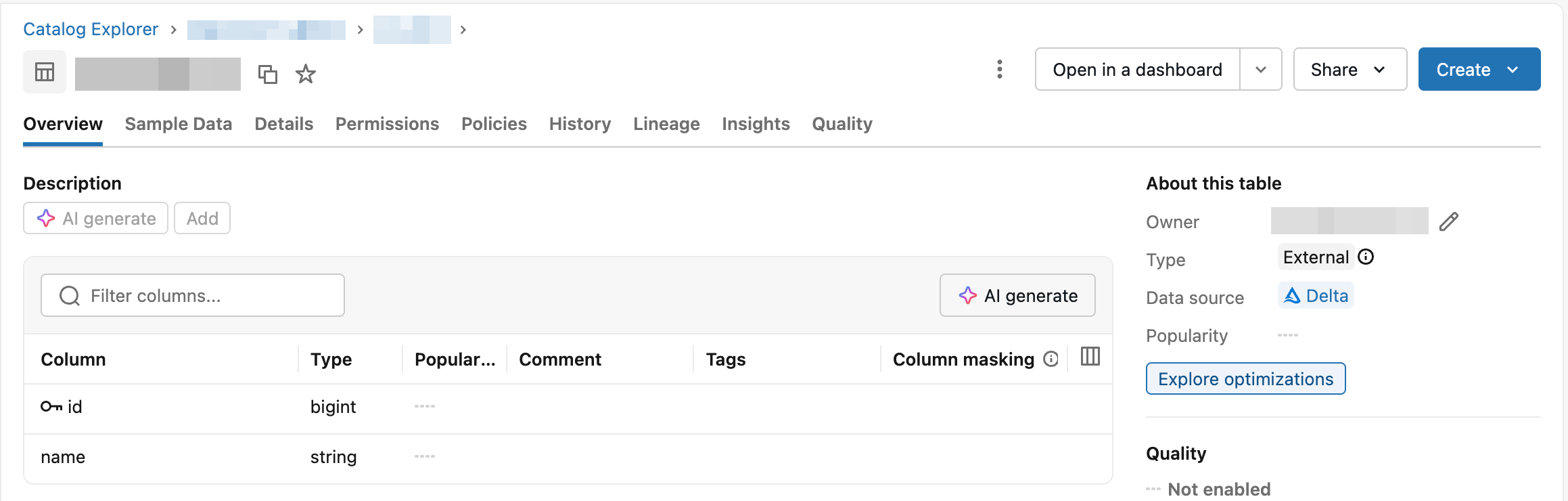
Under About this table (table detail page) or About this schema (schema detail page), click Explore optimizations.
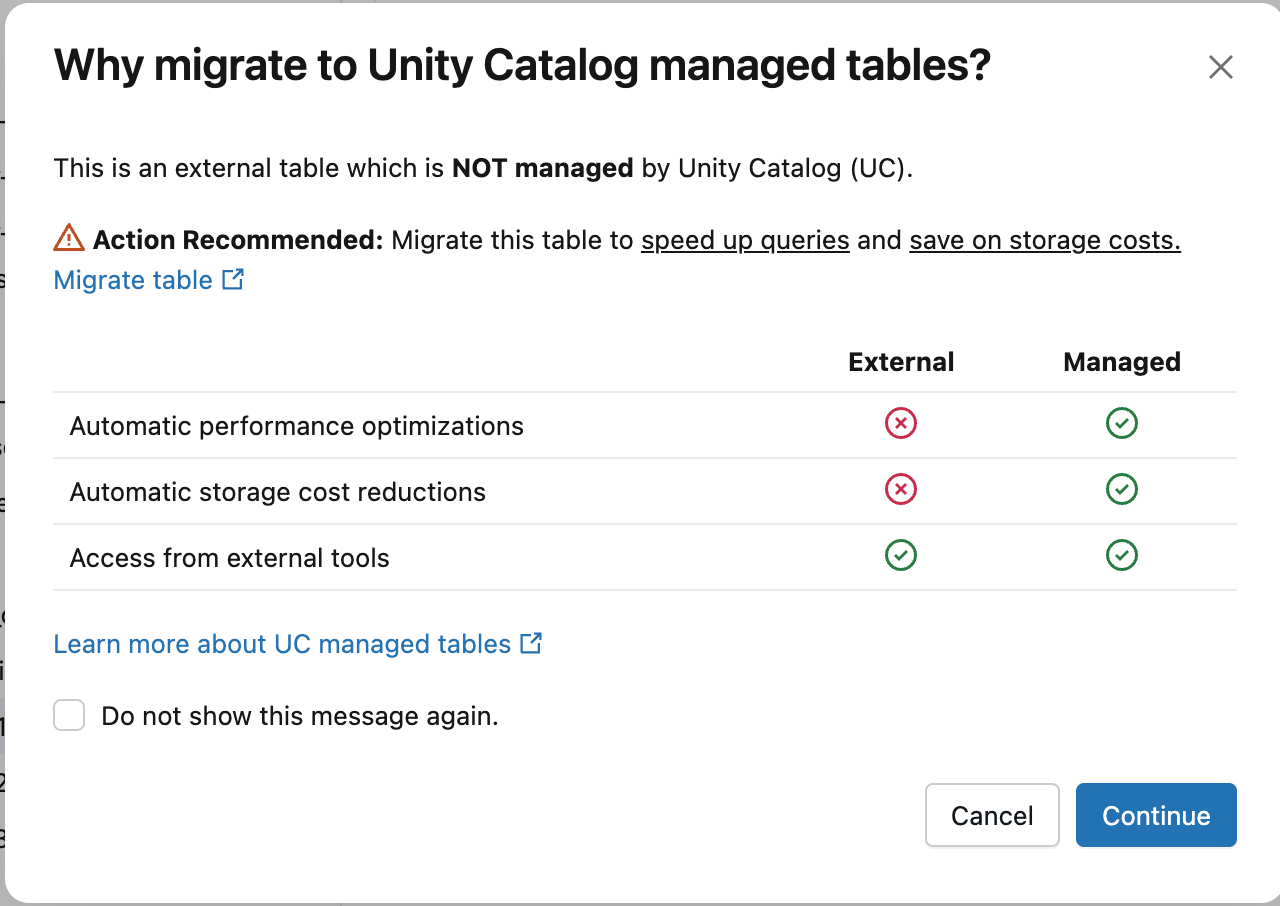
In the Why migrate to Unity Catalog managed tables? dialog, click Continue.
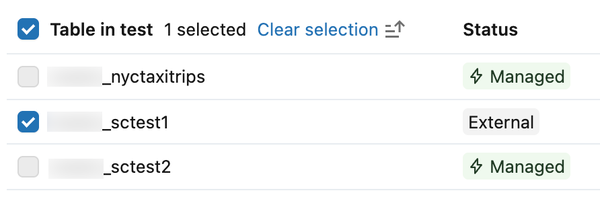
Select the external tables you want to convert. If you opened the dialog from a table detail page, Catalog Explorer pre-selects your table. Use the search bar to find additional tables. Managed tables are not selectable.
Click Create conversion notebook.
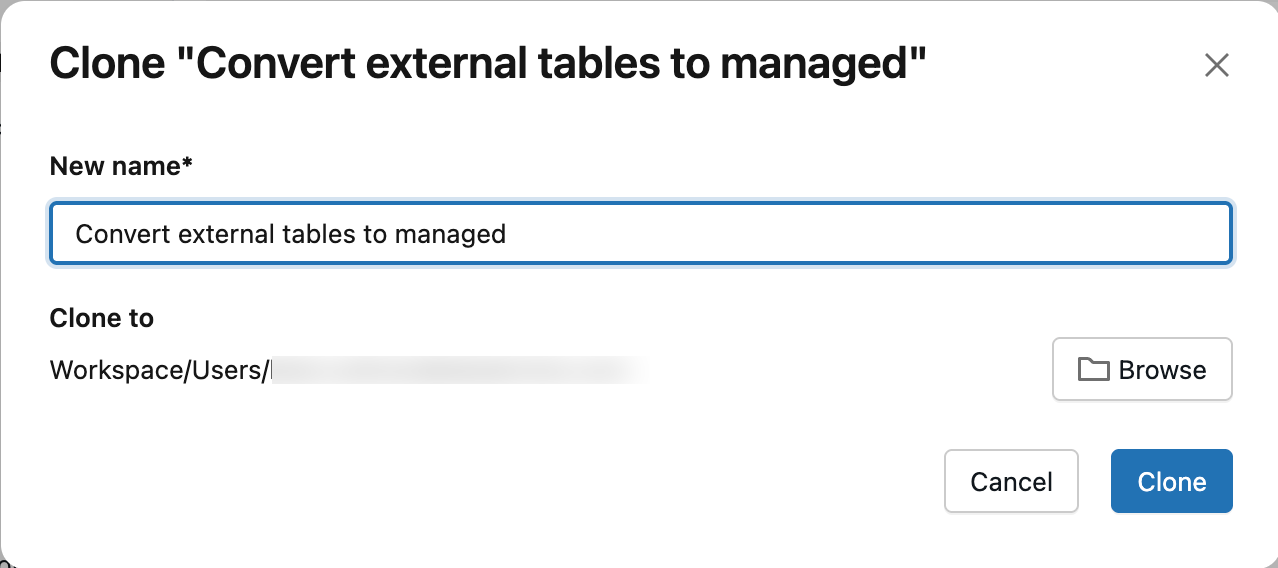
Optionally, enter a name for the notebook. By default, this saves the notebook to your home folder. Click Browse to save it to a different location.
In the notebook, review the best practices and verify that you meet all prerequisites.
Run the SET MANAGED Queries cell.
After the cell runs, the table type displays as MANAGED instead of EXTERNAL in Catalog Explorer. Refresh the page if the status doesn't update immediately.
External tables using SQL
To convert an external table, use SET MANAGED without a MOVE or COPY option. Those options apply only to foreign tables. See Choose the correct command for your source table.
Depending on whether your external table has Apache Iceberg reads enabled, run one of the following commands. To verify if your table has Iceberg reads enabled, see Verify that Iceberg reads are enabled.
For Unity Catalog external tables without Iceberg reads enabled, run the following command:
ALTER TABLE catalog.schema.my_external_table SET MANAGED;After conversion, you can enable Iceberg reads on your managed table without compatibility concerns.
For Unity Catalog external tables with Iceberg reads already enabled, run the following command:
ALTER TABLE catalog.schema.my_external_table SET MANAGED TRUNCATE UNIFORM HISTORY;Include
TRUNCATE UNIFORM HISTORYto maintain optimal table performance and compatibility.TRUNCATE UNIFORM HISTORYtruncates UniForm Iceberg history only and doesn't remove Delta history. This command results in a short read and write downtime for Iceberg after the truncation.
After table conversion, existing read and write streams fail. Restart streams with the same configurations to automatically use path-based redirect. Verify that your readers and writers work with the managed table. See Streaming behavior.
Predictive optimization is automatically enabled after conversion unless you manually turned it off. See Verify whether predictive optimization is enabled.
Azure Databricks retains the data in your Unity Catalog external location for 14 days to allow rollback. See Roll back a managed table conversion. After 14 days, with predictive optimization enabled, Azure Databricks automatically deletes this data to reclaim storage and save costs. If you turn off predictive optimization, run VACUUM (requires Databricks Runtime 17.3 LTS or above or Serverless compute) on the newly converted managed table after 14 days to reclaim the storage yourself.
VACUUM my_converted_table
Note
Even with predictive optimization enabled, data in your Unity Catalog external location might not be deleted after 14 days. For example, this can occur when the managed table is infrequently used or small. If the previous data remains, run VACUUM manually to remove it.
Azure Databricks deletes only the data in the external location. The Delta transaction log and reference to the table in Unity Catalog are kept.
Foreign tables using SQL
To convert your Unity Catalog foreign table to be Unity Catalog managed, run the following command. Unlike external table conversions, a foreign table conversion requires you to specify either MOVE or COPY. If you omit both, the command fails with DELTA_ALTER_TABLE_SET_MANAGED_COPY_OR_MOVE_REQUIRED.
ALTER TABLE source_table SET MANAGED {MOVE | COPY}
source_table
An existing foreign table federated in Unity Catalog.
MOVEConverts the table to managed and disables access to the source table in the external catalog.
Access through the external catalog or path-based access fails after you convert the table. All readers and writers to the table must use the Unity Catalog namespace for access. For example:
SELECT * FROM catalog_name.schema_name.table_name;Path-based access is not supported and fails after you convert the table. For example:
SELECT * FROM delta.`protocol://path/to/table`;The reader/writer version and client-compatibility requirements are the same as described in Prerequisites and Legacy readers and writers.
Predictive optimization is set to
INHERITunless you manually configured it. To check whether predictive optimization is enabled, see Verify whether predictive optimization is enabled.
COPYConverts the table to managed without modifying or disabling access to the source table in the external catalog.
- During conversion to managed, the conversion process copies data from the source table into the managed storage location defined for the foreign table, creating two separate copies: the new managed table and the source table in the external catalog.
- Unlike
MOVEwhere reads and writes fail, when usingCOPY, you are responsible for properly disabling reads and writes to the source table in the external catalog and ensuring that workloads have migrated to the new catalog.
Consider the following:
- After table conversion, you must restart any streaming jobs (read or write) using the foreign table and verify that your readers and writers work with the managed table.
- Before conversion, if you drop the source table in the external catalog, Unity Catalog also drops the foreign table. After you convert the table to managed, dropping the source table in the external catalog does not affect the Unity Catalog managed table.
- If the command is interrupted while copying data, restart it. The command resumes from where it left off.
- For foreign table conversions, Databricks sets predictive optimization on the converted table to
INHERITrather than automatically enabling it. To check whether predictive optimization is enabled, see Verify whether predictive optimization is enabled.
Warning
Databricks recommends that you avoid running multiple SET MANAGED commands concurrently on the same table, which can lead to an inconsistent table state.
Verify conversion
To verify that your table converted to a managed table successfully, check whether the table Type is MANAGED. You can do either of the following:
Open a new tab and go to the Catalog Explorer. In the Details tab, under About this table, the table Type displays as Managed.
Check the table
Typeby running the following SQL command:DESCRIBE EXTENDED catalog_name.schema_name.table_nameTo check multiple tables at once or script the check, query
information_schema.tablesinstead:SELECT table_type FROM system.information_schema.tables WHERE table_catalog = 'catalog_name' AND table_schema = 'schema_name' AND table_name = 'table_name';
Legacy readers and writers
Databricks recommends upgrading all readers and writers to Databricks Runtime 15.4 LTS or above to use the full capabilities of SET MANAGED, including table history retention.
You can still use SET MANAGED if you have readers or writers on Databricks Runtime 15.3 or below. However, after converting to a managed table, you can time travel to historical commits only by version, and not by timestamp.
If you roll back to an external table within 14 days, time travel to historical commits made before conversion is re-enabled. Time travel using timestamps isn't supported for commits made to the converted managed table between conversion and rollback. See Roll back a managed table conversion.
Writing to a table after conversion with Databricks Runtime 15.3 or below requires dropping the inCommitTimestamp feature:
ALTER TABLE <table_name> DROP FEATURE inCommitTimestamp;
Path-based redirect
In Databricks Runtime 18.1 and above, after you convert an external table to a Unity Catalog managed table, path-based reads and writes to the previous external location automatically redirect to the new managed location. A path-based read is code such as SELECT * FROM delta.`/path/to/my_table`. Path-based redirect reduces the time and effort required to migrate to managed tables by allowing legacy code that uses storage paths to continue working without refactoring.
Foreign table conversions don't redirect path-based access.
For low latency use cases, Azure Databricks recommends that you migrate path-based access to name-based access. Path-based redirect adds several hundred milliseconds of overhead for each path-based read or write, and requires that old Delta logs remain active in your Unity Catalog external location. Name-based reads and writes do not have additional performance overhead. See Migrate path-based code to name-based.
Migrate path-based code to name-based
If you decide not to use path-based redirect, you can migrate legacy code. To migrate, replace path-based references with name-based references.
The following code example contains a path-based table reference to files:
SELECT * FROM delta.`/path/to/customers_table`;
Replace the path-based reference with a name-based reference to an external table, as in the following code:
SELECT * FROM catalog_name.schema_name.customers_table;
Streaming behavior
Streaming with path-based redirect supports reads and writes in the following Databricks Runtime versions:
- Reads are supported in Databricks Runtime 18.1 and above.
- Writes are supported in Databricks Runtime 18.2 and above.
After conversion, you must restart all streaming jobs to avoid reading from or writing to the previous table location.
Path-based streaming reads and writes fail and stop on the next checkpoint with a migration message:
- For reads, the stream raises an error:
DELTA_STREAMING_INTERRUPTED_BY_MANAGED_TABLE_CONVERSION: The table at <path> has been converted to a Unity Catalog managed table. The stream has been stopped to ensure data consistency. Restart the stream and it will automatically resume from the last committed offset using the converted table. - For writes, the first micro-batch after the conversion raises an error:
Operation not allowed: STREAMING WRITE cannot be performed on a table with redirect feature. The no redirect rules are not satisfied [].
To resolve errors, restart streams with the same configurations. Path-based access automatically redirects to the managed table.
For path-based redirect limitations, see Limitations.
Troubleshooting conversion failures
This section describes how to resolve common issues when converting external tables to Unity Catalog managed tables using SET MANAGED.
VERSIONED_CLONE_INTERNAL_ERROR.EXISTING_FILE_VALIDATION_FAILED
If the conversion fails, always retry using the same Databricks Runtime version. Metadata can be serialized differently across versions, which causes a VERSIONED_CLONE_INTERNAL_ERROR.EXISTING_FILE_VALIDATION_FAILED failure if you retry a conversion on a different Databricks Runtime version.
Cluster shutdown during conversion
If your cluster shuts down during conversion, the command might fail with DELTA_ALTER_TABLE_SET_MANAGED_INTERNAL_ERROR. Retry the command to resume the conversion.
Corrupted external table
If the external table is already corrupted (for example, not valid table state), the conversion might fail with errors such as DELTA_TRUNCATED_TRANSACTION_LOG, DELTA_TXN_LOG_FAILED_INTEGRITY, or DELTA_STATE_RECOVER_ERRORS. Before attempting conversion, verify that you can run basic operations on the external table, such as DESCRIBE DETAIL.
File validation failure
The SET MANAGED command validates that it copied all files in the latest snapshot of the table to the new managed table location. If any files are missing, the command fails with a DELTA_ALTER_TABLE_SET_MANAGED_FAILED.FILE_VALIDATION_FAILED error.
To resolve this issue:
- Check your Spark driver logs to identify which files could not be migrated.
- Verify that these files exist at the source external table location and are accessible.
- Retry the
ALTER TABLE ... SET MANAGEDcommand.
If the issue persists, contact Databricks support.
Roll back a managed table conversion
Important
Roll back commands require Serverless compute or Databricks Runtime 17.3 LTS and above.
External table
After converting an external table to a managed table, you can roll back within 14 days by using the UNSET MANAGED command. This updates the table metadata to point back to the original external location. Databricks preserves all writes made to the managed location after conversion.
To roll back to an external table, run the following command:
ALTER TABLE catalog.schema.my_managed_table UNSET MANAGED;
Keep the following information in mind:
- If the rollback command is interrupted or fails, rerun it to retry.
- You must restart your streaming jobs after rolling back, similar to conversion.
- Commits made to the managed location between conversion and rollback allow time travel by version, but not by timestamp.
- Seven days after rollback, Azure Databricks automatically deletes data in the managed location.
Foreign table: MOVE
Warning
You MUST run UNSET MANAGED before dropping the managed table. Dropping the table without running UNSET MANAGED first might result in data loss or inconsistencies.
You can roll back the table migration and regain access to the source table in the external catalog, by using the UNSET MANAGED command. Roll back requires two steps: first you must roll back the table to an external table, then drop the external table to re-federate the table as a foreign table.
- To roll back to an external table, run the following command:
ALTER TABLE catalog.schema.my_managed_table UNSET MANAGED
- To re-federate the table to a foreign table, drop the external table with the following command:
DROP TABLE catalog.schema.my_managed_table
The foreign table is available after the next catalog sync.
Keep the following information in mind:
- For commits that you made to the external location between conversion and rollback, you can time travel by version but not by timestamp.
- Seven days after rollback, Databricks deletes data in the managed location.
Foreign table: COPY
To roll back the table migration, you don't need to run the UNSET MANAGED command because the source table in the external catalog was not modified. Drop the managed table and Databricks re-federates it as a foreign table after the next catalog sync.
Verify rollback
Verify rollbacks differently for external and foreign tables.
External tables
To verify that your managed table rolled back to an external table successfully, check whether the table Type is EXTERNAL. You can do either of the following:
Open a new tab and go to the Catalog Explorer. In the Details tab, under About this table, the table Type displays as External.
Check the table
Typeby running the following SQL command:DESCRIBE EXTENDED catalog_name.schema_name.table_nameTo check multiple tables at once or script the check, query
information_schema.tablesinstead:SELECT table_type FROM system.information_schema.tables WHERE table_catalog = 'catalog_name' AND table_schema = 'schema_name' AND table_name = 'table_name';
Foreign tables
To verify that your managed table rolled back to a foreign table successfully, check whether the table Type is FOREIGN. You can do either of the following:
Open a new tab and go to the Catalog Explorer. In the Details tab, under About this table, the table Type displays as Foreign.
Check the table type by running the following SQL command:
SELECT table_type FROM system.information_schema.tables WHERE table_catalog = 'catalog_name' AND table_schema = 'schema_name' AND table_name = 'table_name';The
table_typecolumn displays asFOREIGN.
Note
Don't use DESCRIBE EXTENDED to verify foreign table conversions or rollbacks. Federation uses hive_metastore catalog behavior for this command, so it shows the table Type as EXTERNAL, regardless of the table's actual state.
Advanced topics
This section contains advanced topics for converting foreign and external tables to managed tables.
Convert at the schema or catalog level
You have the following two options to automate converting tables at the schema or catalog level:
Iterate through your tables in your schemas to convert each table individually.
Use the discoverx labs project to convert entire schemas or catalogs at once:
df = (dx.from_tables("prod.*.*")
.with_sql("ALTER TABLE {full_table_name} SET MANAGED;")
.apply())
See Databricks Labs and discoverx.
Create tables in a foreign catalog
You can create external or managed tables in a foreign catalog. The behavior depends on the schema configuration:
- For Glue or eHMS schemas, or for schemas with a managed location set in Unity Catalog: If you run
CREATE TABLE foreign_catalog.schema.table, this creates a Unity Catalog managed or external table. Databricks doesn't push or sync the table to the external catalog. - For schemas from internal Hive metastore connections: If you try to create a table in a foreign schema, it still creates a foreign table and also creates a table in
hive_metastore. - For legacy workspace Hive metastore: Because this has read and write federation, if you create a table in the foreign catalog, it also creates a table in the internal Hive metastore.
DBFS-backed foreign tables
When converting a DBFS-backed table, Databricks stores the current mapping of the DBFS path as the external table's cloud path location.
Limitations
Converting external or foreign tables to managed tables has the following limitations:
Table history for commits made after conversion but before rollback allows for time travel by version but not by timestamp.
OpenSharing is not fully compatible with the
SET MANAGEDcommand. Open OpenSharing is supported, but Databricks-to-Databricks sharing doesn't automatically update the recipient table's managed location. The recipient continues to read from the old location until you reshare the table. To reshare the table, run the following commands:ALTER SHARE <share_name> REMOVE TABLE <table_name>; ALTER SHARE <share_name> ADD TABLE <table_name> AS <table_share_name> WITH HISTORY;If the default managed location of your Unity Catalog metastore, catalog, or schema is in a different cloud region from the source table's storage location, you might incur additional cross-region data transfer costs from your cloud provider.
To verify the location of your schema and catalog, run the following commands:
DESC SCHEMA EXTENDED <catalog_name>.<schema_name>;

DESC CATALOG EXTENDED <catalog_name>;
To verify the location of your metastore, run either of the following commands:
DESC METASTORE; -- Option 1
SELECT * FROM system.information_schema.metastores; -- Option 2
Path-based redirect limitations:
- You must restart any streaming jobs after conversion. See Streaming behavior.
- Path-based redirect only has backward compatibility for the migration process and doesn't enable new path-based access to Unity Catalog managed tables.
Foreign table limitations:
- Only foreign tables federated using Hive metastore and Glue Federation are supported for conversion.