Note
Access to this page requires authorization. You can try signing in or changing directories.
Access to this page requires authorization. You can try changing directories.
Important
This feature is in Beta. Account admins can manage access to this feature from the account console Previews page. See Manage account-level previews.
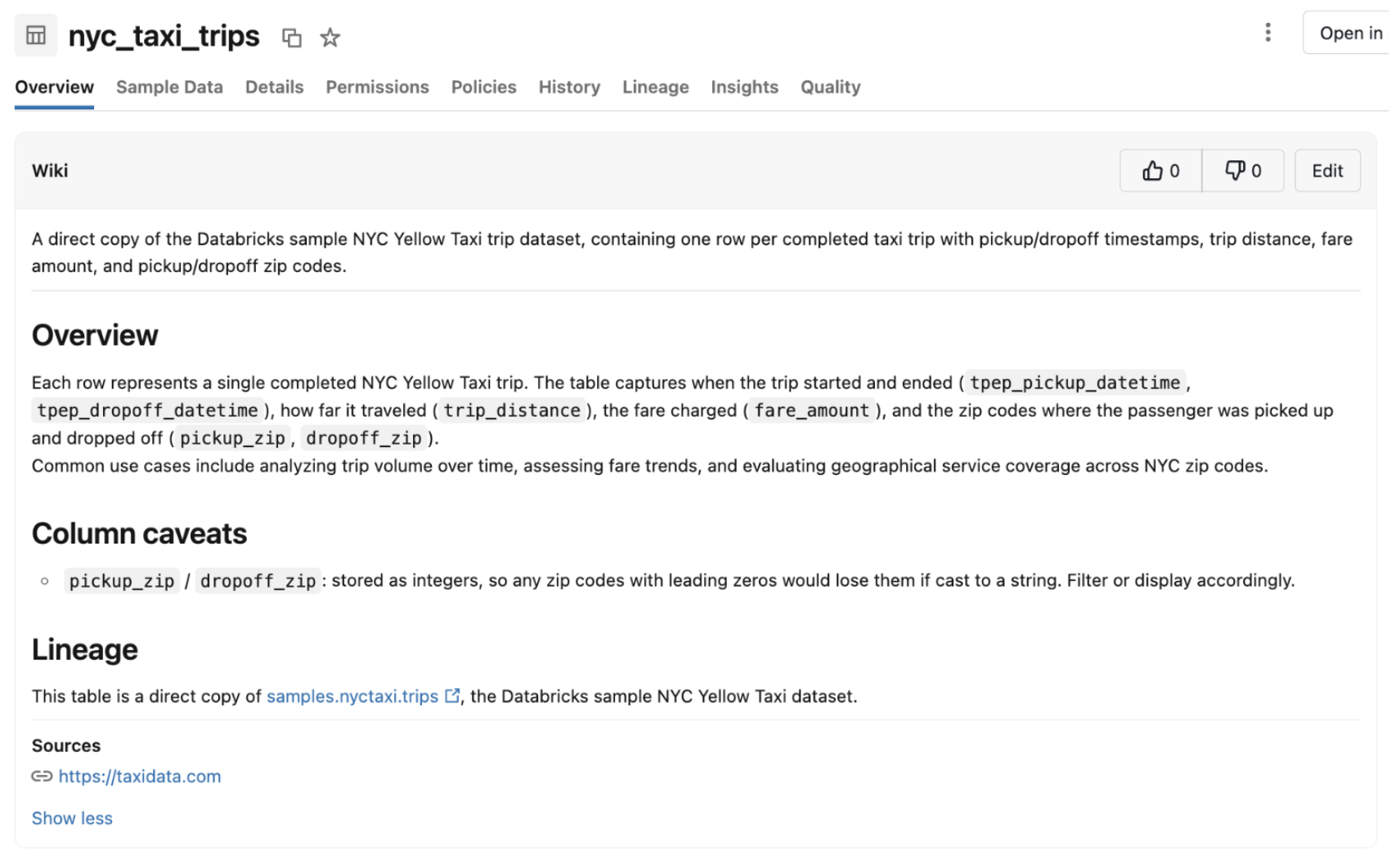
A wiki lets your team document a table's meaning, intended use, and sources, then collaborate on that information. Data owners and stewards draft and publish wikis to capture the business context that belongs with a table, such as definitions and known caveats. Anyone who can view the table's metadata can read a published wiki, comment on it, suggest edits, and react to it.
A wiki documents one table. A Page defines a business concept that can span many assets. Use a wiki for context about a specific table, and use a Page for a shared definition.
Wikis work alongside the table's existing comment. See Wikis and table comments.
What's in a wiki
A wiki contains the following fields:
| Field | Description |
|---|---|
| Description | A one-line summary of the table, shown at the top of the wiki. |
| Page body | Rich-text documentation that supports headings, links, images, and inline mentions of Unity Catalog securable objects and workspace objects. |
| Sources | Links to the Pages or external sources that the wiki content is based on. |
Permissions
A wiki isn't a securable object. It's metadata on its table, so your existing Unity Catalog privileges on the table determine what you can do with its wiki. For background on Unity Catalog privileges, see Unity Catalog permissions model concepts.
The privileges table that follows uses usage privileges on parent objects to mean the usage privileges that READ_METADATA, MANAGE, or ownership require to take effect. They depend on the object:
- Table:
USE SCHEMAon the parent schema andUSE CATALOGon the parent catalog. - Schema:
USE CATALOGon the parent catalog. - Catalog: None.
| Action | Required privileges |
|---|---|
| View and collaborate on published wikis: view published wikis, add, edit, or delete your own comments, suggest edits, and add reactions | One of the following:
|
| View draft wikis | One of the following:
|
| Manage wikis and comments: create, edit, publish, or unpublish wikis, accept or reject suggested edits, and delete any comment | One of the following:
|
Create a wiki
To create a wiki, you need the privileges to manage wikis on the table. See Permissions.
You can author a wiki manually or draft one with Genie Code.
Warning
Wiki data is encrypted at rest with Microsoft-managed keys. Wikis don't support customer-managed key (CMK) encryption. Do not include PII, regulated data, or other sensitive information in wiki descriptions or page bodies.
In Catalog Explorer, open the table.
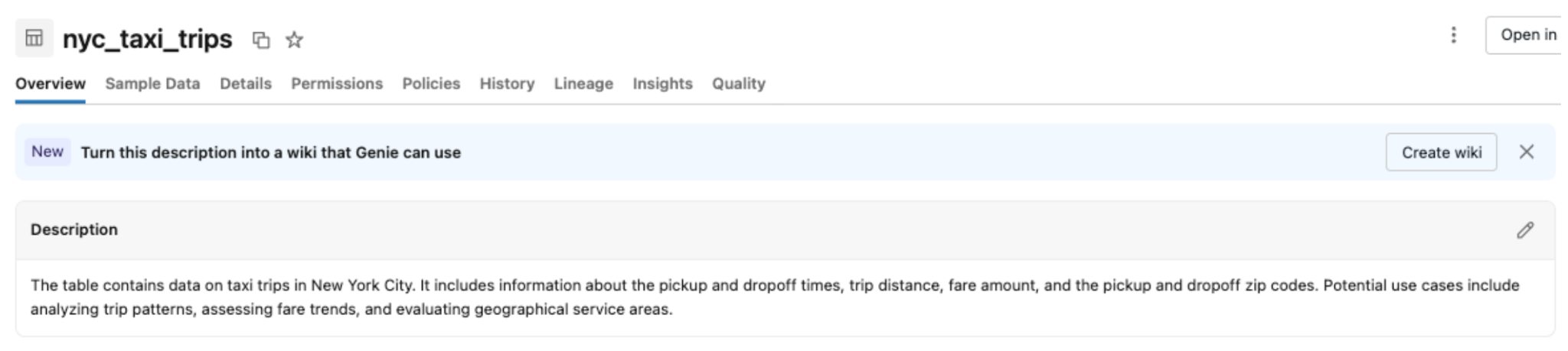
On the Overview tab, click Create wiki. If you dismissed the Create wiki banner, click the
 kebab menu in the upper-right corner of the page and select Create wiki instead. If the table has an existing comment, it seeds the wiki's page body.
Add the wiki content:
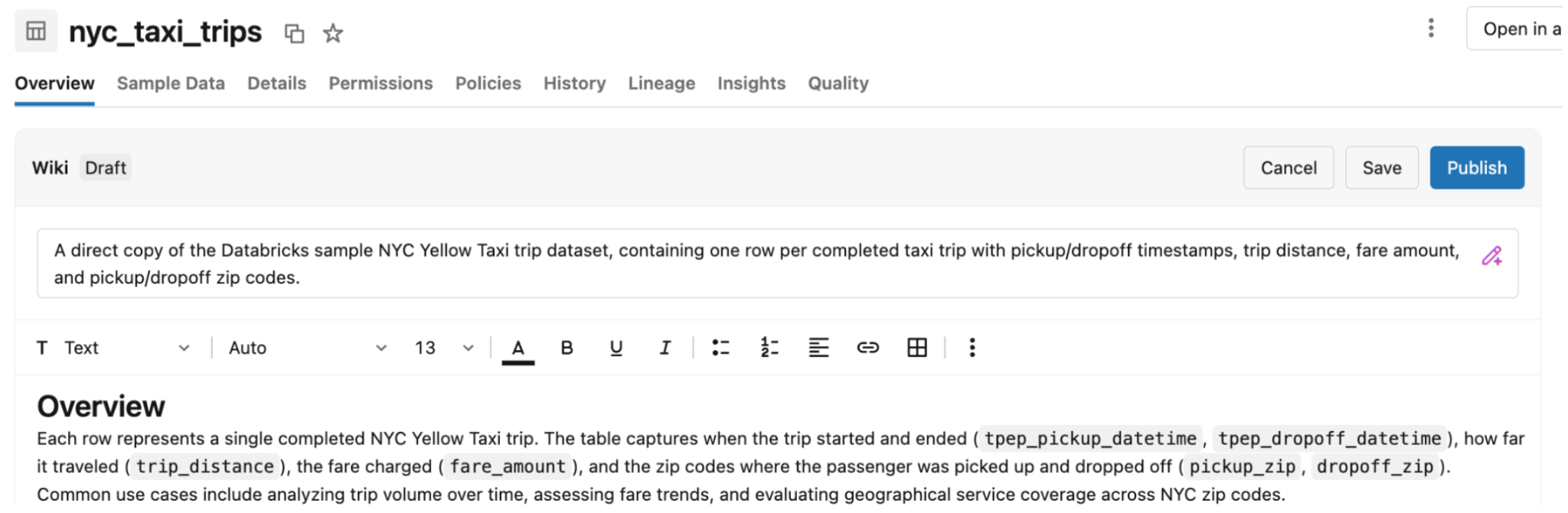
- To author manually, fill in the Description and Page body, and add any Sources.
- To draft with Genie Code, use the Genie Code pane in the wiki editor. Attach files or other context for Genie Code to work from. See Genie Code.
Click Save as draft to keep working on the wiki, or click Publish to make it visible to everyone who can view the table's metadata.
After you publish a wiki, it appears at the top of the table's Overview tab, and the table's Description moves to the Details tab.
Edit and publish wikis
To edit, publish, or unpublish a wiki, you need the privileges to manage wikis on the table. See Permissions.
In Catalog Explorer, open the table.
On the wiki, click Edit.
Make your changes, then click Save to save them, or click Publish to make a draft wiki visible.
To hide a published wiki without losing its content, click Edit, click the kebab menu, and then click Unpublish. The wiki reverts to a draft that only users who can view drafts can see. Until you publish the wiki again, the table's Description appears at the top of the Overview tab.

Collaborate on a wiki
Anyone who can view a published wiki can collaborate on it. See Permissions.
- Comment: Ask questions or add context. You can edit or delete your own comments.
- Suggest edits: Suggest changes to the wiki's page body. Click Suggest, edit the page body, and click Save. A user with the privileges to manage the wiki accepts or rejects the suggestion.
- React: Upvote or downvote the wiki to signal whether it was helpful.
Wikis and table comments
A wiki doesn't replace the table's comment, so existing pipelines that read or write comments keep working:
- You can still set the comment with
COMMENT ON TABLEorALTER TABLE. The comment still appears ininformation_schemaand in the Description field in Catalog Explorer. - When you create a wiki, the table's existing comment seeds the wiki's page body. After that, the wiki and the comment are independent. Changes to one don't update the other.
For more about table comments, see Add comments to data and AI assets.
Limitations
- Wikis are available only on tables. Wikis on columns, schemas, catalogs, and other securable objects aren't supported.
- Each table can have one wiki.
- Wikis aren't available in Azure Government, Azure China, or FedRAMP regions.