Note
Access to this page requires authorization. You can try signing in or changing directories.
Access to this page requires authorization. You can try changing directories.
Genie is a user interface designed for business users, giving them a single, intuitive entry point to interact with data and AI in Azure Databricks, without needing to navigate technical concepts such as compute, queries, models, or notebooks.
Note
If you're looking for Genie Code or What is a Genie Space, see those pages.
Overview
Genie is a simplified Databricks interface available to all Azure Databricks users. It is built for business users to consume the assets created for them in Azure Databricks.
Genie enables users to:
View and interact with AI/BI dashboards to track key performance indicators (KPIs) and analyze metrics.
Ask data questions in natural language.
Use custom-built Databricks Apps that combine analytics, AI, and workflows.
Genie is available at two levels:
- Workspace-level: Scoped to a single workspace.
- Account-level: A unified view across all workspaces in your Azure Databricks account.
Account-level Genie
Genie is available at the account level, providing a unified view of assets across all workspaces in your Azure Databricks account. See Account-level Genie.
Workspace-level Genie
Who can access workspace-level Genie
Access to workspace-level Genie is controlled by workspace membership and entitlements.
- To grant a user access to your workspace, see Assign a user to a workspace.
- To manage user entitlements, see Manage entitlements.
The following table shows which UIs each entitlement grants:
| Entitlement | Genie UI | Lakehouse workspace UI |
|---|---|---|
| Consumer access | ✓ | |
| Workspace access | ✓ | ✓ |
| Databricks SQL access | ✓ | ✓ |
Because entitlements are additive, users with only Consumer access land on Genie by default. Users with additional entitlements can access both Genie and the Lakehouse workspace UI, and can switch between them. To set Consumer access as the default for new users, see Change default workspace access to consumer access. For a full overview of consumer access, see What is consumer access?.
Open workspace-level Genie
If a user's only entitlement is Consumer access, they land on the Genie homepage after log in.
If a user has other entitlements, they can use the app switcher  in the upper-right corner of the workspace to move between the two UIs.
Alternatively, users can navigate to the Genie UI by adding /one to their workspace URL, for example:
https://<WORKSPACE_URL>/one?o=<WORKSPACE_ID>
Interact with data assets
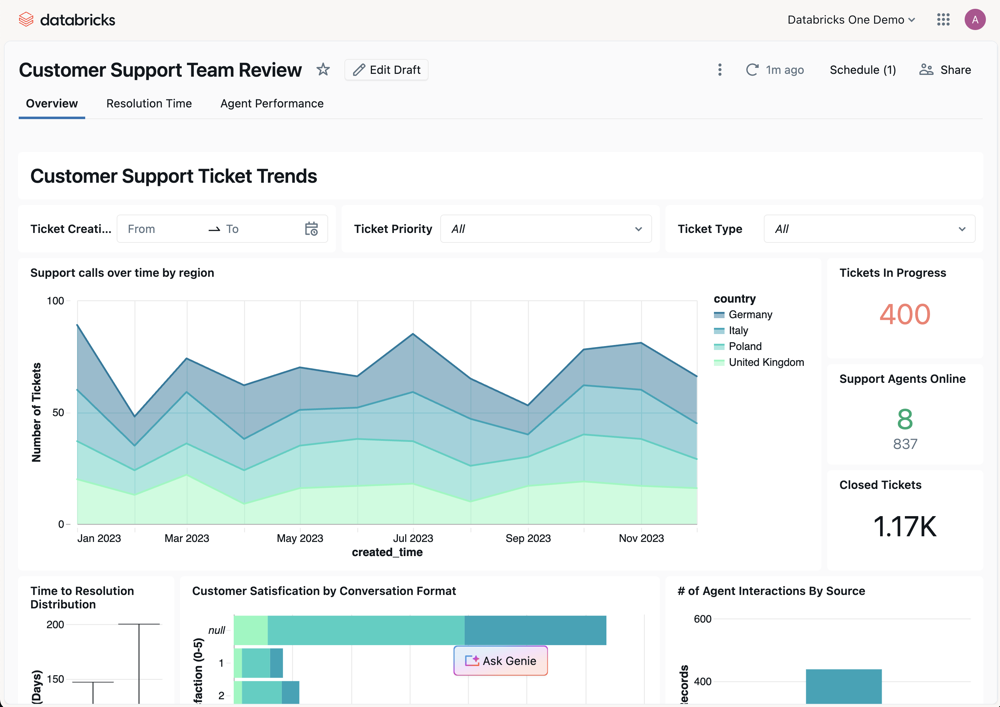
You can view and interact with assets that have been shared with you. Click an asset to open and interact with it. To mark an asset as a favorite, click the star icon next to the asset's name. Favorite assets can be filtered in listing pages.
Search bar
Use the search bar to find assets or ask data questions in natural language:
Search: Find assets that have been shared with you by name.
Ask: When Ask is turned on, you can use the search bar to interact with Genie.
If chat is not enabled, click Ask in the search bar and select a Genie Space. The search bar connects to that space and interprets your question using Genie Code.
Chat
Important
This feature is in Public Preview.
Chat is a unified, full-screen interface for asking data questions in natural language. Chat uses Genie in Agent mode to leverage existing dashboards, queries, and Genie Spaces to answer your questions. You can also connect external data sources such as Google Drive or SharePoint to give chat access to your company documents. See Chat in Genie.
For you
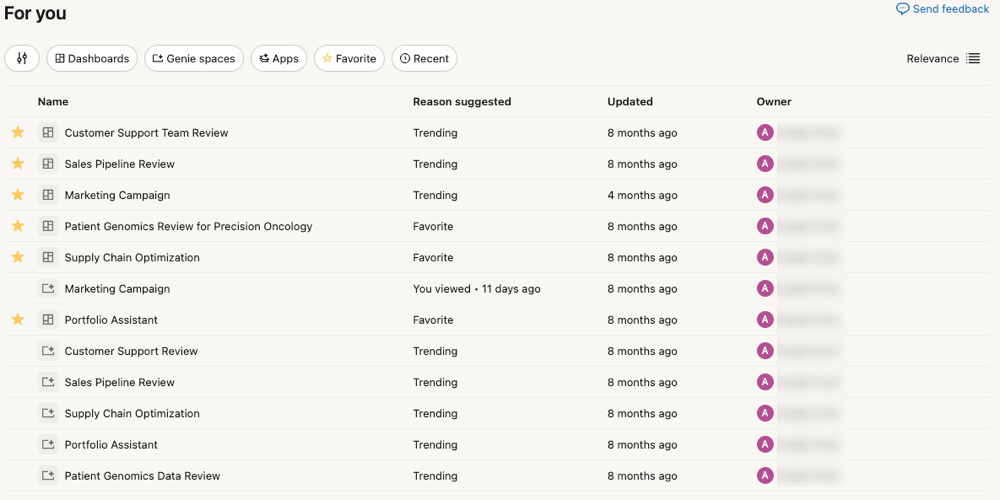
The For you section on the Genie home page shows personalized asset recommendations based on your activity and the activity of other users in your workspace, including:
- Recently opened: Assets you have opened recently.
- Favorites: Assets you have marked with a star.
- Recently shared: Assets that have been shared with you recently.
- Trending: Assets that are popular among similar users in the workspace.
Domains
Important
This feature is in Beta. Workspace admins can control access to this feature from the Previews page. See Manage Azure Databricks previews.
Click Domains on the Genie home page to browse assets organized by domain. Domains group assets by business context, making it easier to find data relevant to your work without navigating catalog hierarchies. Click a domain card to view the assets it contains. See Discover page and domains.
Scheduled tasks
Important
This feature is in Beta. Workspace admins can control access to this feature from the Previews page. See Manage Azure Databricks previews.
Click Scheduled tasks in the left sidebar to create and manage scheduled chat tasks. See Chat in Genie.
Listing pages
When you search from the Genie home page, the results open in a listing page. Listing pages show the assets that have been shared with you and provide options to filter and browse them.
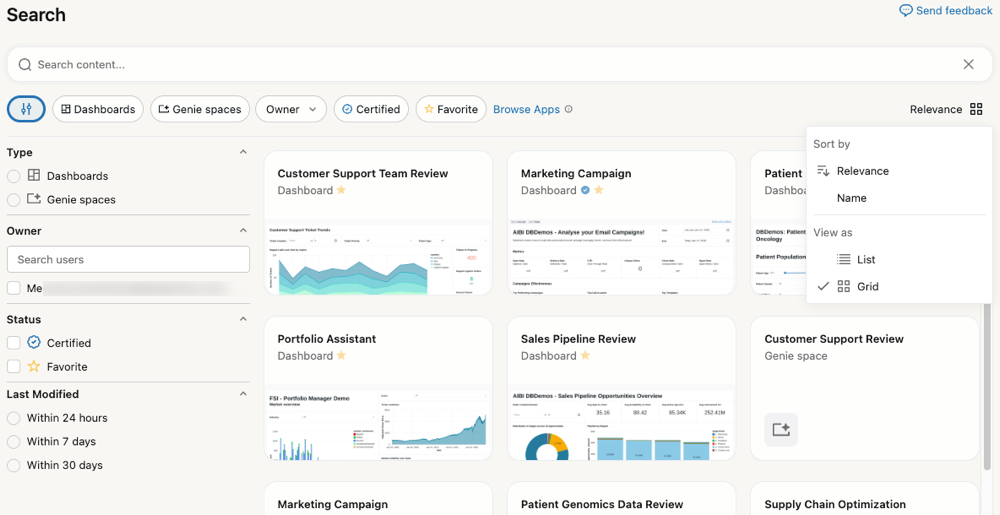
You can use the filter buttons under the search bar. To see all filtering options, click  on the left. This opens a menu with the following categories:
- Type: Click a radio button to view only dashboards or Genie Spaces. Clear the button to show both asset types.
- Owner: Use the owner filter to search for an asset by their Databricks user ID.
- Status: Use the checkboxes to show only assets that have been marked as Certified or you have marked as a Favorite.
- Domains: Use the domain filter to show only assets that belong to a specific domain. Domains group assets by governed tags, helping you browse data by business context. See Discover page and domains.
- Last modified: Use the radio buttons to select assets that have been modified within the selected window.
On the right, click Relevance to change the sort order and page appearance.
- Sort by: Choose Relevance to intelligently sort assets by what is most relevant to you. Choose Name to show the listings by name in alphabetical order.
- View as: Click List to show a list of assets. Click Grid to show assets with a thumbnail preview.
Open assets
When you click an asset, it opens in the familiar experience for that object (for example, a dashboard).
- If you have viewing rights only, the asset opens within Genie.
- If you have authoring privileges, click Edit draft to edit the asset in the Lakehouse workspace UI.