Бележка
Достъпът до тази страница изисква удостоверяване. Можете да опитате да влезете или да промените директориите.
Достъпът до тази страница изисква удостоверяване. Можете да опитате да промените директориите.
Agents (preview) in Azure Copilot intelligently surfaces the right agent to help with your tasks. When you ask Azure Copilot for help with investigating Azure Monitor alerts, it creates an Azure Monitor issue and starts an investigation. If no default Azure Monitor Workspace is configured for the subscription (or one isn't passed as context in the prompt), Azure Copilot attempts to configure one for you. Azure Copilot investigates the alert and provides a summary of the issue and its findings, including possible explanations and potential remediation steps. You can view more details by following a link to the Azure Monitor issue it created.
Note
To use investigation capabilities, you must have the Contributor, Monitoring Contributor, or Issue Contributor role on the Azure Monitor Workspace. For more information, see Use Azure Monitor issues and investigations (preview).
You can ask for help understanding alerts when viewing an alert instance in the Azure portal. If you aren't currently viewing the alert, provide the Azure resource ID for the alert so that Azure Copilot knows which alert to investigate.
Important
The functionality described in this article is only available for tenants that have access to Agents (preview) in Azure Copilot.
Supported resource and alert types
Currently, Agents (preview) in Azure Copilot supports investigations for all types of Azure Monitor alerts for any Azure resource type or service.
Observability sample prompts
Here are a few examples of the kinds of prompts you can use to get help with observability tasks. Modify these prompts based on your real-life scenarios, or try additional prompts to create different kinds of queries. When using these kinds of prompts, be sure to enable agent mode by selecting the icon in the chat window.
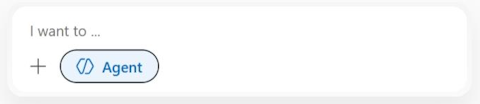
When you have the alert ID, you can use prompts like these:
- "Start an investigation for my alert:
/subscriptions/SUB_ID/resourcegroups/RESOURCE_GROUP/providers/microsoft.insights/components/COMPONENT_NAME/providers/Microsoft.AlertsManagement/alerts/ALERT_ID" - "Can you help with this alert? The ID is
/subscriptions/SUB_ID/resourcegroups/RESOURCE_GROUP/providers/microsoft.insights/components/COMPONENT_NAME/providers/Microsoft.AlertsManagement/alerts/ALERT_ID" - "Troubleshoot this alert:
/subscriptions/SUB_ID/resourcegroups/RESOURCE_GROUP/providers/microsoft.insights/components/COMPONENT_NAME/providers/Microsoft.AlertsManagement/alerts/ALERT_ID"
When viewing a specific alert in the Azure portal, you can ask more general questions without needing to provide the alert ID. For example:
- "Can you help investigate this alert?"
- "Can you help troubleshoot this?"
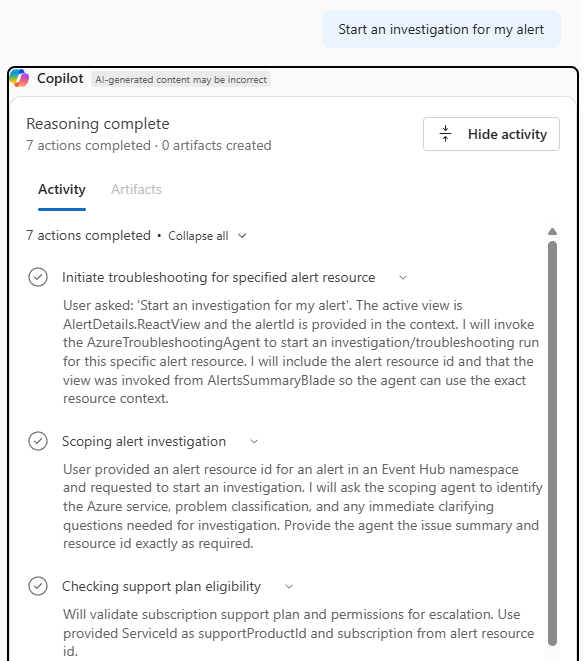
For example, when viewing an alert, you can say "Start an investigation for this alert." Azure Copilot begins an investigation. Select Show activity to view progress and reasoning as Azure Copilot works on your request.
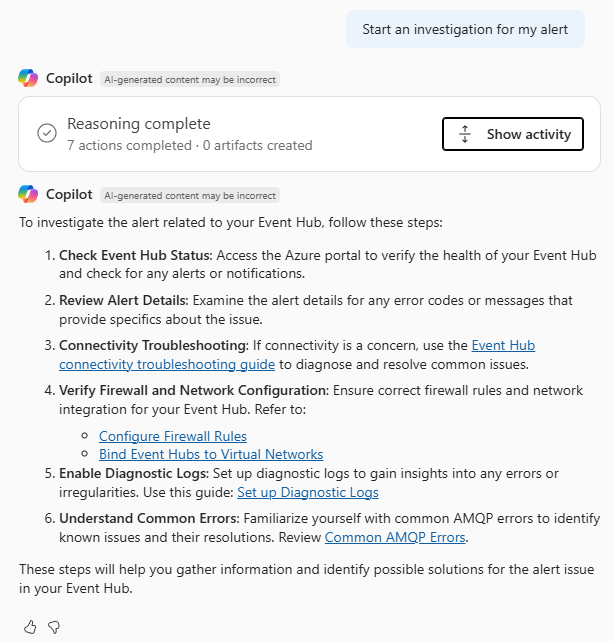
When the investigation is complete, Azure Copilot provides a summary of its findings with steps you can take to fix the problem, along with links where you can find more information.
Current considerations and limitations
Keep the following considerations and limitations in mind when working with observability in Agents (preview) in Azure Copilot.
- Agent capabilities currently support only alerts from Application Insights components. Support for other alert types isn't available.
- While the agent can investigate problems and recommend remediations, it can't perform remediation steps suggested by the investigation results.