Бележка
Достъпът до тази страница изисква удостоверяване. Можете да опитате да влезете или да промените директориите.
Достъпът до тази страница изисква удостоверяване. Можете да опитате да промените директориите.
OneLake is the single, unified data lake for Fabric. Every Fabric workload reads and writes data through OneLake, so you only need to load data once to use it everywhere. You can bring data into OneLake in several ways:
- Upload files directly to a lakehouse or warehouse.
- Ingest data by using pipelines, dataflows, or streaming experiences.
- Connect to external data by using shortcuts or mirroring.
In this quickstart, you bring data into OneLake two ways: you upload a CSV file to a lakehouse, and you create a shortcut in OneLake from a second lakehouse that points back to the same data without copying it. When you finish, you have a queryable Delta table and a shortcut, both available to every Fabric engine through OneLake.
Prerequisites
- A Fabric license. Or, sign up for a free Fabric trial.
- A Fabric workspace.
Create a lakehouse
When you create a Fabric item, such as a lakehouse, warehouse, or eventhouse, that item provisions storage in OneLake on your behalf. In this quickstart, you make a lakehouse, which gives you both a file area (Files) for unstructured or semi-structured data and a Delta table area (Tables) for structured, queryable data. Everything you put in either area is stored in OneLake and immediately accessible to other Fabric workloads.
Sign in to the Fabric portal and select your workspace.
Select New item.
In the New item pane, search for and select Lakehouse.
Enter a name, such as
DataLakehouse, then select Create.The lakehouse opens to the Explorer view, which shows empty Tables and Files sections. Both sections are already backed by OneLake and are ready for content.
Upload sample data
In this quickstart, you use Dim_Products.csv from a publicly available Fabric sample semantic model. It's a small table of product information from a sample coffee retailer.
Download the sample data:
- Open a browser and go to https://fabrictutorialdata.blob.core.windows.net/sampledata/Coffee/Dim_Products.csv.
- When prompted, save the file as
Dim_Products.csvto a folder on your computer.
Next, upload Dim_Products.csv to Files so that you have raw source data sitting in OneLake. The Files area of a lakehouse is a general-purpose storage zone in OneLake. Think of it as the landing zone for raw data in whatever format it arrives. You can drop in CSV, JSON, Parquet, images, logs, or anything else without having to define a schema first.
In the Lakehouse menu, select Get data > Upload files.
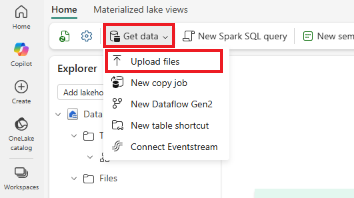
In the Upload files pane, select the folder icon and browse to
Dim_Products.csvon your computer.Select Upload, then close the upload pane.
Select the Files folder to see its contents and confirm that
Dim_Products.csvappears.Select
Dim_Products.csvto see its data.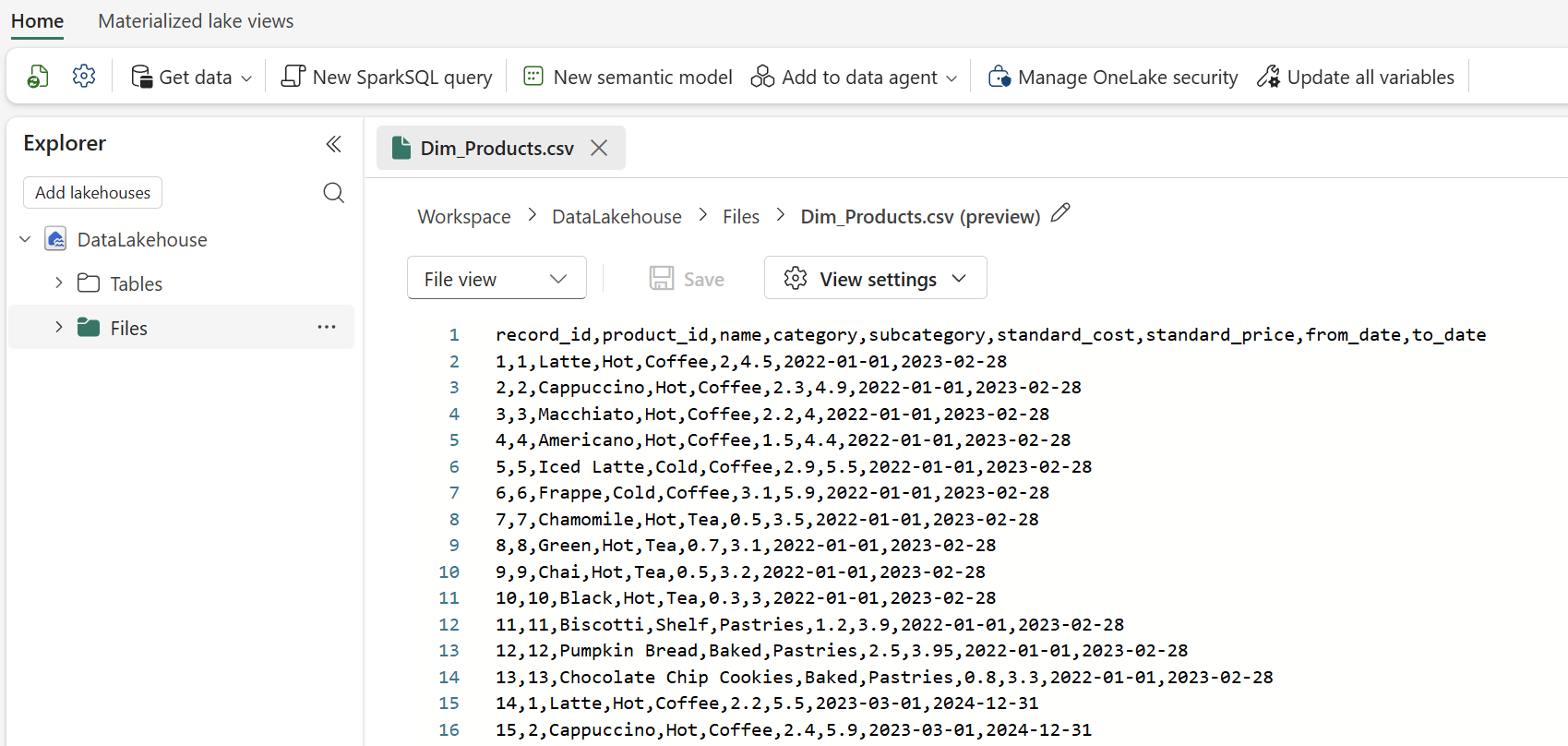
The file now lives in OneLake, but as a raw CSV it isn't yet something SQL or Spark can query as a table.
Load the file into a Delta table
Fabric standardizes on Delta Lake as the table format in OneLake. When you load a file into the Tables area, Fabric reads the source file, infers a schema, and writes the data out as a Delta table. From that point on, every Fabric engine can query the same table without you copying or converting the data again.
In the Lakehouse explorer, open the Files folder.
Hover over the
Dim_Products.csvfile and select the more options (...) menu, then select Load to Tables > New table.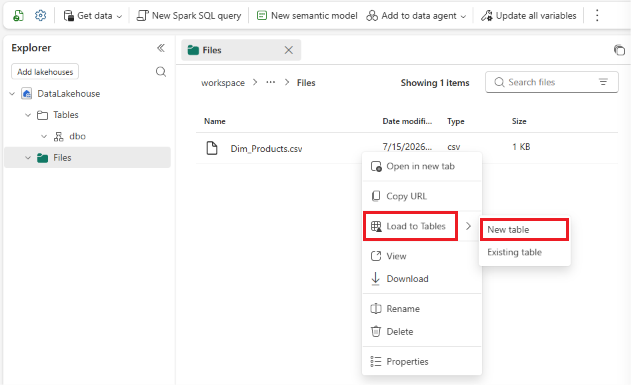
In the Load to table dialog, enter
dim_productsfor the table name, keep the defaults, and select Load.After the load finishes, expand Tables and select
dim_productsto preview the rows. The raw CSV in Files is unchanged, anddim_productsis a new Delta table built from it.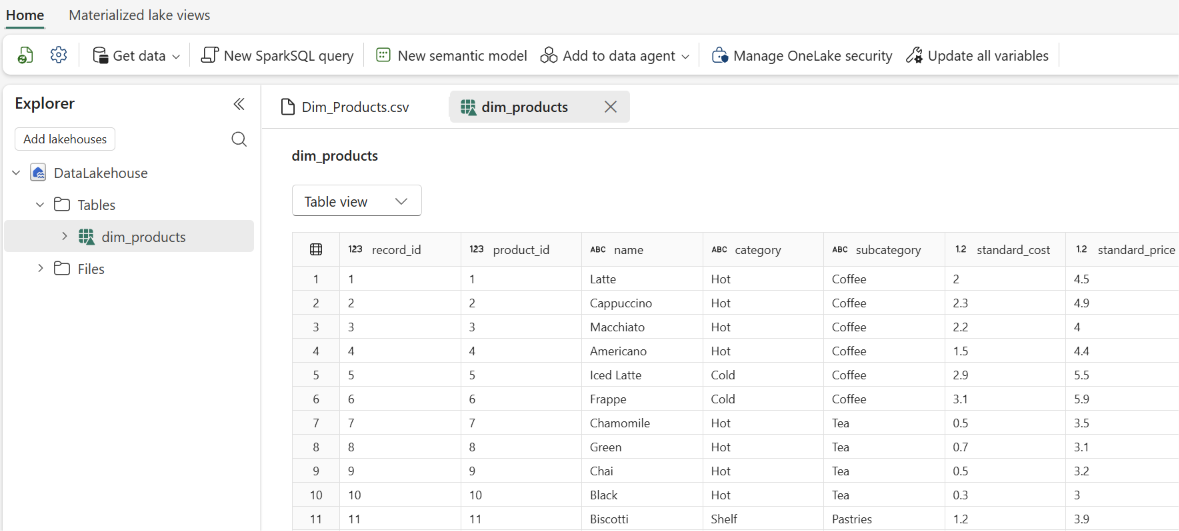
Hover over
dim_productsand select the more options (...) menu, then select Properties.The Properties screen shows the various details for the table, including the URL and Azure Blob File System (ABFS) path that you can use to reference this table in other engines.
Reuse the data with a shortcut from a second lakehouse
Uploading and loading is one way to get data into OneLake. The other key pattern is to reference data that already exists somewhere else, without duplicating it. That's what a shortcut is: a pointer in OneLake that references data stored in another lakehouse, in another Fabric workspace, or in supported sources outside of Fabric like Azure Data Lake Storage or Amazon S3. The data isn't copied; it stays in the source location, but you can read it through OneLake as if it were local. Any updates to the source are immediately visible through the shortcut, so you don't have to maintain copies of the data.
In this section, you create a second lakehouse and add a shortcut from it back to the dim_products table in your first lakehouse. This reflects how teams typically work, where one team owns the curated data and other teams or projects consume it through shortcuts in their own workspaces.
- In your workspace, select New item.
- In the New item pane, search for and select Lakehouse.
- Enter a name, such as
ShortcutLakehouse, then select Create. - In the new lakehouse's Explorer, hover over Tables, select the more options (...) menu, and then select New shortcut.
- On the New shortcut page, under Internal sources, select Microsoft OneLake.
- In the data source browser, select the first lakehouse that you made for this quickstart, and then select Next.
- Expand Tables, select the
dim_productstable, and then select Next. - Review the selection and select Create.
- Expand Tables in
ShortcutLakehouseand confirm thatdim_productsappears with a shortcut icon (a small link image over the table icon). Select it to preview the rows. The table is the same as in the original lakehouse, but no data was copied. - Hover over the
dim_productstable, select more options (...), then select Manage Shortcut. On the Manage shortcut pane, you can view the shortcut details, including the shortcut target where the original data is stored.
Clean up resources
If you don't plan to continue to the other OneLake quickstarts, delete the lakehouses to avoid OneLake storage charges against your Fabric capacity.
- In your workspace, hover over the lakehouse that you want to delete.
- Select the more options (...) menu next to the lakehouse, select Delete, and confirm the deletion.
Deleting the lakehouses also removes the contents within them: the uploaded file, the dim_products Delta table, and the shortcut.