Hinweis
Für den Zugriff auf diese Seite ist eine Autorisierung erforderlich. Sie können versuchen, sich anzumelden oder das Verzeichnis zu wechseln.
Für den Zugriff auf diese Seite ist eine Autorisierung erforderlich. Sie können versuchen, das Verzeichnis zu wechseln.
Get started with Teams SDK quickly using the Teams Developer CLI.
Set up a new project
Prerequisites
- .NET v.8 or higher. Install or upgrade from dotnet.microsoft.com.
- Python v3.12 or higher. Install or upgrade from python.org/downloads.
- Node.js v.20 or higher. Install or upgrade from nodejs.org.
Instructions
Install the Teams Developer CLI
Install teams globally:
npm install -g @microsoft/teams.cli
teams --version
Note
The Teams Developer CLI is the command-line tool for scaffolding, registering, and managing Teams apps. It's currently in Preview.
Creating Your First Agent
Let's begin by creating a simple echo agent that responds to messages. Run:
teams project new csharp quote-agent --template echo
teams project new python quote-agent --template echo
teams project new typescript quote-agent --template echo
This command:
- Creates a new directory called
Quote.Agent. - Bootstraps the echo agent template files into your project directory.
- Creates your agent's manifest files, including a
manifest.jsonfile and placeholder icons in theQuote.Agent/appPackagedirectory. The Teams app manifest is required for sideloading the app into Teams.
- Creates a new directory called
quote-agent. - Bootstraps the echo agent template files into it under
quote-agent/src. - Creates your agent's manifest files, including a
manifest.jsonfile and placeholder icons in thequote-agent/appPackagedirectory. The Teams app manifest is required for sideloading the app into Teams.
The
echotemplate creates a basic agent that repeats back any message it receives - perfect for learning the fundamentals.
Running your agent
- Navigate to your new agent's directory:
cd Quote.Agent/Quote.Agent
- Install the dependencies:
dotnet restore
- Start the development server:
dotnet run
Navigate to your new agent's directory:
cd quote-agent
Start the development server:
python src/main.py
- Navigate to your new agent's directory:
cd quote-agent
- Install the dependencies:
npm install
- Start the development server:
npm run dev
- In the console, you should see a similar output:
[INFO] Microsoft.Hosting.Lifetime Now listening on: http://localhost:3978
[INFO] Microsoft.Hosting.Lifetime Application started. Press Ctrl+C to shut down.
[INFO] Microsoft.Hosting.Lifetime Hosting environment: Development
In the console, you should see a similar output:
[INFO] @teams/app Successfully initialized all plugins
[INFO] @teams/app.HttpPlugin Starting HTTP server on port 3978
INFO:     Started server process [6436]
INFO:     Waiting for application startup.
[INFO] @teams/app.HttpPlugin listening on port 3978 🚀
[INFO] @teams/app Teams app started successfully
INFO:     Application startup complete..
INFO:     Uvicorn running on http://0.0.0.0:3978 (Press CTRL+C to quit)
- In the console, you should see a similar output:
> quote-agent@0.0.0 dev
> npx nodemon -w "./src/**" -e ts --exec "node -r ts-node/register -r dotenv/config ./src/index.ts"

[nodemon] 3.1.9
[nodemon] to restart at any time, enter `rs`
[nodemon] watching path(s): src/**
[nodemon] watching extensions: ts
[nodemon] starting `node -r ts-node/register -r dotenv/config ./src/index.ts`
[INFO] @teams/app/http listening on port 3978 🚀
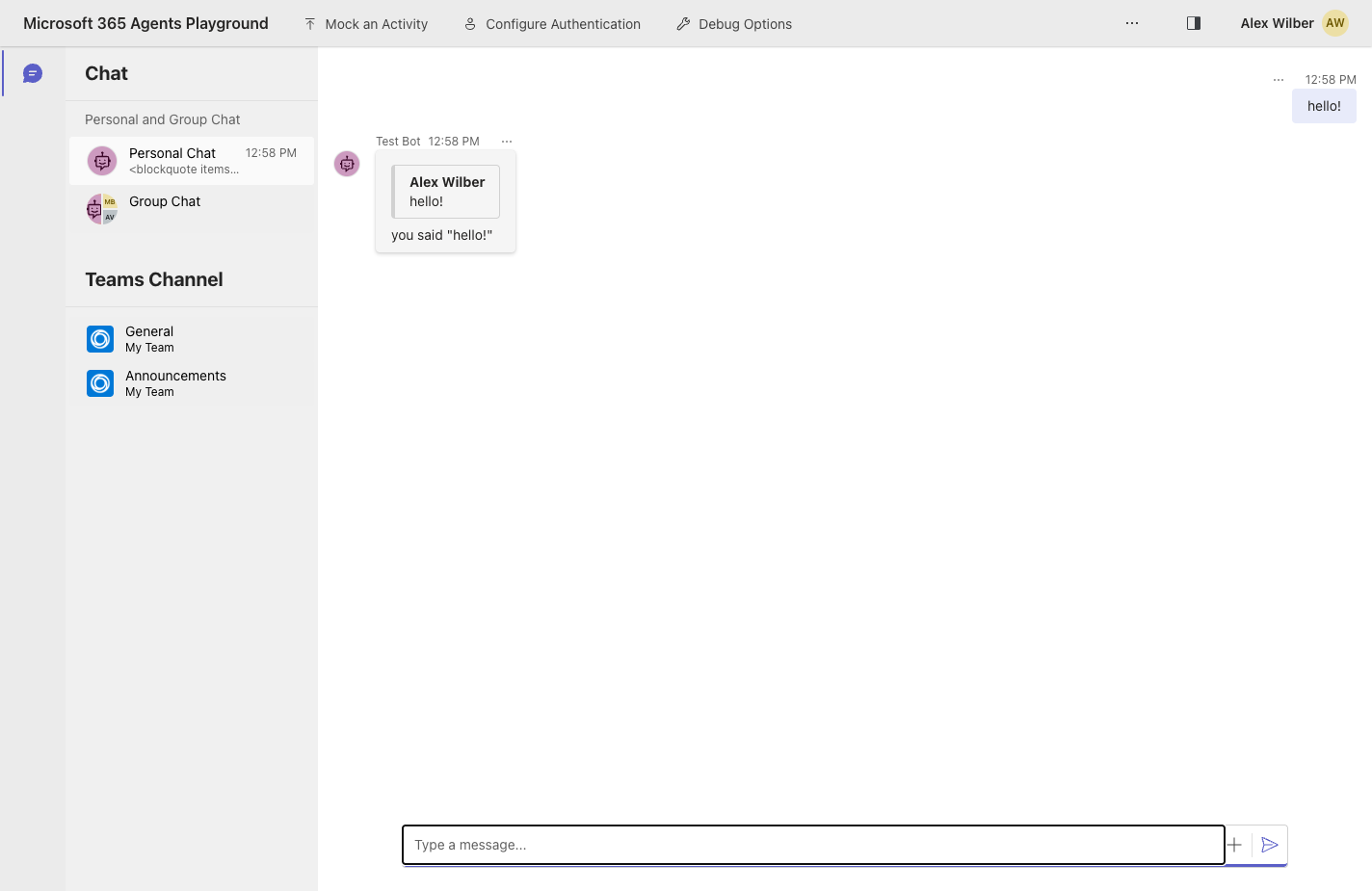
The HTTP server is now listening on port 3978. To test your agent locally without sideloading it into Teams, use the Microsoft 365 Agents Playground.
Install the playground globally:
npm install -g @microsoft/m365agentsplayground
Then, with your agent still running, open a second terminal and launch the playground pointed at your agent:
agentsplayground -e http://localhost:3978/api/messages -c emulator
The playground opens at http://localhost:56150. Send a message in the compose box and your agent's reply renders inline.
Add to an Existing Project
If you already have a project and want to add Teams support, install the SDK directly:
pip install microsoft-teams-apps
npm i @microsoft/teams.apps
Then initialize the Teams app with your existing server:
import asyncio
import uvicorn
from fastapi import FastAPI
# highlight-next-line
from microsoft_teams.apps import App, FastAPIAdapter

# Your existing FastAPI app
my_fastapi = FastAPI()

# highlight-start
# Wrap your app in an adapter and create the Teams app
adapter = FastAPIAdapter(app=my_fastapi)
app = App(http_server_adapter=adapter)

@app.on_message
async def handle_message(ctx):
    await ctx.send(f"You said: {ctx.activity.text}")
# highlight-end

async def main():
    # highlight-next-line
    await app.initialize()  # Register the Teams endpoint (does not start a server)

    # Start your server as usual
    config = uvicorn.Config(app=my_fastapi, host="0.0.0.0", port=3978)
    server = uvicorn.Server(config)
    await server.serve()

asyncio.run(main())
import http from 'http';
import express from 'express';
// highlight-next-line
import { App, ExpressAdapter } from '@microsoft/teams.apps';

// Your existing Express server
const expressApp = express();
const server = http.createServer(expressApp);

// highlight-start
// Wrap your server in an adapter and create the Teams app
const adapter = new ExpressAdapter(server);
const app = new App({ httpServerAdapter: adapter });

app.on('message', async ({ send, activity }) => {
  await send(`You said: ${activity.text}`);
});

// Register the Teams endpoint on your server (does not start it)
await app.initialize();
// highlight-end

// Start your server as usual
server.listen(3978);
app.initialize() registers the Teams endpoint on your server without starting a new one you keep full control of your server lifecycle.
See the Server guide for hosting-related setup details.
Next steps
After creating and running your first agent, read about the code basics to better understand its components and structure.
Otherwise, if you want to run your agent in Teams, you can check out the Running in Teams guide.