Hinweis
Für den Zugriff auf diese Seite ist eine Autorisierung erforderlich. Sie können versuchen, sich anzumelden oder das Verzeichnis zu wechseln.
Für den Zugriff auf diese Seite ist eine Autorisierung erforderlich. Sie können versuchen, das Verzeichnis zu wechseln.
this is in continuation with https://blogs.msdn.com/b/business_intelligence1/archive/2014/09/08/how-to-load-binary-data-from-adventureworks-database-into-a-power-query-data-model-and-publish-in-power-view-report.aspx
Rename the “Query” to “ProductPhotos” and Click the Advanced tab -> Click Table Behavior

Assign Row Identifier and “Keep Unique Rows ” as ProductModelID , and Default Label as Name and Default Image as ThumbNailPhoto , click OK

Save the Power Pivot Sheet and Now Insert a new Power View Report

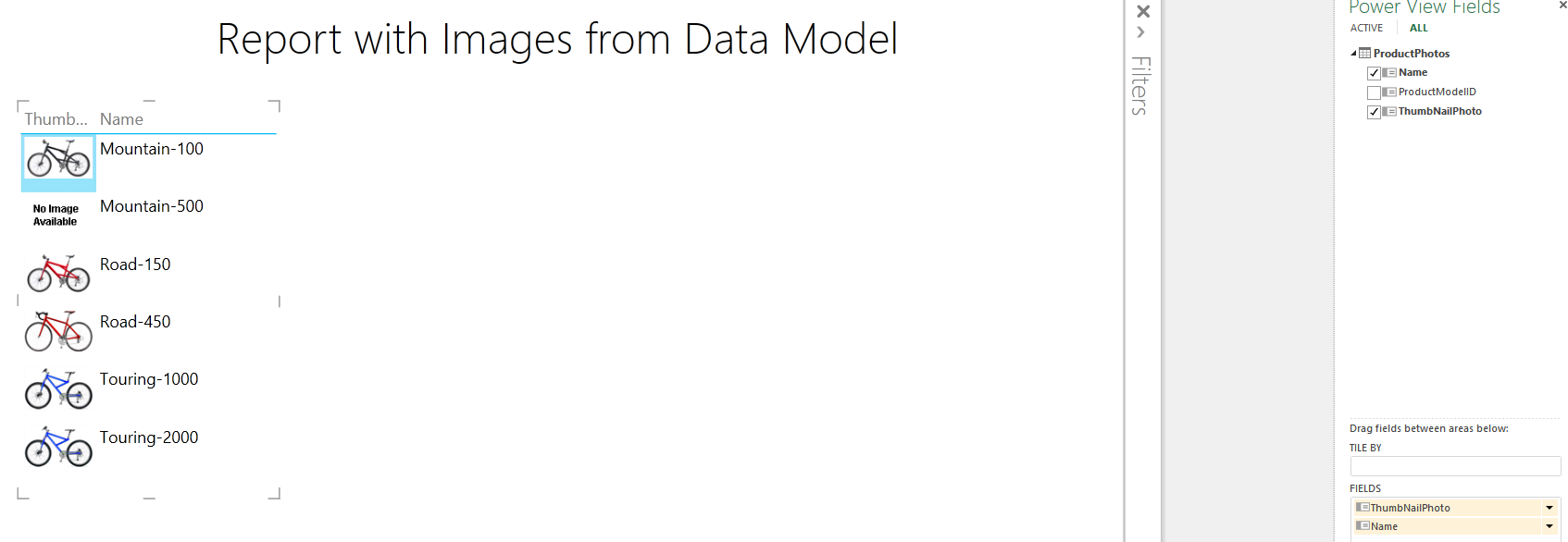
Drag ThumbNailPhoto and Name in the Power View Report