Hinweis
Für den Zugriff auf diese Seite ist eine Autorisierung erforderlich. Sie können versuchen, sich anzumelden oder das Verzeichnis zu wechseln.
Für den Zugriff auf diese Seite ist eine Autorisierung erforderlich. Sie können versuchen, das Verzeichnis zu wechseln.
[This topic is prerelease documentation and is subject to change.]
Version control in Power Automate for desktop introduces a structured way to manage changes to your desktop flows throughout their lifecycle. Instead of relying on manual backups or duplicate flows, you can now save drafts, publish stable versions, and restore previous versions, all backed by Microsoft Dataverse. This feature helps improve governance, collaboration, and risk mitigation for enterprise automation projects. When version control is enabled, every draft and published version of a flow is stored in Dataverse. You can access these versions through the version history pane in the designer, making it easy to track changes and revert when necessary.
Important
- This is a preview feature.
- Preview features aren't meant for production use and might have restricted functionality.
- Starting with the November 2025 release (v2.62), Power Automate for desktop supports version control. The rollout of the Version control for desktop flows feature is gradual and when an environment receives the version control feature as part of the gradual rollout, the feature is enabled for all installed versions of Power Automate for desktop that support it.
- There is no limit on the number of versions that can be stored for a desktop flow. Versions are stored in Microsoft Dataverse in a compressed format and consume negligible capacity. The maximum number of stored versions can't be configured. Versions are retained for 12 months. Any version older than 12 months is automatically deleted, except for the latest published version.
Prerequisites
- The environment and flow use the v2 schema
- Required permissions for version control scenarios include the
prvReadcomponentchangesetpayloadprivilege. This permission is required to view and restore versions. If a user lacks this privilege, viewing or restoring a version will fail. - Optional:
ComponentChangesetVersionread and write permissions (included by default for Environment Maker role). - If your organization uses custom security roles with minimal permissions, ensure these roles are updated accordingly. Custom security roles should be periodically reviewed as new features are introduced.
Configuration
To configure version control:
Open the Power Platform admin center.
Select Manage.
Select Environments and select the environment.
Select Settings, expand Product, and select Features.
Locate the Desktop flow version control section and configure the following options :
- Enable version control of desktop flows: Determines if version control is enabled for this environment.
- Desktop flows version control enabled by default: Controls participation in rollout before global availability. If enabled, the environment automatically switches "Enable version control of desktop flows" to "True" when the feature becomes available.
Note
Once an environment receives this feature, version control can't be disabled. This behavior is by design for now.
Use version control
Version control offers the following key features:
- Save draft: Save your latest changes without releasing them as the official version. This action:
- Creates the latest version of the flow.
- Saves incremental changes without making them official.
- Encourages iterative development and experimentation without disrupting production.
- Publish: Set a version as official so it runs from the console or cloud. This action:
- Creates the published version of the flow.
- Ensures only validated, stable flows are deployed, reducing operational risk.
- Version history pane: View all saved and published versions of your flow. This feature:
- Shows timestamps and user details for each version.
- Provides transparency and auditing capabilities.
- Allows you to track changes over time.
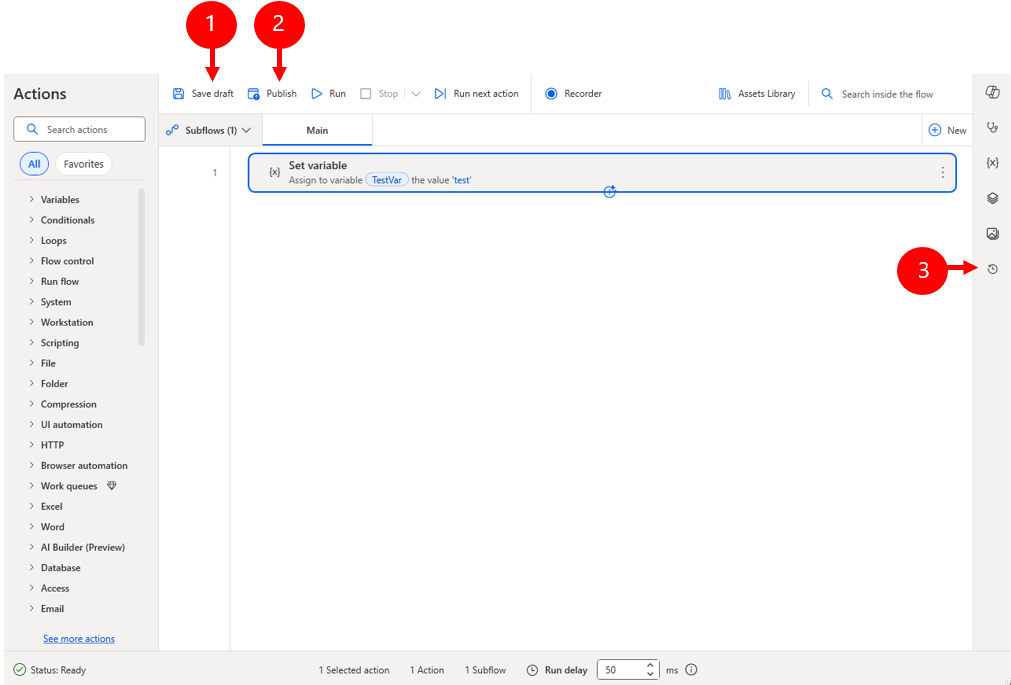
Note
The Publish option is disabled until you add and enable at least one action in the workspace. When you add an enabled action, the Publish option becomes available.
Version history pane
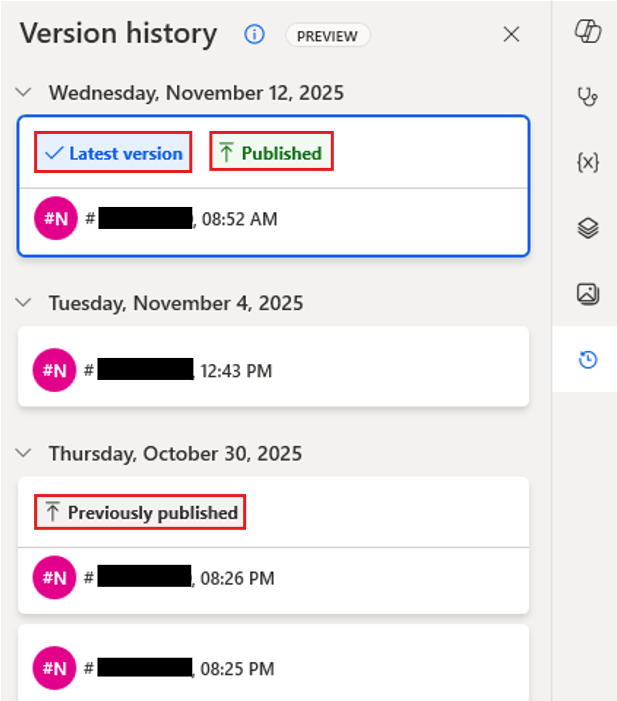
The version history pane displays all available versions of a specific desktop flow and includes the following information:
- Date and timestamp: When the version was created
- User: The user who performed the action
- Version flags:
- Latest version: The most recent draft
- Published: The current official version
- Previously published: Older published versions that are no longer current
Context menu options
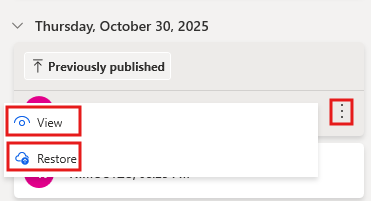
When you open the context menu for one of the versions in the version history pane, you see the following options:
- View opens the version in read-only mode (no edits allowed).
- Restore saves the selected version as draft and flags it as the latest version.
Note
Designer in view mode is read-only. You can't add, remove, or edit actions, UI elements, or images.
Best practices
- Save drafts frequently during development: Capture incremental changes as you build your flow. This practice ensures you have a clear record of progress and can easily revert if something goes wrong.
- Publish only tested and stable versions: Before publishing, validate the flow thoroughly to avoid introducing errors into production environments. Publishing marks a version as ready for execution.
- Leverage version history for rollback: Use the restore option and don't recreate flows, which wastes time and increases risk.
- Coordinate with team members: When multiple developers work on the same flow, communicate changes and avoid overlapping edits to maintain version integrity.
Known issues
- When a desktop flow with version control has its latest version saved as a draft, self-healing can't repair UI elements during each run.
- Importing a published desktop flow might fail if the target environment contains an unpublished draft of the same flow. In this scenario, the following error can occur: "You are attempting to do a published update of a publishable component in an unmodified active context when there exists an unpublished active row." To avoid this issue, ensure there are no unpublished drafts in the target environment before importing a published version of a desktop flow.